


🔎 Reverse Image Search
Image search techniques made simple: upload a photo or paste a URL and search 6 engines at once. 100% free, nothing stored.
🔒 Your image is never stored on our servers longer than 24 hours and is never shared.
Quick Answer
Yes, you can reverse image search a cropped photo, but you will usually get fewer and less exact matches than you would from the full picture. Start by searching the crop as-is with Google Lens, then try a wider or cleaner re-crop, and finally try TinEye, Yandex Images, and Bing Visual Search, because each engine indexes different pictures. If you still have the original uncropped photo, search that version too — it is the single most reliable way to find the source.
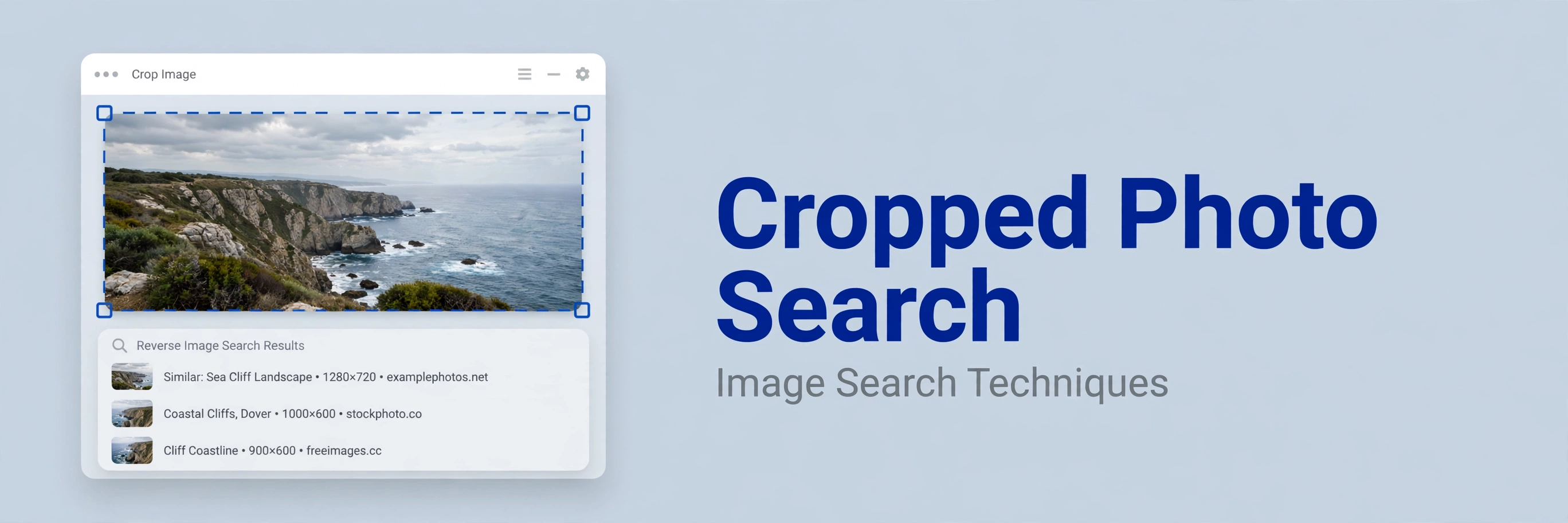
Why Cropped Photos Fail Reverse Search
A reverse image search does not read a picture the way a person does. It looks for matching pixels, shapes, colors, textures, and patterns, and then compares those signals with millions of indexed images. When you crop a photo, you remove much of that evidence. A wide landscape may become a single face, a building may become one window, and a product photo may become only a corner of the item. The engine then has less to work with, and it may return similar-looking pictures rather than the exact original.
Context is the second loss. The background often contains the clues that make a match unique: a street sign, a distinctive doorway, a mountain ridge, a bookshelf, or a pattern on a wall. Once that context is cut away, many different photos can look alike. A close crop of a white sneaker, for example, could match hundreds of white sneakers. A wider shot that also shows the sole, the laces, and the floor is far easier to identify.
Cropping can also remove watermarks, logos, captions, and other text. Those marks are sometimes the fastest route to a source, because search engines can read them or match them exactly. When they are cut out, you lose a shortcut. Compression adds another problem. Crops shared on social media are often resized and recompressed, which blurs fine detail, softens edges, and changes colors. A low-quality crop may therefore fail even when the original image is indexed somewhere.
None of this means a cropped photo is useless. It means you should treat the first result as a starting point, not a final answer. Keep the most distinctive part of the image, avoid making the crop smaller than it needs to be, and compare results across engines before you conclude that a photo cannot be found.
Method 1: Search the Cropped Photo As-Is With Google Lens
Always try the crop you already have before you spend time editing it. Google Lens is a strong first choice because it is widely available, handles everyday objects well, and can recognize landmarks, products, plants, animals, and text. For a fuller overview of this approach, see our main guide to image search techniques.
- Open Google Lens in your browser or open the Lens option in the Google app.
- Upload the cropped photo, or paste its image address if it is already online.
- Wait for Lens to show visually similar images, exact matches, and related web pages.
- Use the crop handles inside Lens, if shown, to focus on the most distinctive object in the frame.
- Open the most promising results and check whether the page, date, and image size support a true match.
- If the results are only similar, not identical, save the best result and move on to the methods below.
Pay attention to whether Lens finds the same object in a different crop, a different color, or a mirrored version. Those near-matches are useful clues. They may lead you to the original page, a seller listing, or a news article that contains the full image. If you are searching from Chrome, our guide to reverse image search on Chrome explains the right-click and upload options in more detail.
Method 2: Re-Crop and Enlarge Smartly
Before you try another engine, improve the image you already have. A better crop often matters more than a new tool. The goal is not to make the picture bigger for its own sake. The goal is to give the engine a clear, distinctive subject with enough surrounding context to separate it from similar images.
First, return to the largest version you can find. If the crop came from a screenshot, go back to the original photo or video frame. If it came from a social media post, open the image at full size before you crop again. Starting from a small, compressed copy limits everything that follows.
Next, keep the distinctive details. For a person, keep a recognizable feature, clothing pattern, or background object, not only a face. For a product, keep the shape, label, stitching, or packaging. For a place, keep a sign, a window shape, or a neighboring building. At the same time, trim empty sky, blank walls, and unrelated foreground objects that can confuse the match.
Be careful with enlargement. Upscaling a tiny crop will not restore detail that was never there, and aggressive sharpening can create false edges. A modest upscale to a clear size, with light sharpening, is usually enough. Avoid filters, heavy noise reduction, and color changes, because they move the image further from the indexed original. Save the result as a high-quality JPG or PNG, and search both the new crop and the wider version. Sometimes the wider version wins; sometimes the tighter version wins.
Method 3: Try Other Engines and Compare Results
Different engines index different parts of the web, and they rank matches differently. A photo that fails in one engine may succeed in another. Run the same crop through each engine below, then compare the pages, not only the thumbnails.
TinEye
- Open TinEye and upload the cropped photo.
- Sort the results by best match or oldest, if those options are shown.
- Look for exact matches first, then check older copies of the same image.
- Open the source page to confirm the image, its caption, and its date.
TinEye is especially useful when you want to know whether an image has appeared before, and where it first appeared. It is less focused on identifying objects, so it works best when the crop still contains enough of the original picture.
Yandex Images
- Open Yandex Images and choose the image search option.
- Upload the cropped photo.
- Review similar images and pages that contain the same picture.
- Try a wider crop if the first search returns only generic lookalikes.
Yandex Images is often strong for faces, places, and images shared on social platforms, and it can find matches that other engines miss. Treat any face match with care, and use it only to verify a source you already have permission to investigate, not to identify a private person.
Bing Visual Search
- Open Bing Visual Search and upload the cropped photo.
- Check the visually similar images and any related searches.
- Use the crop tool inside Bing, if available, to isolate the main subject.
- Compare Bing results with Lens and TinEye before you decide on a source.
Bing Visual Search is a useful cross-check, particularly for products, shopping listings, and images already indexed by Microsoft. When two or more engines point to the same page, your confidence in that source rises sharply. When they disagree, trust the page with the largest, earliest, and best-documented version of the image.
Method 4: Search the Original or a Wider Screenshot
If you still have the original photo, search it first, even if you only care about the cropped detail. The full image contains the background, scale, and relationships that make a match distinctive. Once you find the source page, you can then confirm that the cropped detail appears there. This method also helps when the crop is a face, a logo, or a small object that appears in many different pictures.
If the original is gone, try a screenshot or frame around the crop. For example, if the cropped photo appears in a video, capture a wider frame that includes nearby objects. If it appears in a social media post, screenshot the post with its caption, username, and surrounding images, then crop that screenshot to include context without making text the main subject. Search that wider version as well, and compare the results with the tight crop. On a Mac, the steps in our guide to reverse image search on Mac can help you capture and upload the wider version quickly.
Comparison Checklist
| Engine | Best for | Needs |
|---|---|---|
| Google Lens | Everyday objects | Clear subject |
| TinEye | Exact copies | Enough original pixels |
| Yandex Images | Faces and places | Distinctive features |
| Bing Visual Search | Products and listings | Clean crop |
Troubleshooting
No results. Try a wider crop, a different engine, and a higher-quality version. Also check whether the image is private, very new, or never indexed. A photo that exists only on a phone cannot be found until a copy appears online.
Wrong matches. Narrow the crop to the unique object, remove similar background items, and check the source page rather than the thumbnail. Similar is not the same, and a visually close product or place may be a different model or location.
Low-quality crop. Go back to the largest original, avoid repeated screenshots, and do not enlarge a tiny image many times. A modest, clean upscale is better than a large, blurred one.
Screenshot text interfering. Text, icons, and interface elements can pull the search toward unrelated pages. Crop those elements out, or search a version that keeps only the photo and a small amount of useful context.
Privacy and Safety
Only search photos you own or have permission to use. Do not upload private photos of other people, screenshots from private messages, or images that could expose someone’s location, home, workplace, or identity. Do not use a match to identify, contact, or harass a stranger, and do not share a result publicly if it could put someone at risk. If you are verifying your own photo, a news image, or a product you sell, keep the search focused on finding the source, checking permission, or reporting misuse through the proper channel.
Frequently Asked Questions
Can Google Lens find a heavily cropped photo?
Sometimes, especially if the crop keeps a distinctive object, logo, or landmark. Heavily cropped faces and generic objects are much harder to match.
Should I upscale a cropped photo before searching?
A modest upscale can help readability, but it cannot create missing detail. Avoid heavy sharpening, filters, and repeated enlargements.
Which engine is best for a cropped photo?
Start with Google Lens, then try TinEye for exact copies and Yandex Images for faces and places. Bing Visual Search is a useful final cross-check.
Why do I only get similar images, not the exact photo?
The crop may lack enough unique pixels, the original may not be indexed, or compression may have changed the image. Try a wider crop and another engine.
Can I search a screenshot of a cropped photo?
Yes, but remove interface text and icons first. A screenshot with useful background context often works better than a tight crop alone.
Is it safe to upload a cropped photo to a search engine?
Only upload photos you own or have permission to share. Avoid private photos, sensitive documents, and images that reveal personal information.
Related Guides
For more step-by-step help, read our main guide to image search techniques, our guide to reverse image search on Chrome, and our guide to reverse image search on Mac.
Ready to try it now? Use the free reverse image search tool on our homepage to upload your cropped photo and start with the clearest version you have.
In short, learning how to reverse image search a cropped photo is about preserving distinctive detail, testing more than one engine, and checking the source page before you trust a match.
