


🔎 Reverse Image Search
Image search techniques made simple: upload a photo or paste a URL and search 6 engines at once. 100% free, nothing stored.
🔒 Your image is never stored on our servers longer than 24 hours and is never shared.

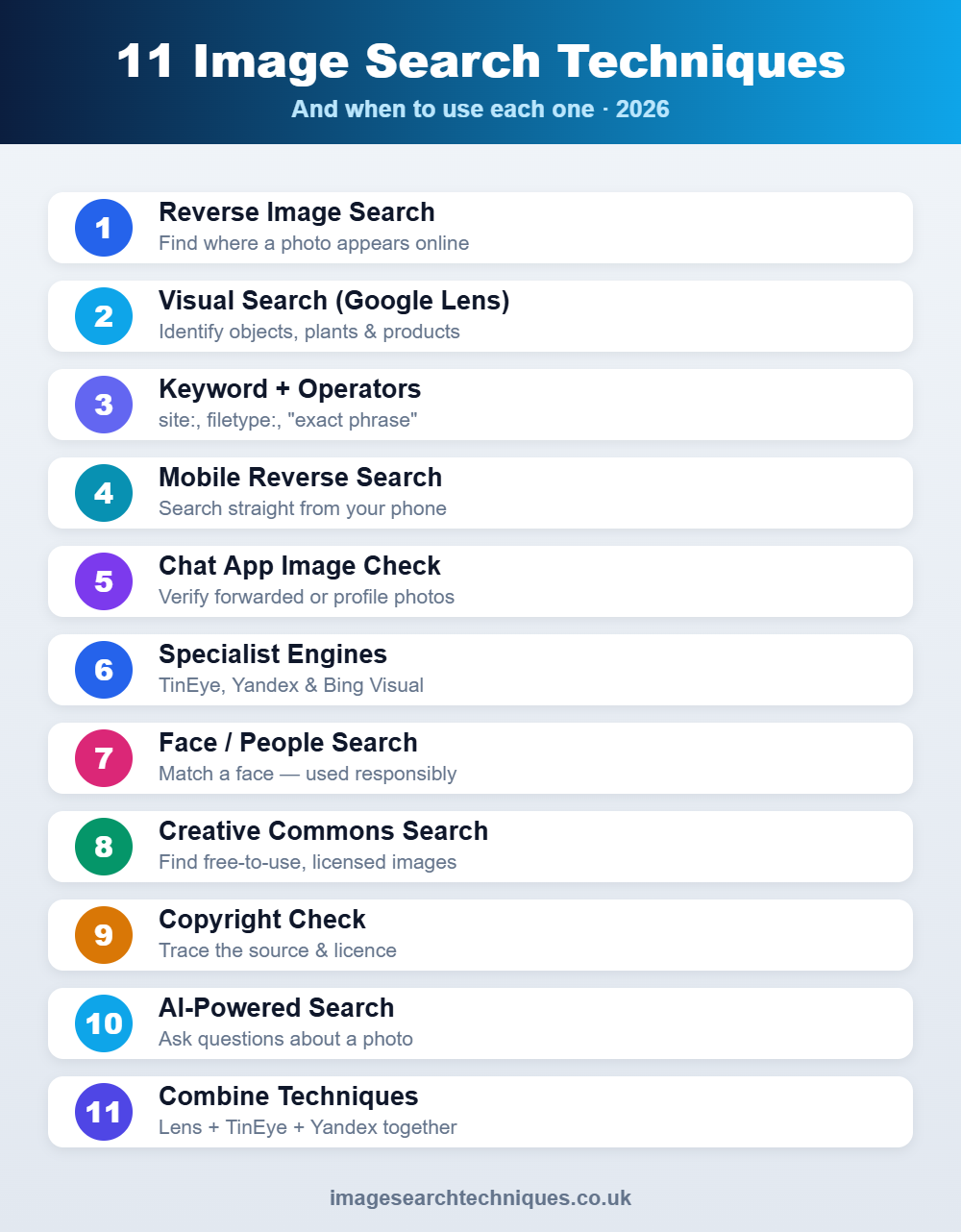
Quick answer: Image search techniques are methods for finding information online using a picture instead of text. The main ones are reverse image search (upload or paste a photo to find where else it appears), visual search with tools like Google Lens, keyword-based image search with advanced operators, and specialist engines such as TinEye and Yandex. Below you will find all 11 techniques, a quick comparison table of which to use when, and the exact steps to get accurate results in 2026.
Whether you want to verify a suspicious photo, find a higher-resolution version of an image, track down the original source, shop for a product you spotted, or check whether your own pictures are being used without permission, there is a specific technique built for the job. This guide ranks them from the most useful everyday methods to the more specialised ones, and it is kept up to date for how these tools actually behave today.
What Are Image Search Techniques?
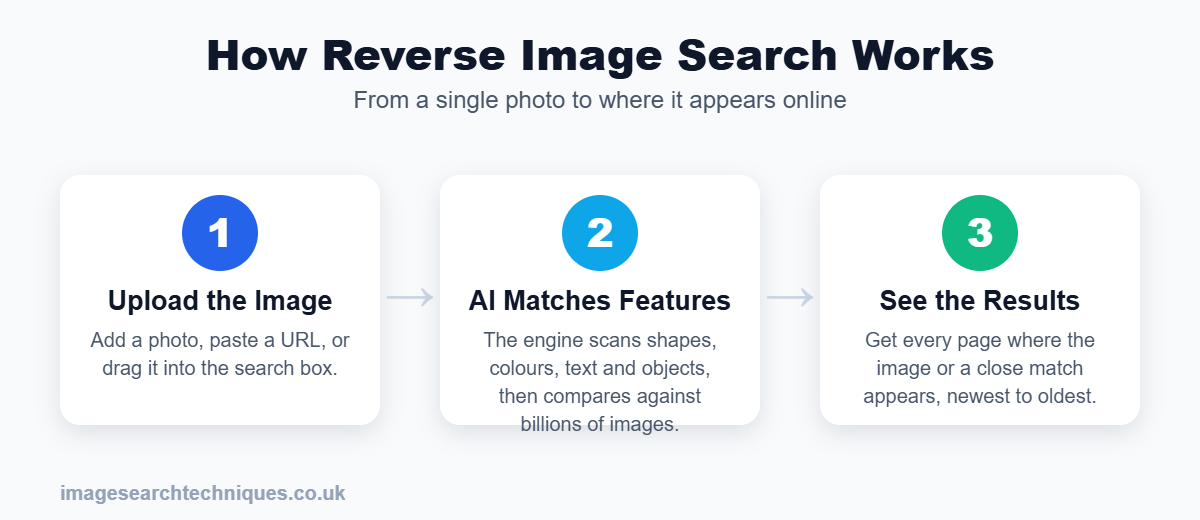
Image search techniques are the different ways you can use a photo, screenshot, or graphic as the starting point of a search, rather than typing words. Instead of asking a search engine “what does this plant look like,” you hand it the picture and let it match the visual content. Under the hood, most of these tools use content-based image retrieval (CBIR) and modern AI vision models that break an image into recognisable features — shapes, colours, textures, text, and objects — and then compare those features against billions of indexed images.
The practical result is that you can search in two broad ways: reverse image search (find the same or similar images across the web) and visual search (identify what is inside an image, such as a product, landmark, or breed of dog). Everything in this guide is a variation or combination of those two ideas.
Quick Comparison: Which Image Search Technique Should You Use?
Use this table to jump straight to the right method for your goal. Every tool listed is free to use for the core task.
| Your goal | Best technique | Recommended tool | Free? |
|---|---|---|---|
| Find where a photo appears online | Reverse image search | Google Images, TinEye | Yes |
| Identify an object, plant, or product | Visual search | Google Lens | Yes |
| Find the original / oldest version | Reverse search by date | TinEye (sort by oldest) | Yes |
| Find visually similar / edited copies | Similarity search | Yandex Images | Yes |
| Shop for an item in a photo | Visual product search | Google Lens, Pinterest Lens | Yes |
| Search from your phone | Mobile reverse search | Google app / Lens | Yes |
| Check a photo sent on chat | Screenshot + reverse search | Google Lens | Yes |
| Find free-to-use images | Licensed / CC search | Google Images filters, Unsplash | Yes |
| Check if an image is copyrighted | Source + metadata check | TinEye + manual review | Yes |
1. Reverse Image Search (the core technique)
Reverse image search is the single most useful technique and the foundation for most of the others. You give the engine an image — by uploading a file, pasting an image URL, or dragging it into the search box — and it returns pages where that image (or a close match) appears. It answers “where did this come from?” and “where else is this used?”
To run one on desktop, open Google Images, click the camera icon, and upload the photo or paste its link. For a full walkthrough across every device, see our step-by-step guide to how to reverse image search, or read the complete overview of reverse image search.
2. Visual Search with Google Lens
Where reverse image search finds copies of a picture, visual search identifies what is inside it. Google Lens can name a plant, translate text in a photo, recognise a landmark, or find the exact pair of shoes someone is wearing. Point your phone camera at something or upload a saved image, and Lens returns shoppable and informational matches. It is the technique to reach for when you do not care where the image came from — you want to know what the thing is.
3. Keyword-Based Image Search and Advanced Operators
The oldest technique is still powerful when you refine it. Instead of a plain keyword, combine it with search operators to narrow results dramatically:
- site: — limit to one website, e.g.
sunset site:nationalgeographic.com - filetype: — find a specific format, e.g.
logo filetype:png - “exact phrase” — force an exact match on captions or alt text
- -word — exclude unwanted results, e.g.
jaguar -car
Pair operators with Google Images’ built-in filters for size, colour, type, and usage rights to find exactly the image you need.
4. Mobile Reverse Image Search
Most searching now happens on phones, and the technique is slightly different from desktop. On Android, open the Google app and tap the Lens icon in the search bar; on iPhone, use the Google app or Chrome and long-press any image to choose “Search image with Google.” You can search photos already saved in your camera roll or snap something live. For the full mobile method, see our roundup of the best reverse image search apps.
5. Searching Images Sent in Chat Apps
A common 2026 use case is checking a photo someone sent you — a dating-app profile picture, a marketplace listing, or a forwarded image. The technique is to save or screenshot the image, then run it through Google Lens or a reverse search. This quickly exposes stock photos, catfish profiles, and recycled scam listings. We cover the exact steps in our guide to reverse image search on WhatsApp.
6. Specialist Image Search Engines (TinEye, Yandex, Bing)
Google is not always best. Each specialist engine has a strength worth knowing:
- TinEye — excellent for finding the oldest instance of an image and tracking exact copies; it can sort results by date.
- Yandex Images — widely considered the strongest at finding visually similar and edited versions, and at recognising faces and places.
- Bing Visual Search — strong object and product recognition, and it lets you crop to search part of an image.
A smart technique is to run the same image through two or three of these — each indexes different corners of the web, so the overlap is small.
7. Finding a Person or Similar Faces by Photo
Face-based search matches a face against public images rather than matching the whole picture. It is used legitimately for verifying identities, spotting impersonation accounts, and journalism. Yandex handles faces reasonably well, and dedicated facial-search services exist. Use this responsibly and within the law — searching for someone’s identity carries privacy obligations. If your concern is the reverse (someone using your face or photos), read how to find out if someone is using your photos online.
8. Creative Commons and Stock Image Search
When you need an image you are allowed to use, the technique is to search by licence. In Google Images, open Tools → Usage Rights and choose Creative Commons licences. Dedicated libraries like Unsplash, Pexels, and Wikimedia Commons offer free-to-use photos, while Shutterstock, Getty, and Adobe Stock cover licensed professional imagery. Always confirm the exact licence before publishing.
9. Checking Whether an Image Is Copyrighted
Before reusing any image, combine a reverse search with a source check: trace the image to its origin with TinEye, look for a creator or watermark, and check the metadata and the hosting site’s terms. Most images are protected by copyright the moment they are created, so “found on Google” never means free to use. Our full method is in how to check if an image is copyrighted.
10. AI-Powered Image Search in 2026
The newest technique uses AI vision models that understand an image’s context, not just its pixels. Tools like Google Lens’ AI mode and multimodal assistants can answer questions about a photo (“what breed is this and is it hypoallergenic?”), summarise a document you photograph, or find products that merely resemble the one in your picture. AI search is best when your question is conceptual rather than “find this exact file.”
11. Combining Techniques for the Best Results
Experienced searchers rarely rely on one tool. A proven workflow is: start with Google Lens to identify the subject, run the image through TinEye to find the oldest source, then confirm with Yandex for edited copies. Cropping the image to the most distinctive element before searching — a logo, a face, a landmark — almost always improves accuracy.
How Do I Improve Image Search Accuracy?
If a search returns weak results, these adjustments usually fix it:
- Crop to the key subject — remove busy backgrounds so the engine focuses on what matters.
- Use the highest resolution you have — blurry or tiny images match poorly.
- Try more than one engine — Google, TinEye, and Yandex index different sites.
- Remove filters and overlays — heavy editing can defeat matching; search the original if possible.
- Add a keyword — some tools let you combine an image with text to refine results.
Common Limitations to Be Aware Of
Image search is powerful but not perfect. No engine indexes the entire web, so an image genuinely may not appear. Cropped, mirrored, or heavily edited pictures can slip past matching. Results can be incomplete for private platforms and apps, and facial matching raises real accuracy and privacy concerns. Treat image search as strong evidence, not absolute proof.
How to Do a Reverse Image Search: Step-by-Step Workflow
When it matters — checking a suspicious photo, verifying a source, or researching an image for work — follow the same order each time instead of guessing.
Step 1: Start with the best image you have. Use the original, least-edited file. Screenshots and heavily compressed copies lose detail and give weaker results.
Step 2: Start broad with Google Lens. A broad first pass tells you what the image contains and gives you words to search with.
Step 3: Find exact or edited copies with TinEye. TinEye is built for copies, including resized and modified versions.
Step 4: Cross-check with a different index. Run the same image through Bing or Yandex. A different index often shows pages the first engine missed.
Step 5: Verify the context. Open the pages you find. Compare dates, captions and credits. Image metadata can add clues, though it can be removed or edited: what is image metadata.
Step 6: Record what you found. Keep the URLs, dates and anything you are unsure about, especially for work or research.
Common Image Search Mistakes to Avoid
Even experienced searchers trip on the same issues. Check yours against this list before you conclude a search.
| Mistake | Fix |
|---|---|
| Using only one engine | Compare two or three. |
| Searching a blurry or heavily edited image | Use the original, or crop to the key detail. |
| Treating similarity as proof | Verify dates, sources and context. |
| Assuming “no results” means the image is new | Private or unindexed images cannot be found. |
| Reusing a found image without a license | Check the license or ask permission. |
Privacy and Copyright Considerations
Privacy. Think about what an image shows before you upload it. Avoid ID documents, private photos and pictures of other people, and crop to the least sensitive part. Read how we handle uploads in our privacy policy.
Copyright. Finding an image does not give you permission to use it. Check the license first.
Frequently Asked Questions
What is the best image search technique?
For most people, reverse image search with Google Images or Google Lens is the best all-round technique because it is free, fast, and works on any device. For finding the original source of an image, TinEye is the strongest, and for edited or visually similar copies, Yandex often wins.
Can I search by an image from my phone?
Yes. On Android, open the Google app and tap the Lens icon; on iPhone, use the Google app or long-press an image in Chrome and choose “Search image with Google.” You can search photos from your camera roll or take a new one.
Is reverse image search free?
Yes. Google Images, Google Lens, TinEye, Bing Visual Search, and Yandex Images all offer free reverse image search for everyday use. Some specialist or facial-search services charge for advanced features or bulk use.
How do I find the original source of an image?
Run the image through TinEye and sort the results by oldest first — this usually reveals the earliest published version. Cross-check with Google and Yandex, and look for the highest-resolution copy, which is often closest to the original.
Why can’t my image be found anywhere?
No search engine indexes the whole web, so a private, very new, or heavily edited image may return no matches. Try a different engine, use a higher-resolution version, and crop to the most distinctive part of the image before searching again.
Which is better for image search, Google or Yandex?
Google is best for everyday searches, object identification, and shopping. Yandex is often better at finding visually similar images, edited versions, and faces. For serious verification, use both — they index different parts of the web.
Ready to try it yourself? Use our free reverse image search tool to put these techniques into practice in seconds.
