


🔎 Reverse Image Search
Image search techniques made simple: upload a photo or paste a URL and search 6 engines at once. 100% free, nothing stored.
🔒 Your image is never stored on our servers longer than 24 hours and is never shared.
Quick Answer
If reverse image search is not working, start with the fastest fixes: reload the page, try a different browser, clear cache and cookies, and check your internet connection. Then re-upload a clear JPG or PNG image that is at least 200 pixels wide, is under the service limit, and is not blocked by a private account or a deleted original. If Google Lens still shows no results, try TinEye, Yandex Images, or Bing Visual Search with the same image, because each service indexes different pictures.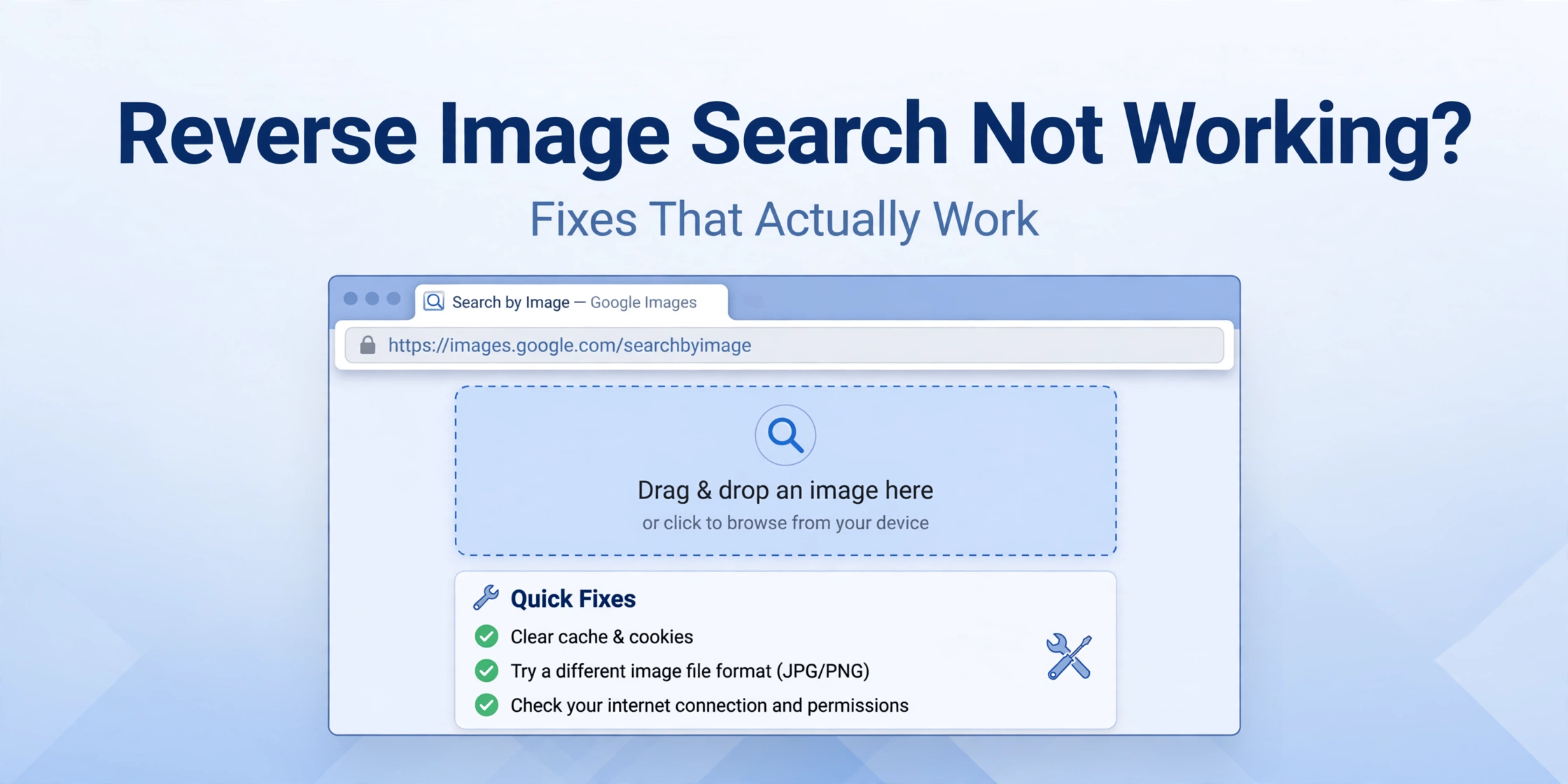 This guide explains why reverse image search fails, how to fix it on Google Lens, TinEye, Yandex, and Bing, and how to tell whether the problem is your image, your browser, your network, or the service itself. Work through the quick checks first, then use the step-by-step fixes for the tool you are using.
Why Reverse Image Search Fails
A failed search rarely means the technology is broken. It usually means the image, the browser, or the index cannot do what you asked it to do. Understanding the cause saves time, because the fix for a file that is too large is very different from the fix for a missing Lens button.No results at all
No results often means the image has never been indexed, or the indexed version looks too different from yours. A heavily filtered photo, a screenshot with text over it, a mirror-flipped image, or a very new picture may not match anything in the index. Private photos, images inside closed groups, and pictures that were deleted from the original site are also unlikely to appear, because search engines cannot index what they cannot see.Upload will not work
Upload failures are usually caused by file size, format, or a browser problem. Many services reject very large files, animated files, or unusual formats. A slow or interrupted connection can also stop an upload halfway through. If the upload button does nothing, an extension, a strict privacy setting, or a blocked script may be interfering with the page.Lens button missing
The Lens button can disappear for several reasons. It may be hidden by a browser update, disabled by an extension, unavailable in your region or account, or replaced by a different image-search option after a redesign. On some sites, right-clicking an image no longer offers Lens by default, even though Lens itself still works at lens.google.com.Wrong results
Wrong results do not always mean the search failed. Visual search matches shapes, colours, patterns, and objects, not meaning. A common object, a popular meme template, a stock photo, or a plain background can match thousands of similar images. Cropping out the main subject, adding a border, or uploading a low-resolution copy can also push the correct match down the results list.File too large or unsupported format
Most reverse image search tools accept JPG, PNG, and WebP, and some accept GIF or BMP. They may reject TIFF, RAW, SVG, HEIC, or very large files. Converting the image to JPG or PNG and reducing it to a reasonable size — for example, under 10 MB and no wider than 3000 pixels — usually solves this problem without losing useful detail.Browser or network issue
A browser problem can look exactly like a service problem. Outdated browsers, full caches, conflicting extensions, strict tracking protection, and VPN or proxy settings can all block uploads or results. A weak Wi-Fi signal, a school or workplace filter, or a temporary outage can have the same effect, so it is worth testing the same search on another device or network before assuming the tool is down.Image too small or cropped
Very small images give the search engine too little to work with. A thumbnail, a heavily compressed social media copy, or a tight crop that removes distinctive details can all reduce accuracy. If possible, use the largest, clearest version you have. Our guide to reverse image searching a cropped photo explains how to work with partial images and improve your chances of a match.Private or deleted source
If the original page was deleted, set to private, or blocked from search engines, reverse image search may return nothing even when the image is perfect. The same applies to images shared only in private messages, paid content, or password-protected galleries. In that case, no browser fix will create a result, because the source is no longer publicly available to index.Quick Diagnosis Checklist
Use this checklist before you try a longer fix. Tick off each item in order, and stop as soon as the search works.- Is your internet connection working on other sites?
- Does the image open normally on your own device?
- Is the file a JPG, PNG, or WebP under 10 MB?
- Is the image at least 200 pixels wide and reasonably sharp?
- Have you tried reloading the page and clearing cache and cookies?
- Have you tried a different browser, with extensions turned off?
- Have you tried the same image on a second reverse image search service?
- Is the source public, or could it be private, deleted, or newly published?
Fix Google Lens When It Is Not Working
Google Lens is the most widely used reverse image search tool, so it is also the one people notice breaking first. Work through these steps in order.- Open Google Lens directly, rather than relying on a button inside another app or website.
- Upload the image, or paste its public URL, and wait for results to load completely.
- If nothing loads, reload the page, then clear cache and cookies for Google sites and sign in again if needed.
- Try Chrome, Edge, or Safari with extensions disabled, and turn off any VPN or aggressive ad blocker for the test.
- Convert the image to JPG or PNG, reduce it if it is very large, and try again.
- If Lens still shows no match, crop tightly around the main subject and search again, or try a clearer version of the image.
- If the Lens button is missing in your browser, update the browser, reset its search settings, and check whether an extension has replaced the right-click menu.
Fix TinEye When It Shows No Matches
TinEye is excellent for finding exact and near-exact copies of an image, but it is stricter than Lens about changes to the picture. That strictness is useful, but it also explains many empty results.- Go to the TinEye upload page and upload the original file, not a screenshot of it.
- If the upload fails, convert the image to JPG or PNG and make sure it is not corrupted or password-protected.
- Use the sort and filter options to check for the oldest, newest, or best match, rather than only the first page.
- Try the image URL option if the file upload does not work, using a public link to the image.
- If TinEye finds nothing, the image may simply not be in its index. Try Lens or Yandex, which index different collections.
Fix Yandex Images When Results Are Wrong or Missing
Yandex Images is strong on similar images and on photos that are popular in different regions, but its results can look unfamiliar if you normally use Google.- Open Yandex Images and use the camera icon to upload your image.
- If the upload does not start, try a different browser, disable extensions, and check that the file is JPG, PNG, or WebP.
- Use the similar-images view to explore visually close matches, and open the original pages to check context.
- If results are in another language, use the image itself as the guide, not the surrounding text, and translate a page only when you need to confirm a source.
- If Yandex returns nothing, try a less cropped version, or search with a version that has not been filtered or compressed by social media.
Fix Bing Visual Search When It Will Not Load
Bing Visual Search works well for products, landmarks, plants, and animals, but it can fail when the browser blocks its scripts or when the image is too small.- Open Bing Visual Search and upload a clear, well-lit image.
- If the page will not load, update your browser, allow scripts for Bing, and try a private window with extensions off.
- Drag the crop box, if shown, around the main subject so Bing searches for that object, not the whole background.
- Try the related searches and visually similar results, because the best match is not always first.
- If Bing still fails, test the same image on Lens and TinEye to find out whether the problem is Bing or the image itself.
Comparison Table: Problem, Cause, and Fix
| Problem | Likely cause | Fix |
|---|---|---|
| No results | Not indexed | Try another tool |
| Upload fails | File too large | Convert to JPG |
| Lens missing | Browser issue | Update browser |
| Wrong results | Crop too tight | Use fuller image |
| Page will not load | Network blocked | Change network |
| Small image | Too little detail | Find larger copy |
