🔎 Reverse Image Search
Image search techniques made simple: upload a photo or paste a URL and search 6 engines at once. 100% free, nothing stored.
🔒 Your image is never stored on our servers longer than 24 hours and is never shared.
Yes, you can reverse image search in incognito mode, and it works the same way it does in a normal window. The question most people are really asking is a different one: does incognito keep the search private? The honest answer is only partly. Incognito stops Chrome saving the search on your device. It does not stop Google receiving the photo, and it does not hide you from your network or your internet provider. This article shows you how to do it, what I tested, and where the privacy really ends.
Short answer: Yes. Open an incognito or private window, go to Google Images or Lens, and upload the photo or paste its link. It works exactly as it does in a normal window. The difference is local only: Chrome will not save the search in your history or keep its cookies after you close the window. Google still receives the image.
Can you reverse image search in incognito mode?
Yes. Nothing about incognito mode blocks reverse image search. Open an incognito window, go to Google Images, and the camera icon is there just as it is in a normal window. Upload a file or paste an image link and Lens runs the search. You can also right-click any image on a page in an incognito window and choose Search image with Google, which opens the Lens results in a side panel.
A reverse-search extension is different. Extensions are switched off in an incognito window unless you allow them there, so if you use one, open the browser’s extension settings in a normal window, open the extension’s details and switch on Allow in incognito first.
The same is true in other browsers. Firefox Private Browsing and Safari Private Browsing both let you open Google Images or TinEye and run a search. The private window changes how the browser treats the session, not which websites you can visit.
One thing worth knowing before you start: Lens does not need you to be signed in. In the test below I ran a search while signed out and Lens returned full results, with no sign-in prompt at any point. Incognito does not sign you in either. Chrome says so plainly in its own help page: opening an incognito window does not sign you in to your Google account, and it does not change how websites collect data.
Answer capsule: reverse image search works in incognito mode, in every major browser, with no sign-in needed.
What does incognito actually change?
Most of the confusion about this topic comes from a simple mix-up. People treat incognito as a privacy tool for the whole internet. It is not. It is a privacy tool for the device in front of you. Once you see that split, everything else falls into place.
Incognito mode is a separate browsing session in Chrome. Chrome limits what the session saves on your device, and it removes the temporary data when you close the last incognito window. It does not hide your activity from the websites you visit, from Google, or from whoever runs your network.
Here is what changes on your device. Chrome does not save the pages you visit in your history, and it does not keep the cookies and site data from the session once the window closes. Anything you type into a form is not saved for autocomplete. Third-party cookies are blocked by default in incognito.
Here is what does not change. The websites you visit can still see you. Google can still see a search you run on Google. Your school, your employer, or your internet provider can still observe the traffic. Google says this directly in its Browse in private help page: incognito can help keep your browsing private on your device, but it does not make you invisible.
Two things people often get wrong. First, files you download in incognito stay on your device, and bookmarks you save stay too. Closing the window does not delete them. Second, if you sign in to a website inside an incognito window, that site knows who you are for the rest of that session. Incognito stops the browser remembering you. It does not stop a site recognising a signed-in account.
That split is the whole story of this article. The search itself is unchanged. What is saved afterwards is not. If you want a deeper look at what a reverse search can and cannot expose, our guide to is reverse image search safe covers the wider safety picture.
Answer capsule: incognito changes what is saved on your device, not what is sent to Google.
How to reverse image search in an incognito window
The method is the same in a private window as in a normal one. Pick your browser, open the private window, and run the search from there. If you have never run one before, our how to reverse image search guide covers the basics first. These are the steps as they stand in November 2026.
Chrome on desktop
- Click the three-dot menu at the top right and choose New Incognito window. The keyboard shortcut is Ctrl + Shift + N on Windows and Linux, or Cmd + Shift + N on a Mac.
- Go to google.com and click the camera icon in the search box. That opens Lens.
- Choose Upload a file and pick the photo, or paste an image link and click Search.
- Lens shows exact matches, visual matches, and pages that use the image. Close every incognito window when you finish, so the session data is cleared.
There is a quicker route if the photo is already open on a page. Right-click it in the incognito window and choose Search image with Google. Lens opens in a side panel with the same results. The full right-click method is covered in our reverse image search on Chrome guide.
Chrome on a phone
- Tap the three-dot menu and choose New Incognito Tab.
- Go to google.com, tap the camera icon, and choose a photo from your library.
- Alternatively, long-press an image on a web page and choose Search image with Google Lens.
Firefox Private Browsing
- Click the menu button and choose New private window. Private windows show a purple mask at the top, so you can tell them apart at a glance.
- Go to google.com, click the camera icon, and upload the photo or paste its link.
Mozilla describes Private Browsing in the same terms as Google describes incognito: it does not save your browsing information, such as history and cookies, and it leaves no trace after you end the session. It also warns that Private Browsing does not make you anonymous on the internet, and that your provider, your employer, or the sites themselves can still gather information about the pages you visit. From Firefox 151 there is also a Clear Private Session button, the fire icon, which wipes the current private session without closing the browser.
Safari Private Browsing
- On a Mac, choose File, then New Private Window. On an iPhone or iPad, tap the tabs button and switch to Private.
- Go to google.com, tap the camera icon, and upload the photo from your library.
Answer capsule: open the private window first, then run the search exactly as you would in a normal window.
What I tested: one photo through Google Lens
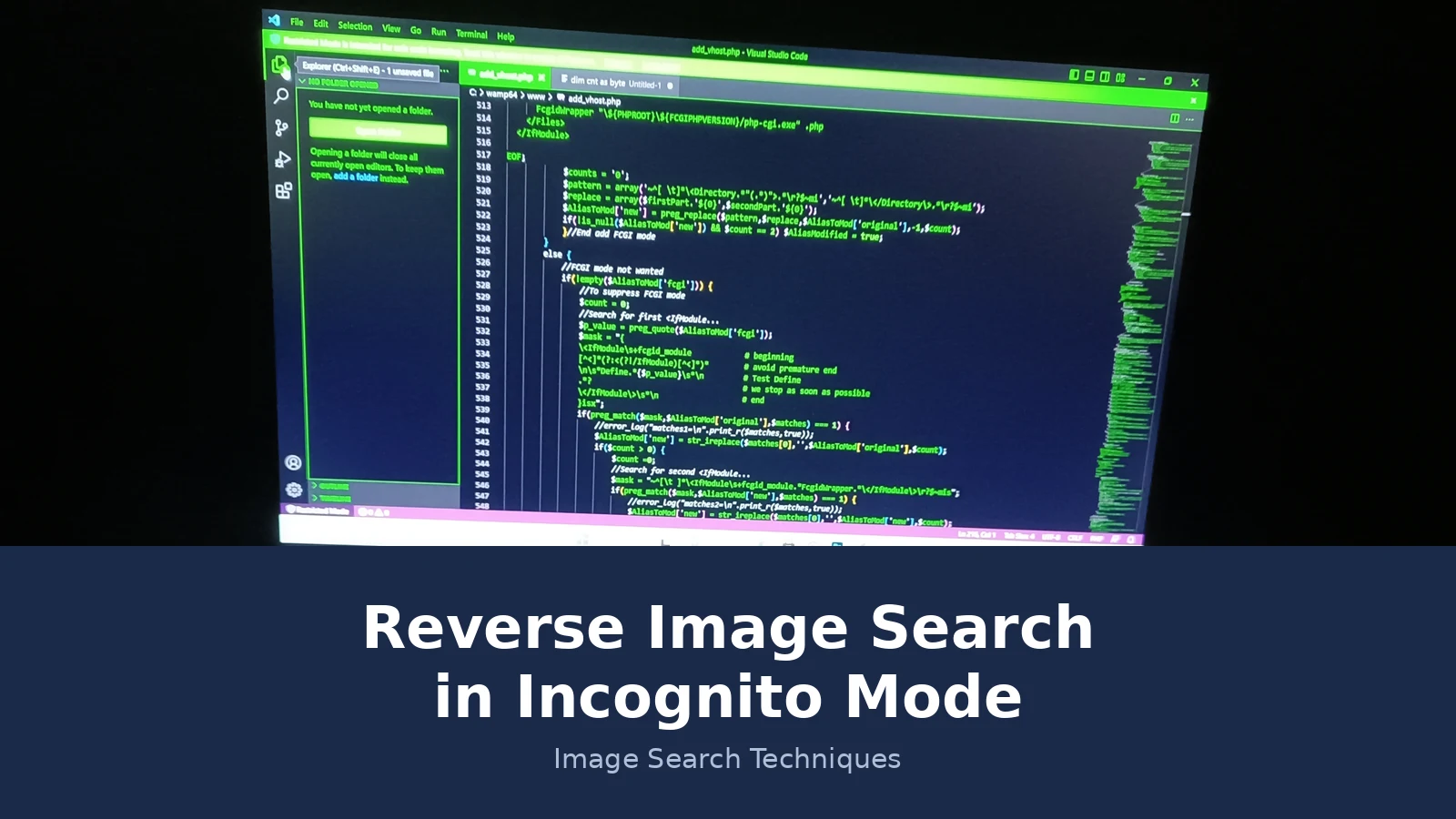
A guide like this is only worth reading if somebody actually ran the search. So I did, on 20 November 2026, in a normal Chrome window, signed out of Google. The photo was a real one: a laptop on a desk in a dark room, its screen showing Visual Studio Code with a PHP file open. It is a WordPress.org photo, number 73365c4fba, published on 9 February 2024. I chose it because it is a public photo with a clear subject, a screen full of readable text, and no person in the frame.
Lens read the photo well. Its AI answer named the editor as Visual Studio Code on Windows, named the open file as add_vhost.php, and described it as a script for automating Apache Virtual Host and FastCGI configuration. It picked out the FastCGI lines and the preg_match and preg_replace calls. That is a strong result for a photo of a screen, and it shows Lens reading on-image text as well as recognising the scene.
The match counts were honest and countable. The Exact matches tab listed 11 entries in its first load, starting with the WordPress.org source page itself, then pages reusing the same photo, including a Wolf Consulting security article, a Learnix course page, and a ClipFX software page. Lens shows no numeric total on that tab, so 11 is the number of entries loaded, not a claimed total. The Visual matches tab listed 60 entries in its first load, again starting with the source page, with a See more button below them, so more existed beyond the 60. No sign-in prompt appeared at any point. Lens issued the search and rendered results while signed out.
One earlier attempt failed, and it is worth reporting because it tells you something about Lens. I first tried a Wikimedia Commons photo of a red London telephone box, through the same upload-by-URL route. Lens tried four times and failed every time, showing “No image at the URL” and reporting 0 exact matches and 0 visual matches. The same route then worked at once for the WordPress photo. The failure was specific to the Wikimedia host, not to the method. A zero is a zero, and a failed fetch is a failed fetch, not proof the photo does not exist anywhere.
What about the incognito side of the test? I have to be straight about this. I tried to run the same photo through Lens in an incognito window, but the test setup could not open one: the Chrome menu button was not reachable and the keyboard shortcut opened nothing. So there is no side-by-side incognito count to report, and I am not going to invent one. The claims about incognito in this article rest on Google’s own help page instead, which is the right source anyway. It says incognito changes what Chrome saves on your device, not what you send to Google. Lens results depend on the photo and on Google’s index, neither of which changes because the window is private. If you run the same photo in both windows yourself, expect the same results, with the only difference being what is left behind afterwards.
Answer capsule: Lens identified the test photo correctly, with 11 exact matches and 60 visual matches loaded, and no sign-in needed.
Normal vs incognito: what changes and what does not
This is the table the whole article comes down to. Every row is drawn from Google’s own help pages, Mozilla’s Private Browsing page, or the test above. Nothing in it is guessed.
| What happens | Normal window | Incognito or private window |
|---|---|---|
| The search itself | Lens runs the search and returns matches | Exactly the same search and the same matches |
| Page added to browser history | Yes, saved on the device | No, not saved once the window closes |
| Cookies and site data kept after the session | Yes, kept until cleared | No, removed when the last private window closes |
| Sign-in state | Usually signed in to Google | Not signed in unless you sign in inside the window |
| What Google receives | The image or its URL | The same image or URL, unchanged |
| What your network or provider can see | Your activity, as usual | Your activity, exactly as usual |
| Downloads and bookmarks | Saved on the device | Still saved on the device |
| Visual Search History saved to your Google account | Only if signed in, setting on, and using an eligible mobile or app service | Same rule, and you are signed out by default, so normally nothing is saved |
Read the last row carefully, because it is the one people misunderstand most. Incognito does not turn on some special privacy mode inside Google. It simply starts you signed out, and Google only saves Visual Search History for signed-in users who have switched the setting on. That setting is off by default, and it only applies to the Lens app and the Google app on phones, Quick Search Box on Android, and Circle to Search. Desktop browser Lens is not on that list. So in a normal incognito window on a computer, your image is not being saved to a Google account history, because there is no signed-in account to save it to.
Answer capsule: the results are the same in both windows; only what is left on your device is different.
What does Google do with the photo you upload?
This is the question behind the question. People do not really want to know how to open an incognito window. They want to know whether Google keeps the photo. The answer has two parts, and they are easy to confuse.
First, the search itself. Google’s Lens help page says you can search by uploading a file or pasting an image link, in Chrome, Firefox, Safari, or Edge. It adds one short tip about links: browsers do not save the URLs you search in your browsing history, but to enhance its products and services, Google may store the URLs you search. That is about the link, not the image file, and it is the only retention statement on that page. The page says nothing about uploaded image files being stored, for how long, or what they are used for.
Second, Visual Search History. This is a separate setting, and it only matters when you are signed in. Google’s Manage your Visual Search History page says the setting is off by default. When it is off, the images you use to search are not saved to your Web and App Activity. When it is on, Google saves images from eligible services, which are the Lens app, Lens in the Google app on Android, iPhone, and iPad, Quick Search Box and All Apps Tray on Android, and Circle to Search on Android. Desktop browser Lens is not listed. Google also says saved images may be used to develop and improve its visual search technologies, and that a separate donation option lets trained human reviewers look at saved images. Turning the setting off does not delete images already saved, and it does not turn off Web and App Activity, which can still save your search activity on Google services. If you are signed in and care about this, check the setting and your auto-delete options in your Google account. Our guide to delete Google Lens search history walks through the cleanup.
Now the claim you will meet everywhere. Some guides say Google stores uploaded images for seven days. One 2023 blog post states it as a fact in its FAQ, with no source. I checked Google’s Lens help page and its Visual Search History page on 20 November 2026. Neither page gives a number of days, and neither page says uploaded images are deleted after a week. The figure is not from Google, so this article does not repeat it as a fact. Google’s own AI Overview for this very keyword paraphrases it as “typically deleting it within a week”, but the help pages it cites do not carry that wording. Treat the seven days as an unverified claim, not a promise.
Answer capsule: Google may store the link you search, and it saves images to Visual Search History only when you are signed in with the setting on; no seven-day promise appears in Google’s own pages.
How to keep a reverse image search private
If incognito alone is not enough for you, here is what actually moves the needle, in order of how much difference each step makes.
Start with the engine. TinEye states its position plainly in its FAQ: “Searching TinEye is private. We don’t save your image, share your image, or track your searches. So search all you want!” That is a clear, checkable promise from the engine itself, and it is the opposite of the vague wording around Google uploads. TinEye accepts files up to 20 MB. It finds exact and altered copies rather than similar images, so it is best when you want to know where a photo has already appeared. If you want to search without Google at all, our reverse image search without Google guide lists the alternatives and how each one treats your upload.
Next, stay signed out. A reverse search run while signed out cannot be added to your account history, because there is no account in the session. Incognito gives you this for free, since it starts signed out. In a normal window, use a separate browser profile or sign out first.
Then clean up after yourself. Close every incognito window when you finish, so Chrome clears the session data. If you searched while signed in, delete the search from your Google account history afterwards. A VPN adds one more layer: it hides the traffic from your local network and your provider, though it does not hide the image from the search engine itself. And if the photo is sensitive, a private one, or someone else’s, think twice before uploading it to any engine at all. No setting undoes an upload.
Finally, know when incognito is the right tool and when it is not. It is right for a shared computer, where you do not want the next person to see your searches in the history. It is right when you want to keep a search out of your signed-in account, or when Lens keeps pushing you to sign in. It is not right as a way to hide activity from an employer, a school, or a network that logs traffic, and it is not a way to search anonymously. For that you would need to change the engine, the network, and the account, all three, and even then the engine still receives the image.
Answer capsule: pick an engine that does not save uploads, stay signed out, close the window, and clean up afterwards.
Private browsing is only a small part of the picture: our guide to image search techniques covers every method in one place.
FAQs
Does reverse image search work in incognito mode?
Yes. Open an incognito or private window, go to Google Images or Lens, and upload the photo or paste its link. It works as it does in a normal window, with no sign-in needed. The only difference is what is saved afterwards: Chrome will not keep the search in your history or retain its cookies once you close the window.
Is a reverse image search in incognito mode private?
Only partly. Incognito stops Chrome saving the search on your device, but Google still receives the photo, and your school, employer, or internet provider can still observe the traffic. If you want the search itself kept private, use an engine that does not save uploads, such as TinEye, and stay signed out.
Does Google save the photo I upload to Lens?
Google saves images to Visual Search History only when you are signed in and have switched that setting on, and only from the Lens app, the Google app, Quick Search Box, or Circle to Search. The setting is off by default. Desktop browser Lens is not on the eligible list. Google says it may store the URLs you search.
Does Google delete uploaded images after seven days?
There is no such promise in Google’s own help pages. The seven-day figure comes from a 2023 blog post that gives no source for it. I checked Google’s Lens help page and its Visual Search History page on 20 November 2026, and neither one states a number of days. Do not rely on it.
Can I reverse image search in Firefox Private Browsing?
Yes. Open a new private window, which shows a purple mask at the top, then go to Google Images and use the camera icon to upload a photo or paste a link. Mozilla says Private Browsing saves no history or cookies and leaves no trace after the session, but it does not make you anonymous online.
Do I need to close the incognito window after a reverse image search?
Yes, close every incognito window when you finish. Chrome keeps some temporary data, such as cookies and site data, while the session runs, and removes it only when the last incognito window closes. Files you downloaded and bookmarks you saved stay on the device even after the window closes.