🔎 Reverse Image Search
Image search techniques made simple: upload a photo or paste a URL and search 6 engines at once. 100% free, nothing stored.
🔒 Your image is never stored on our servers longer than 24 hours and is never shared.
You have a photo of a television and no idea which model it is. Maybe it is a second-hand listing, maybe it is the set in the spare room with the label worn away, or maybe someone sent you a picture and asked you to find the right wall mount. The good news is that a photo can usually get you there, as long as you know which details in it matter and which ones only narrow the field.
To identify a TV model from a photo, read the model code on the back label first, then check the on-screen menu under Settings, Support and About This TV. If the photo shows only the front, run a reverse image search and compare the bezel, logo, stand and port layout with the manufacturer’s own pictures before trusting any match.
A photo can suggest a model family, but only the back-label code or the menu line confirms the exact model. Two sets can share the same screen size, the same bezel and the same stand yet carry different panels, different software and different wall-mount fittings. That is the rule this guide follows throughout: the photo points, the code proves.
What a photo can and cannot tell you about a TV
Answer in one line: a photo narrows a TV down to a brand and a model family, and it proves the exact model only when the label or the menu screen is readable in it.
Screen size is not a model. A 55-inch Samsung and a 55-inch Samsung can be different models from different years with different remotes, different ports and different firmware. The same is true of the panel type: OLED, QLED and LED describe the screen technology, not the model. Treat size and panel type as filters, not answers.
What a photo does give you, when it is clear enough, is a set of marks: the brand logo on the bezel, the shape of the stand or feet, the layout of the buttons and ports on the back, the design of the remote, and any text printed on the label. Put together, those marks usually point at one model family. The back-label code then settles it.
There is one more limit worth stating plainly. A reverse image search can return a television that looks identical to yours but is a different model. Manufacturers reuse the same cabinet, bezel and stand across several models in a range, changing only the panel or the processor inside. A visual match is a lead, never proof. Always confirm the code on the manufacturer’s support page before you order a part, a mount or a remote.
The TV-marks table: what to look for in the photo
Answer in one line: work through the four marks in this table in order, and stop as soon as one of them gives you a full model code.
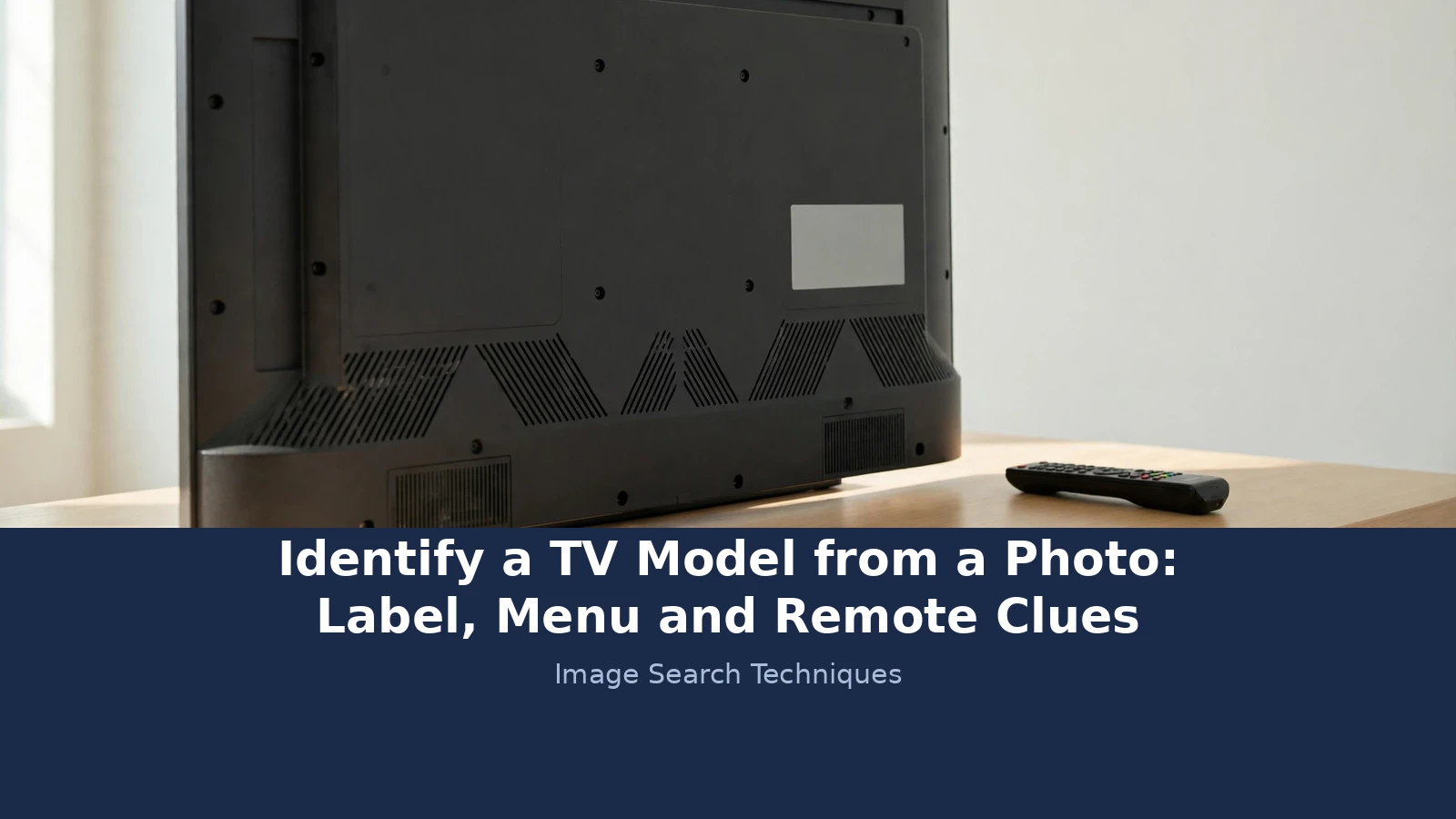
Use the table below as a checklist whenever you open a TV photo. Start at the top. The back label is the only mark that can end the search on its own.
| Mark | Where to look in the photo | What it tells you | How sure can you be? |
|---|---|---|---|
| Back-label model code | The silver or white sticker on the back panel, usually near the power socket, the ports or the mount area. Look for the words Model, Model No., Model Code or Type No. | The exact model, for example Samsung UE40MU6409U. This is the code the manufacturer uses for manuals, firmware and parts. | Certain, if the full code is readable. Photograph the whole label and zoom in. |
| On-screen menu model line | A photo of the settings screen, under Settings, Support and About This TV on Samsung, or General, About This TV on LG. | The exact model as the television reports it, plus the software version. | Certain, if the line is readable. It matches the label on a genuine set. |
| Remote layout | The shape of the remote, the button layout, the brand name printed on it, and any model code inside the battery cover. | The series or model family, and sometimes the year. A remote rarely names the TV model itself. | A clue, not proof. One remote often ships with several models. |
| Stand shape, bezel and ports | The feet or centre stand, the bezel width, the logo position, and the port layout on the back or side. | The model family and sometimes the year. Port layout differs between model ranges. | A clue, not proof. Several models share the same cabinet. |
After the table, confirm the code against the manufacturer’s support page. Samsung publishes a guide that explains where the model and serial numbers live on its sets, and LG publishes one that covers the back label, the settings menu and a remote shortcut. Both are linked at the end of this article.
Step 1: Read the back label in the photo
Answer in one line: the back label is the fastest route to the exact model, so ask for a clear photo of it before anything else.
If you are looking at a second-hand listing and the seller has only posted a front view, ask for a photo of the back label. Most sellers will send one if you ask, and it saves both of you a long exchange of guesses. If the television is yours and it is wall-mounted, you do not need to take it down: use a phone camera with the flash off and a torch held at an angle, or ask someone to hold the phone while you guide it. Never pull a wall-mounted set toward you on your own, and never grab the screen to steady it.
On the label, look for the line that starts with Model, Model No., Model Code or Type No. The code is usually the longest string of letters and numbers on the sticker. On a Samsung set it looks like UE40MU6409U or UN55CU7000FXZA. On an LG set it looks like OLED55C3PUA. On a Sony set it looks like XR-65X90L. On a TCL set it looks like 55S455. Write the code down exactly as printed, including hyphens and the letters at the end. Those trailing letters are the regional suffix, and they matter: the same base model can have different tuners and different firmware in different regions.
Do not confuse the model code with the serial number. The serial number is unique to one single television, and it is printed on the same label. It is useful when you contact support or check a warranty, but it will not tell you the model on its own. If you share a photo of the label anywhere public, blur the serial number and any barcode first. The model code is fine to share; the serial number belongs to one set and one owner.
Some labels also carry a QR code. Scanning it usually opens the manufacturer’s support page for that model, which is a quick way to confirm you read the code right. If the label is faded, torn or partly hidden behind a mount, photograph what you can and move on to the menu check in step 2. A partial code plus the brand, the size and the year bought is often enough for the manufacturer’s support search to narrow the result to one or two models.
Step 2: Check the on-screen menu model line
Answer in one line: when the label cannot be read, the settings menu shows the same model code on screen, and a photo of that screen is just as good.
If you can switch the television on, the menu is the most reliable backup to the label. The path differs by brand, but the idea is the same everywhere: open Settings, look for Support or System, then open About This TV or TV Information. The model line sits there next to the software version.
On a Samsung set, go to Settings, then Support, then About This TV. On older Samsung sets the same line sits under Contact Samsung. On an LG set, go to All Settings, then General, then Devices, then TV, then TV Information. On 2020 LG sets running webOS 5.0 the path is Support, then TV Information. On pre-2020 LG sets it is Settings, then General, then About This TV. On a Sony set, go to Settings, then System, then About. On a TCL Roku TV, go to Settings, then System, then About. On a Hisense set, look under System, then About, or under Support, then System Info. On a Vizio set, open the Menu, then System, then System Information. If the set is a Fire TV or Google TV model, the same About screen sits under Device and Software or System in the main settings.
Photograph the screen straight on, with the room lights on and the television’s own brightness left alone. A photo taken at a sharp angle can make the text unreadable, and a flash can wash the screen out. If the seller sends you a photo of the menu screen, check that the model line matches the code on the label, if you have both. On a genuine set they agree. If they disagree, trust neither until you have a clearer photo, because one of the two images may belong to a different set.
LG adds a handy shortcut that is worth knowing. With the television switched on, press the mute button on the remote three times in a row and the model information appears on screen. It is a quick check when you are standing in front of the set and do not want to dig through menus.
Step 3: Use the remote as a clue
Answer in one line: the remote points at the series and the year, but it rarely names the television model, so use it to support the label, not replace it.
A photo of the remote is useful in two ways. First, the remote design changes with the series. Samsung’s slim solar remote, LG’s Magic Remote with its scroll wheel, and Sony’s backlit remote each belong to a particular generation of sets. If the remote in the photo matches the remote that shipped with a model family, you have narrowed the field. Second, the battery cover sometimes hides a remote model code, and that code can hint at the series when you search it on the manufacturer’s site.
What the remote cannot do is name the television. One remote model often ships with several television models across a range, so a remote match alone is never enough to order a wall mount or a replacement part. Treat it as supporting evidence: label first, menu second, remote third.
When you photograph a remote, include the whole front, the brand name printed on it, and the button layout. If the listing photo shows only the television, ask the seller for a photo of the remote as well. It costs them a minute and it can rule out a whole year of models at a glance.
Step 4: Reverse image search the photo
Answer in one line: run the photo through Google Lens, TinEye and Yandex, then check whether the matches name the exact model or only a lookalike.
Reverse image search is the right tool when the photo shows only the front of the set, or when you have no access to the television at all. It works best on a clear, straight-on front view with the bezel, the logo and the stand in frame. Crop the photo to the television before you search, so the engine matches the set and not the room around it. If the photo is a screenshot of a listing, save the original image file where you can, because a screenshot loses detail and can change the results.
Run the search on more than one engine. Google Lens is strong on visual matches and usually names the brand and the series. TinEye is strong on exact matches and tells you where the same image file already appears online, which is useful when a listing photo has been reused. Yandex is often the best of the three at naming the exact model from a product photo, because it indexes retailer and manufacturer pages heavily. The three engines disagree often enough that one result on its own is not a verdict.
When the results come back, read them with care. An exact match to a manufacturer or retailer page that names a model is a good lead. A page of lookalikes that share the same cabinet is not. If the results name two or three different models that look the same, that is the engines telling you the cabinet is shared, and you need the label or the menu to choose between them.
Worked example: a Samsung UE40MU6409U, searched on three engines
To test this properly, I took a real photo of a named television and ran it through all three engines. The photo is a Wikimedia Commons image of a Samsung UE40MU6409U, a 40-inch Flat UHD LED-backlit LCD television, photographed by Raimond Spekking on 4 December 2022 and published under a CC BY-SA 4.0 licence. The file is named Samsung UE40MU6409U-4613.jpg. It is a straight front view of the set, so it is exactly the kind of photo a seller posts in a listing.
One honest note before the results. The model code UE40MU6409U is named in the file record, in the file name and in the description, but it is not legible on the television itself in this front view. No text on the set in the photo gives the model away. That is normal for a front photo, and it is the reason the label check in step 1 matters. The question for the engines is whether they can name the model from the look of the set alone.
Here is what each engine returned:
| Engine | Result | Did it name the model? |
|---|---|---|
| Google Lens | Blocked. Three attempts by image URL all returned “No image at the URL”, and the file-upload route could not be completed, so no results were shown and no count exists. | No, the search never ran. |
| TinEye | Ran by image URL. 0 matches, after searching over 86.9 billion images. TinEye said it had not yet crawled any page where the image appears. | No, no matches at all. |
| Yandex Images | Ran by image URL. No total count was shown. The Sites tab listed 6 entries, and the top similar image was the exact same photo. | Yes, in the results. The top result was the exact Commons file page for Samsung UE40MU6409U-4613.jpg, and the second was another photo of the same model. Its automatic tags named a different model, UE40MU6100U. |
The score is one out of three, and that is the honest result. Google Lens refused the image URL three times, TinEye found nothing at all, and only Yandex traced the photo back to its exact Commons page and named the right model. The test shows why one engine is never enough, and why the label or the menu still has to confirm the model: even the engine that got it right also tagged the photo with a different model, UE40MU6100U, in its automatic labels.
The lesson from this test is the lesson of the whole article. A front photo plus a reverse image search can name the brand, the size and the model family, and sometimes the exact model. When it cannot, that is not a failure of the method. It is the point where the label or the menu takes over, and a seller who can photograph the label is worth more than any search result.
How to read a TV model code
Answer in one line: the digits in the middle of the code are the screen size, the letters around them name the brand, the year and the series, and the letters at the end are the region.
Once you have a code, it helps to know what its parts mean. You do not need to memorise the system for every brand, but the pattern is similar across them, and it lets you spot a wrong match quickly.
On a Samsung code such as UE40MU6409U, the first letters name the region and the screen type, the digits 40 are the screen size in inches, the letter after the size marks the model year, and the digits after that mark the series. On an LG code such as OLED55C3PUA, the first letters name the panel type, the digits 55 are the screen size, the letter C marks the series, the digit 3 marks the model year, and the final letters are the region. On a Sony code such as XR-65X90L, the digits 65 are the screen size, X90 is the series, and the final letter marks the year. On a TCL code such as 55S455, the digits 55 are the screen size and S455 is the series.
Two cautions. First, year letters differ by brand and by region, so do not carry a Samsung year letter over to an LG code. Second, the regional suffix at the end can change the tuner, the apps and the firmware, so always enter the full code, exactly as printed, when you search the manufacturer’s support site. A partial code can return the wrong year’s firmware, and the wrong firmware can cause real problems.
When you have the code, type it into the manufacturer’s support site and check that the page it returns shows a television with the same bezel, stand and ports as your photo. If the support page shows a different stand, you have the wrong model, however confident the search result looked.
When the label is missing or unreadable
Answer in one line: combine the menu line, the remote, the box or receipt, and the manufacturer’s support search, and you can usually identify the set without the label.
Labels go missing. They peel off, they fade in sunlight, or they sit behind a wall mount you cannot reach. Start with the menu line in step 2, because it is the same code the label carries. If the television will not switch on, look for the box, the receipt or the order confirmation email. The box sticker carries the model code, and a printed receipt or an online order history usually lists the model or the retailer SKU, which the retailer’s site can turn back into a model.
If you have none of those, gather everything the photo shows and take it to the manufacturer’s support site. Brand, screen size, year bought, stand shape, port layout and the remote design together are usually enough for a support search to narrow the result to one or two models. A support agent can also identify the full model number from a serial number, so if you can read the serial number from the label even when the model line is damaged, keep it and quote it to support. Do not publish the serial number anywhere public.
For older or unbranded sets, a repair technician can use the chassis or main-board number to identify the set. That number sits inside the television, so leave it to a qualified technician. Never open a television yourself to look for it. A set stores voltage even when it is unplugged, and the back panel is not a user-serviceable part.
Buying second-hand: checks before you pay
Answer in one line: confirm the exact model from the label or the menu, then check the mount, the remote and the ports against the manufacturer’s page before you hand over money.
Most second-hand TV problems come from buying the wrong model, not a broken set. The mount is the classic one: two sets that look identical can use different VESA patterns, and a mount bought for the wrong model will not fit. The remote is the second: a replacement remote costs little, but a remote that looks right and does not pair is a wasted trip. The ports are the third: an older model in the same range can have fewer HDMI ports, or an older HDMI version, and that matters if you plan to connect a console or a soundbar.
Before you pay, ask the seller for three photos: the back label, the settings screen showing the model line, and the remote. Check the model code on the manufacturer’s support page and confirm the VESA pattern, the remote model and the port list. If the seller cannot provide the label or the menu photo, treat the price as the price of an unidentified set and decide whether it is still worth it. A clear label photo from a willing seller is a good sign in itself.
Also check the photo itself. Run it through a reverse image search, as in step 4. If the same photo appears in other listings under different sellers or different prices, the listing may be using a stock photo rather than a photo of the actual set. That does not prove a scam on its own, but it is a reason to ask for a fresh photo of the set switched on, showing the menu screen.
Common mistakes when identifying a TV from a photo
Answer in one line: the three mistakes are trusting a visual match as proof, mixing up the serial number with the model number, and trusting the product name instead of the code.
The first mistake is the most common. A reverse image search returns a television that looks exactly like yours, so you assume it is your model. Manufacturers reuse cabinets across a range, and the difference between two models can sit inside the set, in the panel or the processor, where no photo can see it. Use the visual match as a lead and the label as proof.
The second mistake is reading the serial number as the model number. The serial number is printed next to the model code on the same label, and on some labels it is the longer string. The model code is the one labelled Model, Model No. or Model Code. If you search the serial number on a support site, it will either return nothing or return the one unit, not the model family.
The third mistake is trusting the product name. “Samsung Crystal UHD” or “LG OLED evo” is a series name, not a model. A series covers several models in several sizes and several years. The product name is a starting point for a support search, never the answer. The same applies to the size: “55-inch Samsung” is a description, not an identification.
One more caution. If you post the photo in a forum or a community such as Reddit’s r/HelpMeFind to ask for help, the answers you get are guesses from strangers, and they can be wrong with confidence. Use them as leads, then check the code yourself. And if you share a photo of the label, blur the serial number and the barcode first.
What to do next
Start with the back label. If the photo you have does not show it, ask for it, or open the settings menu and photograph the model line. Use the remote and the stand shape to narrow the field while you wait. Run the front photo through a reverse image search to get a lead, then confirm the code on the manufacturer’s support page before you order anything. That order, photo to lead, code to proof, is the whole method, and it works whether the set is yours, a listing you are thinking of buying, or a picture someone sent you with no other detail.
If you want the same method for other gadgets, the approach is the same: read the marks, then confirm the code. Our guide to finding an item by image covers the general method, and the same steps work for a phone model, a laptop model, a headphone model or a smartwatch model from a photo. Samsung explains where its model and serial numbers live in its support guide, and LG covers the label, the menu and the remote shortcut in its help library.
Frequently asked questions
Can you identify a TV model from a photo of the front only?
Sometimes. A clear front photo plus a reverse image search can name the brand, the size and the model family, and sometimes the exact model. But manufacturers reuse the same cabinet across several models, so a visual match is a lead, not proof. Confirm the exact model from the back label or the settings menu before ordering parts.
Where is the model number on a TV?
On the label on the back panel, usually near the power socket, the ports or the mount area, next to the words Model, Model No. or Model Code. It also appears on screen under Settings, Support and About This TV on Samsung, or General and About This TV on LG. The box sticker and the receipt carry it too.
Is the serial number the same as the model number?
No. The model number is shared by every set of that model and is used for manuals, firmware, parts and mounts. The serial number is unique to one single television and is used for warranty and service. Both sit on the same back label. Never publish a serial number or barcode photo in public, blur it first.
Can Google Lens identify a TV model from a photo?
Google Lens can often name the brand and the series from a clear front photo, and it sometimes names the exact model when the photo matches a manufacturer or retailer page. Always confirm the result against the back-label code or the menu line, because lookalike models share the same cabinet.
How do I find the model number without taking the TV off the wall?
Use the on-screen menu. Open Settings, then Support or System, then About This TV or TV Information, and photograph the model line on screen. On an LG set you can also press mute three times in a row on the remote to show the model information. You do not need to move a wall-mounted set to read the menu.
What if the back label is faded or missing?
Use the settings menu first, then the box, receipt or order confirmation, which all carry the model code. If none of those exist, take the brand, size, year bought, stand shape, port layout and remote design to the manufacturer’s support site, where a search usually narrows it to one or two models.