A dramatic news photo can travel around the world in minutes, long before anyone has checked where it came from. That speed is the problem. A real photo from an old event, a picture taken in another country, or an AI-generated image can all look convincing in a feed. Before you share, repost, or act on a news photo, run it through a short, repeatable check. This guide shows you how to verify a news photo is real, step by step, using free tools and simple source checks.
Quick Answer
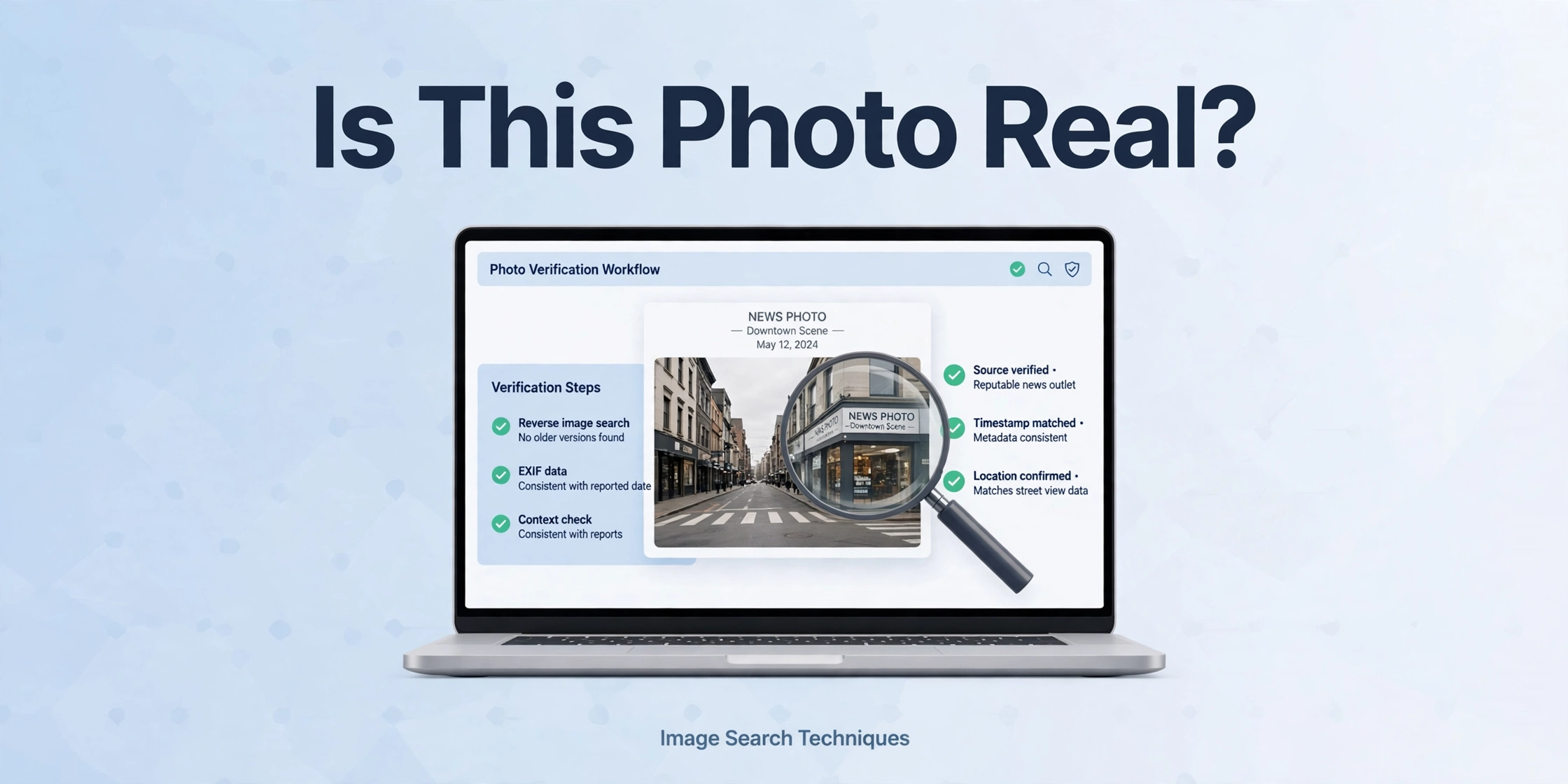
To verify a news photo is real, reverse-search the image, find its earliest credible source, and check the date, location, and caption together. Use Google Lens, TinEye, Yandex Images, and Bing Visual Search, and compare at least two results. If the earliest source, date, or location does not match the claim, do not share the photo as current news.
Why News Photos Are Easy to Misuse
Photos feel like proof, but a photo alone proves very little. It shows a moment, not a date, a place, or a cause. A genuine photo can be reused with a false caption, cropped to remove context, or edited to change what happened. AI tools add another layer: a realistic scene can now be created from a text prompt, with no camera, event, or photographer behind it.
That is why one search is not enough. A strong verification combines the image itself, the page that published it, the photographer or agency behind it, and the details inside the frame. When those pieces agree, confidence rises. When they conflict, the claim should wait.
The Photo Verification Checklist: 7 Steps
Work through these steps in order. You do not need to finish every step for every photo, but for a breaking-news image, do not skip the first three.
Step 1: Save the best version of the photo
Start with the largest, clearest version you can find. Avoid a screenshot of a screenshot, because compression and cropping remove detail and weaken reverse-search results. If the photo appears on a social post, open the image itself, save it, and note the account, date, and caption that came with it.
Step 2: Reverse-search the image in at least two engines
Upload the photo to
Google Lens and to
TinEye. Then repeat the search in
Yandex Images and
Bing Visual Search. Each engine indexes different parts of the web, so one engine may find an older source that another misses. TinEye is especially useful because you can sort matches by oldest first, which often reveals the original publication.
Look for exact matches first, then similar images. An exact match on a news agency, newspaper, or photographer portfolio is a strong signal. A match only on random social accounts, with no source page, is a weak signal.
Step 3: Find the earliest credible source
Open the oldest results and check who published them. A reputable news outlet, wire agency, official organisation, or named photographer is far more useful than an anonymous repost. Check whether the source page still exists, whether its caption matches the current claim, and whether its date is before the viral post.
If the same photo appeared months or years earlier, it cannot prove a new event. If it appeared in a different country or for a different story, the new caption is misleading, even if the photo itself is real.
Step 4: Check the date, location, and caption together
Compare three facts: when the photo was taken, where it was taken, and what the caption says happened. Look inside the image for street signs, shop names, vehicle plates, weather, uniforms, landmarks, and language on signs. Search for those details alongside the place name to see whether independent reports describe the same scene.
Be careful with captions copied from one post to another. A caption is a claim, not evidence. The original source caption, plus an independent report from the same date and place, carries far more weight.
Step 5: Look closely for editing and AI clues
Zoom in and inspect hands, faces, text, shadows, and reflections. AI images often show odd fingers, warped text, mismatched earrings, or backgrounds that blur in strange ways. Edited photos may show inconsistent lighting, sharp edges around a pasted object, or a shadow pointing the wrong way.
These clues are warnings, not proof by themselves. A compressed social-media image can also look odd. Use visual clues to decide whether to dig deeper, and combine them with the reverse-search result before you judge the photo.
Step 6: Cross-check with trusted reporting
Search the event, place, and date in reputable news sources. If a major event really happened, it is usually covered by more than one outlet, with different photos or video from the same scene. If only one viral post mentions the event, and no agency or local outlet confirms it, treat the claim as unverified.
Also check official accounts for the organisation, city, or agency involved. An official statement does not prove every detail, but it helps you separate a confirmed event from a recycled image.
Step 7: Decide before you share
Share only when the source, date, and location agree, or when you can clearly label what is unconfirmed. If you cannot verify a photo, do not present it as proof. You can still ask a question about it, share it with a clear warning that it is unverified, or simply wait for a credible source. Waiting is often the most accurate choice.
Comparison Table: Which Tool Helps With What
| Tool |
Best for |
Result |
| Google Lens |
Quick matches |
Similar photos |
| TinEye |
Earliest source |
Exact matches |
| Yandex Images |
Faces, scenes |
Similar photos |
| Bing Visual Search |
Second check |
Similar photos |
| Pinterest help |
Visual search guide |
How-to help |
For Pinterest visual search, follow the official
Pinterest visual search help page. Use it to understand how visual search works, not as proof that a news photo is real.
How to Spot an AI or Edited News Photo
AI and edited images are not always easy to spot, and tools change fast. Focus on consistency. In a real photo, light, shadows, reflections, and perspective usually agree across the whole frame. In a generated or heavily edited photo, one area often breaks the pattern: a sign with impossible spelling, a crowd with repeated faces, or a reflection that does not match the scene.
Also ask whether the image is too perfect. A breaking-news photo is often messy, tilted, or partly blurred. A polished, dramatic image with flawless lighting can still be real, but it deserves an extra reverse search. If no source, photographer, or original publication appears anywhere, that absence matters.
Finally, remember that a real photo can still mislead. A genuine protest photo from 2019, a flood photo from another city, or a training exercise presented as a live event are all examples of true photos used with false claims. Verification is about the claim as well as the pixels.
Troubleshooting: When Verification Does Not Work
No reverse-search results
Try a second engine, use a larger or less cropped version, and crop tightly to the main subject. New, private, or rarely published photos may have no indexed copy. No result does not mean the photo is fake, but it does mean you have no source confirmation yet.
Only social-media matches appear
Open those posts and look for a credit, agency name, or link to an original article. Search for a distinctive caption phrase or a detail from the image, such as a street name or building, to find a news source that the image search missed.
Results disagree on date or place
Trust the earliest credible source over the most viral post. If two credible sources disagree, note the conflict and do not share the photo as settled fact until one source is confirmed by a third independent report.
The image is low resolution or heavily cropped
Search with the fullest version you can find, and avoid enlarging a tiny image until it becomes pixelated. A tight crop removes landmarks and context that help both image search and location checks.
Privacy and Safety: Verify Without Causing Harm
Verify news photos responsibly. Only upload photos you have the right to share, and avoid uploading private photos, photos of children, or photos that could identify a private person. A reverse-search match is not proof of identity, location, or wrongdoing, and it should never be used to harass, dox, or accuse someone.
Be especially careful with photos from protests, disasters, or conflicts. People in those images may face real risks if their identity or location is shared. Do not publish personal details you find through an image search, and do not assume that a face match proves who someone is.
For your own safety, use official tool pages, keep your browser updated, and be skeptical of links in viral posts. If a post urges you to download a file or enter personal details to see the full photo, stop and check the source through a trusted news outlet instead.
Frequently Asked Questions
Can reverse image search prove a news photo is real?
No, not alone. It can find where a photo appeared before, reveal an older date, and point to a credible source. The source, caption, and independent reporting together provide much stronger proof than a single search result.
What is the fastest way to check a viral news photo?
Reverse-search it in Google Lens and TinEye, sort TinEye results by oldest first, and open the earliest credible source. Then compare the source date, location, and caption with the viral claim. That quick check catches many recycled photos.
How can I tell if a news photo is AI-generated?
Look for warped text, odd hands, inconsistent shadows, and repeated faces, then reverse-search the image. AI clues alone are not proof, so combine them with a source check. If no photographer, agency, or original publication can be found, treat the image as unverified.
Does a real photo always mean the caption is true?
No. A real photo can be reused with a false date, place, or story. Always verify the caption separately by checking the earliest source and independent reporting from the same event.
What should I do if I cannot verify a photo?
Do not share it as fact. Wait for a credible source, ask for the original source, or share it only with a clear note that it is unverified. If you already shared it, correct the post once you learn more.
Can I verify a news photo on my phone?
Yes. Open Google Lens, TinEye, Yandex Images, or Bing Visual Search in your mobile browser, upload the saved photo, and review the results. Use the same checklist: earliest source, date, location, and independent confirmation.
Related Guides
To build your verification skills further, read the
complete guide to image search techniques, compare tools in our guide to the
best search engine for images, and explore
Google Lens alternatives for image search. Together, these guides help you choose the right tool, trace a source, and check a photo before you trust it.
Try the Homepage Tool
Ready to check a photo yourself? Start with the
free reverse image search tool on the homepage, run the photo through a second engine, and work through the checklist above. A few extra minutes of checking can stop a false photo from spreading further, and that is the simplest way to make your feed more reliable.
Related guides



