


🔎 Reverse Image Search
Image search techniques made simple: upload a photo or paste a URL and search 6 engines at once. 100% free, nothing stored.
🔒 Your image is never stored on our servers longer than 24 hours and is never shared.
Before you download, repost, or publish any picture you find online, it’s worth knowing whether it’s copyrighted — because using someone’s image without permission can lead to takedowns, fines, or legal claims. The tricky part is that copyright is usually invisible: there’s no badge that says “protected.” This guide shows you how to check an image’s copyright status in a few minutes, using free tools.
Quick answer: Assume every image is copyrighted unless it clearly says otherwise. To verify, use Google Images’ “Usage rights” filter, reverse image search the photo to find its original source and terms, check the image’s metadata for a creator or copyright field, look for a watermark or credit line, and search copyright registries like the US Copyright Office. Always confirm the license on the original source page before you use it.
Is every image automatically copyrighted?
In most cases, yes. Under modern copyright law, an image is protected the moment it is created — the creator does not have to register it or add a © symbol for copyright to apply. That’s why the safe default is to treat any image as copyrighted unless it explicitly states it is in the public domain or carries a license that allows your intended use. “I found it on Google” is never a defence.
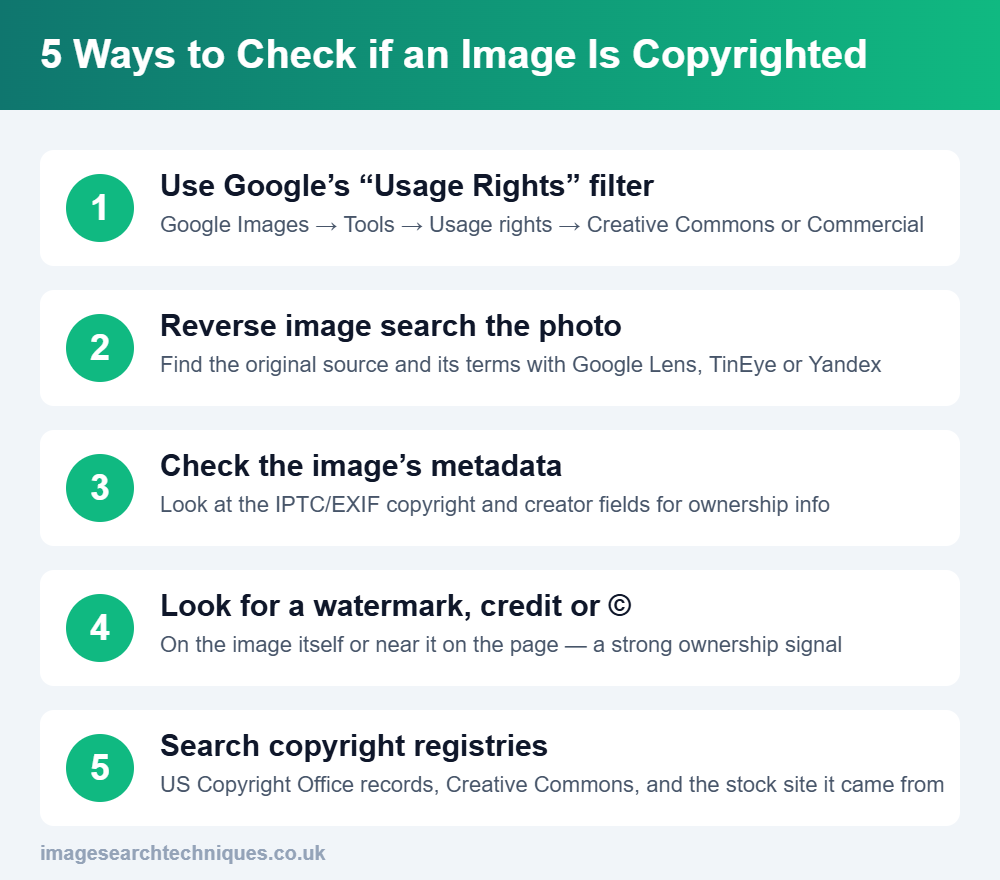
How to check if an image is copyrighted (5 ways)
1. Use Google Images’ “Usage rights” filter
Google lets you filter images by license, which is the fastest first check.
- Search for your image or topic on Google Images.
- Click Tools, then open the Usage rights dropdown.
- Choose Creative Commons licenses (for free-to-use with conditions) or Commercial & other licenses.
- Open the image and confirm the actual license on the source page — the filter is a starting point, not proof.
Google’s own help page explains this in detail: Find images you can use & share.
2. Reverse image search to find the original source
If you don’t know where an image came from, reverse image search reveals the pages that use it — and the original source usually states the copyright or license. Run it through Google Lens, TinEye, or another engine. TinEye is especially good at finding the earliest version so you can trace the real owner. Our guide on finding the original source of a photo walks through the full process.
3. Check the image’s metadata
Many photos carry hidden IPTC/EXIF metadata that names the creator and copyright holder. Right-click the file and view its properties, or use a metadata viewer. A populated “Copyright” or “Creator” field is clear evidence the image is owned. Learn how in our guide to image metadata (EXIF data). Note: missing metadata does not mean the image is free — it is often stripped during uploads.
4. Look for a watermark, credit line, or © symbol
A visible watermark, a “© Name Year” notice, or a credit line near the image is a direct ownership signal. Stock-site watermarks (Getty, Shutterstock, Adobe Stock) also tell you the image must be licensed before use.
5. Search copyright registries and the source
For important uses, check official records. In the US you can search registered works at the US Copyright Office public records. If the image is Creative Commons, confirm the exact licence terms at Creative Commons. And if it came from a stock library, the library’s own page states the license you need.
Copyrighted vs public domain vs Creative Commons
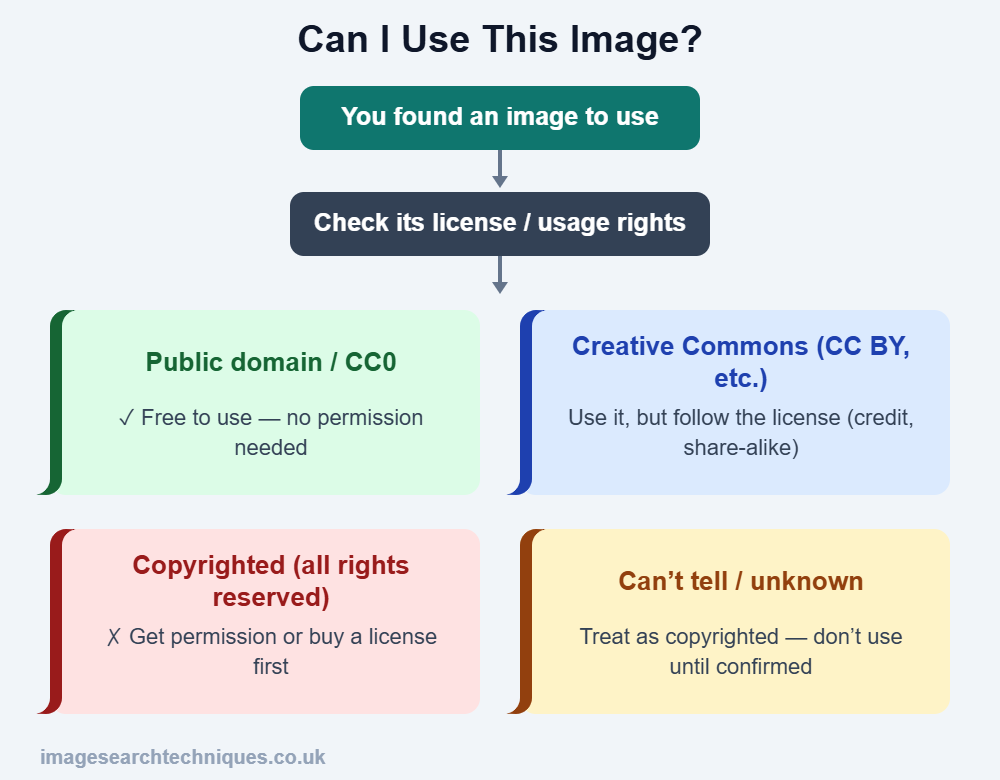
Understanding the three main statuses tells you what you’re allowed to do:
| Status | Can you use it? | Conditions |
|---|---|---|
| Copyrighted (all rights reserved) | Only with permission | Get written permission or buy a license |
| Creative Commons | Yes, with conditions | Follow the licence — credit, no edits, or share-alike, depending on type |
| Public domain / CC0 | Yes, freely | No permission needed (crediting is polite, not required) |
| Unknown | Assume no | Treat as copyrighted until you confirm otherwise |
How to use a copyrighted image legally
If an image turns out to be copyrighted and you still want to use it, you have a few legitimate options:
- Ask the owner for permission — email them; many creators say yes with a credit.
- Buy a license — from the creator or a stock site (Shutterstock, Adobe Stock, Getty).
- Use royalty-free or public-domain sources — Unsplash, Pexels, Pixabay, Wikimedia Commons, or Openverse.
- Create your own — the only image guaranteed to be free of someone else’s copyright.
Giving credit alone is not permission. Crediting a creator is good practice, but it does not replace a licence unless an exception such as fair use or fair dealing clearly applies — and that is a narrow, case-by-case test.
Protecting your own images
If you’re a creator worried about the other side of this, you can check whether people are using your work and get it taken down. See is someone using my photos online and how to remove your photos from Google.
Common mistakes to avoid
- Assuming anything on Google Images is free — it isn’t.
- Thinking no watermark or metadata means no copyright.
- Believing credit = permission.
- Trusting the “Usage rights” filter without checking the source page.
- Assuming a small or non-commercial use is automatically “fair use”.
FAQ
Is every image on the internet copyrighted?
Almost always. Copyright is automatic the moment an image is created, with no need to register it or add a symbol. Assume an image is protected unless it clearly states it is public domain or carries a licence that allows your use.
How can I tell if a Google image is copyrighted?
Use Google Images → Tools → Usage rights to filter by Creative Commons or commercial licences, then confirm the actual terms on the source page. The filter is a starting point, not legal proof.
Are images from Google free to use?
No. Google only finds images hosted on other sites, and most are copyrighted. Always check the licence on the original website before using any image.
How do I find the owner of an image?
Reverse image search it to find the original source, read the page’s credit line, and check the image’s metadata for a creator or copyright field.
Can I use a copyrighted image if I give credit?
No. Credit is not permission. You need the owner’s permission or a licence, unless a narrow exception such as fair use or fair dealing clearly applies.
Related guides
- What Is Image Metadata (EXIF Data)?
- How to Find the Original Source of a Photo
- Find Similar Images: How to Search by Picture
- Is Someone Using My Photos Online?
- TinEye Reverse Image Search
Official resources
- Google: Find images you can use & share
- US Copyright Office: Public records search
- Creative Commons: About the licenses
