Quick Answer: To reverse image search on Discord, save the image to your device first, then upload it to Google Lens, TinEye, Yandex Images or Bing Visual Search. In most cases, Google Lens finds the fastest match, while TinEye and Yandex are better for older or reused images. If the image is a screenshot or a cropped version, search the clearest version you can save and try more than one tool before you draw a conclusion.
Discord is full of images that travel fast: memes, screenshots, artwork, product photos, profile pictures and images shared in servers and direct messages. Some are original, some are reposted without credit, and some are edited, cropped or generated by AI. A reverse image search helps you find where an image first appeared, who created it, whether it has been used somewhere else, and whether the story attached to it is true. This guide to reverse image search on Discord explains the whole process step by step, from saving a Discord image correctly to checking the result and staying safe while you search.
Why Reverse Image Search on Discord?
People use reverse image search on Discord for many practical reasons. You may want to find the original artist of a piece of artwork shared without credit, check whether a photo is real before you believe a claim, see whether a product photo was stolen from another shop, or find out whether a profile picture belongs to someone else. The same check also helps moderators, community managers and anyone who buys, sells or trades in Discord servers. It is a quick way to add evidence before you share, report or act on an image. For a broader introduction to the method, read our
main guide to reverse image search techniques, which explains how these tools compare images and why the same picture can appear in many places online.
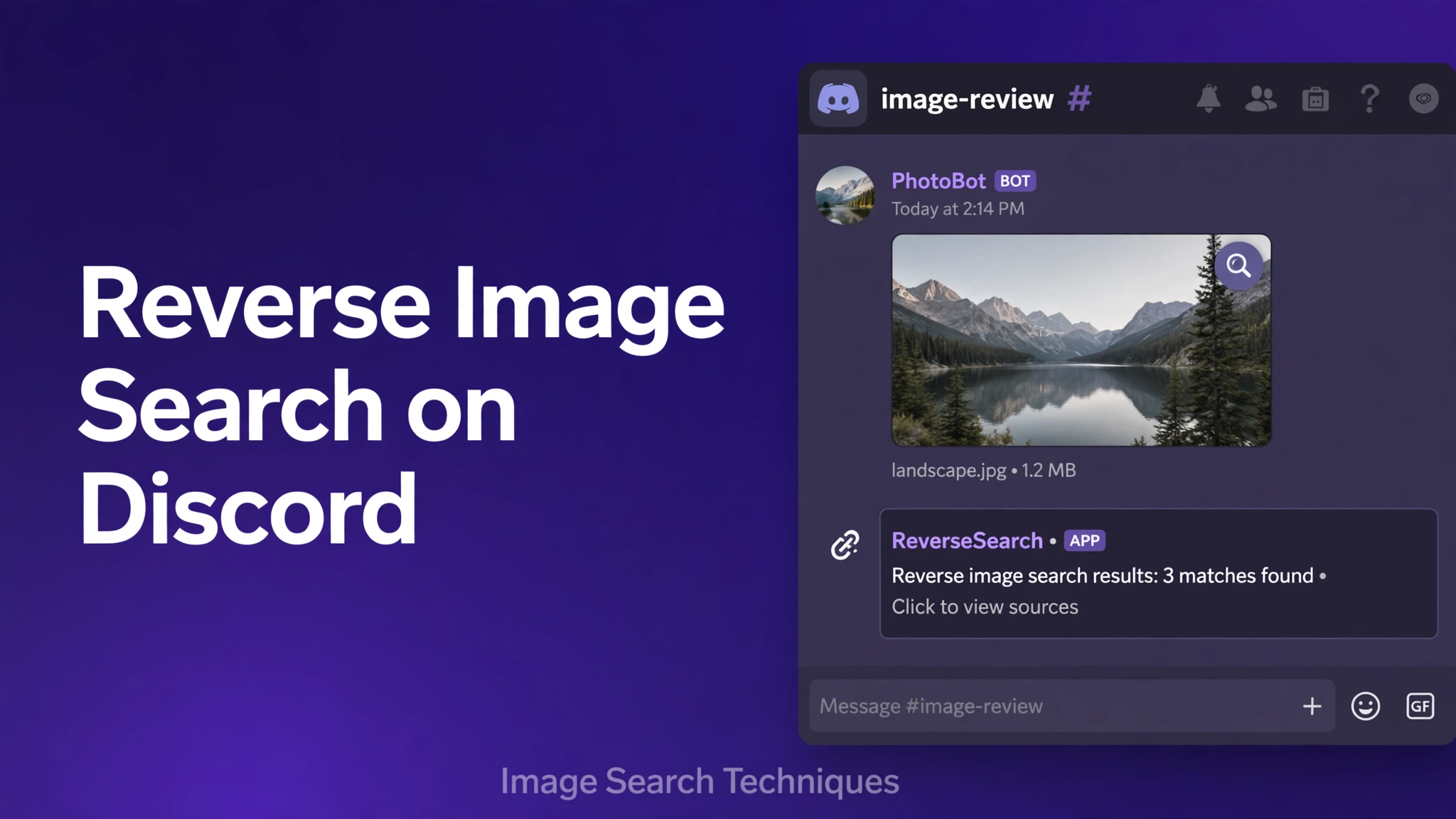
Discord itself does not offer reverse image search. There is no search-by-image button in a channel, a direct message or a profile. That is why the workflow in this guide has two parts: first save the image in the best quality you can, and then search it with a dedicated image search tool. Saving the file first also gives you a clean copy to crop, enlarge or try in a second tool if the first search finds nothing.
How to Save an Image from Discord Before You Search It
Always start with the original image file when you can. A screenshot of a Discord message is usually smaller, compressed and surrounded by usernames, timestamps and interface elements, which makes matching harder. Saving the image itself gives the search tool more detail to work with. The steps differ slightly by device, but the result is the same: a JPG, PNG, WebP or GIF file on your device.
On the Discord Desktop App
- Open the channel or direct message that contains the image.
- Click the image once to open it in full view.
- Click the download icon, or right-click the image and choose Save Image As.
- Choose a folder you can find easily, keep the original file name if possible, and click Save.
- Check the saved file before you upload it. If it looks small or blurry, try opening the image again and saving it at full size.
On Windows and Mac, the desktop app also lets you copy an image link. Right-click the image, choose Copy Link, and paste that link into a search tool that accepts a URL. This is useful when you cannot save the file, but an uploaded file usually gives a more reliable result than a link, especially if the link expires or the message is deleted later.
On the Discord Mobile App
- Open the Discord app and go to the message with the image.
- Tap the image to open it in full screen.
- Tap the download or share icon at the top or bottom of the screen.
- Choose Save Image, Save to Photos or Download, depending on your phone.
- Open your gallery or Files app and confirm the image saved at a usable size.
On iPhone, saved images go to Photos. On Android, they usually go to Downloads or to a Discord folder in your gallery. If the image is a GIF, save the file itself rather than taking a screenshot, because a still screenshot loses the animation and often loses detail. If the download option is missing, long-press the image and look for Save, Share or Open in Browser, then save it from there.
In a Web Browser
- Open Discord in your browser and sign in at discord.com if needed.
- Find the message and click the image to open it at full size.
- Right-click the image and choose Save Image As.
- Pick a folder, keep the original name, and save the file.
- If the right-click menu is limited, click Open Original or Open in New Tab first, then save from the full-size view.
The browser version is often the easiest place to save an image at full resolution, because you can open the original file in a new tab and check its size before you download it. This is also a good option when the desktop or mobile app compresses the preview. Once the file is saved, you are ready to search it.
Method 1: Reverse Image Search with Google Lens
Google Lens is a good first choice for reverse image search on Discord. It is free, works in a browser, and is strong at finding visually similar images, matching products, artwork, landmarks, text and screenshots. Start here when you want a fast answer, then try another tool if the result is unclear.
- Go to Google Lens at lens.google.com.
- Click the upload icon and choose the image you saved from Discord.
- Wait for Lens to analyse the image and show visual matches.
- Drag the crop box to focus on the main subject if the image contains extra background, text or Discord interface elements.
- Open the most relevant matches and compare the image, the page title and the date to see where it first appeared.
- If the first result is not helpful, try the same image in TinEye or Yandex before you decide.
Google Lens also works from Google Images and from the Google app on mobile. On a phone, you can upload the saved Discord image from your gallery in the same way. Look for exact matches first, then for similar images that show the same picture at a different size or with a small edit. A match on a well-known site, an artist portfolio or an original post is stronger evidence than a match on a repost page.
Method 2: Reverse Image Search with TinEye
TinEye is built for finding exact and near-exact copies of an image across the web. It is especially useful for older images, stock photos and images that have been reposted many times. It also shows when a match was first found, which can help you work out which copy came first.
- Go to TinEye and click the upload button, or paste the image URL if you copied it from Discord.
- Upload the saved Discord image from your device.
- Review the list of matches and sort by oldest or newest if that option is available.
- Open the earliest credible match to check the original source.
- Use the comparison view to see how a match differs from your image, for example by cropping or colour changes.
- If you need help with a feature, read the TinEye help centre before you change your search.
TinEye is a useful second check when Google Lens finds only similar images rather than the same image. If TinEye finds no matches, that does not prove the image is original. It may be new, private, deleted from the web, or changed enough that the tool cannot match it. In that case, try Yandex or Bing, and search again with a cropped version of the clearest part of the image.
Method 3: Reverse Image Search with Yandex Images
Yandex Images is often the strongest tool for finding a reused image that has been cropped, resized or slightly edited. It is also helpful for faces, artwork and photos that Google Lens misses. It is free to use in a browser, and you can upload a file or paste an image URL.
- Go to Yandex Images.
- Click the camera icon to open image search.
- Choose Select a file and upload the Discord image, or paste the image URL.
- Wait for Yandex to show similar images and pages that contain the same picture.
- Use the similar images and the pages listed to trace the image back to its earliest or most authoritative source.
- Try a tighter crop on the main subject if the first search returns unrelated results.
Yandex is particularly good at matching images that have been shared on social media and forums, which makes it a valuable tool for Discord images. As with every tool, check the source page yourself. A matching image on a random repost site does not prove that site created it. Look for the artist, photographer, news outlet or original account that published it first.
Method 4: Reverse Image Search with Bing Visual Search
Bing Visual Search is another free option, and it is useful as a cross-check. It can find similar images, related pages and visually similar products, and it works well for screenshots, artwork and photos with clear subjects. Use it when Google Lens, TinEye and Yandex disagree, or when you want a second opinion.
- Go to Bing Visual Search.
- Click Browse or drag the saved Discord image into the search box.
- Wait for Bing to show visual matches and related images.
- Click Pages with this image or a similar result to see where the picture appears online.
- Compare the dates, titles and source sites to judge which result is the original.
- Repeat the search with a cropped version if the full image gives weak results.
Bing is also available through the Bing app and through image search on mobile. If you are checking a lot of images, keep a simple note of the tool, the best match and the source link for each image, so you can return to the evidence later or share it with a moderator.
Which Tool Should You Use?
No single tool finds every image. Each one has a different index, so the best approach is to start with the tool that fits your image, then cross-check with a second tool when the result matters. The table below gives a quick comparison.
| Tool |
Best for |
Upload needed |
Free |
| Google Lens |
Fast general matches |
Yes |
Yes |
| TinEye |
Exact copies |
Yes |
Yes |
| Yandex Images |
Cropped or edited copies |
Yes |
Yes |
| Bing Visual Search |
Cross-checks |
Yes |
Yes |
If you only have time for two searches, use Google Lens first and Yandex second. If you are checking whether an image is stolen, add TinEye, because its oldest-first sorting can help you find the original. For a wider comparison of free options, see our guide to the
best free reverse image search tools.
What to Do When the Image Is a Screenshot or Cropped
Many Discord images are screenshots, cropped photos or images with text added on top. These are harder to match, because the search tool sees the whole screenshot, including Discord usernames, reaction icons and chat bubbles, instead of only the picture you care about. The fix is to give the tool a cleaner version of the image.
First, check whether the original image is still in the message. Click it to open it at full size and save that file, rather than screenshotting the chat. If only a screenshot is available, crop it tightly around the image itself and remove as much of the Discord interface as you can. Then search the cropped version. If the screenshot contains a photo inside it, crop to that photo alone. If it contains a meme, crop to the main picture and try again with and without the caption text, because text can confuse the matcher.
For a GIF or a video frame, save the GIF file if you can, or take a clear still from the most distinctive frame. Choose a frame with a clear subject, good light and little motion blur. Search that still, and try more than one frame if the first one fails. For a low-quality image, do not enlarge it with a simple zoom, because that adds blur. Use the largest original you can find, and try Yandex and Google Lens, which handle resized and compressed images better than most tools. If the image was cropped from a larger picture, search the cropped part and also search any text, watermark or username visible in it, because that can lead you to the source.
How to Reverse Image Search a Discord Profile Picture or Avatar
A Discord profile picture, also called an avatar, is usually a small, square, heavily compressed image, so it needs a slightly different approach. Start by opening the profile and viewing the avatar at the largest size Discord allows. On desktop, click the username to open the profile, then click the avatar to enlarge it. On mobile, tap the avatar to view it. Save a screenshot of the enlarged avatar, then crop it tightly to the circular picture and save that crop as a new image.
Next, upload that cropped avatar to Google Lens and Yandex Images. Try both, because avatars are often stock photos, anime art, game art or photos taken from another account. If the avatar is a well-known image, one of the tools will usually find the original. If it is a personal photo, you may find the same photo on another social profile, which can help you check whether the Discord account is impersonating someone.
Be careful with the result. A matching avatar does not always mean impersonation. Many people use the same public avatar, fan art or game character image, and some use a photo with permission. Use the match as a starting point, not as proof on its own. Check the account history, the server, the messages and the linked social profiles before you report or confront anyone. The same careful approach applies to the
reverse image search on Telegram and
reverse image search on Snapchat guides, where profile pictures are also a common check.
How to Check Whether a Discord Image Is Stolen, Reused or AI-Generated
To check whether an image is stolen, search it in at least two tools and look for the earliest credible source. An artist portfolio, a stock photo page, a news site or an original social media post is stronger evidence than a repost in a Discord server or on a meme page. Look for a watermark, a signature, a username in the corner, or a caption that names the creator. If the same image appears on a shop, a portfolio or a news article dated before the Discord post, the Discord copy is probably reused. If the Discord user claims they made it but the image appears elsewhere first, save the source links and dates before you raise it with a moderator.
For a reused image, also check whether it has been edited. TinEye and Yandex can show versions that are cropped, flipped, recoloured or compressed. A flipped or cropped copy is still the same image. Compare the composition, the background, the lighting and any small details, such as a logo or a distinctive object, to confirm the match. Do not rely on a single similar image. Open the source page and confirm that the picture is the same, not just a similar picture of the same subject.
AI-generated images are harder to prove from a reverse search alone, because a new AI image may have no earlier copy online. A reverse search that finds no matches is not proof that an image is real, and it is not proof that it is AI-generated either. Look for visual clues as well: hands, text, logos and background details that look warped or inconsistent, lighting that does not match, or a style that changes across the image. Search the image, search a cropped detail, and search any text in the image. If the same picture appears as stock art or as a known AI example, that is useful evidence. If nothing matches, say so clearly and do not claim a result the search did not give you.
Troubleshooting
No results. Try a second tool, upload the original file instead of a screenshot, and crop the image tightly to the main subject. A new, private or heavily edited image may have no public copy, so no result does not mean the image is original.
Wrong results. If the tool returns similar but different images, crop out text, borders and background, and search again. Focus on the most distinctive part of the picture, such as a face, a logo, a building or a unique object. Try Yandex for cropped copies and TinEye for exact copies.
Low-quality image. Use the largest original file you can save from Discord, not a compressed preview or a screenshot of a small thumbnail. Avoid enlarging a tiny image, because blur makes matching harder. If the image is still small, try Google Lens, which often handles low-resolution images better.
GIF or video frame. Save the GIF file itself when possible. If you only have a video, take a clear still from a sharp frame and search that still. Try more than one frame, and crop to the main subject in each one. A moving or blurry frame is much harder to match than a still, sharp frame.
Image deleted from Discord. If the message or the image has been deleted, you cannot save it from Discord again. Use a copy you already saved, a screenshot you took earlier, or the cached image in your browser if it is still available. If you have no copy, a reverse search is not possible from Discord alone, so ask the sender for the original file if appropriate, or search for the text or description instead.
Privacy and Safety: Search Responsibly
Only search images you have the right to check. Do not upload someone else’s private photos, personal pictures, screenshots of private conversations, or images of children. A reverse image search sends the image to a third-party service, so treat every upload as a copy that leaves your device. If an image is private, sensitive or personal, do not upload it to a public search tool.
Remember that Discord images may be deleted. A message, a server or an account can disappear, and the image link can stop working. Save the evidence you need promptly, and keep a note of the source links and dates you find. Do not share a private image more widely in order to check it, and do not post the result in a public channel if it could identify or harm someone.
Beware of scams and impersonation. A stolen profile picture, a fake product photo or a reused screenshot is a common sign of a scam, a fake giveaway or an impersonator asking for money, accounts or personal details. If an image search shows that a profile picture or a product photo belongs to someone else, do not send money, do not click suspicious links, and report the account to Discord and to the server moderators. Never use a reverse image search to harass, dox or track down a private person, and never use it to find personal details about someone who has not shared them publicly.
Frequently Asked Questions
Can you reverse image search directly inside Discord?
No. Discord does not have a built-in reverse image search feature. For reverse image search on Discord, you need to save the image from Discord first, then upload it to Google Lens, TinEye, Yandex Images or Bing Visual Search in your browser. That two-step process is the only reliable way to search a Discord image.
Can you search a Discord profile picture?
Yes. Open the profile, view the avatar at the largest size, save or screenshot it, crop it tightly to the picture, and upload that crop to Google Lens and Yandex Images. A match may show the original photo, artwork or social profile, but check the account and the context before you conclude that it is impersonation.
Does Discord notify the sender when you reverse image search their image?
No. Discord does not notify the sender when you save an image or search it with another tool. The search happens outside Discord, on Google Lens, TinEye, Yandex or Bing. The sender will not see a notification, although they may notice if you share the result or ask them about the source.
What is the best free tool for Discord images?
Google Lens is the best free starting point for most Discord images because it is fast and finds a wide range of matches. For cropped, edited or older images, Yandex Images is often better, and TinEye is best for finding exact copies and the earliest match. Use at least two free tools when the result matters.
What if the image was deleted from Discord?
If the image was deleted and you did not save it, you cannot search it from Discord. Use a copy you saved earlier, a screenshot, or a cached version if one is still available. If you have no copy, ask the sender for the original file, or search for the text, username or description connected to the image instead.
Is reverse image search safe?
Yes, when you use it responsibly. Only search images you have the right to check, do not upload private photos of other people, and use well-known official tools such as Google Lens, TinEye, Yandex Images and Bing Visual Search. Avoid unknown sites that ask for personal details, and do not use a search to harass or identify a private person.
Related Guides
If you check images on other apps, the same save-then-search workflow applies. Read our guide to
reverse image search on Telegram and our guide to
reverse image search on Snapchat for app-specific steps. For a wider overview, start with our
main guide to reverse image search techniques and our list of the
best free reverse image search tools. If a picture you found on another platform looks familiar, you can also try
Pinterest visual search help for guidance on searching similar images on Pinterest.
Try it now: Save the Discord image, then run it through the
free reverse image search tool on our homepage and cross-check the result with Google Lens and Yandex Images. Checking the source first takes less than a minute, and it can save you from sharing a stolen, misleading or fake image.
Related guides



