


🔎 Reverse Image Search
Image search techniques made simple: upload a photo or paste a URL and search 6 engines at once. 100% free, nothing stored.
🔒 Your image is never stored on our servers longer than 24 hours and is never shared.
You are scrolling through a social app and spot a jacket you like. Normally you would screenshot it, open a search app, upload the picture and hope for a match. Circle to Search removes all of that. It is a Google feature built into Android that lets you search for anything visible on your screen, a product, a place, a plant, a line of text, simply by circling it with your finger, without leaving the app you are in. This guide explains what it is, which phones have it and how to use it well.
What is Circle to Search?
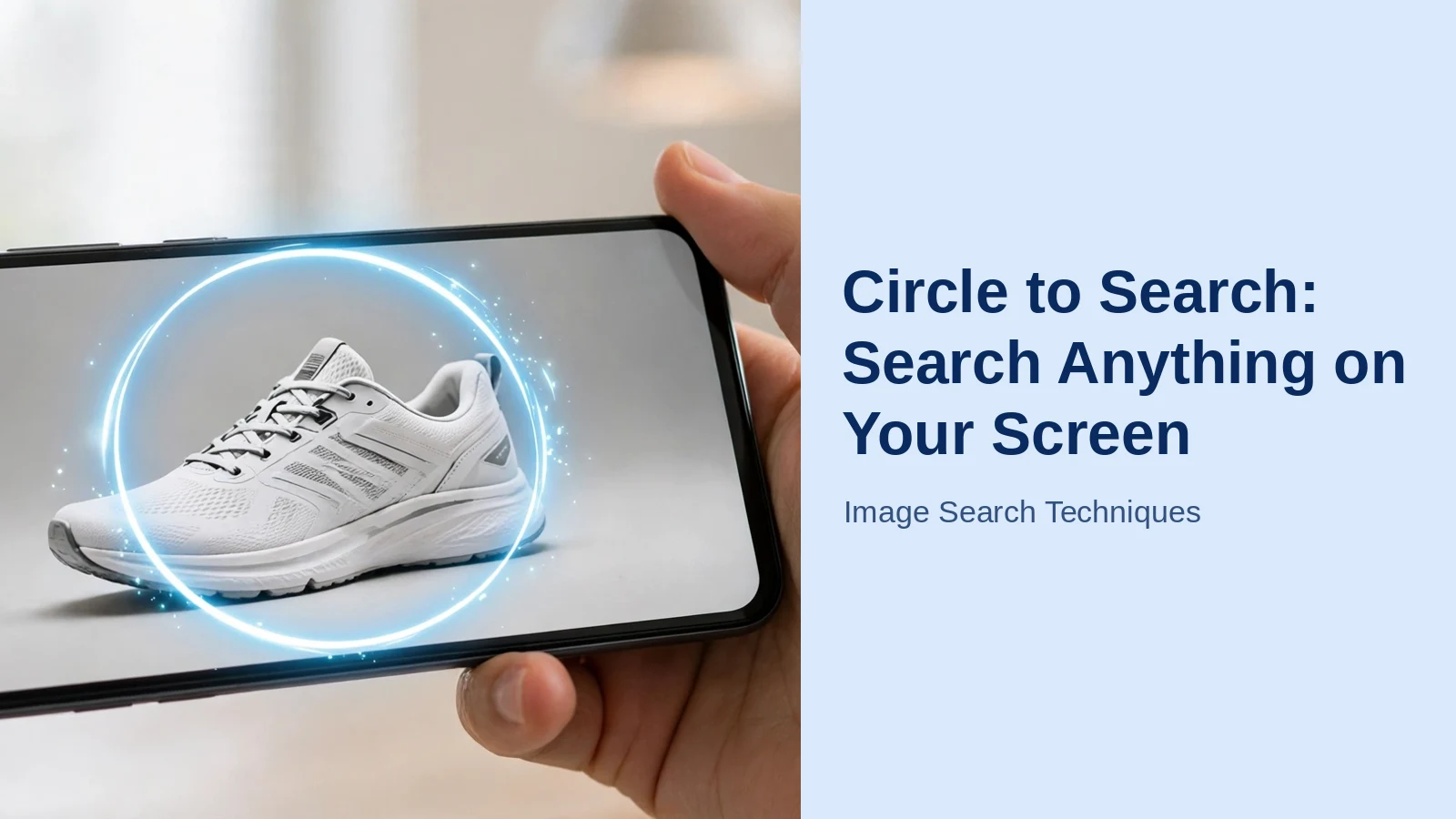
Circle to Search is a visual search tool that lives on top of whatever is on your phone screen. When you activate it, the screen freezes, you draw around the thing you are curious about, and Google searches for that item using the same image-recognition technology that powers Google Lens. Results appear in a panel at the bottom of the screen, so your original app stays exactly where you left it.
Google launched the feature in early 2024 on the Pixel 8 series and Samsung’s Galaxy S24 series, and it has since rolled out to a much wider range of Android phones. It works inside most apps, social feeds, browsers, messaging apps and photo galleries, because it analyses whatever is currently displayed rather than needing a saved file.
Think of it as the fastest form of reverse image search: the picture is already in front of you, and the search starts from there.
Which phones have Circle to Search?
The feature is Android-only, and availability depends on your phone model and region. In general, you can expect it on:
- Google Pixel phones, Pixel 6 and newer models, including the Pixel Fold and Pixel Tablet.
- Samsung Galaxy phones and tablets, recent Galaxy S series, Galaxy Z Fold and Z Flip models, and many mid-range Galaxy A series devices.
- Selected phones from other brands, manufacturers including Honor, Motorola, Xiaomi and Tecno have added it to many of their recent models.
Rollout is gradual and varies by country, so the quickest way to check your own device is to open Settings and search for “Circle to Search”. If the option appears, your phone supports it. Android’s official site, android.com, lists feature availability for newer devices if you want to confirm before buying.
The newest features are on a shorter list than the basic feature: multi-object search, Find the Look and Try It On arrived in February 2026 on the Galaxy S26 series and Pixel 10 phones, and our guide to Circle to Search new features has the current device list.
How to turn Circle to Search on
On most phones the feature is enabled by default, but if nothing happens when you try it, check the setting:
- On a Pixel: open Settings, search for “Circle to Search”, and make sure the toggle is on. It works with both gesture navigation and the three-button navigation bar.
- On a Samsung Galaxy: go to Settings > Display > Navigation bar, and switch on the “Circle to Search” option.
To activate it while you are using an app, long-press the navigation bar at the bottom of the screen (or the home button, if you use three-button navigation). The screen will dim slightly and a search bar will appear at the bottom, that is your cue to circle something.
How to use Circle to Search, step by step
- Open the app or page where you saw the item, a photo, a video, a product listing, anything on screen.
- Long-press the navigation bar or home button to start Circle to Search.
- Circle the object with your finger, scribble over it, or simply tap it. For text, drag across it to highlight the words instead.
- Results appear in a panel at the bottom: matching products, similar images, pages and information about what you selected.
- If the result is close but not exact, drag the handles of the selection box to tighten or widen the area and the results update automatically.
- Tap the search bar to add words and refine the search, circle a dress and add “in blue”, for example. This image-plus-text combination, called multisearch, is often the fastest route to the exact item.
When you are done, tap the X or swipe the panel away, you are back in your app exactly where you were, with no screenshot saved to your gallery.
What can you search with it?
Almost anything visible on screen:
- Products and shopping, circle shoes, furniture, gadgets or clothes in a photo or video to find where they are sold and compare prices.
- Places and landmarks, circle a building or view in someone’s travel photo to learn what and where it is.
- Plants, animals and food, identify a flower, a dog breed or a dish from a picture, then read more about it.
- Text, highlight words to define them, translate text in a photo instantly, or copy text from an image into your notes.
- Music, tap the music-note icon in the search bar and hum, sing or play a tune to identify a song stuck in your head.
- Homework help, circle a maths or science problem on your screen to get hints or step-by-step guidance.
Circle to Search vs Google Lens: what is the difference?
The two tools are close relatives. Circle to Search uses Google Lens technology behind the scenes, Google’s own Lens help pages describe the recognition features both share. The practical difference is where the image comes from:
- Circle to Search works on whatever is on your screen right now, inside other apps, with no screenshot or upload needed. It is Android-only and needs a supported phone.
- Google Lens is a separate app (also built into the Google app and Chrome) that works with your camera and with photos already saved in your gallery, and it is available on iPhone too. For a picture in your library rather than on your screen, Lens is the tool to use; our walkthrough of searching Google by image with Lens and the other methods covers those steps in full.
There is also a wider toolbox beyond Google. Our roundup of image search techniques for Android phones covers the other ways to search by picture on the platform, and if you are on a computer instead, reverse image search in Chrome gives you the same kind of one-click searching in the desktop browser.
Limitations worth knowing
- Android only. There is no Circle to Search on iPhone; iOS users can use the Lens features in the Google app instead.
- Secure apps can block it. Banking apps, password screens and some streaming content are protected against screenshots, and Circle to Search cannot analyse what it is not allowed to see, you will get a blank or blocked screen.
- It needs the internet. The recognition happens on Google’s servers, so a connection is required.
- It searches what is visible. If the item is tiny, blurry or partly hidden in the frame, results suffer. Zoom in on the image first, then circle.
For photos that Circle to Search cannot help with, such as a picture file on your computer or an image you want to check across several search engines at once, run it through our free reverse image search tool, which searches six engines from a single upload. New to searching by picture? Start with our beginner’s guide to how reverse image search works, step by step.
If you want to go further than circling things on your screen, our guide on how to identify anything in a photo shows how the same idea works for any picture, not just what is already open on your phone.
FAQs
Is Circle to Search free?
Yes. It is a built-in Android feature from Google and costs nothing to use, you just need a supported phone and an internet connection. There is no separate app to install and no subscription.
Why does nothing happen when I long-press the home button?
The feature is probably switched off, or your phone does not support it yet. Open Settings and search for “Circle to Search” to find the toggle (on Samsung phones it sits under Display > Navigation bar), and update your phone’s software, since the feature arrived through system updates.
Does Circle to Search save screenshots of my screen?
No screenshot is saved to your gallery. The frozen screen is used only to make your selection for that search. Bear in mind, though, that the image is processed by Google to produce results, which is true of any online image search.
Can Circle to Search find where a photo was originally posted?
It can surface pages and similar images related to what you circle, which sometimes includes the original source. For tracing a specific photo across the web in depth, a full reverse image search across multiple engines is usually more thorough than a quick on-screen search.






