


🔎 Reverse Image Search
Image search techniques made simple: upload a photo or paste a URL and search 6 engines at once. 100% free, nothing stored.
🔒 Your image is never stored on our servers longer than 24 hours and is never shared.
Google runs the largest image index on the web, which makes Google reverse image search the single most useful way to trace a photo, identify an object, or find where a picture came from. This guide covers every method that works in 2026, on both desktop and mobile, along with the tricks that get results when a basic search comes up empty.
Quick answer: Go to Google Images on desktop, click the camera (Google Lens) icon, then upload a photo or paste an image URL. On a phone, use the Google app or Google Lens inside Google Photos. Google returns visual matches, the pages that use the image, and object or product identifications.
What is Google reverse image search?
A reverse image search starts with a picture instead of words. You give Google an image and it finds visually matching or related images, the web pages those images appear on, and information about what is in the picture. Since 2022, Google has folded this feature into Google Lens, which is smarter than the old “search by image”: it reads text, recognises objects, landmarks and products, and can search just a part of an image.
How to reverse image search on Google (desktop)
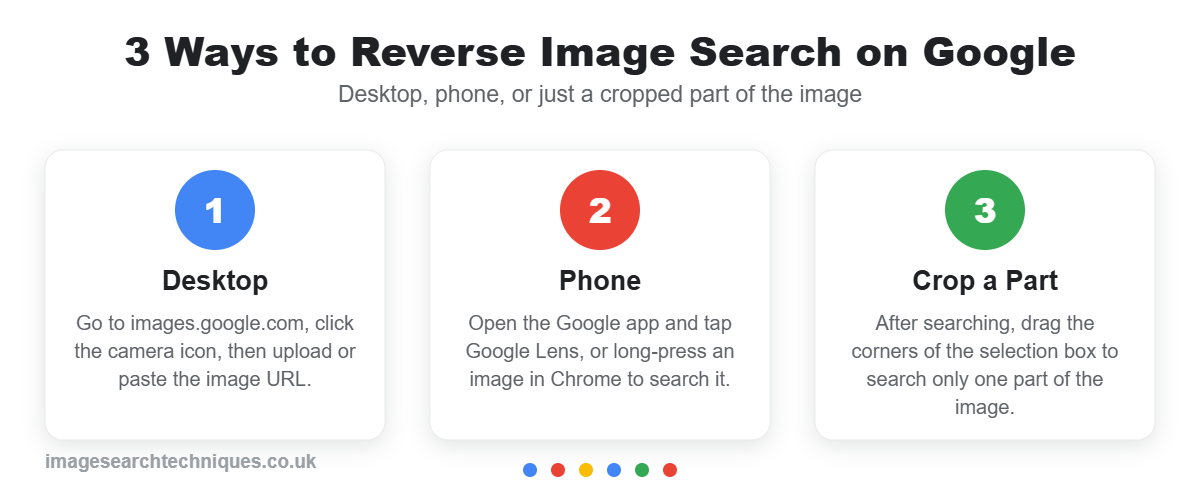
- Open images.google.com in any browser.
- Click the camera icon (Google Lens) in the search bar.
- Upload an image file, drag and drop it, or paste an image URL.
- Google shows visual matches and the pages that contain the image.
- Use the crop handles on the preview to focus the search on one part of the image, such as a face, logo, or product.
You can also right-click any image in Chrome and choose Search image with Google to run a reverse search without leaving the page.
How to reverse image search on Google (phone)
Mobile is where most people search now, and the method differs slightly by device.
On Android
Google Lens is built in. Open a photo in Google Photos and tap the Lens icon, or open the Google app and tap the Lens camera icon to capture or upload an image. Full taps are in our Android reverse image search guide.
Lens can also read codes — learn how to scan a QR code from a photo with the same tool.
On iPhone
Install the Google app (or Chrome), tap the Lens icon in the search bar, and upload a photo or take one. Safari also lets you search some images directly. See our iPhone reverse image search guide for all five methods.
How to search by a specific part of an image
Searching only part of an image is one of Google’s most useful tricks. After you run a normal reverse image search, a small selection box appears over the picture — drag its corners to isolate a single face, logo, product, or object, and Google re-runs the search on just that region. It is the best way to identify one item in a busy photo or to trace a cropped version of a picture back to its original source.
One of Google Lens’s best features is cropping. After uploading, drag the corners of the selection box to isolate the detail you care about — a face, a sign, a logo, or a single product in a busy scene. Searching a clean crop often finds matches that a full-image search misses, especially when the picture has borders, captions, or collage elements.
When Google reverse image search finds nothing
If Google returns nothing, it usually means the image is new, private, heavily edited, or simply not indexed yet — not that no match exists anywhere. Before giving up, crop to the most distinctive part of the image, upload the highest-resolution copy you have, and run the same picture through Yandex and TinEye, which index different parts of the web and often surface matches that Google misses.
A blank result does not mean the image is original or unique. It may be private, newly posted, heavily edited, or simply not in Google’s index. When that happens:
- Try a tighter crop around the most distinctive detail.
- Search a different frame or a less-edited copy.
- Switch engines — Yandex is often better for people and places, and TinEye is best for exact and edited copies.
- Search any visible text from the image in quotation marks.
For the full cross-engine method, see how to find similar images by picture.
To check a photo’s history and first appearance in detail, see Google About this image. If the results are still too broad, learn how to combine an image search with keywords filters.
Google reverse image search vs other engines
| Engine | Best for | Coverage |
|---|---|---|
| Google Images / Lens | Objects, products, widest web coverage | Largest index |
| Yandex | Faces, edited & visually similar images | Very strong |
| Bing Visual Search | Products & cropping to part of an image | Strong |
| TinEye | Finding the oldest / original version | Exact-match focused |
No single engine indexes the whole web, so serious searching uses more than one.
- Google Lens — the best all-rounder: largest index, strong object and text recognition.
- Yandex — unusually strong at matching faces and locations.
- Bing Visual Search — a different index that can surface pages Google misses.
- TinEye — best for finding exact matches and edited copies, and for tracing where an image first appeared.
Common uses for Google reverse image search
- Finding the original source of a photo or a larger version.
- Checking whether someone is using your photos online.
- Spotting a fake dating or social profile using a stolen photo.
- Identifying a product, plant, landmark, or animal.
- Verifying whether a viral image is real or reused out of context.
Tips for better results
- Use the clearest, highest-resolution copy you have.
- Crop to the key detail rather than searching the whole scene.
- Try more than one engine before concluding there is no match.
- Combine image search with an exact-text search of any words visible in the picture.
- Compare upload dates — the oldest result is not always the original, as Google’s own guidance notes.
FAQ
How do I do a Google reverse image search?
Open images.google.com, click the camera (Lens) icon, and upload a photo or paste an image URL. Google returns visual matches and the web pages that use the image.
Can I reverse image search on Google from my phone?
Yes. Use Google Lens inside the Google app or Google Photos on Android, or install the Google app on iPhone and tap the Lens icon to upload a photo.
Why does Google reverse image search show no results?
The image may be private, newly posted, heavily edited, or not in Google’s index. Try a tighter crop, a different copy, or another engine like Yandex or TinEye.
Is Google reverse image search free?
Yes, Google reverse image search and Google Lens are completely free to use on both desktop and mobile.
How do I search just part of an image on Google?
After uploading the image to Google Lens, drag the corners of the selection box to isolate a face, logo, or object, then search that crop.
Related guides
- Find Similar Images: How to Search by Picture
- Yandex Reverse Image Search
- Reverse Image Search on iPhone
- How to Reverse Image Search on Android
- Best Reverse Image Search Apps
Google Image Search vs Google Reverse Image Search
These sound the same but work in opposite directions. Google Image Search is keyword-based — you type words and Google shows matching pictures. Google reverse image search (also searched as “reverse Google search” or “Google image reverse search”) works the other way: you give Google a picture and it finds where that image appears, visually similar images, and what is in it. Both run through the same place — Google Images and Google Lens — just started from words or from an image.
How to do a reverse Google search with a photo
To run a reverse Google search, open images.google.com, click the camera (Google Lens) icon, and upload your photo or paste its URL. In Chrome you can also right-click any image and choose Search image with Google. On a phone, use Google Lens in the Google app or Google Photos. For the device-by-device steps, see our guides for iPhone and Android.
Related guides
Google Lens is also handy for physical objects: you can identify a banknote from a photo when you find an unfamiliar note and need its country, currency and denomination.
Students can also solve maths problems with Google Lens by photographing a question and following the step-by-step working it shows.
