


🔎 Reverse Image Search
Image search techniques made simple: upload a photo or paste a URL and search 6 engines at once. 100% free, nothing stored.
🔒 Your image is never stored on our servers longer than 24 hours and is never shared.
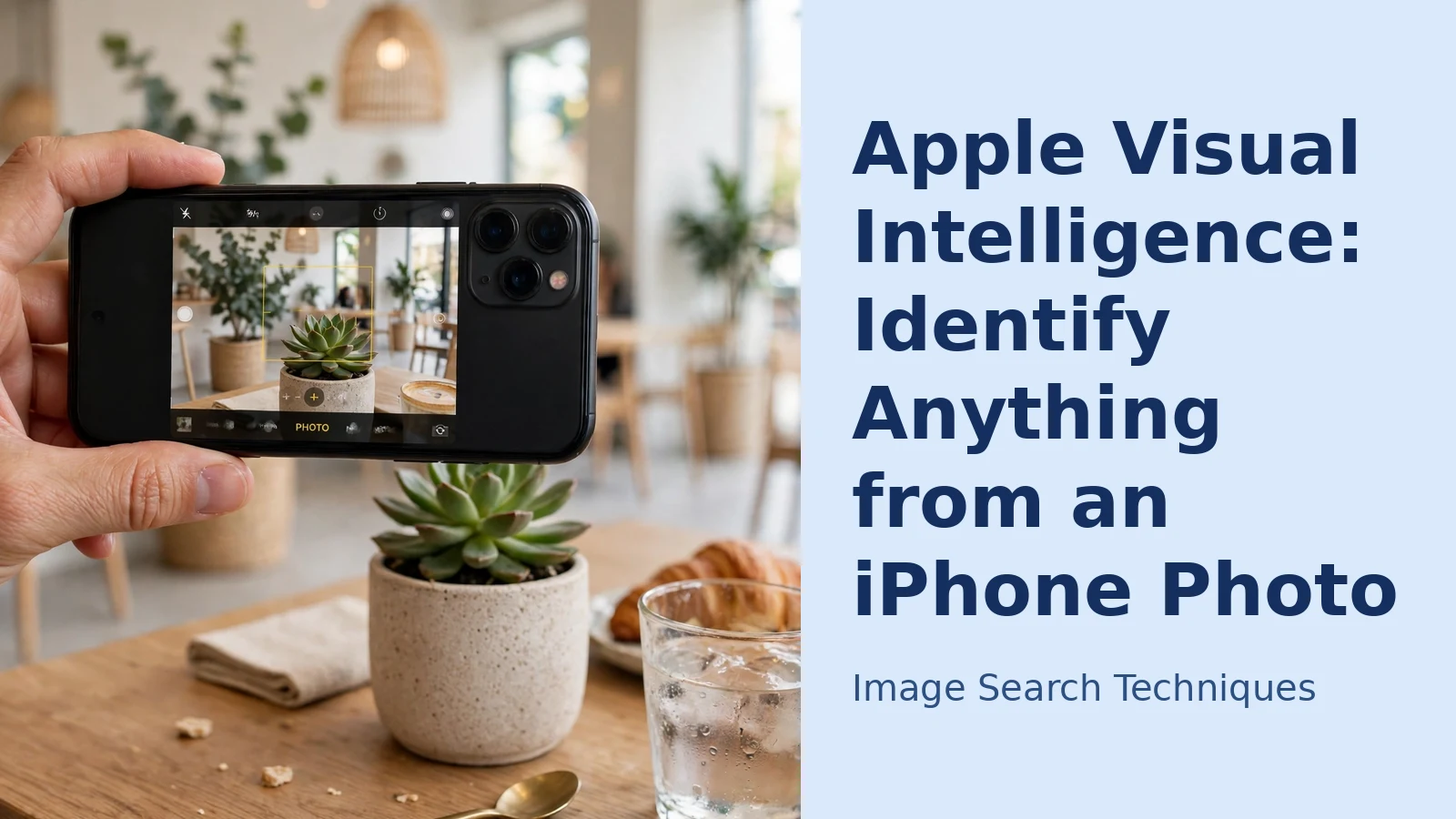
If you have ever opened a photo on your iPhone, tapped the small info button and watched your phone name the plant, dog breed or landmark in the picture, you have already used one of Apple’s two look-up features. The confusion is that there are two of them, with similar names, doing related but different jobs. Visual Look Up works on photos already saved on your phone. Apple Visual Intelligence works live, on whatever is in front of your camera right now, but only on supported models. This guide separates the two, walks through each one step by step, and shows where both stop and a proper reverse image search takes over.
In short: Visual Intelligence is Apple’s live visual search. Point your iPhone camera at something and it can name it, look up a business, translate text, or send the image to Google or ChatGPT for more. Visual Look Up does the same job for photos already saved on your phone.
Two features, two different jobs
Visual Look Up is the older and more widely available feature. It arrived with iOS 15 and works on iPhone models with an A12 Bionic chip or later, which covers the iPhone XS and XR onwards. It lives mainly inside the Photos app and answers one question: what is in this picture? Depending on the subject, it can identify plants and flowers, animals and dog breeds, birds, insects, popular landmarks, statues, artwork, books and food, and it can even interpret laundry-care symbols and car dashboard warning lights.
Visual Intelligence is newer and more demanding. It is part of Apple Intelligence, so it needs a supported iPhone, the iPhone 15 Pro models and the iPhone 16 range or later, with Apple Intelligence turned on, and availability also depends on your language and region. Instead of working on saved photos, it works through the camera in real time, identifies what you are pointing at, and then lets you act on it: look up a business, translate or summarise text, or hand the image to Google or ChatGPT for more.
Visual Look Up: identify things in photos you already have
Visual Look Up needs no setup and nothing to download. Apple’s own Visual Look Up guide describes the same steps:
- Open the Photos app and choose the photo you want to identify. The clearest, least cluttered shot you have will give the best result.
- Look at the info (i) button at the bottom of the screen. If Visual Look Up has recognised something, the button gains small sparkles, or changes into a category symbol such as a leaf or a paw print. You can also swipe up on the photo.
- Tap the button, then tap the Look Up suggestion, such as “Look Up – Plant” or “Look Up – Landmark”.
- Read the results panel. It typically shows the identified name, background information drawn from Siri Knowledge, similar web images, and useful extras such as a map for a landmark or suggested recipes for a dish.
Two things are worth knowing. First, if the sparkles never appear, the feature simply has not recognised a supported subject in that photo, a different, clearer photo of the same thing often works. Second, it needs an internet connection to fetch the information, even though the photo itself is already on your phone.
Visual Intelligence: identify what is in front of you, live
Visual Intelligence is the live counterpart, the same point-and-identify idea as live camera image search, built into the iPhone’s own controls. How you start it depends on your model:
- On iPhones with Camera Control, click and hold the Camera Control button until the Visual Intelligence view opens.
- On supported models without Camera Control, assign Visual Intelligence to the Action button in Settings, or add it as a Lock Screen or Control Centre control, then tap that control.
- Point the camera at the object, plant, animal, business or text you want to know about, and tap the result or on-screen prompt to see details.
From there it goes further than a name. Point it at a restaurant or shop and you can see opening hours, ratings, menus or contact details on supported listings. Point it at text and you can have it summarised, translated or read aloud, and dates or phone numbers it recognises can become calendar events or calls. Two options appear for going beyond Apple itself: a search option that sends the image to Google to find visually similar images and products, and an “ask” option that passes the image to ChatGPT, if you have enabled the ChatGPT extension. Apple’s Visual Intelligence guide lists the current options for your model and software version. On supported models running recent iOS versions, Visual Intelligence can also work on content already on your screen, such as a screenshot, rather than only through the camera.
Which one should you use?
The choice is mostly made for you by timing and hardware:
- The photo is already on your phone, perhaps sent by a friend or taken last summer: use Visual Look Up.
- You are standing in front of the thing and want an answer now, or you want to act on text, a poster or a business: use Visual Intelligence.
- Your iPhone is older, or Apple Intelligence is not available in your language or region: Visual Look Up is your option, and it is a capable one.
- You want shopping results or similar products: Visual Intelligence’s Google search option is the closest built-in route; Visual Look Up’s similar web images give identification help rather than a shopping search.
How they compare with Lens and the Android equivalents
Google Lens does a broadly similar job on iPhone, but from inside the Google app rather than from the camera button or Photos, and it leans harder into shopping and web results; our Google reverse image search guide covers how it works. Android owners have their own built-in equivalents: Circle to Search on supported Android phones, and Samsung Bixby Vision on Galaxy devices. Apple’s pair wins on convenience, nothing to install, and the features sit exactly where you already take and view photos, while Lens still has the edge when your goal is searching the wider web rather than simply naming the subject.
The job neither feature does: finding an image’s source
Identification is not the same as investigation. Neither Visual Look Up nor Apple Visual Intelligence can tell you where an image was first published, find other copies of your photograph online, or check whether a picture has been used somewhere without permission. They name what is in the picture; they do not trace the picture itself. When the question is about the image rather than its subject, who posted it first, where else it appears, whether a seller copied it, run the photo through a dedicated engine instead, such as the free reverse image search tool on our homepage, which checks your image across several engines at once.
If you want to go further than Apple’s built-in features, our guide to how to identify anything in a photo shows how to identify objects, animals, plants and landmarks from any picture, whatever phone you use.
FAQs
Why can’t I find Visual Intelligence on my iPhone?
It is an Apple Intelligence feature, so it only appears on supported models, iPhone 15 Pro and iPhone 16 or later, with Apple Intelligence switched on, and availability varies by language and region. On a supported model without Camera Control, look for it via the Action button, Lock Screen or Control Centre rather than in the Camera app itself.
Why does the Visual Look Up button not appear on some of my photos?
The sparkled info button only shows when the feature has recognised a supported subject, such as a plant, animal, landmark or artwork. Photos of generic objects, people or blurry subjects often produce no Look Up option. A clearer photo of the same subject, and an active internet connection, give it the best chance.
Can Visual Look Up work on a photo someone sent me?
Yes. Save the image to Photos, open it, and check the info button as normal. If the picture contains a supported subject, Look Up will offer an identification regardless of who took the photo. It also appears for images in a few other places, such as Safari and Quick Look, on supported devices.
Is Apple Visual Intelligence just Apple’s version of Google Lens?
They overlap, both identify the world through a camera, but they are not the same tool. Visual Intelligence is built into the iPhone’s camera controls, focuses on identification and quick actions, and only sends your image to Google or ChatGPT when you tap those specific options. Lens is Google’s own search product, with a stronger shopping and web-search emphasis.






