


🔎 Reverse Image Search
Image search techniques made simple: upload a photo or paste a URL and search 6 engines at once. 100% free, nothing stored.
🔒 Your image is never stored on our servers longer than 24 hours and is never shared.
Short answer: To identify a LEGO set from a photo, photograph the model front-on, reverse-search the photo with Google Lens, then pick the model’s most distinctive element, a printed tile, an unusual colour or a rare part, and trace it through BrickLink or Brickset to the sets it appears in. Confirm the candidate against the set inventory.
If you typed “identify lego set from photo” into a search engine, this guide answers that search. You have a finished LEGO model on the shelf, no box and no instructions, and you want to know which set it is. Maybe it came from a bulk buy, a car-boot sale or a relative’s loft. The good news is that a built model is much easier to identify from a photo than a pile of loose bricks: its shape, colours and printed pieces narrow the field fast. This guide shows you how to identify a LEGO set from a photo, step by step, using free tools and the two catalogues every LEGO fan relies on. It sits in our wider series on naming things from pictures, see our what is this picture guide for the general method that works on any object.
What is a LEGO set number? A LEGO set number is the four-to-six-digit code that identifies one specific LEGO set, such as 21309 for the NASA Apollo Saturn V. It is printed on the box and on the instruction booklet, and it is the key that unlocks the instructions, the parts list and the set’s catalogue pages.
What do you need before you start?
Before you search anything, take four photographs of the model. A good set of photos is what makes the difference between an instant match and a long guessing game, so spend five minutes on this step.
- Front view. Photograph the whole model straight on, filling the frame, against a plain background. Avoid clutter behind it: a busy shelf confuses image search.
- Three-quarter view. Turn the model about 45 degrees and photograph it again, so the depth and the side details are visible.
- Top or detail view. Photograph the top, or the most detailed face of the model, the part with the most distinctive bricks.
- Printed-piece close-up. If the model has any printed tile, sticker or decorated element, photograph that piece on its own, as close and as sharp as you can. Printed pieces are the strongest clue you have, and this close-up is the photo you will search second.
Use daylight or a bright room, keep the camera steady, and do not crop the model out of the frame. If the model is very large, photograph it in sections rather than from across the room: a small, sharp photo beats a large, blurry one. Note down anything you already know, the theme it looks like, roughly when it was bought, and whether any parts look replaced or missing, because that context helps you judge the results.
One warning before you begin: this guide covers built models and set numbers only. If what you are holding is a single minifigure, the identification process is different, and our guide to identifying LEGO minifigures from a photo covers that instead. Loose bricks on their own need a parts-first approach, not the set-first method below.
How do you identify a LEGO set from a photo?
Work through these four steps in order. Most built models are solved by step two; the later steps exist for the stubborn ones.
Step 1: Reverse-search the whole model. Upload your front-view photo to Google Lens and see what it returns. Lens searches the whole web, so for a popular or recent set it will often name the set directly and show the set’s catalogue pages among the top results. Our guide to how to reverse image search explains the upload steps on phone and desktop. Look for matches on Brickset, BrickLink, Rebrickable or LEGO fan wikis rather than shopping listings: a catalogue page gives you the set number, the year and the piece count, while a shop listing may only give you a price. If Lens names the set, skip to step 4 and confirm it. If Lens only names the theme, “Star Wars spaceship” or “LEGO castle”, move on to step 2.
Step 2: Search the printed-piece close-up. Upload the close-up of the printed tile or decorated element to Lens as a second, separate search. Printed pieces are made for very few sets, so this search often lands on the exact set even when the whole-model search did not. A tile printed with a flag, a logo, a control panel or a face is far more distinctive than a plain brick, and Lens reads print well.
Step 3: Trace the distinctive element in a catalogue. Pick the single most unusual element in the model, the printed tile, a rare colour, an oddly shaped piece, and look it up in a parts catalogue. BrickLink’s catalogue shows every set each part appeared in, so a part that appears in only one or two sets ends the search immediately. Search by the part’s shape and colour, then open the “Appears in” list on the part’s page. If the part appears in twenty sets, combine it with a second distinctive element: the sets that contain both are usually a very short list. Brickfact’s guide to identifying LEGO pieces explains the numbering you will meet here: the design ID is the shape moulded into the part, while the element ID is that shape in one specific colour or print, and the two numbers are not interchangeable.
Step 4: Confirm against the set inventory. Once you have a candidate set number, open the set on Brickset and check it against your model: the name, the year, the piece count and the set’s official image. Then compare the set’s inventory with the model in front of you, the large, distinctive parts should all be there. If three or four unusual parts match and the colours match, you have your set. If the shape is right but the colours are wrong, you may be looking at a re-release of the same model under a new number, or a model built from mixed parts, which the next section covers.
Which distinctive pieces narrow a set down fastest?
Not every brick is equally useful. A plain red 2 × 4 brick appears in hundreds of sets, while a printed tile may appear in one. The table below is the ranking asset for this guide: use it to choose which element to trace first.
| Distinctive element | Colour | Theme clue | Candidate sets | Confirmation check |
|---|---|---|---|---|
| Printed tile (flag, logo, screen) | As printed | Licensed or detailed | Often 1–3 | Print matches the set image exactly |
| Printed slope or curved piece | As printed | Vehicles, aircraft | Usually under 5 | Print and curve both match |
| Rare colour part (e.g. sand green) | Unusual shade | Any | Small set list | Colour name matches BrickLink listing |
| Large unique mould (hull, cockpit) | As moulded | Ships, planes, cars | Often 1–2 | Shape matches the set’s main build |
| Stickers on tiles | As applied | Any | Varies | Sticker design matches instructions |
| Unusual baseplate or frame | Dark or rare | Buildings, dioramas | Short list | Size and stud layout match |
Work down the table from the top: printed pieces first, then rare colours, then large unique moulds. Two clues are always better than one, a printed tile plus a rare colour will usually leave a single candidate, and that is when you can stop searching and start confirming. If your model has no printed pieces at all, use the largest and oddest-shaped part instead, and lean on the whole-model reverse search from step 1.
A note on colour names, because they trip people up: LEGO, BrickLink and Rebrickable do not always use the same colour names. Brickfact’s colour chart shows the translations, LEGO’s Medium Stone Grey is BrickLink’s Light Bluish Gray, and LEGO’s Brick Yellow is BrickLink’s Tan. When you search a catalogue by colour, use the catalogue’s own name, not the name on the box.
What if the model is part-built, modified or a bulk-buy mix?
Not every model on a shelf is complete, and the method needs adjusting when it is not. Here is how to handle the three common cases.
Part-built models. If only part of the model is assembled, photograph the finished section from the front and search that. Then search the most distinctive element in the finished section, as in step 3. A half-built model can still be identified if the finished part includes a printed piece or a recognisable structure, such as a cockpit or a roofline. If the built section is only plain bricks, you will need to identify it from the parts instead, and at that point the set-first method stops working, so narrow by theme and era from whatever you know about where it came from.
Modified models (MOCs). A MOC, a “my own creation” built by a fan rather than from official instructions, has no set number, and no search will find one. The signs are a model that looks almost like a known set but has extra sections, different colours in places, or parts that do not appear in the official inventory. If your checks keep pointing at one set but several parts do not match its inventory, the model is probably that set with modifications, or a MOC inspired by it. Record the closest official set and note the differences, rather than forcing a match.
Bulk-buy mixes. A tub of bricks bought second-hand often contains parts from several sets, and a model assembled from it may combine pieces that never belonged together. In that case, identify the largest coherent section first and treat the rest as spares. Our guide to identifying vintage and thrift-store finds from a photo covers the second-hand angle in more detail, including how to tell a genuine older piece from a newer copy. Never assume every brick in a bulk buy came from one set: that assumption is the most common reason these identifications go wrong.
One more honest limit: some sets are near-identical twins. LEGO sometimes re-releases a popular model with a new set number and only small changes, and two sets can share the same shape in different colours. When that happens, the printed pieces and the exact colours are the only things that separate them, so photograph those details carefully and compare both candidates’ inventories before you decide.
What does a set number unlock once you have it?
The set number is not the end of the job, it is the key to everything else. Type it into Brickset and you get the set’s name, theme, release year, piece count and retirement status. Type it into BrickLink and you get the full inventory: every part, its colour, its quantity and the sets it also appears in. That inventory is what lets you check whether your model is complete, and which pieces you need to buy if it is not.
The number also unlocks the building instructions. LEGO publishes official instruction PDFs for its sets, and the instructions include the parts list at the back, with a picture of every element and its quantity. With the set number you can download the exact booklet for your model, rebuild any section that came apart, and confirm that a suspicious part really belongs. If you want to buy the set again or replace missing pieces, our find an item by image guide shows how to search for it by photo on shopping sites. And if the model turns out to be one you already own twice over, the set number is what you need to list it accurately.
As a sense of scale, consider the largest LEGO Star Wars set: Guinness World Records reported on 10 November 2026 that a teenager from Germany built the 75192 Millennium Falcon, 7,541 pieces, in 7 hours, 27 minutes and 9 seconds. Most sets are far smaller, but the point stands: the set number is a small code that carries a large amount of information, and it is worth the ten minutes it takes to find it.
Worked example: identifying a built Saturn V from one photo
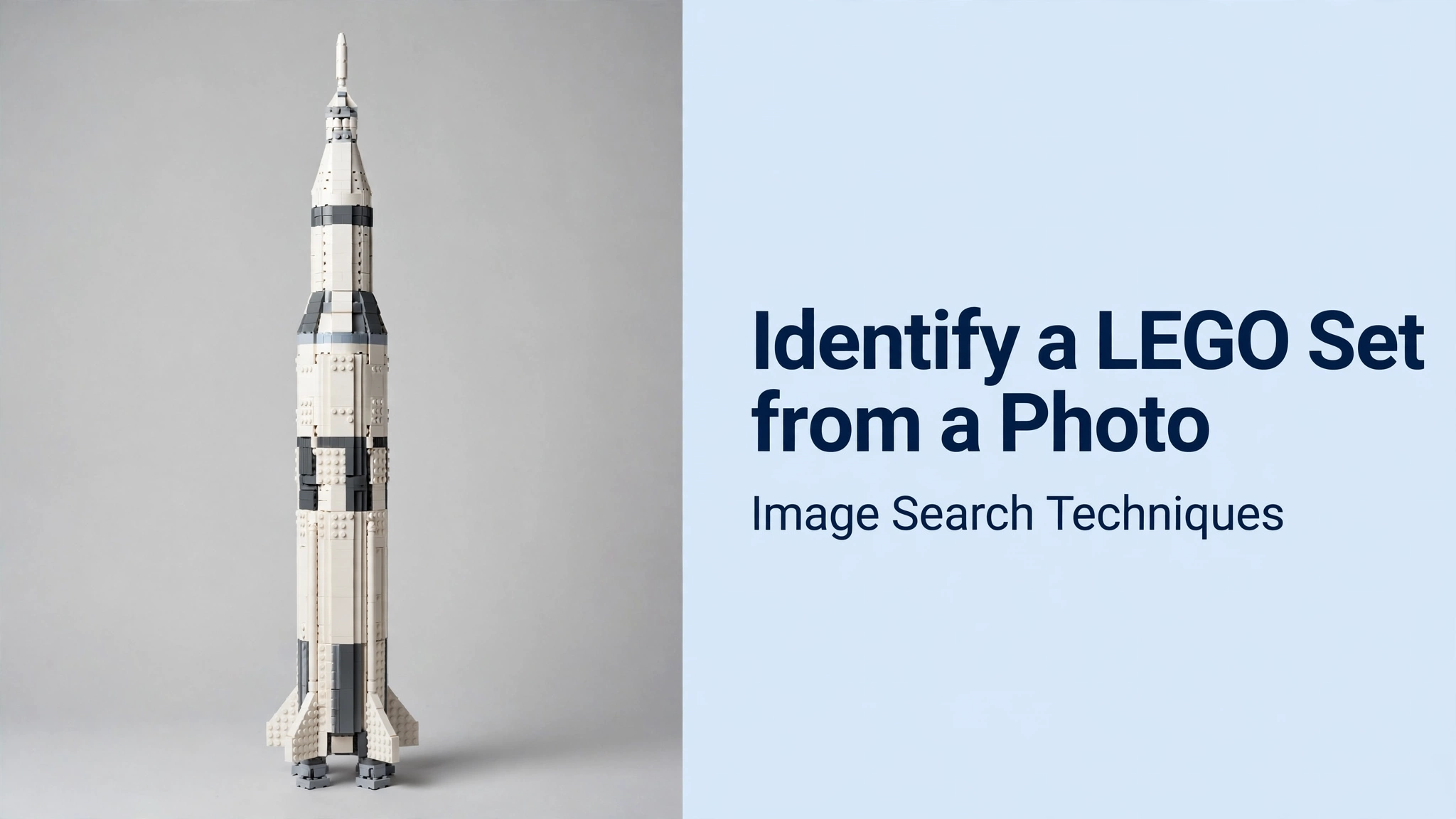
To test the method properly, I ran it on a real photograph: a completed LEGO Saturn V rocket, photographed on 20 July 2017 by the Wikimedia Commons contributor Legoktm and described on the file page as “A completed Lego Saturn V rocket set”. The photograph shows the built rocket standing next to its box, and the box itself prints the set number 21309, a shortcut that real second-hand listings often include. I still ran the full method, because the number on a box is only a claim until a catalogue confirms it, and the searches are what test the photo itself.
Step 1, Google Lens on the whole model: failed. Lens never identified the model. The first attempt was stopped by Google’s “unusual traffic” page, and after two solved reCAPTCHA rounds the search still showed an empty results page; a fresh retry then failed on both the Exact matches and Visual matches tabs with “Something went wrong, No image at the URL.” The photo itself loaded directly in the browser at full size, so this was a Google-side failure, not a dead link. Lens gave no identification, no match count and no top results. This is the honest limit of the method: Lens is often the fastest route, but it is not reliable, and a failed Lens search proves nothing about the model.
Step 2, TinEye on the same photo: 4 matches. TinEye searched over 86.7 billion images and returned 4 results, first indexed on 14 October 2017. The top match was the Lego Ideas page on the English Wikipedia, using a small 220-pixel copy of the same photo; the other three were full-size copies on scraper-style sites, dated April and May 2018. TinEye did not name the set number itself, it finds copies of the photo, not catalogue entries, but the Wikipedia match confirmed the image is the LEGO Ideas Saturn V, and the 2017 first-indexed date fits a set released that year.
Step 3, LEGO-specific check: no result. Brickognize, the LEGO-specific photo tool, could not be tested on this photo: it offers no URL input, only a file upload, and the browser would not accept the downloaded file. Its homepage states that no login is required, that its catalogue covers more than 125,000 parts, and that it claims 98.5% accuracy, but none of that could be verified here, so I report it as untested rather than as a pass or a fail. If you can upload your own photo from your phone, it is still worth trying, it is built for exactly this job.
Step 4, Catalogue confirmation on Brickset: set confirmed. Brickset’s page for 21309-1 lists the set as “NASA Apollo Saturn V”: 1,969 pieces, LEGO Ideas theme, released in 2017 and out of production at the end of 2019, originally priced at £109.99. Brickset also records that the set was re-released under the new number 92176-1, which is exactly the twin-set trap warned about above, the same model, two numbers. The decisive check came from Brickset’s parts list: the printed Flat Tile 1×2 No. 205, a transparent tile in this set, is listed as appearing in one set only, 21309, and several other printed pieces in the set carry the same “in 1 set” mark. BrickLink could not be checked at all on 11 November 2026: the whole site showed a temporary-unavailability notice until at least 18:00 CET, so the catalogue check below uses Brickset’s parts list instead.
Verdict: confirmed as set 21309, NASA Apollo Saturn V. The box printed the number, TinEye confirmed the photo is the LEGO Ideas Saturn V, and Brickset confirmed the number, the piece count and the printed pieces that appear in no other set. Lens failing and BrickLink being down did not stop the identification, they only changed which tools did the work, which is why the method uses more than one.
FAQs
Can Google Lens identify a LEGO set from a photo?
Yes, it often can, especially for popular or recent sets, because it searches the whole web and usually returns catalogue pages. But it is not reliable: in our worked test Lens failed twice with a “No image at the URL” error even though the photo loaded fine. Always cross-check with a second engine and confirm the set number on Brickset.
What is the fastest way to find a LEGO set number from a built model?
Photograph the model front-on and reverse-search it with Google Lens, looking for a Brickset or BrickLink result. If Lens only names the theme, photograph the most distinctive printed piece and search that instead. Then confirm the candidate against the set’s inventory on Brickset before you trust the number.
Can you identify a LEGO set from a photo of a part-built model?
Yes, if the finished section includes a recognisable structure or a printed piece. Photograph the completed part, search it, and trace the distinctive element in a catalogue. If only plain bricks are built, the set-first method stops working, and you must narrow by theme and era instead.
What if my model is a MOC with no official set number?
A MOC has no set number to find, so no search will return one. Note the closest official set and how your model differs, and check its parts against that set’s inventory. If several parts do not match, treat it as a fan creation rather than forcing a match.






