


🔎 Reverse Image Search
Image search techniques made simple: upload a photo or paste a URL and search 6 engines at once. 100% free, nothing stored.
🔒 Your image is never stored on our servers longer than 24 hours and is never shared.
A smartwatch with no box, no receipt and no name on the screen is a common problem. It turns up in a drawer, in a second-hand listing, or in a photo someone sent you, and you need the exact model before you can buy a strap, a charger or a replacement screen. This guide shows you how to identify a smartwatch model from a photo, step by step, using the marks on the watch itself and a reverse image search to back them up.
Short answer: Photograph the front, the case back, the crown and buttons, and the strap lugs in clear light. Read the model code engraved on the case back, then run the photo through a reverse image search and match the code on the manufacturer’s support page. The photo suggests a model family. The code confirms it.
What a photo can and cannot prove
Before you start, it helps to know the limit of this method. A photo can tell you a great deal, but it cannot prove a model on its own. Two watches can share a case shape, a screen size and a button layout while being different models with different chips, sensors and chargers. A round case tells you the shape. It does not tell you the model. A square case tells you even less. Shape is a type, not a model, and treating it as one is the most common mistake in this kind of identification.
A photo can narrow the field to a small family, sometimes to a single generation. The engraved code on the case back then closes the gap. On an Apple Watch that code starts with the letter A and has four digits. On a Samsung Galaxy Watch it starts with SM. On a Google Pixel Watch it starts with G. Those codes are printed by the maker, and the maker’s support page lists what each one means. That is the chain this guide follows: photo first, code second, official page third.
There is one more limit worth stating plainly. A matching photo is not proof that a watch is genuine. Clones copy the case, the crown, the strap and even the engraving style. If you are buying second-hand and the price looks too good, the photo check in this guide will not protect you on its own. Check the seller, the listing history and the warranty route as well.
Take a photo that can actually be identified
Most failed identifications start with a bad photo, not a bad search. A blurry shot of a watch on a wrist, taken in a dim room, gives a search engine almost nothing to work with. If you have the watch in your hands, take four photos before you search.
First, the front. Put the watch face up on a plain surface in daylight or under a bright lamp. Fill the frame with the watch. The screen should be on if the watch has charge, because the watch face style and the bezel shape are strong clues. Note the shape of the case, the size of the bezel, the position of the buttons and the crown, and whether there is a rotating bezel. A rotating bezel points towards Samsung’s Galaxy Watch Classic line. A single crown with one flat side button points towards an Apple Watch. Two round pushers and a crown between them point towards a Garmin or a traditional-style smartwatch.
Second, the back. Turn the watch over and photograph the case back in the same light. This is the most important photo of the four. The case back carries the engraved text: the series name on many models, the case size, the case material, the water resistance rating, and the model code. On an Apple Watch the engraving sits in a ring around the sensor array. On a Galaxy Watch it sits near the sensor cluster. If the text is small, hold the phone steady, tap to focus on the engraving, and take two or three shots. A magnifying glass app or a cheap clip-on macro lens helps here.
Third, the crown and the side. Photograph the watch from the side so the crown, the buttons and their spacing are visible. The Digital Crown on an Apple Watch is a ridged wheel. Samsung’s Classic models have a raised rotating bezel instead. Garmin watches often have five buttons and no crown at all. These details separate families that look alike from the front.
Fourth, the strap and the lugs. Photograph where the strap meets the case. The lug shape, the release button and any branding on the strap are useful marks. Apple uses a slide-in lug system that is the same across many generations, so the strap alone will not name the model, but a proprietary connector can rule whole brands out. If the strap is a third-party one, say so in your notes. A replacement strap tells you nothing about the watch.
If you only have a photo someone else took, and it is blurry, add whatever you already know when you search: the brand if you know it, where the watch came from, and roughly when it was bought. A clear front photo plus a case-back photo beats ten blurry wrist shots.
The smartwatch marks table
Read the photo against this table before you run any search. Work down the rows and write down what you see. The marks that narrow the field fastest are the case-back code and the crown and button layout.
| Mark to read | What it tells you | Where to find it |
|---|---|---|
| Case shape and size | Round or square case, and the width in millimetres. Narrows the field to a family, never to a model on its own. | Front photo, measured across the case without the strap |
| Crown and button layout | One crown plus one button, a rotating bezel, five buttons, or no crown at all. Each layout belongs to a small set of makers. | Side photo, both edges of the case |
| Sensor array on the back | The shape and layout of the optical sensors. Apple uses a round raised sensor cluster. Samsung uses a ring of sensors. Garmin uses a flatter array. | Case-back photo |
| Model text on the case back | The code that confirms the model. Apple A-number, Samsung SM number, Google G number. This is the deciding mark. | Engraved ring on the case back, around the sensors |
| Strap lugs and connector | Slide-in lugs, quick-release pins, or a fixed strap. Rules brands in or out, and tells you which straps will fit. | Photo of the strap joint, strap removed if possible |
| Watch face and screen | The face design, the bezel width, and whether the screen is always on. Useful when the case back is unreadable. | Front photo with the screen on |
| Charging method | Wireless puck, magnetic pins, or a USB cable. Each maker uses its own charger, and the charger often names the family. | Photo of the charger or the charging contacts |
Once you have the marks written down, the search itself is quick. The table is also the reason this guide works where a bare reverse search often does not: the search engine matches the look, and the table tells you which of its suggestions to trust.
Worked example: identify a smartwatch model from a photo with three search engines
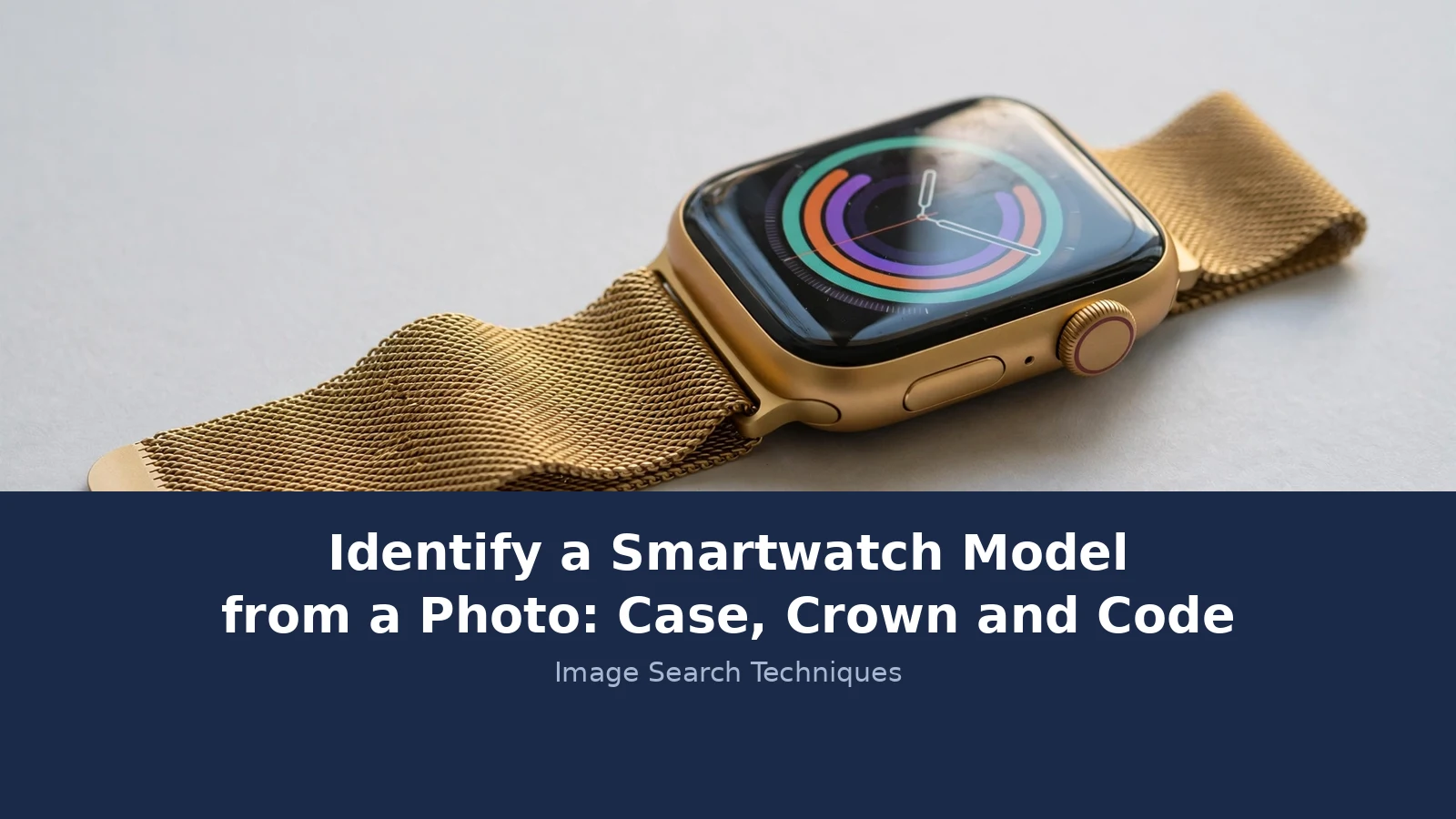
To show the method working on a real photo, I took a named smartwatch photo and ran it through three reverse image search engines. The photo is a Wikimedia Commons image, published under a Creative Commons Attribution 2.0 licence, by photographer MIKI Yoshihito, dated 18 October 2020. It shows an Apple Watch Series 6 in a 40mm gold aluminium case with a gold Milanese loop strap, photographed from the front at a slight angle. The file name on Commons is “Apple Watch S6 (40mm) Gold Aluminum Case + Gold Milanese Loop. (50528057056).jpg”.
The photo is a fair test. It is a real product photo, not a studio render, and it shows the front of the watch clearly. It does not show the case back, so the search engines have to work from the front alone, which is exactly the situation most readers are in when they only have a listing photo.
Google Lens was run first, using the image URL. It failed. Three attempts with different URL encodings all ended the same way: the search showed a blank AI Overview stuck on “Thinking”, then the thumbnail changed to “Expired visual search” with no results. The Exact matches and Visual matches tabs both reported “Something went wrong. No image at the URL.” Lens named no model and gave no count, so I report none. The URL itself is live, since TinEye and Yandex both fetched and displayed the same image. A blocked engine is a blocked engine, not a zero and not a match.
TinEye was run second, using the same image URL. It returned 0 matches. TinEye reported that it searched over 86.9 billion images and found no matches, adding that it has probably not yet crawled any pages where this image appears. That is a real result, and it is worth reading correctly. It means this exact file is not in TinEye’s index. It does not mean the watch does not exist, and it does not cancel a match from another engine.
Yandex Images was run third, using the same image URL. It worked. Yandex labelled the image “apple watch series” and its top result under “Sites containing information about the image” was the exact photo, on Flickr, tagged applewatch, s6, series6, apple, watch, milanese and loop. The Sites tab listed five sites in total, including a second page naming the same “Apple Watch S6 40mm Gold Aluminum Case Gold Milanese Loop” title. Its similar-images grid was headed by the same exact-titled S6 photo, followed by other gold Milanese loop watches from Series 4, 7, 9 and SE. Yandex gives no total match count on the page, so none is reported.
What the three results show together is the point of this guide. A reverse search is good at naming the family and the look, when it works at all. Yandex named the right model from the front photo alone. Lens returned nothing, and TinEye returned nothing, even though the photo is a real published image of a real watch. A zero from one engine never cancels a match from another, and a block is not evidence either way. The step that turns a likely family into a confirmed model is the case-back code, and that is the next section. For this photo, the file name itself gives the answer, and Apple’s own page confirms it: the Series 6 in 40mm GPS is model A2291, and the 44mm GPS model is A2292.
Confirm the code on the manufacturer’s own page
Once the photo has given you a likely family, confirm it with the code. The code lives in two places: engraved on the case back, and in the settings of the watch or its paired phone app. Do not trust a code quoted in a listing. Read it off the watch itself.
On an Apple Watch, open the Watch app on the paired iPhone, tap My Watch, then General, then About. The Model Number field shows a part number starting with M. Tap it once and it changes to the model number, which starts with A and has four digits. Apple’s own support page, Identify your Apple Watch, lists every A-number against its series and case size. For the worked example above, the Series 6 in 40mm GPS carries model number A2291, and the 44mm GPS model is A2292. The same page tells you to check the engraving on the back of the watch for the case size and more detail. If the number on the watch is not on Apple’s list, stop. Either the watch is not what the seller claims, or the code has been misread.
On a Samsung Galaxy Watch, the model number starts with SM and sits on the case back near the sensors, and in the Galaxy Wearable app under Watch settings, then About watch. Samsung’s support site lists each model by its SM number with its size and connectivity. A Galaxy Watch6 Classic in 43mm Bluetooth, for example, is SM-R950, and the 47mm Bluetooth and 4G version is SM-R965F. Search the SM number on Samsung’s support pages rather than guessing from the case shape, because Samsung reuses similar round cases across generations.
On a Google Pixel Watch, swipe down on the watch, open Settings, then System, then About, and scroll to the serial number. Google’s own help page, Find your device serial number and model, explains where to find the serial number and IMEI on a Pixel Watch, including the markings in the band slot where the strap meets the case. On LTE models the serial number sits on one side of the slot and the IMEI on the other. On Wi-Fi models there is a serial number only. The model numbers themselves start with G, and Google’s store help pages list them per model.
On a Garmin, the serial number is printed on the case back near the charging contacts, or under the band. Garmin’s support site takes the serial number and returns the model. The serial number is not the model number, so do not quote it as one. It is the key that unlocks the model on Garmin’s own lookup.
One warning applies to every brand. Never publish a serial number or an IMEI in a listing, a forum post or a photo. Blur them before you share a case-back photo. A serial number is enough to start a warranty claim or a fake support call in the wrong hands. The model code is safe to share. The serial number is not.
When the case back gives you nothing
Sometimes the engraving is worn smooth, or the only photo you have shows the front. That is common with older watches and with listing photos taken in a hurry. There are still ways forward, but each one is weaker than a code, and you should say so to yourself before you spend money on the strength of it.
Start with the charger. If the watch comes with its charger, the charger narrows the family fast, because makers do not share chargers across brands. Apple’s magnetic charging puck fits every Apple Watch from the first generation onwards, so it confirms the brand but not the series. Samsung’s wireless charger is shared across several Galaxy Watch generations. Garmin’s cable with four pins belongs to a smaller set of models. Photograph the charger and search that image too. The same reverse image search method works on chargers, straps and boxes, and our guide to how to reverse image search walks through the steps on phone and desktop.
Next, check the box and the paperwork. The box label lists the model number, the serial number and the band variant. If the seller still has the box, ask for a photo of the label. A genuine box label matches the watch. A mismatched label is a warning sign, not a detail to wave away.
If there is no box and no readable code, use the paired phone app. On an iPhone, the Watch app shows the model under General, then About. On Android, the Galaxy Wearable app or the Pixel Watch app shows the same under About watch. If the watch will not pair, that is information too. A watch that will not pair with its own app may be faulty, locked, or not the model the seller claims.
Finally, compare the watch against the maker’s own product photos. Search the likely model name, open the official product page, and compare the crown, the buttons, the sensor layout and the strap connector side by side. This is slower than a reverse search, but it catches the cases where the search engine guesses the wrong generation. The same photo-first method works for other gadgets too. We have used it to identify a headphone model from a photo, and the steps transfer well: clear photos, read the label, confirm on the maker’s page.
Second-hand buying: clones copy the look
The risk with smartwatches is not just buying the wrong model. It is buying a fake. Clones copy the case, the crown, the strap and even the engraving style, and a photo alone will not always catch them. The marks table in this guide still helps, because clones usually get one small detail wrong: the sensor layout, the spacing of the buttons, the font of the engraving, or the shape of the charger pins. Compare the listing photo against the official product photo, mark by mark, and treat any difference as a reason to ask questions, not as a camera quirk.
Ask the seller for a photo of the case back with the serial number blurred, a photo of the watch powered on, and a photo of the charger. A genuine seller with the watch in hand can take all three in two minutes. A seller who refuses, or who sends stock photos instead, is telling you something. Check the price against the going rate for that model. A Series 6 at a fraction of the usual second-hand price is not a bargain. It is a warning.
If you do buy, check the model the moment the watch arrives. Read the code off the case back, match it on the maker’s support page, and check the serial number on the maker’s coverage or warranty page. If the code does not match the listing, start a return at once and keep the listing photos as evidence.
The same method works on other gadgets
The steps in this guide are not specific to smartwatches. The pattern is the same for any gadget with a label: photograph it well, read the marks, run a reverse image search, then confirm the code on the maker’s page. It works for phones, and our guide to identify a phone model from a photo follows the same chain. It works for traditional watches too, though the marks are different, and our guide to identify a watch from a photo covers those. If you are trying to work out what an object in a photo is before you buy it, the broader guide to find an item by image covers the whole method, from saving the photo to checking the result.
What to do next
Work through the steps in order and write down what you find at each stage. The notes matter, because the model is decided by the combination of marks, not by any single one.
- Take four photos: front, case back, crown and side, strap lugs. Use clear light and fill the frame.
- Read the marks against the table above and write down the case shape, the crown and button layout, the sensor array, and any model text.
- Run the front photo through Google Lens, then TinEye, then Yandex. Note what each engine names, and treat a zero as a zero.
- Read the model code off the case back or the paired app. Blur the serial number before you share the photo anywhere.
- Match the code on the manufacturer’s support page. Apple, Samsung, Google and Garmin all publish model lists.
- If the code and the photo disagree, trust the code and re-check the photo. If there is no code at all, treat the result as a likely family, not a confirmed model, and say so before you spend money.
A smartwatch model is a small fact, but it decides which strap fits, which charger works, and what the watch is worth. A photo gets you most of the way there. The code on the case back gets you the rest. Do both, and do them in that order.
Can I identify a smartwatch model from a photo alone?
A photo can narrow a smartwatch to a model family, but it cannot confirm the model on its own. The case shape, crown layout and sensor array point to a family. The model code engraved on the case back, matched on the maker’s support page, is what confirms it. Treat a photo-only result as a strong suggestion, not a certificate.
Where is the model number on a smartwatch?
The model number is engraved on the case back, in a ring around the sensor array, and it also appears in the watch settings or its paired phone app. On an Apple Watch, tap the Model Number field in the Watch app to reveal the A-number. Samsung uses SM numbers, Google uses G numbers, and Garmin uses a serial-number lookup.
What is the A-number on an Apple Watch?
The A-number is Apple’s model code, a letter A followed by four digits, engraved on the case back and shown in the Watch app under General, then About. Apple’s support page lists every A-number against its series and case size. For example, the Apple Watch Series 6 in 40mm GPS is A2291, and the 44mm GPS model is A2292.
Why did Google Lens fail to find my smartwatch photo?
Lens can fail when the image URL is unreachable, the photo is blurry, or the exact image is not in its index. Try a clearer photo, upload the file instead of using a link, and run the same photo through Yandex and TinEye. A block from one engine is not proof the watch does not exist.
Can a photo prove a smartwatch is genuine?
No. Clones copy the case, crown, strap and engraving style, so a matching photo is not proof of authenticity. Compare the listing photo with the product photo mark by mark, check the model code on the maker’s page, and weigh the seller, the price and the warranty route. A price far below the second-hand rate is a warning sign.
Should I share my smartwatch serial number in a listing photo?
No. Blur the serial number and IMEI before you share a case-back photo anywhere, including a sale listing or a forum post. Those numbers can be used to start a warranty claim or a fake support call. The model code, such as an A-number or SM number, is safe to share and is the detail a buyer actually needs.






