


🔎 Reverse Image Search
Image search techniques made simple: upload a photo or paste a URL and search 6 engines at once. 100% free, nothing stored.
🔒 Your image is never stored on our servers longer than 24 hours and is never shared.
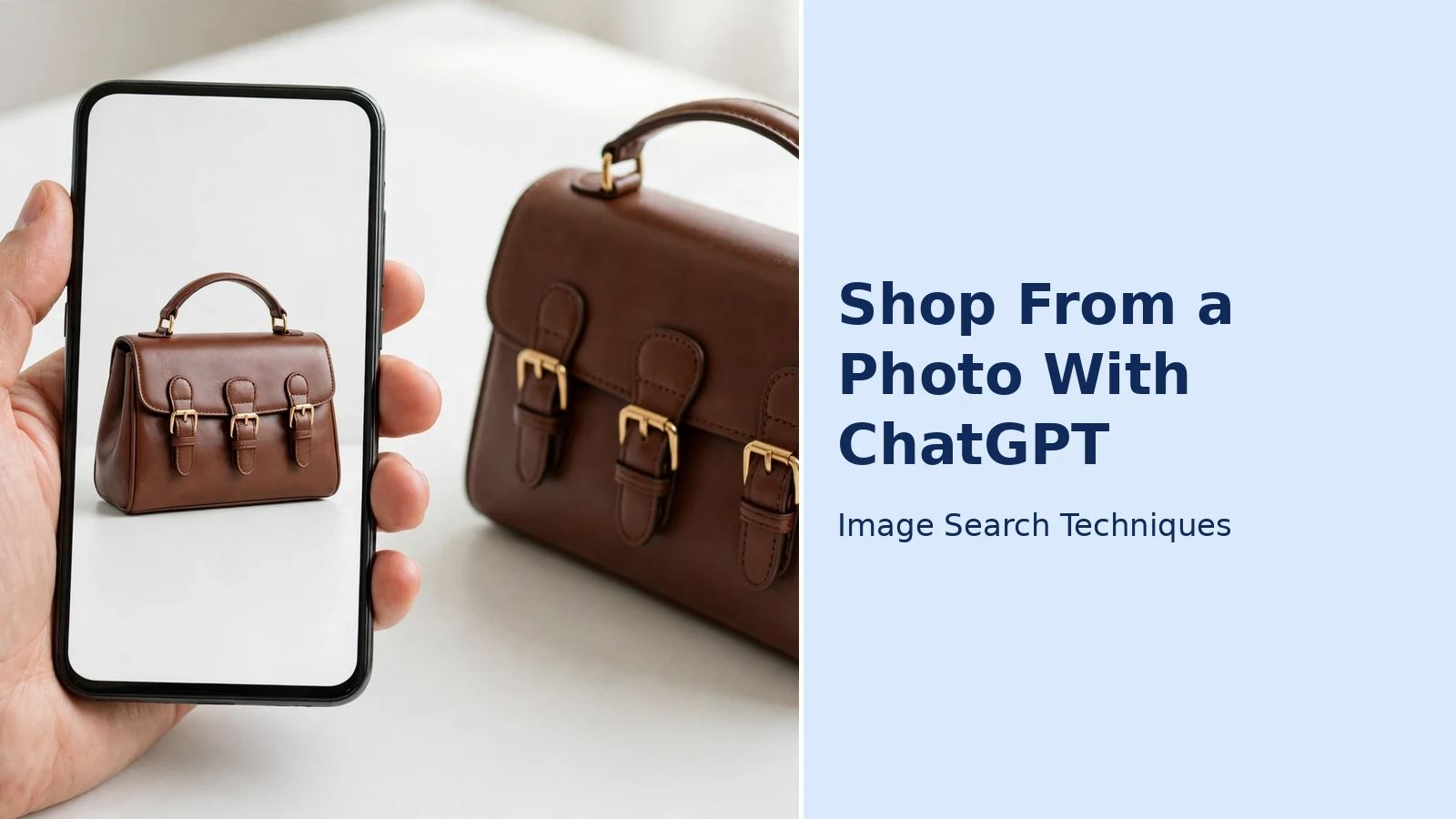
Yes, you can shop from a photo with ChatGPT by uploading a picture and asking for matches. ChatGPT returns product cards with prices, merchants and comparison options, and you complete the purchase on the retailer’s site. It finds similar items well, but it does not always find the exact product, so check the price and seller before you pay.
That is the whole workflow in one paragraph. The rest of this guide shows you how to do it well: which photos work, the exact words to use, what ChatGPT’s results actually mean, and where Google Lens still beats it. Every step below was checked against OpenAI’s own help pages on 11 November 2026, and the comparison table near the end comes from a real test we ran the same day, one product photo, put through ChatGPT shopping and Google Lens side by side.
What is ChatGPT shopping? ChatGPT shopping is the product-discovery feature inside ChatGPT that shows buyable product options, with images, prices and links to retailers, when your message suggests you want to buy something. You can start with words, or with a photo. OpenAI’s help centre describes it as “shop from images”, and the results are selected independently by ChatGPT: they are not adverts, and OpenAI says they are not influenced by its partnerships.
Can ChatGPT find a product from a picture?
Yes, in most cases it can find the product or something very close to it. Upload a photo of a dress, a lamp, a pair of trainers or a handbag, ask ChatGPT to find it, and it will identify what it is looking at and return visually similar products that are actually for sale, with prices and links to the shops selling them. That is the feature OpenAI added in its March 2026 shopping update: image-based product discovery, with visual product cards and side-by-side comparison built into the chat.
There are limits, and they matter. ChatGPT is matching the look of a thing, not reading a barcode. A plain, distinctive product, a brown leather handbag with brass buckles, a patterned ceramic vase, is easy for it. A generic black cable, a plain white T-shirt or a mass-produced phone case is hard, because dozens of identical-looking items exist and the model cannot tell them apart from pixels alone. Our own guide to identifying a photo with ChatGPT and Gemini covers the identification side of this in depth; this article is about the next step, turning that identification into a purchase.
ChatGPT also does not see every shop. Its product results come from structured data supplied by first-party and third-party providers, plus merchant feeds, OpenAI says so in its help centre. Shops that do not feed their catalogues into that system simply do not appear, and prices can lag behind the merchant’s own site. Treat ChatGPT as a shortlist builder, not a catalogue of everything for sale.
How do you shop from a photo with ChatGPT?
The workflow takes about two minutes once you have a decent photo. It works on the ChatGPT website and in the mobile app, OpenAI lists both as supported. Follow these steps in order; the photo and the wording do most of the work.
- Photograph the product on its own. Put it against a plain background in good daylight, fill the frame, and keep the whole item in shot. If you are working from a screenshot, a social-media post, a TV still, crop it to one item before you upload it. A photo with three products in it gives you three mixed-up answers.
- Open a new chat and attach the photo. Tap the paperclip (or attachment) icon in the chat bar, choose the photo from your device, or drag it into the chat window on a computer.
- Ask one direct question. Vague prompts return vague results. Write something like: “Find this exact product, or the closest buyable matches, with prices in pounds and links to the shops.” Add your constraints in the same message: a budget, a size, a colour, a country. ChatGPT uses the constraints you give it, OpenAI’s help centre says that a stated budget makes price a bigger factor in what it surfaces.
- Read the product cards, not just the chat text. ChatGPT shows product options with images, prices and short details. Tap a card to see the merchant list for that product. The first price you see is usually the first merchant’s price, which OpenAI says may not be the lowest available, look for the “Best price” label and check the other merchants listed.
- Ask follow-up questions to narrow it down. “Show me only options under £80”, “compare the first two on material and delivery time”, “is there a version in black?” ChatGPT will re-run the search rather than starting over, and it can compare products side by side on price, features and reviews.
- Verify on the retailer’s own page before you pay. Open the merchant link and confirm the final price including delivery and tax, the size and colour, availability, and the returns policy. OpenAI itself tells shoppers to confirm exactly these details with the merchant before buying.
Two small habits improve the results a lot. First, name the item in your message as well as showing it, “brown leather satchel with three brass buckles” gives the model text to work with alongside the pixels. Second, if the first set of results is wrong, say what is wrong (“those are all shoulder bags; this one is a top-handle satchel”) instead of starting a new chat. The correction is usually faster than a fresh search.
What does ChatGPT show you, and what should you check?
ChatGPT’s shopping results look confident, so it helps to know which parts are solid facts and which parts are the model’s own summaries. OpenAI’s help centre is unusually open about this, and the details matter when money is involved.
Prices come from third-party providers, and they can be stale. OpenAI says the prices in its listings come from third-party data, and that merchant price or delivery changes may take time to appear. The price on a product card is typically the first merchant’s price; the lowest price ChatGPT knows about is flagged with a “Best price” label on the product detail page. Always treat the card price as a guide and confirm the total, including delivery, tax and any fees, on the shop’s own checkout page.
Labels such as “Budget-friendly” and “Most popular” are generated by ChatGPT. OpenAI says these feature labels are generated from the information available to the model, and that they are not guarantees or verified statements. A “Budget-friendly” label may only mean reviewers often mention good value, not that it is the cheapest option anywhere. The same applies to review summaries: they are model-generated from public reviews, intended to highlight common likes and dislikes, and OpenAI states plainly that reviews and ratings are not verified by OpenAI.
Checkout usually happens on the merchant’s site. For most products, tapping “Buy” takes you to the retailer’s own website or app, where the merchant handles payment, delivery and returns. OpenAI’s help centre notes that some eligible products and merchants may show an Instant Checkout option inside ChatGPT, but that is the exception, not the rule. Keep the order confirmation the merchant sends you, the chat transcript is not proof of purchase, and the same question can return different results on a different day.
Clothes and accessories get a “Try on” button. On eligible clothing and accessory listings, a “Try on” button lets you upload a selfie and see how the item could look on you, using ChatGPT Images. OpenAI warns that try-on images may not represent the product or your appearance exactly and do not guarantee fit or size, so check the merchant’s measurements, product details and return policy before buying. You can also upload a picture of a garment and ask ChatGPT to show it on you. This is a preview tool, not a fitting room, and it belongs in the same category as the virtual try-on tools we cover elsewhere, no image preview shows true sizing.
You can save products for later. Tap the bookmark icon on a product to save it to Favourites, or create a folder for it, in your ChatGPT Library. Saved items sit alongside your try-on images, so you can compare shortlisted products without re-running the search. Reference photos you upload for try-ons are stored too, and you can change or remove them under Settings, then Personalisation, then Reference photos.
Worked test: the same photo in ChatGPT and Google Lens
We ran this test on 11 November 2026, with one real photo and no accounts signed in. The photo was a Pexels stock photo, a dark brown structured top-handle handbag with a belt and strap detail, photographed in a studio on white (Pexels photo 22434766, by Muneeb Malhotra, published 23 April 2024). We chose it deliberately: a single clear product with no brand markings is exactly the “I saw this, I want it” case, and a stock photo is the hardest fair test, because no retailer sells that exact image.
One honest note on method first. In ChatGPT’s guest chat, without signing in, the “Add photos” button did nothing, no file picker appeared, and the sidebar said to log in to upload files. So the photo was supplied by pasting its image address instead, with the prompt: “Find this exact product, or the closest buyable matches, with prices and where to buy it.” That is a real limitation worth knowing: the full upload flow is smoothest once you are signed in, while the guest route still works through a pasted link. Google Lens needed no sign-in at all, the same image address was pasted into Lens and searched.
ChatGPT ran a web search across five sites and answered plainly: it could not verify the exact original bag from the photograph, so it separated the closest design matches from cheaper alternatives. It returned five product cards, all similar items rather than the exact bag, each with a price and a “Shop at” link to the merchant. The best design match was the Sam Edelman Florence leather top-handle satchel at $345.00 from Macy’s; next came a structured Italian leather top-handle bag at $315.00 from Atorie, a large leather buckle-handle satchel at $50.41 from LEIVIP, a Frye Heather leather satchel in cognac at $179.97 from Nordstrom Rack, and a Modenaire belted textured top-handle satchel at $148.75 from Nordstrom. No “Try on” button appeared, and no Instant Checkout option was shown, buying would mean going to the merchant’s site. ChatGPT recommended starting with the Sam Edelman and Atorie bags, then asked a follow-up question: whether the most important detail was a belt wrapped around the bag’s body or buckle details in the handles, offering a more targeted search based on the answer.
Google Lens described the photo as a brown textured structured top-handle handbag. Under Exact matches it listed 18 entries, but the only true exact hit was the Pexels source page itself, no retailer and no prices appeared there at all. Under Visual matches, the first batch listed 60 entries, mostly similar brown and black top-handle and tote handbags, with shopping prices mixed in. The range was wide and luxury-heavy: a Valextra mini bag at $4,750, a Ferragamo bag at $3,400, a Saint Laurent Sac de Jour at $3,200, a Gucci Diana tote at $3,650, a Louis Vuitton bag at $1,795, then more everyday options such as a Strathberry tote at $476, a Farfetch Michael Kors tote at $361, a Mercari Coach tote at $319, a Kurt Geiger tote at $228 and a Nina Shoes handle bag at $44. Lens’s shopping section also showed an eBay handbag guide at $37.00, Etsy listings from $89.00 to £1,595.00 and an AliExpress handbag at $24.50.
| What we compared | ChatGPT shopping | Google Lens |
|---|---|---|
| Exact product found | No, ChatGPT said it could not verify the exact bag | No, only the Pexels source photo itself |
| Buyable matches shown | 5 product cards, all similar items, each with a merchant link | 60 visual matches in the first batch, prices mixed in |
| Prices shown | $50.41 to $345.00 across the 5 cards | $24.50 to $4,750 across the visual matches, luxury-heavy |
| Merchants named | Macy’s, Atorie, LEIVIP, Nordstrom Rack, Nordstrom | Etsy, eBay, AliExpress, Farfetch, Mercari, Nordstrom and others |
| Comparison or refinement offered | Yes, a follow-up question and side-by-side comparison | No, each search is a fresh query |
| Where you pay | Merchant’s site, no Instant Checkout shown | Merchant’s site |
| How the photo was supplied | Image address pasted; guest-mode upload asked for a sign-in | Image address pasted; no sign-in needed |
Neither tool found the exact buyable bag, which is the honest result for a stock photo with no retail listing behind it. What differed was the shape of the answer. ChatGPT gave a tight, priced shortlist of five similar bags with named merchants and a question that would narrow it further. Lens gave breadth: the source photo itself, plus dozens of similar bags with prices, but no curation and a heavy luxury skew. For this kind of search, Lens is the better identifier and ChatGPT is the better shortlister, which is why the workflow in this guide uses Lens first, then ChatGPT.
When should you use ChatGPT, and when is Google Lens better?
The two tools answer different questions. ChatGPT is a shopping assistant that happens to accept photos; Google Lens is an image search engine that happens to show shopping results. Use ChatGPT when the decision is the hard part, you have a photo, a budget and a few constraints, and you want a shortlist with reasons. Use Lens when the identification is the hard part, you need the exact item, the exact retailer, or proof that the same photo appears on other sites.
| ChatGPT shopping | Google Lens | |
|---|---|---|
| Starting point | A photo plus a conversation about budget, size and taste | A photo, and nothing else |
| Best at | Comparing options, applying constraints, explaining trade-offs | Finding exact visual matches and where else an image appears |
| Prices | Shown on product cards, from third-party data, may lag | Shown from shopping results where retailers supply them |
| Checkout | Usually on the merchant’s site; Instant Checkout for some products | Always on the merchant’s site |
| Follow-up questions | Yes, refine in the same chat | No, each search is a fresh query |
| Weak spot | May return similar items rather than the exact product | No reasoning about which option suits you best |
In practice the strongest workflow uses both, in this order. Run the photo through Lens first, using our Google reverse image search guide, to identify the exact product and find the retailers using that image. Then take the same photo to ChatGPT with the exact name and your budget, and let it compare the options and flag the trade-offs. Lens tells you what the thing is; ChatGPT helps you decide which version to buy. If you only want the cheapest price for a product you have already identified, our guide to finding the same product cheaper using a photo is the faster route.
How do you avoid buying the wrong thing, or from the wrong shop?
An AI recommendation is not an endorsement of the shop. ChatGPT ranks merchants on availability, price, quality and whether they are the maker or primary seller, according to OpenAI, but it cannot check a shop’s returns desk or its reputation for you. Before you pay, run these checks; they take five minutes and they catch most bad outcomes.
- Confirm the exact product on the merchant’s page. Match the name, model number, colour and size against the ChatGPT card. AI-generated product titles are simplified by ChatGPT from merchant data, so a small difference in the title can hide a different variant.
- Check the shop itself. Look for a real returns policy, a contact address and genuine customer reviews. If the price is far below every other listing, that is a warning sign, not a bargain, our guide to checking whether an online shop is real from its product photos shows how to test a suspicious store with a reverse image search.
- Compare the total, not the tag. Delivery, tax and return fees decide which of two close offers is actually cheaper, and few AI summaries include them. Open the checkout page far enough to see the final total before you commit.
- Ask ChatGPT for the downside. A prompt such as “what do reviewers complain about most?” surfaces the weak points that a ranked shortlist tends to bury, poor sizing, slow delivery, flimsy materials.
- Keep a record. Save the product to your ChatGPT Library, screenshot the listing, and keep the merchant’s order confirmation. ChatGPT’s answers can change between sessions, so the chat alone is not a reliable record of what was offered.
- Use a card with purchase protection for a first order with an unfamiliar merchant. It costs nothing and it is the only safety net that works after the money has left your account.
One more boundary worth knowing: ChatGPT identifies and compares; it does not authenticate. If you need to know whether a designer item is genuine, whether a listing photo was stolen, or whether a seller is who they claim to be, that is a different check, our search by image for shopping hub gathers the guides that cover those checks, from spotting stolen listing photos to verifying a shop before you pay.
Once ChatGPT has found the garment, you can preview it on your own photo before you buy, our guide to virtual try-on from a photo explains the Try On button, the photo it needs and what it cannot show you.
FAQs
Can ChatGPT find a product from a picture?
Yes, upload the photo and ask for the exact product or the closest buyable matches, and ChatGPT will return product cards with prices and merchant links. It identifies distinctive items well, but for generic or stock-photo items it usually returns similar products rather than the exact one. Always confirm the item on the retailer’s page before paying.
Is ChatGPT shopping free to use?
Yes, there is no separate charge for shopping in ChatGPT; it is part of ChatGPT on the web and in the mobile app. What varies between plans is usage limits, not the shopping feature itself. You only pay when you buy something, and that payment goes to the retailer, not to OpenAI.
Can I buy directly inside ChatGPT?
Usually not. For most products, tapping Buy takes you to the retailer’s own website or app, where the merchant handles payment, delivery and returns. OpenAI says some eligible products and merchants may show an Instant Checkout option inside ChatGPT, but that is the exception. Keep the merchant’s order confirmation as your proof of purchase.
Why does ChatGPT show similar products instead of the exact one?
Because it matches how a product looks, not a barcode or model number. A stock photo has no retail listing behind it, and a generic item has dozens of identical-looking copies, so the model cannot tell them apart from pixels alone. A photo plus the item’s name, brand or model number in your message gives it more to work with.
Google now offers a third way to shop from a photo: Google AI Mode visual search lets you upload the same picture and narrow the results by chatting, and we tested it on the same handbag photo used above.
If your photo is a film or TV screenshot rather than a product shot, our shop the look from a screenshot guide shows how to buy one item out of a scene.
See also: identify a product from a photo






