


🔎 Reverse Image Search
Image search techniques made simple: upload a photo or paste a URL and search 6 engines at once. 100% free, nothing stored.
🔒 Your image is never stored on our servers longer than 24 hours and is never shared.
Google AI Mode turns a photo into a conversation. Instead of uploading a picture and getting a page of matching images, you upload the picture, ask a question about it in plain words, and then keep narrowing the answer down with follow-ups, cheaper, leather only, in brown, without starting a new search each time. This guide shows how Google AI Mode visual search works, where it is available in November 2026, and how it compares with Google Lens.
Direct answer: Google AI Mode visual search lets you upload a photo and ask questions about it in a chat. Open AI Mode, add an image, ask what it is or where to buy one like it, then refine the results with follow-ups. It works in the UK, the US and many other countries, on desktop and in the Google app.
What is Google AI Mode? AI Mode is a conversational tab inside Google Search. Google describes it as its most powerful AI search experience: you ask a question in full sentences and get a written answer with links to the pages it drew on, and you can keep asking follow-ups in the same thread. Visual search in AI Mode means starting that conversation with a photo instead of words.
How is Google AI Mode visual search different from Google Lens?
Google Lens and AI Mode both start from a picture, but they answer different questions. Lens is a matching tool: it finds the same image, or visually similar images, across the web. AI Mode is a reasoning tool: it reads the picture, works out what you are asking about, and writes an answer that can combine what it sees with live web results.
That difference shows up the moment you ask something Lens cannot answer. Lens can show you fifty jackets that look like the one in your photo. It cannot tell you which of them is real leather under £100 in your size, because that needs a follow-up question. AI Mode can try, because each follow-up keeps the photo and the whole conversation in context. The trade-off is that AI Mode’s answer is generated text, not a list of verified matches, so a result it suggests still needs checking before you buy anything. Our Google reverse image search guide covers the Lens side in detail.
Think of it this way: Lens answers “where has this exact image appeared?” AI Mode answers “what is this, and what should I do about it?” For shopping, identification and “what is this thing in my photo” questions, that second question is usually the one you actually have.
Where is Google AI Mode available in November 2026?
AI Mode started in the United States in May 2025, reached the UK on 28 July 2025, and expanded to more than 40 additional countries and 36 new languages in October 2025. According to Google’s help page, AI Mode now works in more than 200 countries and territories and nearly 100 languages. That is a big change from the early days, when it was a US-only experiment behind a Labs sign-up, and it is why the “US-first” warnings in older guides are now out of date.
Some newer features are still limited. According to Google, interactive visuals and simulations are currently for signed-in users in English, and checking local prices and availability is in English for signed-in users aged 18 and over. Ads inside AI Mode are also rolling out unevenly: Google announced on 28 October 2026 that ads in AI Mode were expanding to Australia, Canada, India, Kenya, Malaysia, New Zealand, Nigeria, Pakistan, the Philippines and Singapore, with Brazil, Mexico and the United Kingdom planned for the fourth quarter of 2026. That matters for shoppers, because a product card inside an AI Mode answer may carry a Sponsored label.
Google’s help page says you must be signed in to a personal Google Account that you manage on your own to use AI Mode. In practice, the picture is softer than that sentence suggests: when I opened google.com/ai on 11 November 2026 without signing in, the page loaded, the “Ask anything” box worked, and AI Mode answered a question with no sign-in prompt. A “Sign in” button was visible at the top right, and signed-in features such as saved history and personalised recommendations do need an account. If you are signed out, expect the basics to work and the personal features to be missing, and expect Google to keep tightening or loosening that line, so check the help page if the page behaves differently for you.
How do you start a visual search in AI Mode?
You can start from a photo in three ways, and all three land in the same kind of conversation. Google’s help page lists them as: go to google.com/ai, search on google.com and tap the AI Mode tab, or open the Google app and tap AI Mode on the home screen. There is also a fourth route: when an ordinary search shows an AI Overview, typing a follow-up under it moves you into AI Mode with the context of the original search carried over.
On desktop, the photo route works like this:
- Go to google.com/ai. You will see “What’s on your mind?” with an “Ask anything” box at the bottom of the screen.
- Click the + button at the left of the Ask anything bar. A menu opens with “Add images”, “Add files”, “Deep Search” and “Create images”.
- Choose Add images and upload your photo. You can upload more than one item, and you can also drag an image in or paste one.
- Type your question in the Ask anything bar, for example, “What is this bag? Find ones like it that I can buy”, and press Enter.
- Read the answer, check the source links beside it, and then refine it with a follow-up in the same bar.
On a phone, the route is nearly the same inside the Google app: tap AI Mode on the home screen, tap the Lens-style image button in the Ask anything bar, and either upload a photo or take one with the camera. Google’s help page confirms you can upload more than one image, which is useful when you want to compare two items side by side or show a detail shot alongside the full photo.
One practical tip: crop the photo before you upload it. AI Mode reads the whole image, so a busy background, a second product at the edge of the frame, or a person wearing the item can all pull the answer off course. The crop-one-item habit is the same one we teach in our search by image for shopping guide, and it matters even more here, because a wrong first reading poisons every follow-up.
How do follow-up questions about an image work?
A follow-up is where AI Mode earns its place. Google says AI Mode splits your question into subtopics and searches each of them at the same time, a method it calls query fan-out, then combines the results with a Gemini model. In plain terms: when you ask a follow-up, AI Mode does not forget the photo. It re-reads the picture together with everything you have already asked, runs several searches in parallel for the new angle, and writes a fresh answer that builds on the last one.
Good follow-ups change one thing at a time. “Show me similar ones under £100” changes the price. “Only real leather, no faux leather” changes the material. “In brown or black” changes the colour. Each of those is a single, checkable constraint, and AI Mode can usually show you whether it applied it. Bad follow-ups change everything at once, “cheaper, leather, brown, bigger, from a UK shop, with free returns”, and when the answer comes back wrong you cannot tell which constraint it dropped.
There are two habits that make follow-ups work better:
- Name the thing, not just the picture. If AI Mode’s first answer identifies the item, a structured top-handle bag, a bomber jacket, use that name in your follow-up. It anchors the search to the right product type.
- Ask for the evidence, not just the answer. “Show me the listing” or “which shops sell this?” pushes AI Mode toward source links you can open. An answer with no links is a claim, not a finding.
Follow-ups also have a limit worth knowing. AI Mode keeps the thread, but it does not keep the original image search results the way Lens does. If you ask five follow-ups and the answer drifts, scroll back to the first answer and start a fresh thread with a better photo or a clearer first question. A new thread is cheaper than repairing a confused one.
What happened when I tested it: one photo, three questions
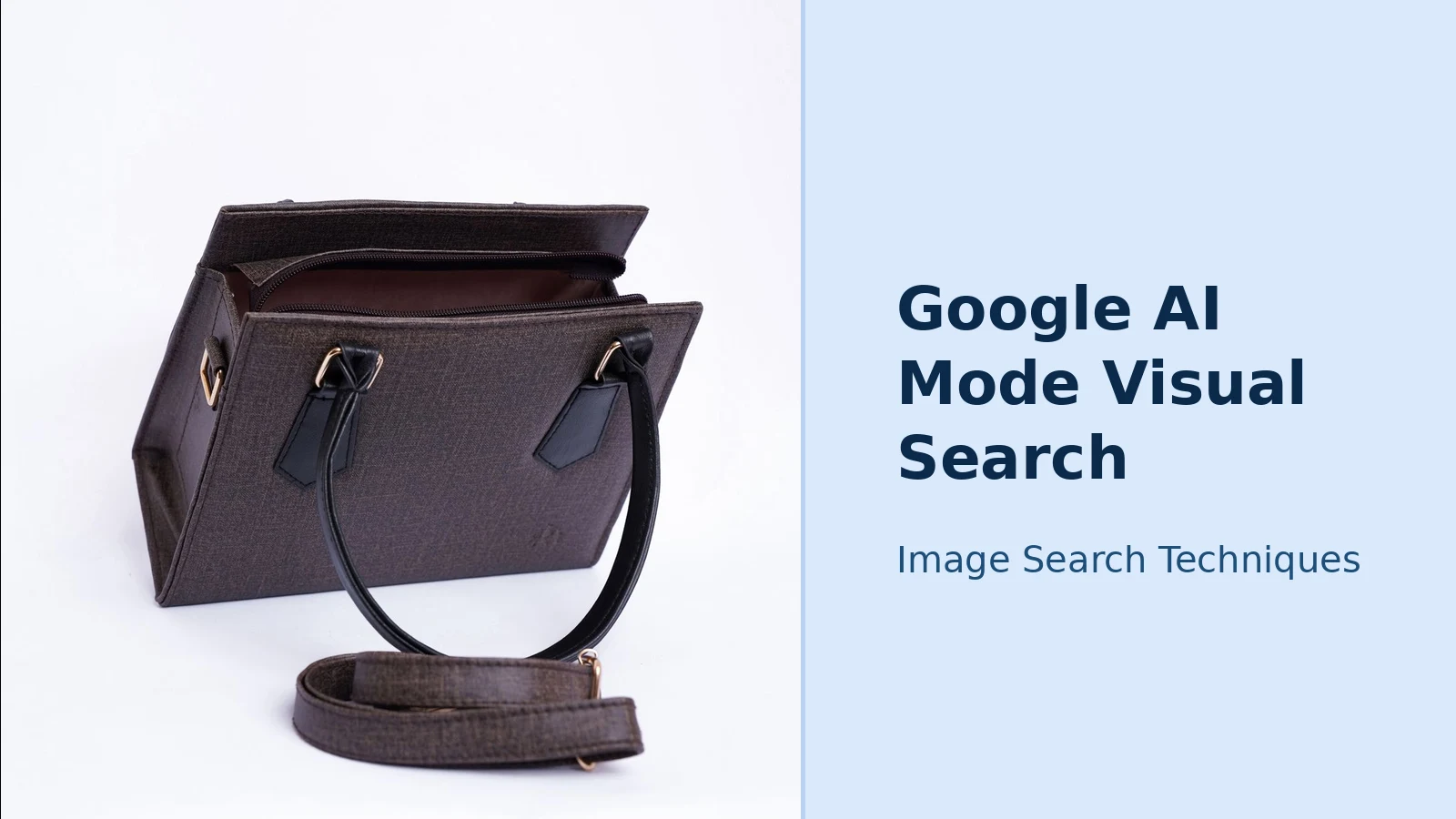
The test, 11 November 2026, signed out, no Google account. The photo was Pexels 22434766, a dark brown structured top-handle handbag photographed in a studio on white (photographer Muneeb Malhotra, 23 April 2024). I uploaded the file to google.com/ai through the + button and Add images, then asked three questions in one thread. The same photo had already been run through ChatGPT shopping and Google Lens in our earlier test, so all three tools can be compared on identical input.
Question 1: “What is this bag? Find ones like it that I can buy.” AI Mode read the photo well. It described a structured top-handle satchel or tote with flared gussets, double flat top handles, a zip-top closure and a detachable crossbody strap, in deep dark brown, almost black, with tan topstitching and gold-tone hardware. It did not name a brand or model, the bag is a stock photo, not a retail product, so there is no exact match to find. It returned 30 product cards (22 unique names), most with prices in dollars, though 6 cards showed no price. The first five were a Dama Italian leather handbag at $229.17 from L’Atelier Global, a Bagvo textured leather tote at $58.00, a Next US structured tote with no price shown, a SOERA Brianna trapeze bag at $95.00, and an Alilang structured shoulder bag at $33.99 from Target.
Follow-up 1: “Show me similar ones under £100.” AI Mode’s written answer named six bags with approximate pound prices, the Flora & Co Jane trapeze at about £50, the JW PEI Cleo at about £75, the SOERA Brianna at about £80, the Noryne Enora at about £55, a SIX DEER woven tote at about £25 and the Vince Camuto April crossbody at about £50, and claimed they were all under £100. The claim only half held. The six named bags were under £100 in equivalent terms, but the cards themselves showed euro or dollar prices rather than pounds, and the full 30-card list broke the limit, including a SAVETTE trapeze at $2,450, a CELINE trapeze at $680 and a Symmetry trapeze at $1,950. A note on the page after this follow-up said the uploaded items had been removed from the input context, which is worth knowing: later follow-ups lean on the text of the thread rather than the photo itself.
Follow-up 2: “Only real leather, no faux leather, and in brown or black.” The written answer named three bags: an AdornByAndre leather trapeze at about £60–£75, a Quince leather trapeze crossbody in Cognac at £95, and a True Couture Vega buckle bag at about £75–£85. The first five cards obeyed the limits, two Etsy brown trapeze totes at $75.70 and $50.45, the Quince crossbody at £95.00, a handmade pebble-grain leather satchel at $56.25 from Etsy, and the True Couture bag at $99.00. The full grid did not: it included a faux-leather shoulder bag, a camel Teddy Blake tote at $327, a tan trapeze at $249.99, a maroon shoulder bag at $249.99, and white, light grey and gold-tan bags.
What the chain proves: AI Mode understood the photo, kept the thread across two follow-ups, and surfaced genuinely similar bags with prices. But its “all under £100” and “real leather only” claims applied to the shortlist in its written answer, not to the 30-card grid behind it. Treat the written answer as the result and the grid as a raw shelf, and check each card’s price, material and colour before you click anything.
AI Mode vs Google Lens: which should you use?
I ran the same Pexels handbag photo through Google Lens on the same day, signed out, for a direct comparison. Lens described the bag accurately but named no brand or model either. Its Exact matches list showed 19 entries, none with a price, they were image-source pages, not product listings, and the only true exact hit was the Pexels source photo itself. Its Visual matches list loaded 60 entries; the first five showed no prices, though prices appeared deeper in the list, such as a Strathberry tote at $595 and a Coach tote at $163.
| Google AI Mode | Google Lens | |
|---|---|---|
| Starting point | Photo plus a question in words | Photo alone |
| What you get back | A written answer plus 30 product cards | Matching images: 19 exact, 60 visual |
| Exact product found? | No, similar bags only | No, the source photo itself is the only exact hit |
| Prices shown? | Yes, on most cards (mainly dollars; 6 of 30 had none) | None in the first five exact or visual matches; prices appear deeper in the list |
| Follow-up questions | Yes, in the same thread, though the photo left the input context after the first follow-up | No, every search starts fresh |
| Sign-in needed? | No, it worked signed out on 11 Nov 2026, though Google’s help page says an account is required and history needs one | No, it worked signed out |
| Best for | Narrowing down “what like this can I buy?” | Proving where an image has appeared |
The short version: use Lens when you need proof that an image exists somewhere, the exact product, the original listing, the source page. Use AI Mode when you need a judgement, what is this, what is it made of, what should I buy instead. For a purchase, use both: AI Mode to narrow the field, Lens to verify the winner is real. And if you want to compare with a third approach, our test of the same handbag photo in our shop from a photo with ChatGPT guide shows what ChatGPT shopping found, five product cards, no exact match, which is a useful baseline for judging AI Mode’s answer.
What does AI Mode get wrong?
AI Mode is an early-stage AI product, and Google’s own help page says it does not always get it right. In a shopping search, the mistakes have a pattern, and knowing the pattern is half the defence.
- It can name the wrong item. A structured top-handle bag and a satchel can look alike to a model. If the first identification is wrong, every follow-up inherits the error. Check the first answer before you refine it.
- It can invent or blur prices. Prices change, listings sell out, and a model can present an old price as current. Always open the retailer’s page and check the price there before you buy.
- It cannot show true sizing or fit. No AI Mode answer tells you whether a jacket fits your shoulders or a bag fits your laptop. Treat size and fit claims as guesses, and check the retailer’s measurements.
- It can miss the exact product. If the item in your photo is out of stock, unbranded or only sold in one small shop, AI Mode will usually offer similar items instead of saying so clearly. A page of “similar” results is not the same as a match.
- It can show ads without you noticing. Product cards inside AI Mode answers can be sponsored, and the Sponsored label is small. A top result may be a paid placement, not the best match.
The defence is boring and it works: open the source links, check the price and the seller on the retailer’s own page, and run the same photo through Lens to confirm the item exists. For the classic Lens-plus-keywords workflow, searching the image, then narrowing with typed terms and filters, our guide on how to combine image search with keywords and filters covers the method AI Mode is trying to replace, and it is still the most reliable way to pin down an exact product.
When should you use Lens or ChatGPT instead of AI Mode?
AI Mode is the best choice when your question is conversational, “what is this, and what like it can I buy under £100?” Lens is the better choice when your question is evidential: is this the exact product, has this photo been used elsewhere, or who published it first. ChatGPT shopping sits between the two: it searches the web for buyable matches and shows product cards, but it cannot run a true reverse image search, so it leans on your description. Our identify a photo with ChatGPT and Gemini guide explains what those chatbots can and cannot do with a picture.
A practical rule: if the answer decides money, use two tools. Let AI Mode narrow the field with follow-ups, then verify the winner with Lens before you pay. If the two tools disagree, AI Mode names one bag, Lens finds a different one, trust Lens on identity and AI Mode on options, and keep looking until they agree. Google’s own help page for AI Mode is the authoritative source for what the feature can do today, and Google’s I/O 2025 update describes how the feature launched; both are worth reading before you rely on AI Mode for an important purchase. The help page is at Google’s AI Mode help page, and the launch announcement is Google’s AI Mode update from I/O 2025.
Once AI Mode has narrowed the garment down, you can preview it on your own photo before you buy, our guide to virtual try-on from a photo explains Google Try It On, ChatGPT Try On and what happened to Doppl.
FAQs
Can I use Google AI Mode visual search without signing in?
Google’s help page says you need a personal Google account, but when I opened google.com/ai on 11 Nov 2026 without signing in, the page loaded and answered my photo questions with no prompt. Signed-in extras such as saved history do need an account, so expect the basics to work and personal features to be missing.
Does AI Mode work with a photo from my camera roll?
Yes. In the Google app, open AI Mode, tap the image button in the Ask anything bar and choose a photo from your camera roll or take a new one. On desktop, use the + button, choose Add images and upload the file. You can upload more than one image, which helps when comparing items or showing a detail shot.
Is Google AI Mode visual search free?
Yes, AI Mode is free to use with a Google account in the countries where it is available, including the UK. Google sells Google AI Pro and Ultra subscriptions that add features such as a more powerful model and higher limits, but the photo upload and follow-up questions I tested needed no payment and no subscription.
Why does AI Mode show different results from Google Lens for the same photo?
Because they do different jobs. Lens matches the image against pictures already on the web, so it returns the same photo and lookalikes. AI Mode reads the photo, works out what you are asking and writes an answer with product cards. For the same handbag, Lens found the source photo while AI Mode suggested similar bags to buy.






