


🔎 Reverse Image Search
Image search techniques made simple: upload a photo or paste a URL and search 6 engines at once. 100% free, nothing stored.
🔒 Your image is never stored on our servers longer than 24 hours and is never shared.
To tell if a photo is real or fake, run it through a reverse image search to find its original source and date, check whether it was AI-generated or edited, and confirm the context matches what is claimed. No single test is enough on its own, so the reliable method is to combine source-checking, AI detection, and a close look at the image itself. This guide walks through all 7 checks step by step and links to the detailed method for each one.
A photo can be “fake” in several different ways: it may be AI-generated, digitally edited, stolen from someone else, or a genuine picture used in a false context. Each type leaves different clues, and this page is the hub that ties them all together so you can verify any image with confidence.
What Does “Real or Fake” Actually Mean for a Photo?
Before checking, it helps to know the four main ways a photo can mislead you:
- AI-generated — created entirely by a model like Midjourney or DALL·E, never photographed.
- Edited / Photoshopped — a real photo altered to add, remove, or change something.
- Out of context — a genuine, unedited photo paired with a false caption, date, or location.
- Stolen / recycled — a real photo taken from someone else and reused, often on scam or fake profiles.
Quick Checklist: Is This Photo Real or Fake?
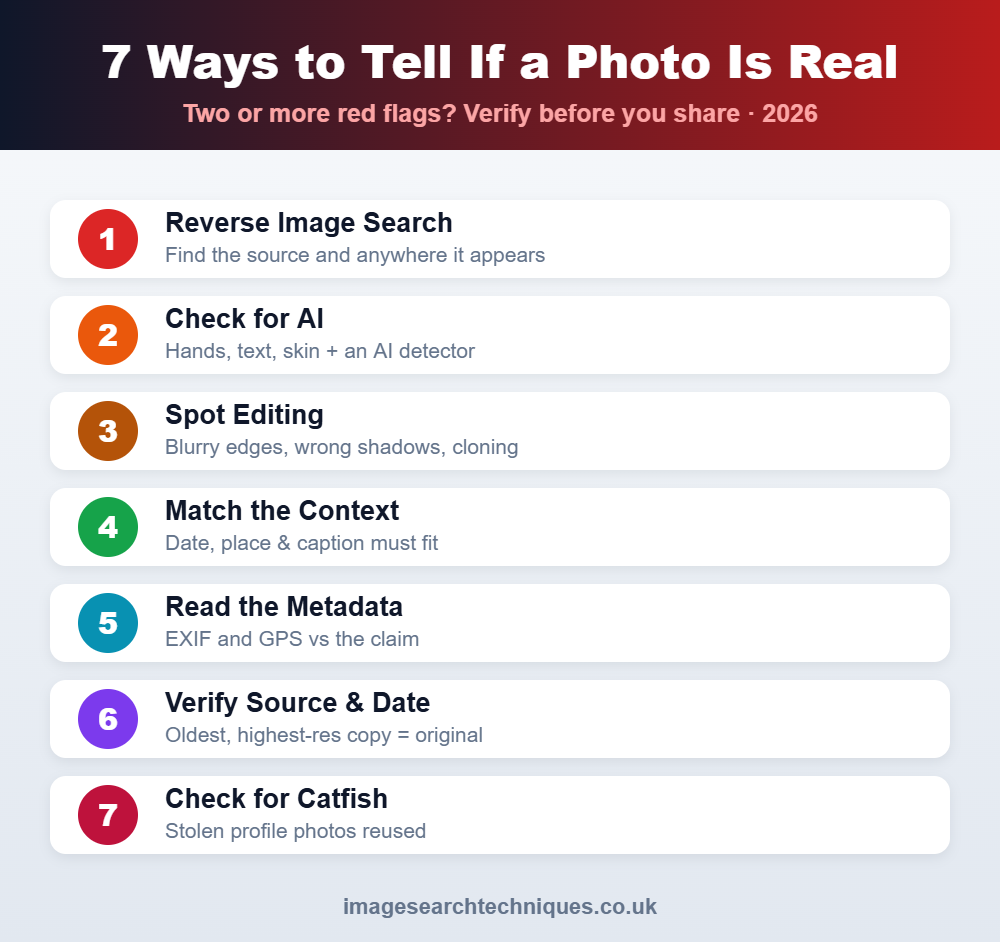
Run through this table first. Two or more red flags means you should verify further before trusting or sharing the image.
| What to check | Sign it may be fake |
|---|---|
| Source & history | No earlier version exists anywhere online |
| Hands, teeth, text | Distorted fingers, melted text — a sign of AI |
| Edges & shadows | Blurry cut-outs, mismatched lighting (editing) |
| Caption vs image | Date, place or event does not match the photo |
| Metadata | Missing EXIF, or details that contradict the claim |
| Where it appears | Same photo on unrelated names or profiles |
1. Reverse Image Search It First
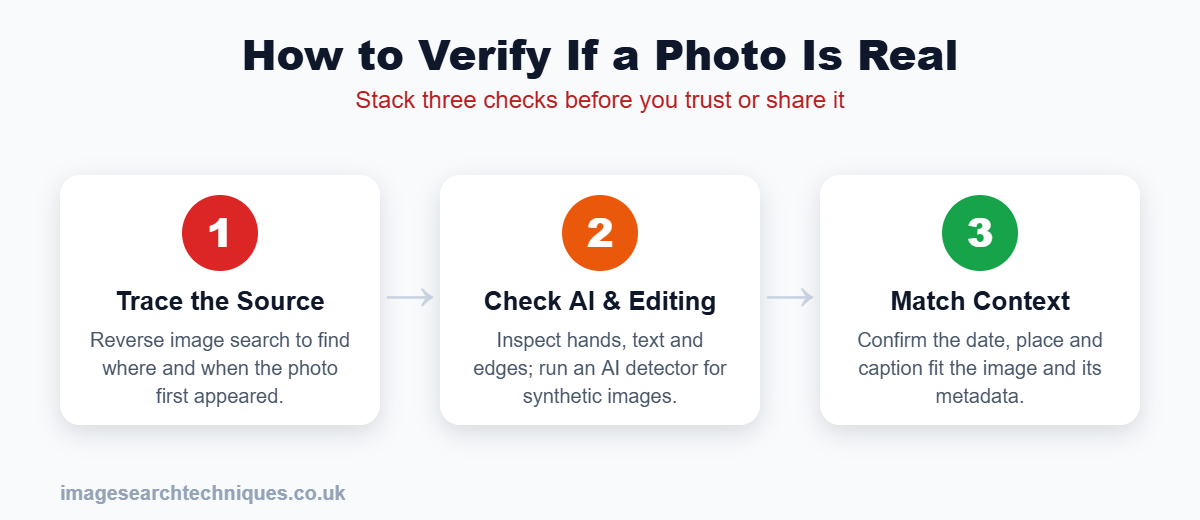
Always start here. A reverse image search shows where else the picture appears, which instantly reveals a recycled or out-of-context image. Upload the photo to Google, Yandex, and Bing — see our step-by-step guide. If the image has no history at all, that is itself a clue it may be freshly AI-generated.
2. Check Whether It Is AI-Generated
Modern fakes are often created by AI. Zoom in on hands, teeth, eyes, and any text for the tell-tale distortions, look for waxy over-smooth skin, and run the image through an AI detector and the C2PA Content Credentials check. Our full method is in how to tell if an image is AI-generated.
3. Look for Editing and Photoshop Signs
For edited photos, inspect the image closely at high zoom. Look for blurry or jagged edges where something was cut out or pasted in, repeating textures from the clone tool, shadows that fall in the wrong direction, and warped backgrounds near a subject. Lighting and perspective that do not match between parts of the image are strong signs of manipulation.
4. Check the Context Matches the Image
Often the photo is real but the story around it is false — the most common form of misinformation. Confirm the claimed date, place, and event actually match the picture. A reverse search that finds the image published years earlier, or in a different country, exposes an out-of-context fake. For a detailed walkthrough, see how to verify a news photo is real.
5. Inspect the Metadata
A real photo usually carries EXIF metadata — the camera, date, and sometimes GPS location. If the data is missing it is only a hint (social platforms strip it), but metadata that contradicts the claim is powerful evidence. Learn how to read it in what is image metadata (EXIF data). See how to check a photo’s Content Credentials (C2PA).
6. Verify the Original Source and Date
Trace the image back to the earliest place it appeared. The oldest, highest-resolution copy is usually the original, and its publication date tells you whether a “breaking news” photo is actually years old. Use how to find the original source of a photo and when was this photo taken to pin down both.
7. Watch for Profile and Catfish Fakes
If the photo is a person on a dating app or social profile, the question is whether it is really them. Reverse-search the profile pictures: if the same face appears under other names or on stock sites, it is stolen. See how to spot a catfish and how to spot a fake dating profile.
How to Verify a Photo Step by Step
Put it all together in this order:
- Reverse image search to find the source and anywhere else it appears.
- Check for AI — hands, text, skin, and a detector.
- Zoom in for editing signs — edges, shadows, repeated textures.
- Match the context — does the date, place, and event fit?
- Read the metadata and the original publication date.
- Decide on the balance of evidence — two or more red flags means treat it as fake until proven otherwise.
Why It Matters
Fake and manipulated images drive misinformation, scams, and reputational harm, and they are easier than ever to create. Taking two minutes to verify a photo before you believe or share it protects you and everyone who follows you. When several of the checks above agree, you can be confident in your conclusion — and when they conflict, treat the image with caution.
Frequently Asked Questions
How can I tell if a photo is real or fake for free?
Run a free reverse image search to find the photo’s source and history, zoom in to check for AI or editing signs, and confirm the caption matches the image. Combining these free checks catches most fakes without any paid tools.
What is the fastest way to check if a photo is fake?
Reverse image search it. In seconds you can see whether the picture has appeared before, where, and when — which instantly exposes recycled, out-of-context, or stolen photos, and flags freshly generated AI images that have no history.
Can a photo be real but still misleading?
Yes. A genuine, unedited photo can be used with a false caption, date, or location — this “out of context” fakery is one of the most common forms of misinformation. Always check that the story around the image matches the image itself.
How do I know if a photo was edited or Photoshopped?
Zoom in and look for blurry or jagged cut-out edges, repeating cloned textures, shadows that fall the wrong way, and warped backgrounds. Lighting or perspective that does not match between parts of the image is a strong sign of editing.
Does missing metadata mean a photo is fake?
Not by itself. Social platforms strip metadata from ordinary photos, so missing EXIF is only a hint. Metadata that contradicts the claim — a different date or location — is far more useful evidence than its absence.
What tools do I need to verify a photo?
Mostly free ones: Google, Yandex, and Bing reverse image search, an AI-image detector, a metadata viewer, and your own eyes for editing signs. Using two or three together is far more reliable than any single tool.
Start by tracing the image — use our free reverse image search tool to check any photo in seconds.
If the photo may be AI-generated, compare the tools in our guide to the AI image detector tools compared, with real test results for Hive, AI or Not, SynthID and C2PA.
