🔎 Reverse Image Search
Image search techniques made simple: upload a photo or paste a URL and search 6 engines at once. 100% free, nothing stored.
🔒 Your image is never stored on our servers longer than 24 hours and is never shared.
Short answer: From iOS 27.2, Apple Intelligence photo watermark SynthID marks images made with Image Playground or Image Wand, and photos edited with Clean Up, Extend or Spatial Reframing. You cannot see it, and no iPhone checker exists. You check a photo at synthid.com, where you sign in and upload the file. A clean result proves nothing on its own.
That last sentence matters more than the rest. A photo with no mark can still be AI made, AI edited, or simply edited before the update. This guide explains which Apple tools mark a photo, which ones do not, how to run the check from any device, and what to do when the checker cannot help you. The facts come from Apple’s own support page, published 5 November 2026, and from independent tests of the tools.
What is SynthID, in plain words?
SynthID is Google’s invisible watermarking system. It hides a signal inside the pixels of an image, a video or an audio file, rather than writing anything into the file’s metadata. You cannot see it, and it does not change how the picture looks. A detector that knows what to look for can read the signal back and say the file carries a SynthID mark.
Apple uses SynthID for selected Apple Intelligence tools. That is the whole point of the partnership: the mark is readable by Google’s detector, so a photo made on an iPhone can be checked by anyone with a web browser, even on a Windows PC or an Android phone. The mark is not an Apple-only label. It is the same system Google uses for its own Gemini images and that OpenAI uses for ChatGPT images. If you are new to this kind of check, our guide to telling whether an image is AI generated explains the other signals to look for alongside a watermark.
One thing SynthID is not: a general AI detector. It only answers one question, which is whether a SynthID mark is present in the file. It says nothing about the parts of the picture that were generated, and it cannot spot AI images made by tools that do not use SynthID. Keep that limit in mind through the whole guide, because it shapes every verdict below. It is also different from the visible labels social networks put on posts, which our guide to AI labels on social media explains one by one.
Which Apple tools add the SynthID mark?
Apple’s support page, published 5 November 2026, lists five tools. From iOS 27.2, iPadOS 27.2, macOS 27.2 and visionOS 27.2, these are the only Apple Intelligence tools that add the mark. Nothing else in Apple’s apps is on the list.
| Tool | Where it lives | What it makes | Marked from 27.2? |
|---|---|---|---|
| Image Playground | Standalone app and inside Messages and other apps | Entirely new images from a text prompt | Yes, always |
| Image Wand | Notes app | New images from a sketch or a prompt | Yes, always |
| Clean Up | Photos app | Removes an object or person from a real photo | Yes, with one test caveat (see below) |
| Extend | Photos app | Outpaints beyond the edges of a real photo | Yes |
| Spatial Reframing | Photos app | Reframes a photo for a different shape or 3D effect | Yes |
The table is the core of this guide, so read it as a set of triggers, not as a vague promise. A photo gets the mark because a listed tool touched it, and only then. Two things follow from that. First, an image made in Image Playground is marked every time, with no setting to switch the mark off. Second, a real photo you took yourself becomes a marked file the moment you remove a stranger from the background with Clean Up. The mark says the file was edited with AI. It does not say the whole photo is fake, and it does not say the photo is untrustworthy. It says one AI tool was used on it.
Apple announced the plan at its developer conference in June 2026, when it said generated images would carry a hidden SynthID watermark and that Photos edits would too. The feature went live with the 27.2 software releases, and the support page of 5 November 2026 is the document that names the five tools. That page is the primary source for this article, and every claim about which tools mark a photo traces back to it.
Which photos do not get the mark?
The gaps matter as much as the list, because a clean detector result is only useful if you know what it rules out. These are the cases where no mark appears.
Genmoji is not on the list. Apple’s custom emoji maker does not appear in the support page’s five tools, so do not assume a Genmoji image carries a SynthID mark. The same applies to any other Apple feature Apple did not name. If a tool is not listed, treat it as unmarked until Apple says otherwise.
Edits made before the 27.2 update carry no mark. Apple states this plainly on the support page: images you create or edit before updating will not have a SynthID watermark until you edit them with one of the listed tools. Updating your phone changes nothing about the photos already in your library. A Clean Up edit from October stays unmarked in November, even on a phone running 27.2. The mark arrives only when a listed tool touches the file again.
Photos edited in other apps are untouched. A photo edited in a third-party app, or generated by another company’s AI tool, gets no Apple mark. That includes AI images from ChatGPT, Midjourney, Gemini or Meta’s tools, which have their own marking systems or none at all. Apple’s mark only covers Apple’s five tools.
Small Clean Up edits may escape the mark. This one needs care, because it is a test result, not an Apple rule. When MacRumors tested the Photos tools in October 2026, it found that Extend and Spatial Reframing edits carried the mark, while Clean Up depended on the size of the edit. Small edits had no watermark added. Larger Clean Up edits did. Apple lists Clean Up with no size condition at all, so the size effect is what one test found, on the devices MacRumors used, and not something Apple promises. Treat it as a warning that a small tidy-up may leave no trace, not as a rule you can rely on.
Put together, these gaps mean a photo can be AI edited and still return a clean result. A pre-update edit, a Genmoji image, a third-party edit, or a tiny Clean Up touch can all pass the detector with nothing found. That is normal. It is how the system is built, and it is why the rest of this guide never treats a clean result as proof a photo is real.
How do I check a photo for the mark?
There is no checker on the iPhone, the iPad or the Mac. Apple does not put a SynthID reader inside Photos, and MacRumors confirmed there is no option on the device to detect the mark. The check happens in a web browser, at Google’s SynthID Detector site, and it works the same way on any device. Follow these steps.
- Save the photo as a file. If someone sent it to you in a chat, save the original file rather than a screenshot of it where you can. A screenshot is a new image of the picture, and it may not carry the same signal. The cleanest test uses the file itself.
- Open synthid.com in a browser. The site is Google’s SynthID Detector. It opened to everyone on 7 October 2026 and works in English. Apple points readers to this same address on its support page.
- Sign in. The detector asks you to sign in with a Google, OpenAI or Apple account before you can upload anything. There is no login-free route. This is worth knowing before you start, because it is the one step that stops some readers. Use your own account, and only on Google’s own site.
- Upload the photo and wait a few seconds. The detector reads the file and gives a yes-or-no answer: a SynthID mark was found, or it was not. It does not tell you which parts of the image were generated, and it does not name the tool that made it.
- Read the answer the right way. A mark found means the file carries SynthID, which points to one of Google’s partner tools, including Apple’s five. No mark found means only that no SynthID signal was detected in that file. It does not mean the photo is real, untouched, or taken by a camera.
Two practical limits apply. Google gives each signed-in user a daily quota of about 10 image, video and audio checks, according to a Google spokesperson quoted by Ars Technica. The cap exists so people cannot run endless checks to work out how to strip the mark. Ten checks is plenty for one suspicious photo, and not enough for screening a whole feed. The site also only checks for SynthID. A photo made with a tool that does not use SynthID will come back clean, whatever it shows.
The sign-in step deserves a plain note. In earlier testing for this site, the SynthID Detector would not run a check without an account, and that has not changed. If you do not want to sign in, you cannot use this checker, and no honest guide should pretend otherwise. The next sections cover what to do instead.
What does a “no watermark found” result actually mean?
Less than most people hope. A negative result rules out one thing: a SynthID mark that survived into the file you uploaded. It does not rule out AI involvement, and it does not confirm the photo is genuine. Here is why, in the order that trips readers up most.
First, the photo may predate the update. An edit made before iOS 27.2 carries no mark, and neither does a photo generated in Image Playground before the update. The file is exactly as old as its edit, and the detector cannot see history that was never written into it.
Second, the edit may have been too small to mark. MacRumors’ test found small Clean Up edits left no mark while larger ones did. Apple does not state any size rule, so this is a test result, not policy, but it is a real result from a real test, and it means a light tidy-up can pass unnoticed.
Third, the photo may come from a tool outside the SynthID system. Most AI image tools do not use SynthID at all. A Midjourney image, a Meta AI image, or a photo edited in a third-party app will not carry Apple’s mark, and the detector will say so plainly by finding nothing.
Fourth, the file you tested may not be the file that was marked. Screenshots, heavy recompression and some social media re-uploads can damage or drop the signal. Google says the SynthID signature is designed to survive editing after generation, and the Reuters test of Meta’s similar mark found cropping could defeat it, but no public test had confirmed screenshot survival for Apple’s mark as of 7 November 2026. If you tested a screenshot rather than the original file, a clean result tells you even less.
So the honest reading of a negative result is narrow: no SynthID mark was found in this copy of this file. That is useful when the answer is yes, because a found mark is a solid fact. When the answer is no, you need other checks. The worked example below shows the strongest one available without signing in anywhere.
What happens to the Apple Intelligence photo watermark SynthID when a photo is screenshotted or cropped?
Google says its SynthID signature is built to survive edits made after generation, including cropping, filters and compression. That is the design claim. The lived reality is messier, and Apple itself makes no survival promise on its support page.
For Meta’s comparable Content Seal mark, a Reuters test in July 2026 found the mark survived at full frame and then failed in about half of cases once the image was cropped to a third or a half of its size. We ran the same kind of crop test on Meta’s checker in our guide to telling whether an image was made with Meta AI, and the pattern matched: cropping removes pixels, and the signal lives in the pixels, so a heavy crop can take the mark with it. Screenshots add another layer of change: a new compression pass, a different resolution, and sometimes a screen’s own colour shift.
For Apple’s mark specifically, no independent test had confirmed whether a screenshot keeps the signal as of 7 November 2026. That is a gap, not a verdict. Until someone publishes a dated test, the safe position is to check the original file wherever possible, and to treat a clean result on a screenshot as weaker evidence than a clean result on the original. If the only copy you have is a screenshot, say so to yourself before you draw any conclusion from it, and run the reverse image search in the next section as well.
How do I check a photo if I do not have an Apple device?
You do not need one. The SynthID check runs in a browser, so a Windows PC, an Android phone or a Chromebook works exactly the same as an iPhone. What you do need is the photo as a file, a browser, and an account to sign in to the detector. If any of those is missing, the fallback is a reverse image search, which needs no account at all.
Start with the file’s own clues before you upload anything anywhere. Open the photo’s details on your device and look at what is written there. An Image Playground creation names itself in its EXIF data, and a Clean Up edit adds an IPTC credit reading “Apple Photos Clean Up”, according to independent forensic analysis of the files. Those labels are metadata, not the SynthID mark, and they can be stripped when a file is re-saved or shared, so their absence proves nothing. Their presence, though, is a quick win: if the file still carries the label, you have your answer without signing in anywhere. Content Credentials are a separate provenance system that works the same way, and our guide to checking Content Credentials on a photo shows how to read them.
Next, run a reverse image search. Upload the photo to a reverse search and see whether it appears anywhere else online, and in what context. A press photo, a stock image or a widely shared picture will turn up with its source attached, and the source often settles the question faster than any detector. A generated image that has never been posted anywhere will return nothing, which is itself useful information: a blank result means the photo has no public history, not that it is real.
The worked example below runs exactly this fallback on a real Apple Intelligence photo, so you can see what the results look like in practice, including what happens when the same image is cropped first.
Worked example: reverse-searching a real Apple Intelligence photo
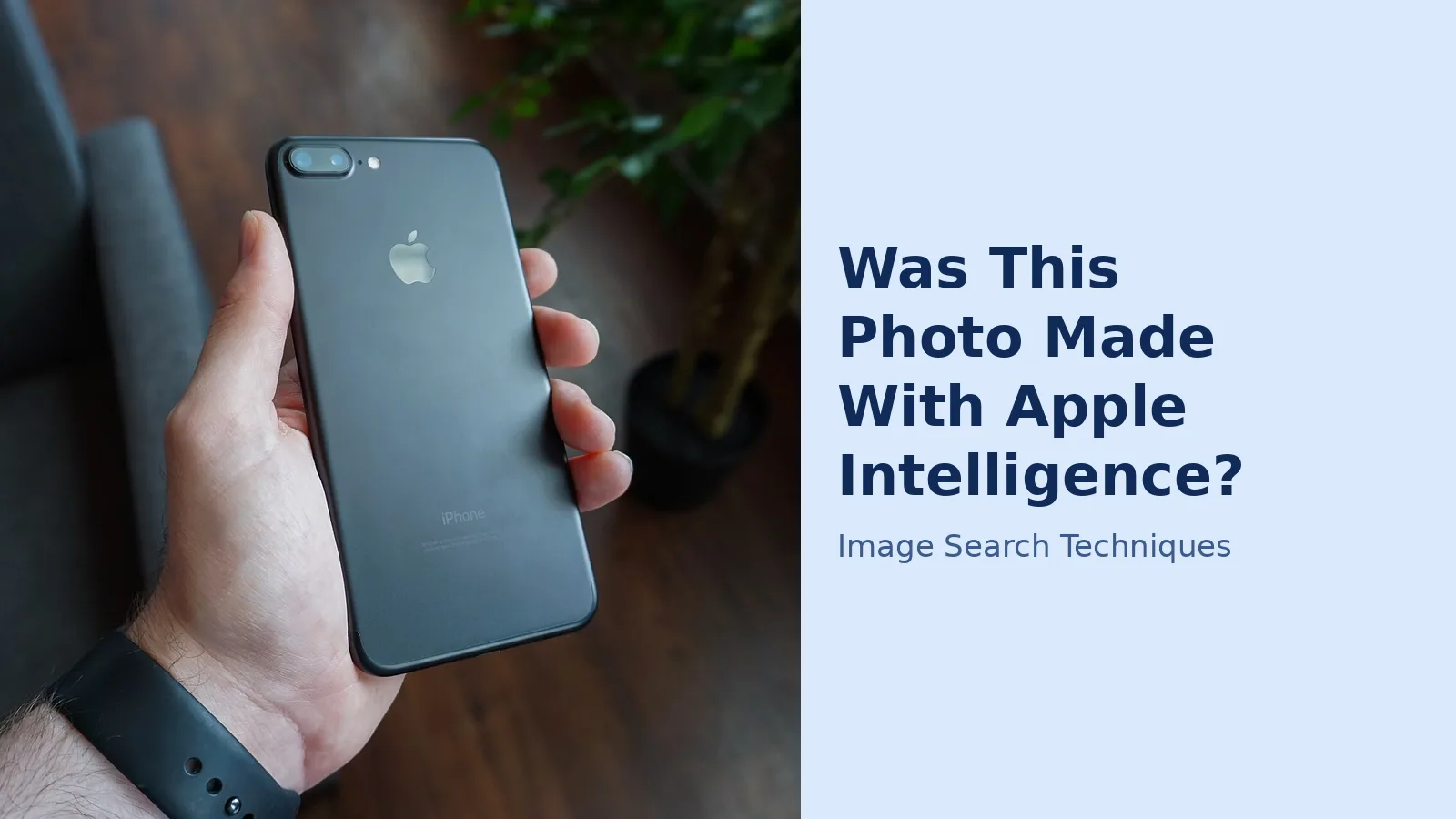
The scenario is an ordinary one. A photo of an iPhone 18 Pro, used by 9to5Mac to illustrate its 6 November 2026 article about the SynthID feature, is shared in a group chat with a claim attached. Nobody in the chat has an Apple device, and nobody wants to sign in to a detector. The question is what a free reverse image search can tell them.
I ran the test on 13 November 2026 using this site’s own reverse image search tool, on the original 1200 by 600 press photo and then on a 600 by 600 centre crop of the same image, to see how much the crop changed the results.
The results are below, exactly as the engines returned them. Only Google Lens found the exact source page, and only on the original, uncropped file. The crop removed it everywhere.
| Engine | Original photo (1200 by 600) | Centre crop (600 by 600) |
|---|---|---|
| Google Lens | Exact source found. The 9to5Mac article of 30 October 2026 was number 2 in exact matches, out of 349 loaded. The AI Overview named the phone correctly: the iPhone 18 Pro in the burgundy finish. | Exact source not found. Zero 9to5Mac pages in 400 exact matches. Similar 9to5Mac articles still appeared in visual matches, at number 25. |
| Bing Visual Search | 57 pages with this image stated. No 9to5Mac in the first 25 shown. | 15 pages with this image stated. No 9to5Mac at all. |
| Yandex Images | 33 sites listed. One 9to5Mac link, but a different article, not the source. | 20 sites listed. No 9to5Mac. The tags misread the phone as iPhone 16 and 17 models. |
| TinEye | 56 results across 86.7 billion images searched. The top hit was 9to5Mac, but an older file: a 2024 Apple Intelligence logo image, not this photo. | 81 results. The same 2024 logo image on top again. |
| Not a reverse search at all. The tool sends a keyword search for the tool site’s own domain, so it returned 23 pins about domain names and nothing about the phone. | Same. 18 pins, none relevant. |
Three lessons fall out of that table. First, the crop is what kills the match. Lens found the exact source on the full image and lost it completely on the crop, in both sessions, while the visual matches kept working. If someone sends you a cropped copy, expect the exact-match trail to go cold even when the photo is a well-known press image.
Second, a near miss is not a match. TinEye’s top hit was the right site and the right topic, but the wrong file from 2024. Yandex found 9to5Mac too, but a different article. Both look like success at a glance, and neither is the source of this photo. Read the result, not just the domain.
Third, the test itself had friction worth knowing about. Lens asked for a reCAPTCHA on both runs, and the second one took about twelve minutes of repeated image grids before it cleared. TinEye showed a Cloudflare verification note but still returned results. And the tool’s Pinterest button does not search by image at all, so it contributed nothing to either run. One honest caveat: I did not open the 30 October 9to5Mac article to confirm the image sits on that page, so the Lens exact match is reported as listed, not as independently confirmed on the page.
What the test shows is the shape of the fallback. A reverse search can find a photo’s source, and on the original file Lens did exactly that. But it is fragile: crop the photo and the exact trail vanishes, and no engine in this test could say anything about whether the file carries a SynthID mark. That question still needs the detector, with its sign-in and its daily limit. Use the reverse search to find where a photo has been, and the detector to ask what was done to it.
Common mistakes when checking an Apple Intelligence photo
Treating a clean detector result as proof the photo is real. This is the biggest mistake, and Apple gives you no cover for it. A clean result means no SynthID mark was found in that copy. Pre-update edits, small Clean Up edits, Genmoji images and non-SynthID tools all return clean results. A photo is not real just because one detector found nothing.
Checking a screenshot instead of the file. Screenshots are new images. They can lose the mark, lose the metadata, and lose the resolution a detector needs. Always ask for the original file first. If the sender cannot provide it, that is itself a small signal about how much the photo can be trusted.
Reading the metadata label as the whole story. The EXIF and IPTC labels are useful when they survive, but they are the first thing to vanish when a photo is shared. A photo with no metadata is not suspicious on its own. Most photos lose their metadata the moment they pass through a messaging app.
Assuming every Apple AI feature marks its output. Only five tools are listed. Genmoji, Siri image features and anything else Apple did not name are not covered. Do not extend the list by guesswork.
Trusting a single check. The mark, the metadata, the reverse search and the source all answer different questions. A found mark is strong. A blank reverse search is weak. The reliable verdict comes from stacking them: mark plus metadata plus a source that matches the claim, or a clear mismatch in any one of them.
What to do with the answer
If the detector finds a SynthID mark, you know the file was made or edited with a SynthID tool, which includes Apple’s five. That settles the “was AI involved” question. It does not settle whether the photo is misleading, because a real photo with one person removed is still mostly real. Judge the claim the photo is being used to support, not just the file.
If the detector finds nothing, go back to the other checks. Look at the metadata. Run the reverse search. Ask where the photo came from and whether the source is plausible. A photo with no history, no metadata and no mark is an unknown photo, and an unknown photo should not carry a decision on its own.
And if the photo is being used to pressure you, to sell you something, or to prove something urgent, slow down. A watermark check answers a technical question. It does not answer whether the person sending the photo is honest. That question needs the source, the context and, where money or safety is involved, the official route for whatever is being claimed.
How can I tell if a photo was made with Apple Intelligence?
Check the file at synthid.com, Google’s SynthID Detector, where you sign in and upload the photo. From iOS 27.2, Image Playground and Image Wand creations carry an invisible SynthID mark, as do Clean Up, Extend and Spatial Reframing edits. A found mark confirms AI involvement, but a clean result does not prove the photo is real.
Does Clean Up always add a SynthID watermark?
Apple lists Clean Up among the tools that add the mark, with no size condition stated. In MacRumors’ October 2026 test, larger Clean Up edits were marked while small ones were not. Treat that as a test result, not an Apple rule. A small tidy-up may leave no trace, so a clean detector result never proves a photo was untouched.
Can I check for the mark without an iPhone?
Yes. The check runs in a browser at synthid.com, so it works on Windows, Android or any device with a browser. You need the photo as a file and an account to sign in with, either Google, OpenAI or Apple. There is no checker inside the Photos app, and no on-device option on the iPhone itself.
Do photos edited before iOS 27.2 have the watermark?
No. Apple states that images created or edited before updating to iOS 27.2, iPadOS 27.2 or macOS 27.2 carry no SynthID mark until a listed tool edits them again. Updating your device changes nothing about photos already in your library. Only a fresh edit with Clean Up, Extend, Spatial Reframing, Image Playground or Image Wand adds the mark.
Is Genmoji watermarked with SynthID?
Apple does not list Genmoji among the five tools that add a SynthID mark, so do not assume a Genmoji image carries one. The listed tools are Image Playground, Image Wand, Clean Up, Extend and Spatial Reframing. Anything Apple has not named should be treated as unmarked until Apple says otherwise.
Does a screenshot keep the SynthID mark?
That has not been publicly confirmed for Apple’s mark. Google says SynthID is designed to survive editing, but tests of Meta’s similar mark found heavy cropping could remove it. A screenshot is a new image, so always test the original file where possible and treat a clean result on a screenshot as weaker evidence.