🔎 Reverse Image Search
Image search techniques made simple: upload a photo or paste a URL and search 6 engines at once. 100% free, nothing stored.
🔒 Your image is never stored on our servers longer than 24 hours and is never shared.
If you have ever photographed a broken part, a stained rug or an outfit you liked and wondered what to ask Amazon about it, the amazon ai assistant photo upload is the feature built for that moment. Instead of typing a product name you do not know, you show the assistant the picture and ask in plain words. This guide explains what it can and cannot do, how to open it in the US and the UK, and what happened when we tested it on three real photos on 12 November 2026.
Short answer: Yes. Upload a photo to Amazon’s AI shopping assistant and ask about the item in it. Now called Alexa for Shopping (it was Rufus until 2026), it finds similar products, answers questions about the picture, and suggests what to buy. It works in the app and on the website for signed-in customers, with no Prime needed.
What is Amazon’s AI shopping assistant, and what is it called now?
Amazon’s AI shopping assistant is a chat assistant inside the Amazon Shopping app and on Amazon’s website that answers shopping questions in plain language, using Amazon’s product catalogue, customer reviews, community questions and answers, and information from across the web. You type or speak a question instead of typing keywords, and it replies with an answer, a comparison or a list of products you can add to your basket.
The name is the first thing to get right, because it changed twice in 2026 and most guides you will find still use the old one. Amazon launched the assistant as Rufus in February 2024, first as a test in the US app, and it reached the UK in September 2024. On 13 May 2026 Amazon renamed it Alexa for Shopping in the US, folding it together with Alexa+, its newer voice and chat assistant. Then, on 11 November 2026 (the day before this article was written), Amazon announced the same Alexa for Shopping name for the UK, for the Amazon Shopping app and amazon.co.uk, in Amazon’s UK announcement. So if a help page, a screenshot or a YouTube guide tells you to open Rufus, it means the same assistant under its old name.
| Market | What it was called | What it is called now | Renamed |
|---|---|---|---|
| United States | Rufus | Alexa for Shopping | 13 May 2026 |
| United Kingdom | Rufus | Alexa for Shopping | 11 November 2026 |
| Germany, France, Italy, Spain, Canada, India | Rufus | Rufus (Amazon has not announced a rename there) | , |
The scale is worth knowing, because it explains why Amazon is pushing the assistant into every corner of its store. Amazon says more than 400 million customers worldwide have used its AI-powered shopping assistance in the past 12 months, according to its UK announcement of November 2026. Its earlier announcement, from November 2025, said more than 250 million customers had used Rufus that year, with monthly average users up 149% and interactions up 210% over the previous year, and that customers who use the assistant while shopping are over 60% more likely to make a purchase during that trip. Those are Amazon’s own figures, and they are the reason the assistant now appears on the home page, on product pages and inside the camera view, rather than hiding in a corner.
One more distinction matters before you use it. The assistant is a conversation layer: it talks about a photo. The camera itself (pointing your phone at an item and getting matching listings) is Amazon Lens, a different feature with its own steps. This article covers the conversation only. If you want the camera route, our Amazon Lens guide owns it, and you should read that instead of looking for camera steps here.
How does the Amazon AI assistant photo upload work?
The photo upload is the part of the assistant that makes this article possible, and it arrived in stages. Amazon’s announcement of the photo features, published in November 2025, describes two photo jobs. First, for iPhone customers who handwrite a grocery or holiday shopping list, you can snap a photo of the list, upload it, and the assistant adds the items directly into your Amazon shopping cart. Second, you can upload a photo and ask the assistant to find similar products or help solve a problem. Amazon’s own example is a stained rug: upload a photo of it and ask, “How do I remove this coffee stain from my rug?” and the assistant analyses the fabric of the rug and gives a tailored response highlighting the most relevant cleaning supplies. That announcement said these capabilities would be available to Android customers soon; Amazon has not published a separate Android launch date since, so if the upload button is missing on your Android phone, check for an app update first and use Amazon Lens in the meantime.
To open the assistant, update the Amazon Shopping app and tap the Alexa icon in the bottom navigation bar, or find it at the top of your screen on the desktop website. Amazon says any signed-in customer can use it for free, with no Prime membership and no Echo device required. You need an Amazon account to chat with it (unlike Amazon Lens, where you can browse results without signing in and only need an account to buy), because the assistant’s answers are personalised from your shopping history, your past orders and what you have told it about yourself.
Once the chat is open, the photo flow is short:
- Tap the image or attachment button in the chat bar, or take a photo directly if your app offers the camera option there.
- Choose one photo from your gallery, or photograph the item in front of you. Crop it first so the item you care about fills most of the frame.
- Ask your question in the same message, in plain words: what the item is, whether it will fit, what will fix the problem in the picture, or what it costs.
- Read the answer, then ask a follow-up. The assistant keeps the conversation, so “show me the same thing under £30” or “is there a washable version?” works without starting again.
- Check any product it suggests before you buy: open the listing and compare the size, material and model number with your photo, because the assistant’s suggestion is a starting point, not a guarantee.
Inside the camera, the assistant also appears without a separate upload. Amazon’s Lens Live, introduced on 2 September 2025, puts the assistant into the camera view itself: while you browse, you see short summaries of what makes a product stand out, plus suggested questions about the whole image, and you can tap the “Ask about this” bar and type a question (Amazon’s example, again, is asking how to remove a stain from a rug in the photo) and get an answer without leaving the camera view. If Lens cannot identify an exact or similar product in an image, it now shows intelligent captions describing what is visible in the scene instead of leaving you with a blank screen.
What can you ask it about a photo?
The honest answer is that the assistant is best at questions a visual search cannot answer, and weakest at the one thing visual search does best: naming an exact product. Amazon’s own sample questions for image search show the split clearly: “Find dresses with this silhouette but under $100” and “This sofa, but in blue.” Both start from a picture and add a condition only words can carry: a price, a colour change, a size, a use. That is the assistant’s real job: it takes the picture as the starting point and lets you negotiate the result in conversation.
Here is what it can do with a photo, according to Amazon’s announcement of the photo features:
- Find similar products. Upload a photo of an item and ask for similar ones, with conditions attached: cheaper, a different colour, a washable version, the same style for a child.
- Solve a problem in the picture. A stain, a broken part, a mark on a wall. Describe the problem and the assistant suggests products and steps, as in Amazon’s stained-rug example.
- Turn a handwritten list into a basket. Photograph a shopping list and the assistant adds the items to your cart, which you review before checking out.
- Compare what it finds. Ask it to compare two or three products side by side on features, price and review highlights, rather than opening each listing yourself.
- Check price history. Ask whether an item has been cheaper, or tap Price History on a product page to see 30, 60 or 365 days of pricing. Amazon says price alerts are coming soon in the UK.
- Reorder from your history. Ask it to add your usual items, or everything you bought for a recipe last week, and it builds the basket from your past orders.
It can also answer the ordinary shopping questions that sit around a photo: whether a blender crushes ice, whether a water bottle is dishwasher safe, what you need for a camping weekend, or what to buy for a child’s birthday under £20 with next-day delivery. Amazon’s UK announcement gives the washing-machine example: type an error code into the app and the assistant explains what it likely means and suggests a few things to try before calling a technician, along with any replacement parts you may need. That is the pattern to remember: the assistant is a knowledgeable shop assistant that happens to accept photos, not a camera that happens to talk.
We tested three real photos: the assistant vs visual search
Every article on this site has to earn its claims with a real test, so on 12 November 2026 we ran three genuine photo tasks through our site’s own reverse image search tool, which routes a photo to Google Lens, TinEye, Bing, Yandex and Pinterest. The three tasks were the ones the brief asked for: an unknown spare part, a household-problem photo, and an outfit match. The photos were real Wikimedia Commons files, not staged examples, and every result below is what the engines actually returned that day, including the failures.
One honest limitation first. We also tried to test the assistant itself live, by opening amazon.co.uk in the browser and uploading the coffee-stain photo to Alexa for Shopping. The site returned its “503: Service Unavailable” error page on all six attempts across two sessions, and Amazon also serves an automated-agent block page to non-browser access. So the assistant side of this test could not be run live, and we did not pretend otherwise. In the table below, the visual-search column is what we genuinely measured on 12 November 2026, and the assistant column is what Amazon’s own published pages say the assistant does with that kind of photo. If you run the same photos through the assistant yourself, tell us what it said. The comparison below is a starting point, not a verdict.
| Photo task | What visual search returned (tested 12 Nov 2026) | What the assistant is documented to do | Which route wins |
|---|---|---|---|
| Unknown spare part: cam-lock electrical connectors on a panel | Google Lens named it (Camlock electrical, ~50 visual matches, 3 exact matches incl. Wikipedia). Yandex found the original Commons file. TinEye found nothing. Bing mislabelled it as a network cable rack. | Amazon says: upload the photo and ask what it is, whether it will fit your panel, and which replacement to buy. | Visual search for the name; the assistant for the fit-and-buy question. |
| Household problem: coffee ring stain on white cloth | Google Lens described it exactly (7 exact matches incl. the Commons original). Yandex’s headline was wrong (“Gold Circle” store) but its tags said “coffee stain” and it found the source. TinEye found 6 results, first indexed 10 Mar 2013. Bing turned it into a how-to text query. | Amazon’s own example is exactly this: upload a stained-rug photo and ask how to remove the coffee stain; it analyses the fabric and suggests cleaning supplies. | The assistant: this is the job it was built for. |
| Outfit match: blue denim jacket with brass buttons | Google Lens returned ~55 visual matches incl. Amazon, eBay, Next and Old Navy listings. Bing derived “Denim Jacket With Brass Buttons” (34,100 results). Yandex and TinEye traced the photo to the two pages that use it. | Amazon’s sample question is “Find dresses with this silhouette but under $100”: same idea, with a price condition attached. | Visual search for lookalikes; the assistant to add the price or colour condition. |
Task 1: the unknown spare part
The first photo was a close-up of an industrial electrical panel: heavy orange cables held with black cable ties, plugged into red, blue and green cam-lock connectors. It is the Wikimedia Commons file “Cam lock 2.JPG”, 1,283 × 1,711 pixels, uploaded on 9 June 2014, and it is used on Wikipedia’s “Camlock (electrical)” page. Most people who find a part like this in a cupboard have no name for it at all, which is exactly the test.
Google Lens worked, after a bot check, and its AI overview described the image as heavy-duty orange electrical cables, such as Trystar-branded temporary or cam-lock style distribution cables, connected to a power distribution panel. It returned around 50 visual matches, including an Amazon listing for a five-position cam-lock panel, and three exact matches, the first of which was Wikipedia’s “Camlock (electrical)” page. Yandex also found the original Commons file, with the exact 1,283 × 1,711 size listed. TinEye searched over 86.7 billion images and found nothing at all, a reminder that a zero result means “not in our index”, not “this does not exist”. Bing worked but mislabelled the photo as a “Cat5e Network Cable Termination Rack”, although its information panel correctly described a Camlock terminal box, and it listed around 40 pages containing the image without identifying the source. Pinterest found nothing, because the tool’s Pinterest button is not a visual search at all: it opens a keyword search for the tool’s own domain, showing unrelated pins.
What does that mean for the shopper? Visual search names the part (cam-lock, not network cable) and finds sellers. What it cannot do is answer the question that actually matters: will this connector fit my panel, and which one should I buy? That is the assistant’s question, and it is also where the safety line sits. Cam-lock connectors carry mains power, so never handle a live panel to photograph it, and never take the assistant’s word on a safety question. Identify the part with a search, then ask the assistant about the replacement, and check the rating and pin configuration on the listing before you order.
Task 2: the household problem
The second photo was a brown coffee ring stain on a white cloth, the Wikimedia Commons file “Coffee Stain P1000065.JPG”, a 2008 photograph by a user called Nevit. It is the closest real photo we could use to Amazon’s own stained-rug example, and it tests the one task where the assistant is supposed to beat a plain visual search.
Google Lens described it exactly, a circular coffee ring stain on a white paper towel or napkin, and returned seven exact matches, including the Commons original, plus around 70 visual matches, mostly stock photos of stained napkins. TinEye found six results, the first indexed on 10 March 2013, with the Commons original at the top. Yandex found the source too, but its headline identification was wrong: it read the ring shape as “Gold Circle”, a defunct American discount store chain, although its own tags included “coffee stain” and it listed the Commons file among the sites. Bing described the photo correctly, then turned the image into the text query “How To Remove Coffee Stains From Paper Towels” and returned how-to guides instead of matches, and it never found the source. Pinterest, again, was not a visual search.
Notice what visual search gives you here: the name of the stain and a pile of stock photos. None of that removes the stain. Amazon’s documented answer to the same kind of photo is the useful one: upload it, ask how to remove the coffee stain, and get a fabric-aware answer with cleaning supplies suggested. That is the clearest win for the assistant in this whole test, and it is no accident that Amazon chose a stained rug as its example. If your problem is “what is this?”, use visual search. If your problem is “what do I do about this?”, ask the assistant.
Task 3: the outfit match
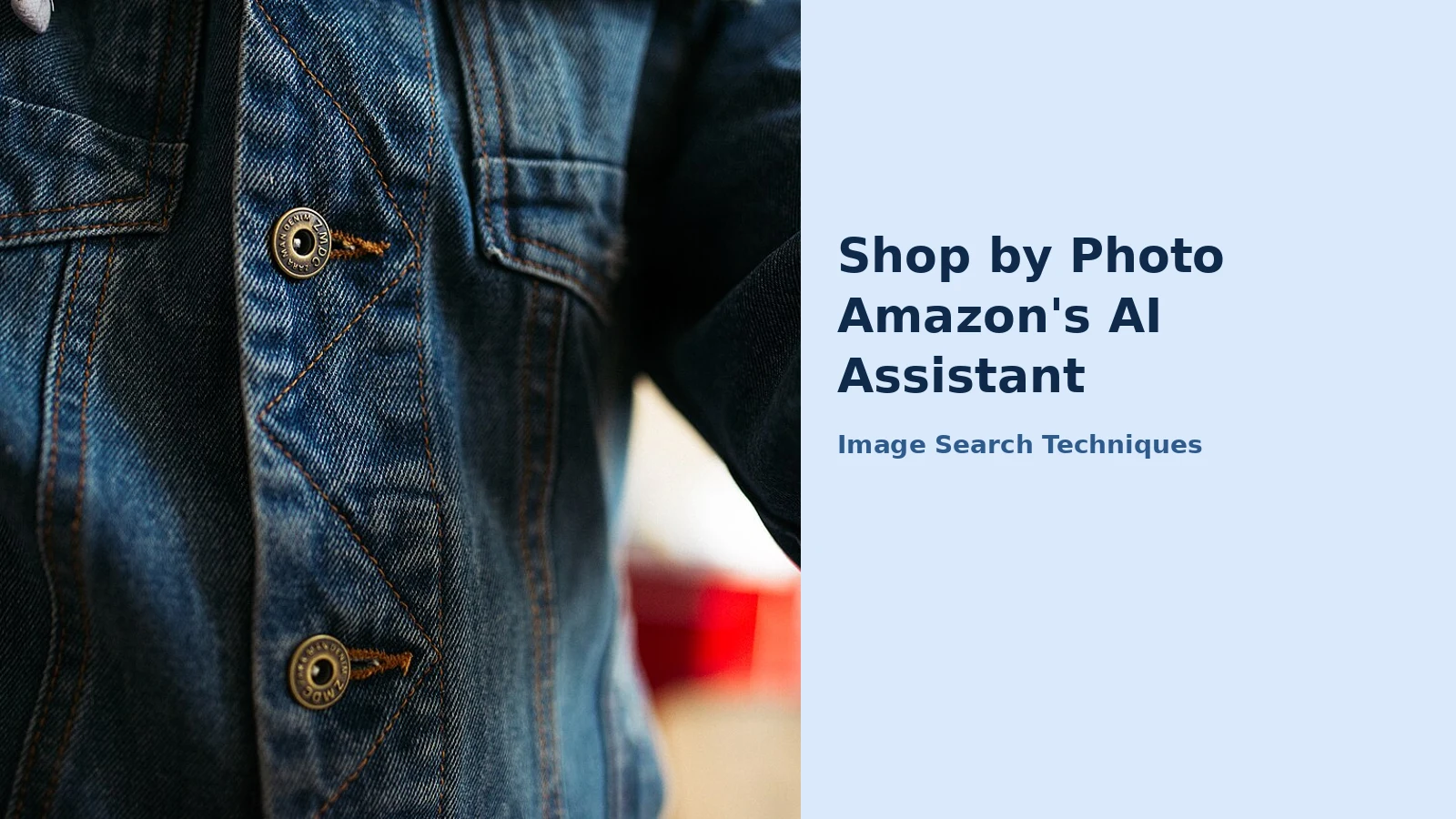
The third photo was a close-up of a classic indigo blue denim jacket with brass buttons and contrast stitching, 1,280 × 854 pixels. It is the kind of photo people take in a shop or screenshot from a video when they want the same jacket, and it is the task where visual search is at its strongest.
Google Lens returned around 55 visual matches, and they were almost all buyable: eBay, Next, Old Navy, Madewell, Urban Outfitters, Gap Factory, Amazon itself, and one Louis Vuitton jacket at $3,900 that shows the range of what “similar” can mean. It found only one exact match, a 2021 article on the Turkish site Onedio. Bing derived the query “Denim Jacket With Brass Buttons”, returned 34,100 results, and found exactly one page containing the image, a 2022 lifestyle blog post. Yandex identified it as a denim trucker jacket and traced it to the same two pages. TinEye found five results, all copies of the same Onedio article, first indexed on 16 March 2022. Pinterest, again, was not a visual search.
For an outfit, visual search already does most of the job: it returns lookalikes with prices, which is what you wanted. The assistant earns its place when you add a condition the picture cannot carry: the same silhouette under $100, in blue instead of indigo, in a tall fit, or washable. That is Amazon’s own sample question, and it is the right way to use the assistant for clothes: let the picture do the matching, and let the conversation do the filtering. One warning from the results: a “similar” jacket is not the same jacket. Check the fabric, the fit notes and the customer photos in the reviews before you buy, because a £25 lookalike and a £90 original can share a thumbnail and nothing else.
Score summary for the three photos, counting only whether each engine found the original source page: Google Lens 3 out of 3, Yandex 3 out of 3, TinEye 2 out of 3, Bing 1 out of 3, and Pinterest 0 out of 3, because the tool’s Pinterest button does not reverse-search the image. Two tool notes from the test: “Search All” opened only the Google Lens tab each time, and the Google and Lens buttons open the same Lens search, so open the other engines individually if you want them.
When should you ask the assistant, and when should you use Amazon Lens instead?
Use the table below as a quick chooser. The short version is that Lens answers “find me this”, and the assistant answers “what about this”. They overlap on similar products, but they start from different questions, and picking the wrong one is the most common reason people conclude one of them is useless.
| Your question | Use this | Why |
|---|---|---|
| What is this item, and where can I buy it? | Amazon Lens | It matches the picture against Amazon listings and shows price, delivery and reviews beside each result. |
| Will this fit my model, room or panel? | The assistant | Fit is a conversation about measurements and models, not a picture match. |
| How do I fix the problem in this photo? | The assistant | It gives steps and suggests products, as in Amazon’s stained-rug example. |
| Same item, but cheaper / in blue / washable | The assistant | Conditions in words, applied to the picture: Amazon’s own sample questions work this way. |
| I want the exact item, not a lookalike | Lens, then a reverse image search | Lens finds Amazon listings; a general reverse image search, which you can run with our how-to-reverse-image-search guide, finds the name and other shops. |
| What should I buy for this occasion? | The assistant | It builds a list from an activity or event: a party, a camping weekend, a school term. |
| Has this been cheaper before? | The assistant | Ask for the price history, or tap Price History on the product page for 30, 60 or 365 days. |
For a thorough check, use both together, and in this order: run the photo through a general reverse image search first to learn the product’s name, then ask the assistant with that name in your question. The name turns a vague “what is this?” into a precise “will this 15-amp cam-lock panel fit a Trystar cable?”, and precise questions get precise answers. Our find-item-by-image guide covers the shopping-by-photo workflow in full, including how to compare the same product across shops before you spend money. If you want the same conversation trick outside Amazon, ChatGPT and Gemini both answer questions about photos too (see our guide on how to identify a photo with ChatGPT and Gemini), and ChatGPT has its own shopping-from-a-photo route, covered in our shop from a photo with ChatGPT guide.
What the assistant cannot do
The assistant is a shopping helper, not a general-purpose image expert, and its limits are the honest part of this guide. First, it only searches Amazon’s catalogue, plus other merchants through its Buy for Me and Shop Direct buttons, which send you to the merchant’s site to finish the purchase. If an item is not listed on Amazon and no merchant route covers it, the assistant cannot find it for you, and it cannot tell you whether another shop sells it cheaper, because it only sees Amazon’s prices. Second, it cannot verify that a listing is genuine, that a seller is trustworthy, or that a photo in a listing shows the real product. A matching picture is not proof of anything, and the assistant will not warn you about that unless you ask. Third, it will not identify people in photos. Asking who someone is, or whether a face in a picture matches a name, is outside what it is built to do. Use a face-search check for that, and expect it to refuse or deflect.
There are rollout limits too. Shopping by text message (texting the assistant a description or a photo and getting recommendations back) began on 6 November 2026 for a small invited group of US customers, and Amazon has given no UK date, so do not expect it on your phone yet. Price alerts and scheduled actions, such as restocking essentials each month, are listed as coming soon in the UK, with no date given. Photo upload itself arrived first on iPhone, with Android described as coming soon in Amazon’s November 2025 announcement, and no newer date has been published since. And the assistant’s answers are suggestions built from listings, reviews and the web, not guarantees: a price it quotes can change, a size it recommends can be wrong, and a product it calls “best” is best according to the data it read, not according to your hands.
How to get a useful answer from a photo
Most bad answers from the assistant are bad questions, and the fix is in the photo and the wording, not in the assistant. A clear photo of one item beats a dark, cluttered photo every time, and the habits below make a real difference:
- Photograph one item at a time. If two or three products are in the frame, the assistant cannot tell which one you mean. Move the others out of shot, or crop them out afterwards.
- Fill the frame. Get close enough that the item takes up most of the photo, with a small margin around it. Tiny items in a wide shot produce vague answers.
- Use plain backgrounds and daylight. A white wall or a plain table helps the assistant see the shape and colour. Avoid busy patterns and yellow indoor lighting, which change how colours read.
- Keep labels in the frame. A visible brand name, logo or model number often turns a visual guess into an exact answer, because the assistant can read text in the image.
- Put the condition in words. The picture shows what you want; the words say what you will accept. Add the price, colour, size, material or deadline: “the same jacket under £40”, “a washable rug”, “a replacement for a 2019 model”.
- Ask a follow-up, not a new question. The assistant remembers the conversation, so refine rather than restart: “show me only the ones with free returns” is better than uploading the photo again.
- Verify before you buy. Open the suggested listing, compare the size, material and model number with your photo, and read the customer photos in the reviews, which often show the item more honestly than the seller’s studio shots.
If the first answer is poor, the fix is usually a second photo, not a second argument. Turn the item around, photograph it from another angle, or photograph the label on its own. Each new photo is a fresh attempt, and results can change completely, our cam-lock test showed that, with Bing misreading the same photo that Lens and Yandex named correctly. If the assistant still cannot name it, run the photo through a general reverse image search to learn its name, then ask the assistant about that name.
What happens to your photos and your shopping data?
The assistant’s personalisation is also its privacy trade-off, and Amazon is open about the mechanism. It remembers your shopping activity, your past orders and what you have told it about yourself (your household, your pets, your preferences) and uses that to shape its answers. Amazon’s UK announcement puts it plainly: what you share with Alexa+ on your Alexa-enabled devices can inform your shopping experience on Amazon, and your conversations, browsing and purchases on Amazon make Alexa+ more helpful across your experiences. You stay in control of that, according to Amazon, and you can view, update and remove what it knows about you, such as family members, pets, interests and dietary needs, simply by asking it in the chat, and you can ask it what shopping information it remembers about you at any time.
That is a fair deal for a shopping assistant, but it sets two practical rules for photos. First, only upload photos you are happy for Amazon to keep as part of your shopping history: the item, the stain, the list. Do not upload photos of people, identity documents, tickets with barcodes, or anything with an address, a number plate or a child’s face in it. The assistant cannot help with those, and you do not want them in a shopping record. Second, remember that a photo you send is a photo you have shared with a company that personalises from it. If that bothers you, use Amazon Lens instead for the matching step, since browsing Lens results does not need an account at all, and keep the chat for questions that need words rather than pictures.
Can I upload a photo to Amazon’s AI assistant on Android?
Amazon’s November 2025 announcement said photo upload was live for iPhone customers and coming soon to Android. We found no newer Amazon statement giving an Android date, so if the upload button is missing on Android, update the app and use Amazon Lens instead, which works on both.
Is the assistant called Rufus or Alexa for Shopping?
Amazon launched it as Rufus in February 2024, renamed it Alexa for Shopping in the US on 13 May 2026, and brought the same name to the UK on 11 November 2026. Older help pages and screenshots still say Rufus, so if a page tells you to open Rufus, it means the same assistant.
Can the assistant buy the item in my photo for me?
It can add items to your basket and, for Prime members in the US, buy at a price you set, but you review the basket before checkout. It cannot order from a photo alone, and it cannot buy from shops outside Amazon except through Buy for Me, which is still in beta for some US customers.
Why did the assistant not recognise the item in my photo?
A photo alone cannot always name a product, especially an unbranded spare part or a handmade item. Crop tightly around one item, photograph it in daylight against a plain background, and add words the picture cannot show, such as the brand or size. If it still fails, run the photo through a reverse image search to learn its name first.