🔎 Reverse Image Search
Image search techniques made simple: upload a photo or paste a URL and search 6 engines at once. 100% free, nothing stored.
🔒 Your image is never stored on our servers longer than 24 hours and is never shared.
A second-hand laptop turns up with no box, no receipt and no clear name. Maybe it is a charity-shop find, a listing photo, or a machine a relative left behind. You need the model before you can buy a charger, a battery or a spare screen, and the seller cannot tell you what it is. A photo is often all you have.
Yes, you can often identify a laptop model from a photo. A clear front photo usually gives you the brand and the model family, for example ThinkPad T480, from the bezel badge, the keyboard layout and the palm-rest logo. The exact variant, the machine type printed on the bottom label, still needs a second check on the maker’s own support site. A photo match is a strong start. It is not the whole answer.
This guide walks through the full check. You will learn which marks in a photo give the model away, how to photograph a laptop so it can be identified, how to reverse image search the photo on three engines, and how to confirm the exact model once the photo has done its part. The worked example uses a real photo of a Lenovo ThinkPad T480, searched live on Google Lens, TinEye and Yandex, with honest counts for each engine.
What can a photo of a laptop actually tell you?
A photo can tell you a lot, and it has a hard limit. Know the limit before you trust the answer, because the limit is where people buy the wrong battery.
Answer capsule: a photo identifies the model family reliably and the exact model only sometimes, so treat every photo match as a lead to confirm, never as the final word.
Three different things hide behind the word “model”, and they are not the same. The model family is the name on the bezel or the lid, such as ThinkPad T480, Dell XPS 13 or MacBook Air. The exact model is the full number, such as Lenovo Yoga 920-13IKB, which is the number iFixit says you need before ordering parts. The variant is the configuration inside one exact model: which processor, how much RAM, which screen. A photo can show you the family. It can sometimes show you the exact model, if the bottom label is in shot. It can almost never show you the variant, because two machines that look identical can hold different processors.
That matters because parts are not interchangeable between lookalikes. This year’s Dell XPS 13 differs from last year’s, and from the Dell XPS 15 and the Dell Inspiron 13. iFixit’s guide on finding your exact laptop model makes the same point: buy parts against the longer specific number, not the family name. A charger that fits a T480 may not fit a T480s, and the two machines look nearly identical in a listing photo.
So the honest promise of this guide is a two-step one. Step one, the photo, narrows the machine down to a family and often to an exact model. Step two, the bottom label or the system settings, confirms it. Skip step two and you are guessing with money.
How should you photograph a laptop so the model can be identified?
If you are the one holding the camera, five minutes of care here saves an hour of guessing later. If you are working from someone else’s listing photo, this section tells you what is missing and what to ask for.
Answer capsule: photograph the open front, the closed lid, the bottom label and the side ports, straight on and in good light, because each angle carries a different clue.
Start with the open front, straight on, with the screen on if you can. The front view carries the most marks at once: the badge on the bottom bezel, the keyboard layout, the pointing stick or trackpad shape, and the logo on the palm rest. Keep the whole machine in frame. A tight crop of the keyboard alone loses the bezel badge, and the bezel badge is often the single most useful mark.
Then close the lid and photograph it. The lid carries the brand badge and sometimes the model line, and its shape, the hinge position and the finish narrow the family further. A Dell XPS lid looks nothing like a ThinkPad lid once you have seen both.
Then turn the machine over and photograph the bottom label. This is the shot that matters most, and it is the one sellers most often leave out. The label carries the exact model or machine type, and sometimes a serial number. Photograph the model line and blur or cover the serial number before you share the photo anywhere. A serial number is not something to publish. It can be used to look up warranty details and, in the wrong hands, to make a fake listing look real.
Finish with the side ports, one close-up per side. The port layout is a fingerprint. The number and order of USB ports, whether there is an HDMI port, a USB-C port, an Ethernet socket or an SD card slot, and where each sits, separate models that share a badge. The hinge shape helps too: a 360-degree flip hinge means a Yoga-style convertible, while a plain hinge means a standard clamshell.
A few practical rules for all four shots. Use daylight or a bright room, never flash, because flash washes out the small print on the label. Hold the camera square to the machine, not at an angle, because a skewed photo makes the keyboard look like a different layout. Wipe the screen and the lid first. And do not photograph a screen showing someone else’s files, email or photos. Crop to the machine itself.
Which marks in the photo give the model away?
Work through the marks in this order, from the ones that name the family to the ones that pin down the exact model. One mark on its own can mislead. Three marks together rarely do.
Answer capsule: the bezel badge names the family, the keyboard and ports narrow it down, and only the bottom-label code confirms the exact model.
| Mark | Where to look | What it proves |
|---|---|---|
| Lid badge | Centre or corner of the closed lid | Brand and often the model line, such as ThinkPad, XPS or MacBook |
| Bezel mark | Bottom edge of the screen surround | Brand and model family, such as Lenovo and T480, in small print |
| Keyboard layout | Key shapes, pointing stick, function row | Family and era: the red TrackPoint and three-button strip say ThinkPad at once |
| Port layout | Left and right edges | Separates near-identical models: USB-C, HDMI, Ethernet and card slots differ by model |
| Hinge shape | Where screen meets base | Clamshell or convertible, and the generation of the design |
| Screen bezel | Width of the surround, webcam position | Generation: slim bezels arrived later, thick bezels point to an older model |
| Bottom-label code | Sticker or etching on the underside | The exact model or machine type, such as T480 Type 20L5 or 20L6, which is what parts sellers need |
Read the table from the top down and stop as soon as two or three marks agree. If the bezel says T480, the keyboard has the red TrackPoint, and the palm rest says ThinkPad, you have the family. If the port layout matches the T480 as well, you are on firm ground. If one mark disagrees, trust the disagreement. A machine with a ThinkPad keyboard and a Dell lid badge is a machine with a replaced part, or a photo of two different machines.
Watch for the marks that lie. Stickers lie: an Intel Core i5 sticker tells you the processor family, not the model, and stickers can be added or swapped. The screen wallpaper lies: it tells you about the owner, not the machine. And a badge can be missing: badges fall off, lids get replaced, and a refurbished machine may wear a plain lid. When the badge is gone, the keyboard, the ports and the hinge have to do the work.
How do you reverse image search a laptop photo?
Reverse image search is the fastest way to turn a photo into a name, and it works best when the photo is clear and the model is a common one. Upload the photo to an engine and let it find the same image, or visually identical machines, elsewhere on the web.
Answer capsule: upload the photo to Google Lens first, then check TinEye and Yandex, and read the exact matches before the visual ones, because a visual match can be a near-identical sibling model.
Start with Google Lens at lens.google.com. Upload the photo file rather than searching by a link, because a local file is the photo itself and a link can fail. Lens names what it thinks the photo shows and lists exact matches first, then visual matches. Exact matches are pages using the same image. Visual matches are pages showing a similar machine, which may or may not be the same model.
Then try TinEye at tineye.com. TinEye searches for the exact image across the pages it has crawled, and it tells you how many images it searched. A zero on TinEye is useful information: it means the photo has not been published anywhere TinEye has crawled, which is common for a photo you took yourself. A zero is not a failure. It is a fact about the photo’s history.
Then try Yandex Images. Yandex is strong on visual similarity and on tagging what it sees, and its “Sites” tab lists pages containing the image. Its tags are often in Russian, which is normal: the tags describe the picture, not the listing. Read the sites list with care, because Yandex groups visually similar machines together, and a T480 result can sit next to a P17 result.
If you want the same steps for a different device, our guide to how to reverse image search covers the full method, and the Windows-specific route is in our reverse image search on Windows PC guide. The method is the same. The photo is what changes.
The worked example: a real ThinkPad T480 photo, searched live
The photo is “ThinkPad T480.jpg” from Wikimedia Commons, published under a CC BY 2.0 licence by Elizabeth K. Joseph on 21 April 2021. It shows the machine open on a desk, front on, screen showing a server room. The marks are all visible: the Lenovo badge at the bottom left of the screen bezel, the T480 mark at the bottom right of the bezel, the ThinkPad logo on the bottom right of the palm rest, the red TrackPoint between the G, H and B keys, and a small Intel Core i5 sticker on the palm rest. No serial number is visible anywhere in the frame, so nothing needed blurring. The bottom label is not in this photo, because it is a front view, and that limit matters for what the search can prove.
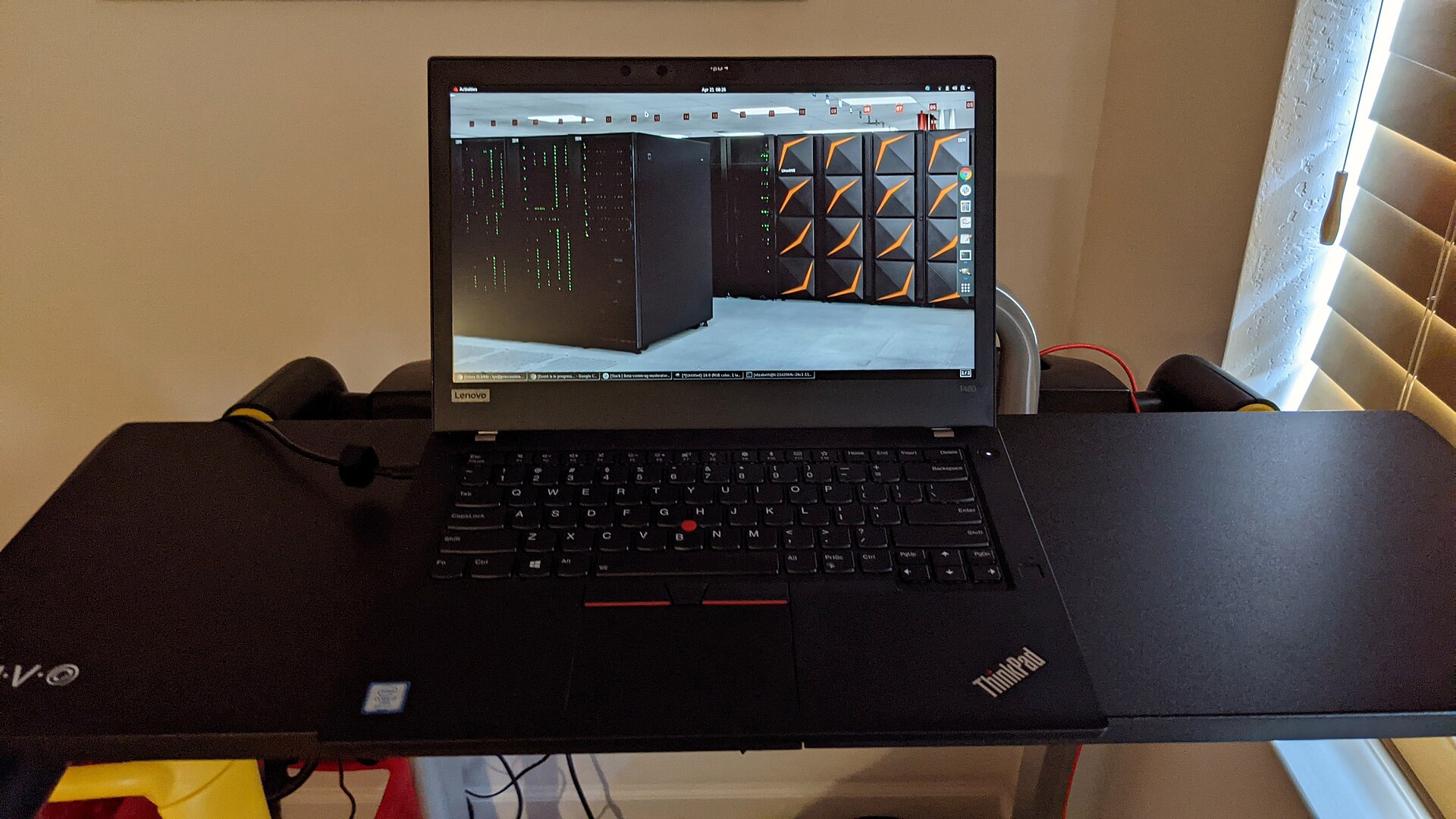
Google Lens named the model “Lenovo ThinkPad T480” in its heading. It showed 5 exact matches, all pages using this same photo or the same machine: a Pcdatamove review of the ThinkPad T480 three times, a ThinkNavi listing for a T480 with 16 GB of RAM, and an Omarchyhardware review. It also counted 60 visual matches in the first loaded list, including an Amazon listing for a ThinkPad T480 laptop, an eBay listing for a T480 with an i5-8250U processor and 16 GB of RAM, and, tellingly, an Amazon listing for a ThinkPad T480s. The T480s is the slimmer sibling, and Lens grouped it with the T480. That is exactly why a visual match is a lead, not a verdict.
TinEye found nothing. It searched over 86.8 billion images and returned 0 matches, with the explanation that it had not yet crawled any page where this image appears. That is a genuine zero, and it fits the facts: the photo lives on Wikimedia Commons, and TinEye had not indexed that copy. Below the zero, TinEye showed 19 sponsored Shutterstock thumbnails. Those are adverts, not matches, and they were not counted.
Yandex tagged the photo “ibm thinkpad”, “computer”, “Lenovo ThinkPad laptop”, “laptop” and “Lenovo laptop”, counted 55 similar images on its Similar images tab, and listed 20 sites on its Sites tab. The top site was the Wikimedia Commons category for the ThinkPad T480, which holds 7 files and visually matches the query photo. The rest of the top sites were visually similar ThinkPads rather than the T480 itself: Lenovo’s own PSREF pages for the ThinkPad P17 Gen 1, a Notebookcheck article about the P15 and P17 G2, and a Geekspin article about ThinkPad workstation laptops. Yandex recognised the family at once and blurred the exact model, which is its usual pattern with laptops.
Put together, the three engines tell a consistent story. Lens named the T480 outright from the bezel marks and the keyboard. TinEye added nothing, because it had never seen this copy of the photo. Yandex confirmed the ThinkPad family and pointed at the right Commons category, but its similar machines were P-series workstations, not T480s. The photo alone got us to T480. It could not get us to the machine type, because the bottom label was never in shot. That is the honest result, and it is a good result: family confirmed by two engines, exact variant still to check.
How do you confirm the exact model after the photo?
The photo gives you the family. The confirmation step gives you the number that parts sellers, battery sellers and support pages actually use. Do it before you spend money.
Answer capsule: read the machine type off the bottom label and check it on the maker’s support site, or read it from the system itself, because the label and the system agree and a photo alone does not.
First, read the bottom label. Turn the machine over and look for the model or machine-type line. On a Lenovo ThinkPad it reads like “T480 Type 20L5, 20L6”. Those four-character codes are the machine types, and Lenovo’s support site lists the T480 under exactly those types. Search the maker’s support site for the code plus the family name, and check that the page that comes back names your machine. Lenovo’s support page for the T480 lists it as “T480 (Type 20L5, 20L6) Laptop (ThinkPad)”, and that page is the confirmation. If the code on the label does not match the family the photo gave you, trust the label and start again.
Second, if you have the machine in front of you and it switches on, read the model from the system. On Windows, right-click Start, choose Settings, select System and pick About: the device name appears on the page with the model name just below it. Microsoft’s own support page, Find information about your Windows device, gives the same route. For the full hardware list, press Windows and R, type msinfo32 and press Enter. On a Mac, click the Apple menu and choose About This Mac, which gives the model name and year, and System Information gives the model identifier, such as MacBookPro11,4, for a MacBook Pro Retina, 15-inch, Mid 2015.
Third, if you cannot reach the label or the system, use the maker’s detection tool. iFixit recommends going to the manufacturer’s website, opening the Support tab and running its hardware-detection tool, which reads the model from the machine itself. Dell, Lenovo and HP all offer one. This only works when you have the machine and it runs, which is why it is a confirmation step and not an identification step for a stranger’s listing photo.
Never confirm a model by opening the laptop or removing the battery. The battery model is a real clue, and iFixit mentions it as one of the things to check when you own the machine, but taking a battery out to read it is not worth the risk on a machine you do not own, and on many modern laptops the battery is not meant to be removed by the owner at all. The bottom label and the system settings give you the same answer without a screwdriver.
Keep the serial number private through all of this. You may need it for a warranty check on the maker’s site, and that is a proper use. Publishing it in a listing, a forum post or a photo is not. Blur it in every photo you share, and never type a seller’s serial number into a public lookup and post the result.
What if the reverse search finds nothing?
A zero is a result, not a dead end. It tells you something about the photo, and it tells you what to try next.
Answer capsule: a zero usually means the photo is unpublished or the model is uncommon, so crop to the badge, try another engine, and search the badge text as words.
If TinEye returns zero, as it did for our T480 photo, remember what that means: TinEye only finds images it has already crawled. A photo you took yourself, a photo from a small listing, or a photo that has never been published will come back empty. That empty result says nothing about the laptop. It says the photo is fresh.
If Lens and Yandex also return nothing useful, crop the photo and search again. Crop tight around the bezel badge, or around the lid badge, or around the keyboard, and upload the crop on its own. A close crop removes background clutter and gives the engine the one mark that matters. Our T480 photo would still work cropped, because the T480 mark on the bezel survives a tight crop.
Then search the badge text as words. If the bezel reads T480, search for “ThinkPad T480” plus one visible detail, such as the port layout or the screen size, and compare the results against your photo. A text search is weaker than a reverse image search, but it works when the photo itself is too dark, too angled or too small for an engine to read.
Finally, compare against the sibling models. If the results keep showing a T480s next to your T480, or a T470 next to your T480, open both model pages and compare the port layout and the hinge. The sibling is often the clue: the difference between two lookalikes is usually one port, one hinge or one badge, and finding that difference is what settles the identification.
When should you walk away from a laptop listing?
Identification is also a safety check. A listing that cannot be identified is a listing you should not buy from, however good the price looks.
Answer capsule: walk away when the seller will not show the bottom label, when the title contradicts the photo, or when every image is a stock photo, because each of those hides the machine you would actually receive.
Walk away if the seller will not photograph the bottom label. There is no innocent reason to refuse that one photo. A genuine seller with the machine in hand can turn it over and take the picture in a minute. A seller who refuses, or who sends a blurred label, is either selling a different machine or does not have the machine at all.
Walk away if the title contradicts the photo. A listing titled “ThinkPad T480” with a photo that shows a T480s bezel, or a Dell badge on a machine titled as a Lenovo, is a listing built from two different machines. It may be a careless mistake. It may not be. Either way, you cannot trust the parts that follow from the title.
Walk away if every image is a stock photo. A real seller photographs the real machine, including its scuffs. Stock photos mean the seller is showing you a machine they do not have, or hiding the condition of the one they do. Ask for a photo of the machine switched on, showing the About screen, with today’s date on a piece of paper beside it. A genuine seller can do that. A scammer cannot.
And walk away from a price that makes no sense for the model you identified. A T480 at a fraction of the going rate for a T480 is not a bargain. It is a machine with a hidden fault, a stolen machine, or a listing that will never ship. The model you identified tells you what the machine is worth. Trust that number more than the listing price.
If you found the machine through our identification guides, the same photo-first method works for other devices. Our identify a phone model from a photo guide and our identify a car from a photo guide and our identify a headphone model from a photo guide use the same marks-and-confirm approach, and the hub for the whole family is our find an item by image guide.
Can Google Lens identify a laptop model from a photo?
Yes, often. Upload a clear front photo and Lens names the model it recognises, then lists exact matches and visual matches. In our live test it named a ThinkPad T480 outright and showed five exact matches. Treat a visual match as a lead, not a verdict, because near-identical sibling models appear in the same results.
What is the difference between a laptop model and a machine type?
The model is the family name on the bezel, such as ThinkPad T480. The machine type is the exact code on the bottom label, such as Type 20L5 or 20L6, and it names one precise configuration. Parts sellers, battery sellers and support pages use the machine type, so confirm it before you order anything.
Where is the model number on a laptop?
It is usually on a sticker or etched into the bottom case, near the serial number. On a ThinkPad it reads as a type code, such as Type 20L5. On a Mac the model name and year appear in About This Mac. Photograph the model line and blur the serial number before sharing the photo anywhere.
Can I identify a laptop from a photo of the lid only?
Sometimes, if the lid badge names the model line and the lid shape is distinctive. Often the lid alone only gives the brand, because many models share one lid design. Ask for an open front photo showing the bezel badge and keyboard, plus the bottom label, before you trust the identification.
Why does reverse image search show a different model, like T480s instead of T480?
Because sibling models look nearly identical and engines group them together as visual matches. The T480s is the slimmer version of the T480, and Lens listed it among the visual matches for our T480 photo. Check the exact matches first, then compare the port layout and hinge to separate the siblings.
Is it safe to share a photo of my laptop bottom label online?
It is safe if you blur or cover the serial number first. The model and machine-type lines are fine to share, and they are what helpers need to identify the machine. The serial number is not. It can be used to look up warranty details and to make a fake listing look genuine, so keep it private.