


🔎 Reverse Image Search
Image search techniques made simple: upload a photo or paste a URL and search 6 engines at once. 100% free, nothing stored.
🔒 Your image is never stored on our servers longer than 24 hours and is never shared.
Your photo is already in Google Photos. You want to know where it came from, whether it has been used before, or what the thing in it actually is. You do not need to download it first, and on most phones you do not need a second app. Google Lens is built into Google Photos, and it is the quickest route from a saved photo to a web search. The catch is that the button has moved, the web version works differently, and Lens does not always find the original. This guide gives you every route, tested at write time, and shows what happened when one real photo was put through three search engines.
Direct answer: Yes. Open the photo in Google Photos, tap More (the three-dot icon) at the top, then Google Lens. Lens reads the photo and shows matches, similar images and information about what is in it. On the web there is no Lens button inside Photos, so download the photo and upload it to Lens, TinEye or Yandex instead.
Can you reverse image search from inside Google Photos?
Yes, on your phone. Lens sits inside the Photos app, so the photo never leaves the app until you ask it to search. That is the whole point of this route. You skip the download step, you skip picking a file, and you get an answer in seconds. But you need to keep two different searches apart, because Google Photos offers both and they do very different jobs.
What reverse image search means: you search the web with a picture instead of words. You give the engine an image, and it returns pages that use that image, plus visually similar images. It can find the original source, an earlier copy, or a higher resolution version.
The first search is Lens, and it searches the web. The second search is the search bar at the top of Google Photos, and it searches only your own library. You can type a word or filter by People, Places and Things, and Photos will show your own pictures that match. That is useful for finding a photo you took, but it will never tell you where a photo came from or whether someone else has used it. Google Photos has no reverse search for your whole library in one go. If you want the web answer, you need Lens, or you need to take the photo out of Photos and upload it to a search engine yourself. The full reverse image search guide covers the general method step by step, while this article covers the Photos routes in depth: the exact buttons as they appear today, the web gap, the download fallback, and a real test with honest result counts.
How do you run Lens on a photo in Google Photos on Android?
Answer capsule: On Android, Lens is behind the More menu at the top of the photo view, not a button at the bottom of the screen.
Follow these steps, checked against Google Photos Help at write time:
- Open the Google Photos app on your Android phone or tablet.
- Select the photo you want to check.
- At the top, tap More, the three-dot icon, then tap Google Lens.
- Lens reads the photo. Check the details it offers, take an action, or look through the similar images and products it finds.
- If Lens picks the wrong part of the photo, drag the corner brackets to box the subject you care about, then search again.
One warning about older instructions. Many guides, and even the AI Overview for this keyword, still say to tap a Lens icon at the bottom of the screen. That wording is out of date. Current Google Photos Help puts Lens behind the More menu at the top, on Android and on iPhone alike. App layouts do vary by version, so on some phones a Lens icon may still sit at the bottom. If you cannot see it there, do not assume Lens is missing. Open the More menu at the top first.
Lens does more than name the thing in the photo. Google Photos Help lists what it can do with a picture: a landmark or building gives historical facts or opening hours; a plant or animal gives the species or breed; apparel and home goods give similar products and places to buy them; a barcode gives product information; a book gives a summary and reviews; a business card lets you save the phone number or address to a contact; an event flyer or billboard can be added to your calendar. You can also copy text out of a photo by tapping and selecting the words. For the wider Android picture, including the Google app and Chrome routes, see Android image search techniques.
How do you run Lens on a photo in Google Photos on iPhone?
Answer capsule: On iPhone the steps are the same as Android, but Lens works through Google Photos or the Google app, never through the iPhone camera.
- Open the Google Photos app on your iPhone or iPad.
- Select the photo you want to check.
- At the top, tap More, the three-dot icon, then tap Google Lens.
- Review the matches, the similar images and the information Lens offers, and drag the corner brackets to narrow the search to one object if needed.
The one platform difference is worth knowing. Google Photos Help says you can use Lens with Google Photos or the Google app on iPhone, but not with your camera. On Android, Help says Lens is available from Google Photos and from the Google app on some Android phones, such as Pixel. In practice the iPhone route is identical to Android once you are inside Photos. If the Lens option is missing, update Google Photos from the App Store first, then check the More menu again. An old app version is the most common reason the option is not there. For the iPhone routes outside Photos, including the Google app camera icon and Chrome, see reverse image search on iPhone.
What about Google Photos on the web?
Answer capsule: On the web there is no Lens button inside Google Photos at write time, so download the photo and upload it to a search engine instead.
This is the gap that catches people out. The Google Photos Help article about Lens has tabs for Android and for iPhone and iPad, but no Computer tab at all. There is no Help wording for running Lens from inside photos.google.com, and no label like “Search inside this image” appears in that article. The Photos website itself needs a sign-in to show a library, so its in-app web interface was not tested here, but the Help position is clear enough: Google does not document a Lens route inside Photos on the web.
That leaves you with three working routes on a computer:
- Download, then upload to Lens. In Google Photos on the web, select the photo, click More at the top right, then Download. Go to lens.google.com, click the camera icon, and upload the file. This is the closest web equivalent to the in-app route.
- Right-click in Chrome. If the photo is on a web page rather than inside your Photos library, right-click it in Chrome and choose “Search image with Google Lens”. This works on the page image, not on a photo sitting in Photos.
- Download, then TinEye or Yandex. If Lens gives you nothing, or if you want an exact-match check, take the downloaded file to TinEye or Yandex Images instead. The worked example below shows why this matters.
Do not waste time looking for a Lens button inside the Photos website. It is not documented, and the download route takes less than a minute. If Google adds a web route later, it will show up in the Help article first, and that is where to check.
How do you download a photo from Google Photos and search it elsewhere?
Answer capsule: Download is under the same More menu on every platform, then upload the file to TinEye or Yandex for the exact-match check Lens does not always give.
The download steps come from Google Photos Help, checked at write time:
- Computer: go to photos.google.com, select the photo or video, click More at the top right, then Download.
- Android: open the Google Photos app, select the photo or video, tap More at the top, then Download.
- iPhone and iPad: open the Google Photos app, select the photo or video, tap More at the top, then Download.
One small catch on mobile: if the photo is already on your device, the Download option will not appear. That is not a fault. The file is already in your gallery, so use it from there and skip the download entirely. Google Photos Help also notes that the downloaded file can carry a new timestamp from the operating system, while the photo details stay available through the file details view.
Then there is the quality question, and here honesty matters more than a neat answer. Google Photos Help does not say whether Download returns the original file, the original quality, or a recompressed copy. Neither the Lens article nor the Download article states it in any platform variant. So do not claim the downloaded file is the original. Check the file yourself: compare its size in kilobytes and its pixel dimensions with what you expect, and look at it closely before you treat it as evidence. A recompressed copy usually still matches on TinEye, because TinEye compares the picture itself, not the file, but a heavy crop or a low resolution copy can still weaken the match.
To search the downloaded file, open TinEye and upload the file or paste the image address, or open Yandex Images, click the camera icon, and choose “Enter image URL” or upload the file. Both engines are free for a single search, and neither needs an account for a basic check. Only search photos you own or have the right to check. Do not upload someone else’s private photos, confidential work documents, or photos of children to a public search engine. A screenshot needs the same treatment, and how to reverse image search a screenshot covers that case in full.
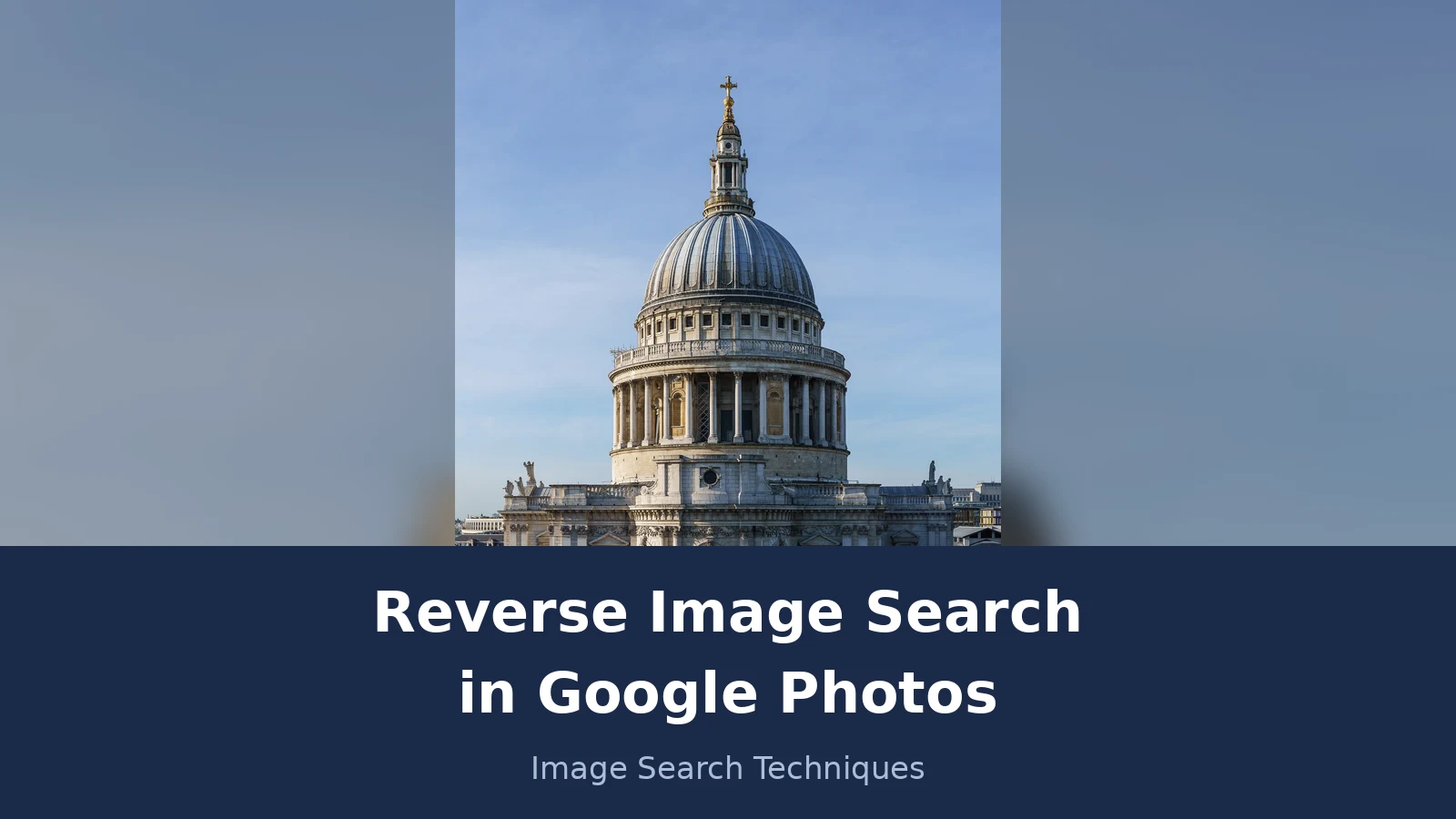
Worked example: a St Paul’s Cathedral photo, searched three ways
Answer capsule: The same photo gave three different answers: Lens failed to fetch it, TinEye found 197 copies, and Yandex named the building but gave no fixed totals.
The test photo is a real one: “St Paul’s Cathedral Dome from One New Change – Square Crop.jpg”, photographed by Colin and published on Wikimedia Commons under a CC BY-SA 4.0 licence. The scenario is ordinary. A reader saves this photo to Google Photos and wants to know where it came from and whether it has been used elsewhere. The photo was searched live on 21 November 2026, by image address, on Google Lens, TinEye and Yandex Images. Here is what each engine actually did.
Google Lens: failed, not zero. Lens was tried four times by image address: the upload-by-address page, a repeat of the same page, a repeat with the address fully percent-encoded, and the “Paste image link” dialog on the Lens home page. Every attempt ended the same way. The results page showed an empty AI Overview and a disabled “Expired visual search” button, and both the Exact matches and Visual matches tabs showed the same error: “Something went wrong. No image at the URL. Try again with a different URL or image.” Two reCAPTCHA checks appeared along the way and were cleared, but the Lens error stayed. So Lens identified nothing, gave no exact-match count and no visual-match count, and listed no sites. That is a failure, not a zero. The image was never fetched, so a zero would be the wrong number to report. The lesson is practical: Lens by web address can fail on some hosted images, and when it does, the fix is to download the photo and upload the file itself instead of pasting a link.
TinEye: 197 results, earliest 3 October 2013. TinEye succeeded on the first attempt, after a Cloudflare check cleared itself. It reported 197 results, having searched 86.8 billion images, with the photo first indexed on 3 October 2013. The oldest results, in crawl order, were centralstock.com on 3 October 2013, mediabakery.com on 21 March 2014, everythingconference.org on 10 April 2014, flickr.com on 7 February 2015, and en.wikipedia.org on 6 November 2016. The most common domains were wikimedia.org with 23 results, wikipedia.org with 17, and wikivisually.com with 13. That is the strongest origin evidence of the three engines: a dated list of real copies, stretching back more than a decade. One trap to avoid: the 18 Shutterstock thumbnails under “Similar Images” on the TinEye page are sponsored, not part of the 197 results, and TinEye itself offers a filter to show only the 14 results found in stock.
Yandex Images: best at naming the subject, weakest on totals. Yandex was searched by image address through the camera icon. Its tags read: “st paul s cathedral london uk”, “st paul s cathedral london”, “st paul s cathedral”, “st paul cathedral london” and “st pauls cathedral in london”. It named the building correctly, which Lens never got the chance to do. But Yandex never states a fixed total. The first load showed 40 similar images, a reload of the same tab showed 23, and the Similar images tab showed 54 thumbnails with a “Show more” button. The sites list moved too: eight site entries on the first load, four on a later load, and the dedicated Sites tab itself showed nothing after a 15 second wait. The first similar image was the vertical crop of the same photo on Wikipedia. So quote a counted page when you report Yandex, never a fixed total, because the number changes between loads.
The verdict is simple. For this photo, TinEye answered the origin question, Yandex answered the subject question, and Lens answered nothing because it could not fetch the image. If you only try Lens, and Lens fails, you learn nothing. That is why the cross-check matters. Google reverse image search explains the Lens routes in more depth, but the point stands on its own: one engine is never enough when the answer matters.
The Google Photos routes table
Answer capsule: Start with Lens inside Photos, fall back to download and upload when that route is missing or fails, and use TinEye when you need the oldest copy.
| Route | Platform | What it keeps | Use it when |
|---|---|---|---|
| Lens from the photo view (More, then Google Lens) | Android, iPhone | No download; searches the photo as stored in Photos | First step, fastest answer |
| Lens in the Google app | Android, iPhone | Same photo, picked from the gallery | The Photos route is missing or the app is old |
| Chrome right-click, “Search image with Google Lens” | Desktop, web page images | Searches the image on the page | The photo is on a web page, not in your Photos library |
| Download, then upload to Lens | Any | A file copy; Google Help does not state the quality | The in-app route fails, or you want a file to keep |
| Download, then TinEye | Any | Exact-match search across 86.8 billion images | You need the oldest copy and the origin |
| Download, then Yandex Images | Any | Strong subject naming; counts vary between loads | Lens finds nothing, or you want a second opinion |
Troubleshooting: when Google Photos reverse search does not work
Answer capsule: Most failures have a plain cause: an old app, a hidden menu, a failed fetch, or a photo that is already on the device.
| Problem | Likely cause | Fix |
|---|---|---|
| No Lens option in Photos | App out of date, or you are looking in the wrong place | Update Google Photos, then look under More (three dots) at the top, not at the bottom |
| Lens says “No image at the URL” | Lens could not fetch the hosted image | Download the photo and upload the file instead of pasting a link |
| Lens finds similar images but not the original | The photo is cropped, recompressed, or new | Try TinEye for exact matches; try Yandex; crop to the main subject and search again |
| Download option missing on mobile | The photo is already on the device | Nothing is wrong; use the file from your gallery |
| Results are all stock photo adverts | Sponsored results sit above real matches on TinEye | Scroll past the sponsored “Similar Images” and use the dated results list |
| Lens names the wrong object | Lens picked the wrong part of the photo | Drag the corner brackets to box the subject, then search again |
What do Lens results actually mean?
Answer capsule: A match is a lead, not proof, and a zero is not proof the image exists nowhere else.
Lens shows two kinds of result, and they are not the same thing. Exact matches are pages using the same image, or a copy close enough that the engine calls it the same. Visual matches are images that look similar: the same building from another angle, the same product in another colour, the same scene on a different day. Exact matches answer the origin question. Visual matches answer the “what is this” question. Both are useful, but only if you keep them apart.
Three rules keep you honest. First, open the result and read the page. A match on a stock site, a wiki, or a news article tells you something different in each case, and the thumbnail alone does not say which. Second, a zero is not proof. Lens can fail to fetch an image, as it did four times in the worked example above, and a photo that is new, cropped, or heavily recompressed can escape every engine. Report a zero as a zero for that engine on that day, and try another engine before you draw a conclusion. Third, crop to the subject. Lens searches the whole frame by default, so a busy photo with a landmark, a crowd, and a street sign can pull the search in three directions at once. Box the part you care about and the results get sharper.
Finally, remember what Google Photos search cannot do. The search bar inside Photos finds your own pictures. It does not search the web, and it does not tell you whether a photo has been used elsewhere. That job belongs to Lens, TinEye, or Yandex, with the photo taken out of Photos if needed. Keep the two searches separate in your head and you will stop expecting the library search to answer a web question. Drive is a different case from Photos, since it has no built-in route at all: see our reverse image search in Google Drive guide for the download steps on desktop, Android and iPhone and a worked test on Lens, TinEye and Yandex.
To go beyond your own library, see all 14 image search techniques in our complete guide.
FAQs
Can I reverse image search directly in Google Photos?
Yes, on your phone. Open the photo in Google Photos, tap More, the three-dot icon at the top, then tap Google Lens. Lens reads the photo and shows matches, similar images, and information about what is in it. Drag the corner brackets to narrow the search to one object when Lens picks the wrong part.
Why is there no Lens button at the bottom of my Google Photos app?
The button moved. Current Google Photos Help puts Lens behind the More menu at the top of the photo view, on Android and iPhone alike. Older guides still describe a bottom icon, and that wording is now out of date. If Lens is missing entirely, update Google Photos first, then check the More menu again.
Can I reverse image search a photo in Google Photos on my computer?
There is no Lens button inside photos.google.com at write time, and Google Photos Help gives no web route for Lens. Download the photo from Photos, using More then Download, and upload the file to Lens, TinEye, or Yandex. In Chrome you can also right-click an image on a web page and choose Search image with Google Lens.
Does downloading a photo from Google Photos keep the original quality?
Google Photos Help does not say whether Download returns the original file, the original quality, or a recompressed copy, so do not assume it does. Check the downloaded file size and pixel dimensions yourself before treating it as evidence. A recompressed copy usually still matches on TinEye, because TinEye compares the picture itself, not the file.
What should I do if Lens finds no exact match for my photo?
Try TinEye next, since it searches for exact copies and reports the oldest one it has seen. Then try Yandex Images, which names the subject well even when totals vary. Crop to the main subject and search again. A zero on one engine is never proof the image exists nowhere else.
Is it safe to upload a photo from Google Photos to a reverse image search engine?
Only search photos you own or have the right to check. Do not upload someone else private photos, confidential work documents, screenshots with internal data, or photos of children to a public search engine. Crop to the image itself first, and keep the original file on your own device rather than sharing it more widely than needed.






