🔎 Reverse Image Search
Image search techniques made simple: upload a photo or paste a URL and search 6 engines at once. 100% free, nothing stored.
🔒 Your image is never stored on our servers longer than 24 hours and is never shared.
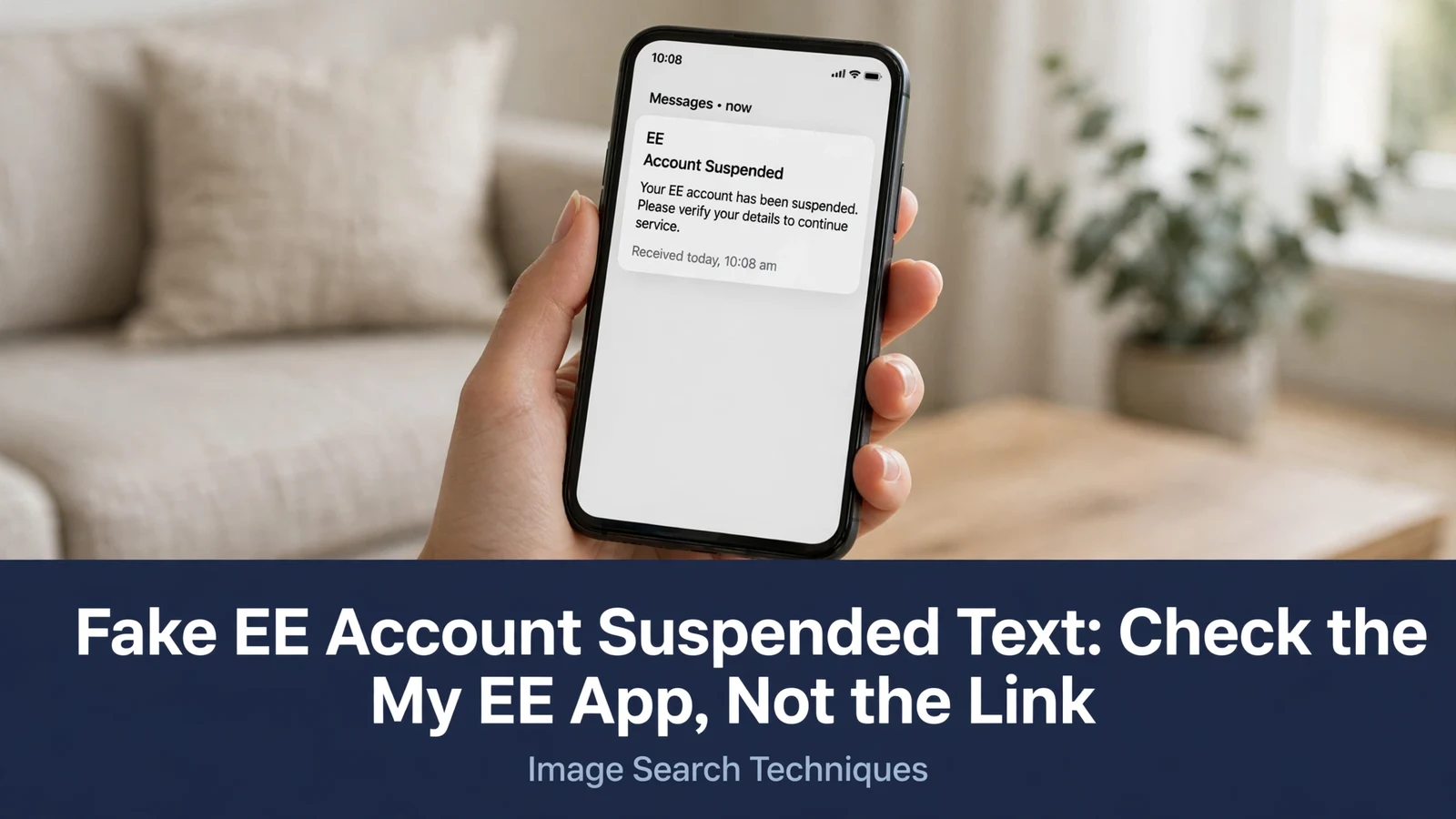
Your phone buzzes. EE says your latest bill could not be processed and your account will be suspended unless you update your billing details through the link. Your stomach drops, because losing your mobile service would be a real problem. Stop. That fake EE account text is almost certainly a scam, and the link is the trap. Here is how to check in the My EE app instead.
The short answer
A fake EE account text is a smishing scam. EE never asks for your PIN or password by text or email, and never asks you to update billing details through a link. Do not tap it. Open the My EE app, or type ee.co.uk, and check your bill. If nothing is wrong, the text is fake. Forward it to 7726.
This kind of EE smishing is phishing done by text message. The text scares you into tapping a link before you think. The link leads to a page dressed up to look like EE, where a form asks for your My EE login or bank details. The text itself cannot steal anything. The check that matters is the one you do yourself, in the app, away from the link.
The real fake EE text, read line by line
This is not a made-up example. The text below was posted by a real EE customer on EE’s own community forum. EE staff and other customers confirmed it was a scam, and we read it line by line against EE’s own scam guidance.
The text arrived showing the sender name MYEE, and it read:
EE: We were unable to process your latest bill. In order to avoid fees, update your billing information via: [link removed]
The link itself is not printed here, on purpose. It pointed to a lookalike billing site, not to ee.co.uk, and printing it would only give it another route to reach people. What matters is how each line of the message works, and what you check instead.
| What the text says | What it is doing | What to check instead |
|---|---|---|
| Sender shows as MYEE | Sender names can be spoofed, so a familiar name proves nothing | Ignore the sender name and check the My EE app |
| We were unable to process your latest bill | The bill hook: a missed payment feels urgent and personal | Open the My EE app and look at your latest bill and payment date |
| In order to avoid fees | Pressure: act now or pay more | A real billing problem waits while you check it properly |
| Update your billing information via a link | The trap: the link leads to a cloned login page | Never follow a link in a text to log in anywhere |
| No PIN or password asked in the text | The theft happens on the fake page, not in the text | EE never asks for your PIN or password by text or email |
The person who received this text did the right thing. They did not tap the link. They checked their bank statement and found the bill had already been paid, then asked on the EE Community forum. The answer was plain: it is a scam. The same wording turned up in a second thread, and a third version changed the first line to say payment could not be processed by the bank. The wording moves around. The shape stays the same: a bill problem, a threat, and a link.
We also reverse-searched the EE logo
Some scam texts carry a photo or a logo, so we tested the check this site is built for. We took the real EE logo from EE’s own website and ran it through a reverse image search on Google Lens and on TinEye, to see what each engine returns for an image tied to this scam.
Google Lens showed no total count, but 60 visual matches loaded in the first view, and Lens identified the image as EE’s logo. TinEye returned 203 results for the same logo. The logo itself is genuine, which is exactly the point: scammers reuse real logos, so a real-looking logo proves nothing about the message carrying it. What a reverse search shows is where that exact image appears. If a text you receive carries a photo or a screenshot, search with that image before you believe a word of the message.
The three hooks scammers use
Every EE phishing text comes back to the same three stories, because all three create the same feeling: sort this out now or lose something. Knowing the three in advance means the next one does not catch you off guard.
1. Your bill failed
This is the hook in the real text above, and it is the most common. The message says your latest bill could not be processed, your payment was declined, or your Direct Debit failed. It works because a missed mobile bill feels like a real problem with a real consequence. This EE bill failed text follows the same pattern as a fake utility bill message: look at your own records, not at the message. If your bill was paid, the text is lying.
2. Your account will be suspended
The second hook skips the bill and goes straight to the threat: your account will be suspended, restricted, or closed unless you verify your details now. An EE account suspended text leans on one word, suspended, because it sounds final. A real EE account problem does not arrive as a text with a countdown. EE’s own guidance lists the urgent “act now” tone as a sign a message might not be genuine.
3. You are owed a refund
The third hook works the other way round. Instead of threatening you, it offers you money: EE overcharged your account, a refund is ready, and the message needs your bank details to send it back. A real refund from EE goes back to the payment method you already use. It never needs you to type your card details into a page linked from a text.
There is a fourth variant worth knowing about, because it looks harmless. The text says your EE reward points are about to expire and offers a voucher for a small postage fee. The fee is the trap: the small payment is only there to capture your card details. This EE reward points scam feels low risk, which is what makes it dangerous.
Five signs the text is fake
Most fake EE account texts show at least three of these. One alone might mean nothing, but three together settle it.
1. It asks you to act through a link in the message. This is the biggest sign. EE’s own scam guidance says not to click links unless you are completely sure they are genuine. A message that needs you to tap a link to fix your account asks you to do the one thing EE warns against.
2. It asks for a PIN, a password, a passcode, or bank details. Sometimes the text asks directly. More often the fake page it links to asks. Either way, EE never asks for your PIN or password by text or email, and a genuine company does not ask you to enter sensitive information through a random text link.
3. It creates urgency. Suspended, restricted, fees, final warning, act now, limited time. Urgency is the scammer’s favourite tool, because it stops you checking. The same pressure turns up in fake HMRC messages, which use tax deadlines and arrest threats to get the same rushed tap.
4. It arrives out of the blue. You have not changed your plan, missed a payment, requested a refund, or ordered anything. If nothing has changed on your account, a message claiming otherwise is already suspicious. Check the app. If the app shows nothing, the message is inventing a problem.
5. The sender cannot be verified. The message may come from a normal mobile number, or from a name like MYEE that anyone can spoof. A genuine EE text can also come from a short code, so the sender alone does not settle it either way. What settles it is whether the link leads to ee.co.uk, and whether the My EE app agrees with the message.
How to check any EE text in the My EE app
This My EE app check takes under a minute, and it works for every version of the scam. It never depends on anything the scammer controls: not the sender name, not the wording, not the link.
- Do not tap the link. Do not reply to the text either. Replying only tells the scammer your number is active.
- Close the message. Leave it where it is. You can come back to it to report it.
- Open the My EE app from your home screen. Use the app icon you already have. If you do not have the app, type ee.co.uk into your browser yourself. Never reach EE through the link in the text.
- Check your bills and payments. Look at your latest bill, the payment date, and whether any payment failed. If the bill was paid, the text is lying.
- Check for messages inside the app. If EE really needs something from you, it will show in your account, not only in a text.
- Compare. If the app shows no failed bill, no suspension, and no refund, the text is fake. The app is EE’s own record. The text is a stranger’s claim about it.
- Report it, then delete it. Forward the text to 7726, block the sender, and delete the message. The reporting steps are below.
If you cannot use the app, call EE on 150 from your EE mobile. Use the number EE publishes, never a number printed in a suspicious text.
The tricky part: EE does send real texts with links
Here is the detail most guides skip, and it matters. EE does send genuine texts that contain links. In the same EE Community thread as our example, a customer quoted a real EE message about setting up Direct Debit, which included a link to an ee.co.uk address. That message was genuine.
So a link in a text does not by itself prove the text is fake, and a real-looking link does not prove it is genuine. The sender name does not settle it either: a fake EE text message can land in the same message thread as genuine EE texts, because sender names can be spoofed. This is why the My EE app check is the whole answer. If the app and the text disagree, the app wins, every time.
The same lesson applies to other official-looking messages. A fake bank letter can carry real logos and correct-looking details, and still be fake, because the details are copied and the ask is invented. The document is never the proof. Your own account is.
What to do if you already tapped the link
Do not panic. What happens next depends on what you did after the tap, and each case has a clear fix.
If you only tapped the link and entered nothing. Close the page at once. Do not download anything it offers. Clear your browser history and website data, run a security scan if your phone has one, and update your phone software. Then watch for follow-up messages, because the scammers now know your number is active.
If you entered your EE login details. Change your EE password immediately, from the My EE app or by typing ee.co.uk yourself. Check your account for changes you did not make: new orders, upgrades, or changed details. If you used the same password anywhere else, change it there too.
If you entered bank or card details. Call your bank at once on 159, or on the number printed on the back of your card. Ask the bank to freeze or monitor the card, check for payments you did not make, and cancel the card details if needed. Do not call any number from the suspicious text.
If money is already gone. Report the fraud to Report Fraud on 0300 123 2040, or to Police Scotland on 101 if you are in Scotland. Keep screenshots of the text and every transaction record.
How to report a fake EE account text
To report a fake EE account text, forward the message free to 7726, which spells SPAM on a phone keypad. On an iPhone, press and hold the message, tap More, select it, tap the forward arrow, and enter 7726. On Android, press and hold the message, tap the three-dot menu, tap Forward, and enter 7726. You will be asked to reply with the sender’s number, so the provider can block it.
If the scam arrived by email instead, forward it to phishing@ee.co.uk, and forward any suspicious email to report@phishing.gov.uk as well. Delete the message after reporting it, and block the sender on your phone.
If you lost money or shared sensitive details, report it to Report Fraud as well. This check is one of the scam-message checks in our complete guide to photo scams, and the same app-first habit protects you against the next brand name the scammers borrow.
FAQs
Is this EE text real?
Open the My EE app from your home screen, or type ee.co.uk into your browser yourself, and check your bill and payments there. If the app shows the same problem the text describes, the text may be real. If the app shows nothing wrong, the text is fake. EE never asks for your PIN or password by text or email.
Does EE ever ask for my PIN or password by text?
No. EE says it will never ask for your PIN or password by text or email. EE lists it as a sign the message is fake. A real EE message never needs your login details sent back by text. If a message asks for your PIN or password, treat it as a scam and forward it to 7726.
What is 7726 and is it free?
7726 is the free UK number for reporting spam and scam texts, and it spells SPAM on a phone keypad. Forward the suspicious text to 7726 and reply with the sender number when asked. Your mobile provider investigates the sender and may block the number. EE, Ofcom, and the National Cyber Security Centre all recommend it.
I clicked the link in a fake EE text. What should I do now?
Close the page at once and do not download anything. If you entered your EE login, change your EE password immediately from the My EE app and check for changes you did not make. If you entered bank or card details, call your bank on 159. If money is gone, report it to Report Fraud on 0300 123 2040.
Can a fake EE text appear in the same thread as real EE messages?
Yes. Sender names can be spoofed, so a fake text can land in the same message thread as genuine EE texts, which makes it look convincing. The thread proves nothing about the new message. The only check that settles it is the My EE app: open it yourself and see whether your bill and payments match what the text claims.
Does EE send genuine texts with links in them?
Yes. EE sends genuine texts that include links, for example a Direct Debit setup message linking to an ee.co.uk address. That is why a link alone proves nothing either way: a real-looking link can be fake, and a genuine text can carry a link. Always check the My EE app or type ee.co.uk yourself instead of trusting the link.