


🔎 Reverse Image Search
Image search techniques made simple: upload a photo or paste a URL and search 6 engines at once. 100% free, nothing stored.
🔒 Your image is never stored on our servers longer than 24 hours and is never shared.
Quick Answer
Reverse image search for plants works best when you photograph one clear feature at a time, then compare the top matches across more than one search tool. Take a sharp, well-lit photo of a leaf, flower, bark, or the whole plant, upload it to Google Lens, and check the suggested species against at least one other source. If several reliable plant guides, nurseries, universities, or botanical sources agree, you probably have a strong lead. If they disagree, treat the result as a starting point, not a final answer. Never eat, taste, or rub an unknown plant on your skin based on a photo match alone.
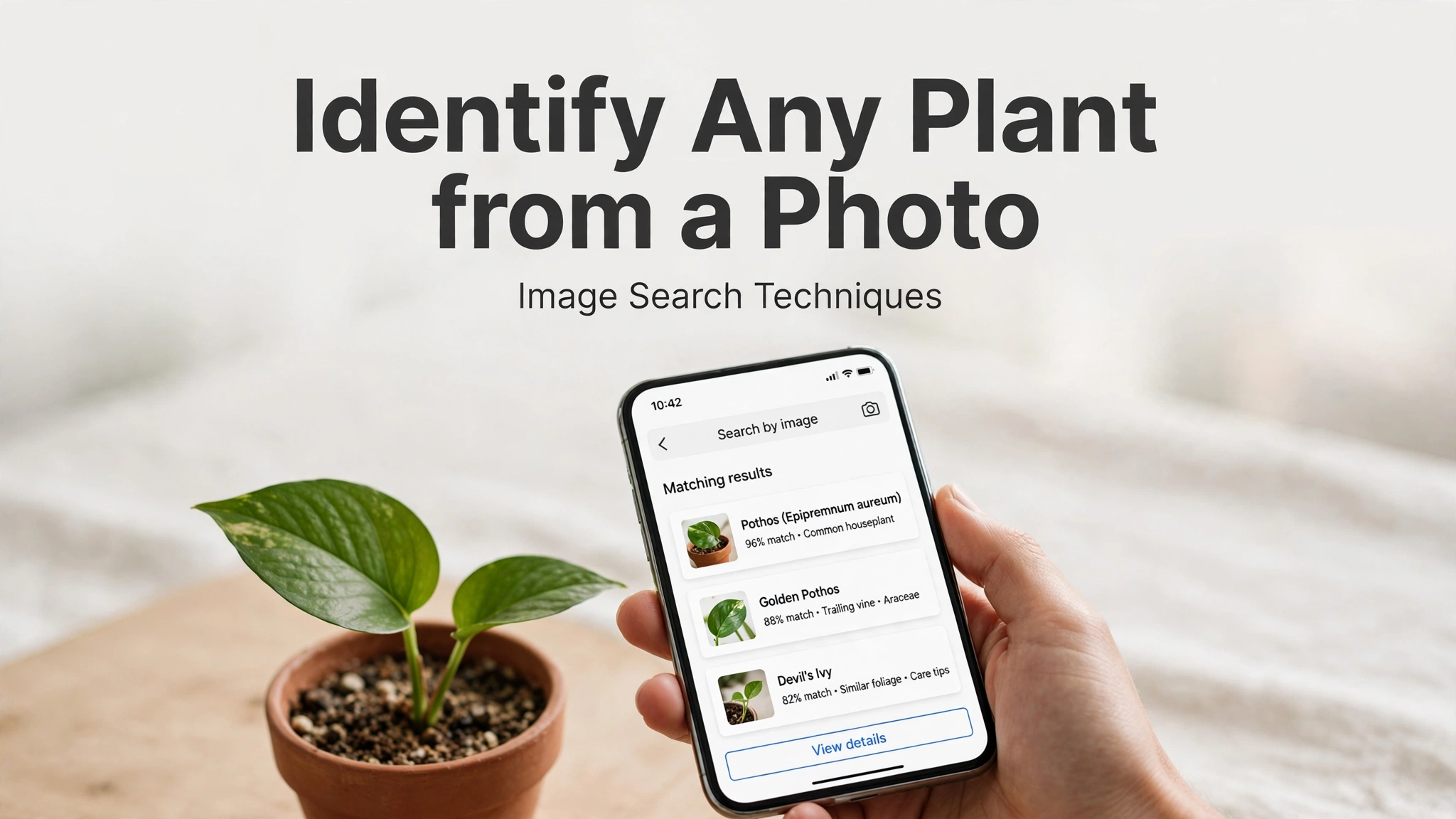
Reverse image search is especially useful when you do not know a plant name, when a label has been lost, or when you want to check a plant you saw on a walk, in a garden, or in a photograph. A photo search can point you toward the right family, genus, or species much faster than guessing from a description. It can also help you find care instructions, growing conditions, and safety information once you have a likely name. The key is to use good photographs, read the results carefully, and verify anything important before you act on it.
How to Photograph a Plant for Best Results
A reverse image search is only as good as the photograph you give it. Search tools compare shapes, colours, patterns, and textures, so a blurry or distant photo can easily lead to the wrong plant. Take your time, move closer, and photograph the feature that makes the plant distinctive. In most cases, one close, detailed photograph will work better than a wide photograph of a whole garden bed.
Photograph the leaves
Leaves are often the most useful clue. Photograph a single leaf from above, flat and in focus, with the stem and leaf edge visible. If the leaf has a distinctive vein pattern, serrated edge, or unusual shape, make sure that detail is sharp. Also photograph how leaves are arranged on the stem, because opposite, alternate, and whorled arrangements can narrow the possibilities quickly. Avoid strong shadows across the leaf, and do not use a filter that changes its true colour.
Photograph the flowers
Flowers can identify a plant even when the leaves look ordinary. Capture the flower from the front and from the side, showing the petals, centre, and any stamens or sepals. Include a sense of scale if you can, such as a coin or your hand placed nearby, but keep the flower itself as the main subject. If the plant has buds as well as open flowers, photograph both, because the bud shape and colour can be another useful clue.
Photograph the bark
For trees and woody shrubs, bark is a powerful identifier, especially in winter when leaves and flowers are absent. Photograph a section of trunk in even light, close enough to show cracks, ridges, peeling, colour, and texture. Try to avoid moss, lichen, or deep shadow covering the whole area, although a small amount of lichen is normal. If the bark changes with age, photograph both a younger branch and the main trunk when possible.
Photograph the whole plant
A whole-plant photograph gives context that close-ups cannot. Step back and show the plant’s overall shape, height, branching habit, and surroundings. This helps distinguish a low groundcover from a climbing vine, or a single-stemmed tree from a multi-stemmed shrub. For best results, search with the whole-plant photo and with a close-up separately, then compare the results. When both searches point to the same species, your confidence should be much higher.
Finally, take more than one photo. Search tools sometimes crop or focus on the wrong part of an image, so having leaf, flower, bark, and whole-plant versions gives you backup options. If one photo returns weak results, try another feature before you give up.
Step-by-Step Methods
Use the same good photograph across several tools, and compare their answers. Each service has a different image index, so a plant that is missed by one tool may be found by another.
1. Google Lens
- Open Google Lens on your phone or computer.
- Upload your clearest plant photo, or take a new photo directly in the Lens app.
- Drag the crop box, if shown, so it surrounds only the leaf, flower, or bark you want to identify.
- Review the visually similar images and the suggested plant names.
- Open two or three top results and check whether the leaf shape, flower structure, and growth habit match your plant.
- If the first photo is unclear, repeat the search with a close-up of a different feature.
Google Lens is often a strong starting point because it is widely available and works well with common garden plants, houseplants, and trees. It is especially helpful when you want a quick list of likely matches and related images to compare.
2. Bing Visual Search
- Open Bing Visual Search.
- Upload your plant photo or paste an image link.
- Wait for the visually similar results and any pages that contain the same or similar images.
- Look for results from plant guides, garden centres, universities, and botanical sources.
- Compare the suggested names with your Google Lens results and note where they agree.
Bing Visual Search can be useful as a second opinion, particularly for plants that appear in gardening articles, nursery catalogues, and identification guides. When Bing and Lens agree, that agreement is a useful signal, although it is still not proof.
3. Yandex Images
- Open Yandex Images.
- Upload your plant photo using the camera or upload option.
- Review the similar images and the pages where those images appear.
- Check the plant names used in several results, not just the first one.
- Use a translated page title or plant name with care, and confirm the scientific name where possible.
Yandex Images has a large image index and can sometimes find matches that other tools miss, especially for less common plants or for photos taken outside North America and the United Kingdom. As with every tool, compare the visual details yourself rather than accepting the first label.
4. TinEye
- Open TinEye and upload your plant photo.
- Review any exact or near-duplicate matches and the pages that published them.
- Note whether the same image appears on a reliable plant guide or only on a random social media post.
- If TinEye finds no exact match, use it as a source check, then return to Lens, Bing, or Yandex for similar-image matching.
- For extra help, read the official TinEye help pages to understand what its results mean.
TinEye works differently from the other tools because it focuses on finding the same image elsewhere online, rather than guessing what is in the picture. That makes it excellent for checking the source of a plant photo, for finding the original caption, and for verifying whether a name attached to a photo is trustworthy.
Comparison Checklist
| Tool | Best for | Check |
|---|---|---|
| Google Lens | Quick IDs | Compare top 3 |
| Bing Visual | Second opinion | Guide sources |
| Yandex Images | Less common plants | Scientific name |
| TinEye | Source check | Original caption |
Use this checklist on every identification: start with a sharp photo, try at least two tools, compare leaf, flower, and growth habit, confirm the scientific name, and check safety before handling or planting. A short checklist keeps the process consistent and helps you avoid jumping to a conclusion from one attractive but wrong match.
What to Do When Results Disagree or No Match Appears
Disagreement is common, especially with young plants, hybrids, cultivars, and species that look alike. When results disagree, look for the features that separate the candidates. Compare leaf margins, flower petal counts, bark texture, fruit shape, and overall growth habit. Search again with a different feature, such as bark instead of leaves, or a flower instead of the whole plant. Add a location clue in a follow-up text search, such as the region and habitat, but do not let location override what you can actually see in the photo.
If no match appears, improve the photo before you assume the plant is rare. Retake it in daylight, remove background clutter, focus on one feature, and crop tightly around the plant. Try uploading the original file rather than a screenshot, because compression can blur fine details. Also try a photo from a different angle or growth stage. If you still get no match, save the photo, note where and when you saw the plant, and ask a local nursery, botanical garden, or plant identification community for help, sharing the same clear photos.
Troubleshooting
If your search returns unrelated plants, the crop may include too much background. Crop tightly around the leaf or flower and search again. If results are all the same wrong species, the photo may be too dark, too small, or too heavily filtered. Retake it in natural light without a colour filter. If a tool will not accept your photo, check the file size and format, and try a standard JPG or PNG version. If results look plausible but the plant names keep changing, you may be looking at a group of close relatives; in that case, focus on the small differences in leaves, flowers, and bark, and verify with a specialist source.
Also remember that reverse image search works best for mature, typical specimens. Seedlings, damaged leaves, variegated cultivars, and plants photographed out of season can all be harder to identify. When a plant is unusual, do not force a match. A careful “unknown, but similar to” note is more useful, and safer, than a confident wrong name.
Safety: Never Eat or Touch an Unknown Plant Based on a Photo Match Alone
Never eat, taste, or touch an unknown plant based on a photo match alone. Many edible plants have toxic lookalikes, and some plants can irritate skin, cause allergic reactions, or be poisonous if ingested. A photo match can be wrong, and even a correct species name does not guarantee that a particular plant is safe for you, your children, or your pets. Always check toxicity with a reliable source, such as a poison control service, a university extension guide, or a reputable botanical authority, before handling, planting, pruning, or using a plant in any way.
If you think someone has eaten an unknown plant, or has a reaction after touching one, seek medical advice promptly and keep a photo and, if safe to do so, a sample for identification by professionals. Do not wait for an image search to confirm the risk. For garden planning, keep unknown plants away from children and pets until you have a verified identification and a clear safety assessment from a trusted source.
Frequently Asked Questions
Can reverse image search identify any plant from a photo?
It can identify many common plants, but not every plant, especially rare species, hybrids, seedlings, or plants photographed in poor light. Use it as a strong starting point, then verify the result with detailed photos and a reliable plant guide.
Which photo gives the best plant identification result?
A sharp, well-lit close-up of a distinctive feature usually works best. Leaves and flowers are excellent starting points, bark is valuable for trees, and a whole-plant photo adds useful context. Try several features and compare the results.
Why do Google Lens and other tools give different plant names?
Each tool uses a different image index and matching method, and some plants look very similar. Different results usually mean you need more detail, a better photo, or a check of leaf, flower, and growth habit against a trusted guide.
Is a photo match enough to know whether a plant is safe to eat?
No. Never eat or taste an unknown plant based on a photo match alone. Many safe and toxic plants look alike. Check toxicity with a reliable source and, when in doubt, do not eat it.
What should I do if reverse image search finds no match?
Retake the photo in daylight, crop tightly around one feature, and try another tool or another feature. Note the location and date, and ask a nursery, botanical garden, or plant identification community for help with the same clear photos.
Can I identify a plant from an old or downloaded photo?
Yes, if the photo is clear and shows a distinctive feature. TinEye can also help you find the original source of a downloaded photo, which may include a caption or plant name. Always verify that name against the visible details in the image.
Related Guides
To improve your results further, read the complete image search techniques guide, explore Google Lens alternatives for image search, learn how to use a source finder to trace an image to its origin, and compare the best search engine for images. Together, these guides will help you choose the right tool, check a source, and get more reliable matches.
Try It Now
Take a clear photo of a leaf, flower, or bark, run it through Google Lens and one other tool, and compare the top matches carefully. When you are ready to search, use the reverse image search tool on the Image Search Techniques homepage to start your plant identification with confidence, and always verify safety before you handle an unknown plant.
