


🔎 Reverse Image Search
Image search techniques made simple: upload a photo or paste a URL and search 6 engines at once. 100% free, nothing stored.
🔒 Your image is never stored on our servers longer than 24 hours and is never shared.
Quick Answer: To reverse image search for artwork, save a clear photo of the painting or illustration, then upload it to Google Lens, TinEye or Yandex Images. The results usually show the artist’s name, the title of the work, and the page where the original was published. Always confirm the match on the source page before you credit anyone.
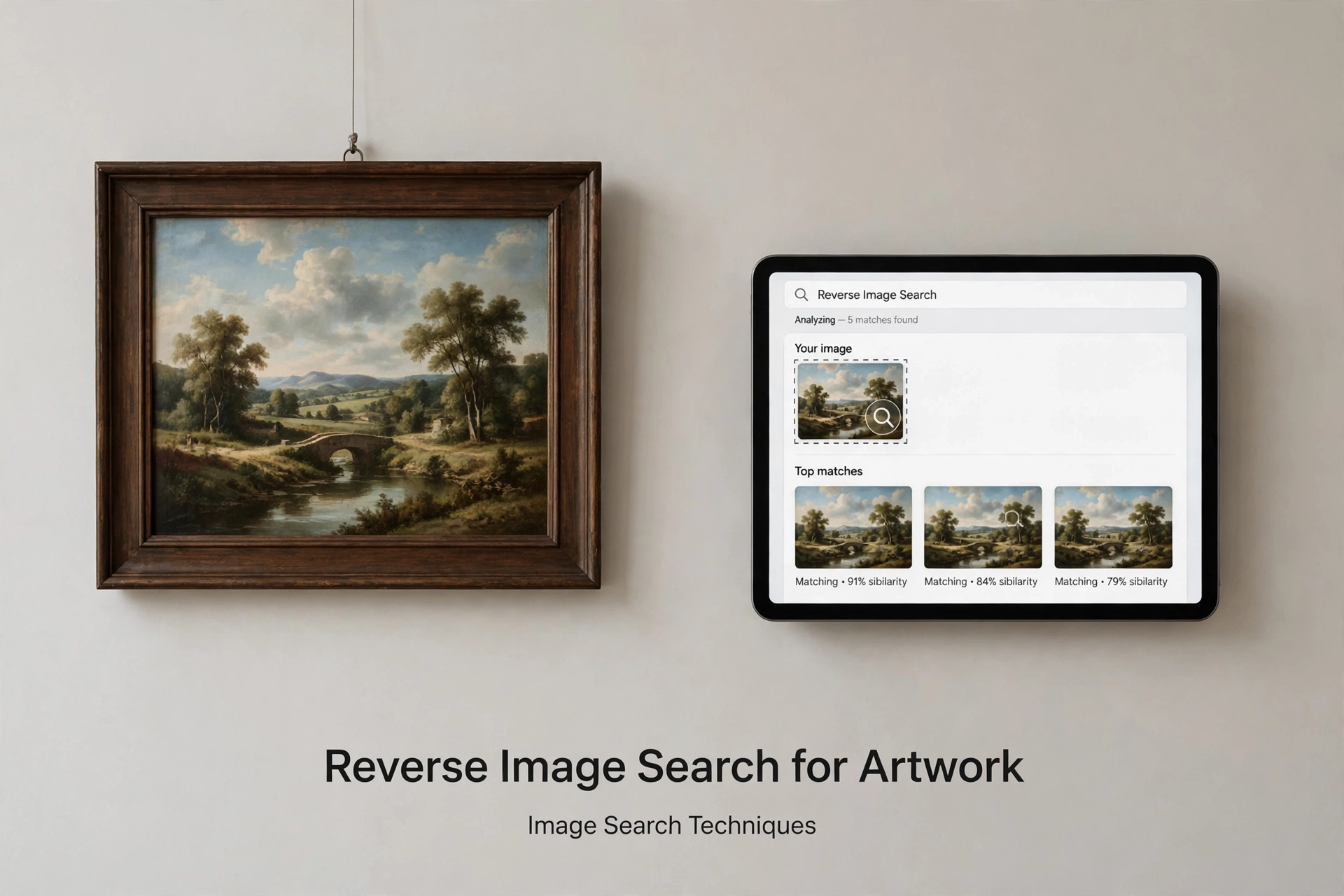
Why Reverse Image Search Works So Well for Artwork
A painting or illustration has a visual fingerprint: its composition, colours, brushwork and signature. Search engines compare that fingerprint with millions of indexed images, so even a photo taken in a gallery can lead you back to the original work. This is how collectors check a painting, how teachers find the artist behind a classroom poster, and how buyers confirm that a print they like is genuine. A plain keyword search often fails here, because you may not know the title or the artist’s name at all. The image itself is the query. For a full walkthrough of the method, read our main guide to image search techniques.
Before You Search: Get a Clean Copy of the Artwork
A good result starts with a good image. Take a straight-on photo with no glare, no frame shadow and no people in front of the work. If you are working from a screenshot or a downloaded file, use the largest version you can find. Crop out borders, watermarks and unrelated objects so the artwork fills most of the frame. If the painting is behind glass, photograph it at a slight angle to avoid reflections, then crop the edges. A clean, square crop of the artwork alone gives the search engine far more to match than a tilted phone photo of a whole wall.
How to Reverse Image Search for Artwork (Step by Step)
Follow these steps with Google Lens first, then repeat with a second engine if the first result is unclear.
- Save the artwork image to your device, or copy its image address if it is already online.
- Open Google Lens and upload the image, or paste the image URL.
- Look at the top results for an artist name, a work title, or a museum or gallery page.
- Open the most promising result and check that the image on that page matches yours in detail, not just in style.
- If Lens gives no clear answer, try TinEye next, then Yandex Images, then Bing Visual Search. Different engines index different collections, and art databases vary a lot between them.
- Note the artist, title, date and source page. Save the source link so you can credit it properly.
Which Tool Is Best for Artwork?
A quick comparison
| Tool | Best for | Cost | Weakness |
|---|---|---|---|
| Google Lens | Artist and title | Free | Weak on rare art |
| TinEye | Oldest copy online | Free | Small art index |
| Yandex Images | Similar paintings | Free | Mixed accuracy |
| Bing Visual | Museum pages | Free | Few art results |
| SauceNAO | Anime and fan art | Free | Not for oil paint |
Google Lens is the best starting point for most paintings because it reads text in the image, such as a signature, and matches against museum and gallery sites. TinEye is better when you want to know where an image first appeared online, which helps with prints and posters. For anime, manga and fan art, SauceNAO is the specialist tool, since it searches art communities that the big engines often miss.
How to Identify the Artist from a Painting
Start with the signature. Many painters sign in a corner, and Lens can often read it. Next, look at the style: the subject, the palette and the brushwork can point to a period or a school, which narrows the search. If the work is a print, check the back or the margin for an edition number or a publisher’s mark and search that text together with the image. When you find a candidate artist, compare at least three details — the signature, a distinctive object in the scene, and the colour palette — before you accept the match. One similar painting is not proof; a matching signature plus a matching composition is.
Finding the Original Source of an Illustration
Illustrations travel further than paintings: the same drawing can appear on a book cover, a poster, a T-shirt and a social media post. To find the original, sort results by oldest first in TinEye, and look for the artist’s own portfolio, a publisher’s page, or a stock agency listing rather than a repost. Check the image size too: the original is usually the largest, sharpest copy. If the illustration is from a book, search the title together with the illustrator’s name once you have it. For help tracing any picture back to its first appearance, see our guide on finding the original artist of an image.
How to Tell a Real Painting from a Copy or a Print
A reverse image search can also expose a fake. Search the image and compare the results: if the same painting appears with different artists’ names, one of them is wrong. Check whether a museum or a reputable gallery lists the work. Look for the painting’s dimensions and medium in the source listing, and compare them with the piece in front of you. Prints usually have a flat, even surface and a visible dot pattern under magnification, while an original painting shows texture and brush strokes. If a seller cannot name the artist or show a provenance record, treat the work with caution and ask for more evidence.
Troubleshooting: When the Search Finds Nothing
- The image is too small or blurry: find a larger copy, or photograph the work again in better light.
- The artwork is very new or obscure: the engine may not have indexed it yet. Try a keyword search with any text you can read in the image, such as a signature or a gallery label.
- The result shows a similar painting, not yours: crop tighter to the artwork and remove the frame from the image.
- The painting is cropped or mirrored: flip the image back, or search the uncropped version.
- Only low-quality copies appear: check the source page of the best match and follow its links to the artist’s portfolio.
- The work is AI-generated art: a reverse search will usually find nothing, because the image never existed before. Check the uploader’s page for a note about how it was made.
Copyright, Credit and Permission
Finding the artist is only the first step. A painting or illustration is someone’s work, and using it without permission can breach copyright even if you found it freely online. Always credit the artist by name and link to the source page when you share the image. If you want to use the artwork on your own site, in a product, or in print, ask the artist or the rights holder first. Many museums publish images under open licences, but the licence terms still matter, so read them on the source page. Never remove a watermark or a credit line from an image you did not create. For the wider rules on using images you find, read our guide on what this picture is and where it came from.
Frequently Asked Questions
Can I reverse image search a painting from a photo I took in a museum?
Yes. Take a straight, glare-free photo, crop out the frame, and upload it to Google Lens. Museum and gallery pages are well indexed, so famous works are usually identified in seconds.
What is the best reverse image search for artwork?
Google Lens is the best starting point for paintings and illustrations, because it matches against museum, gallery and portfolio sites. TinEye is best for finding the oldest copy online, and SauceNAO is best for anime and fan art.
How do I find the artist of a painting with no signature?
Search the image with Lens and Yandex, then compare the style, subject and palette with the results. Once you have a candidate artist, check their portfolio for other works in the same style before you accept the match.
Can reverse image search find the original of a cropped illustration?
Often, yes, if the crop still shows a distinctive part of the work. A tighter crop on a unique detail can work better than the whole image. If the crop is too small, search the full version instead.
Is it legal to use a painting I found with reverse image search?
Finding an image does not give you the right to use it. Credit the artist and check the licence on the source page. For commercial use, ask the rights holder for permission first.
Why does my search show the wrong painting?
The engine matched style or subject instead of the exact work. Crop tighter to the artwork, remove the frame, and try TinEye or Yandex, which rank exact matches differently.
Related Guides
- Main guide to image search techniques
- Find the original artist of an image
- What is this picture? Identify any photo
- Where is this image taken? Find a photo’s location
- Reverse GIF search: find the source of a GIF
Try It Now
Found a painting you love and want to know who made it? Try our free reverse image search tool — upload the artwork and check the results against the steps above.
