🔎 Reverse Image Search
Image search techniques made simple: upload a photo or paste a URL and search 6 engines at once. 100% free, nothing stored.
🔒 Your image is never stored on our servers longer than 24 hours and is never shared.
Direct answer: Copilot Vision lets you show Microsoft Copilot what is on your screen, a photo, a web page or a document, and ask about it. It is not a reverse image search, and it is not free: Microsoft says it needs a Microsoft 365 subscription or a Copilot licence, and it works only inside a voice conversation.
Microsoft’s own support pages, read on 12 November 2026, add the detail: Vision needs a Microsoft 365 Personal, Family or Premium subscription on a personal account, or a Copilot licence on a work account, and it never clicks, types or scrolls for you. If you only want to ask about one photo, uploading the file into a Copilot chat is the simpler route.
Copilot Vision is Microsoft’s screen-sharing feature for its Copilot assistant. You choose a window, a screen or your phone camera, and Copilot looks at it while you talk to it. It is the last of the big AI assistants to get a photo-explaining feature on this site’s terms, ChatGPT and Gemini already have their own guide, and Grok has one too, so this article explains exactly what Vision does, what it costs, where it refuses, and when you should use a reverse image search instead.
What is Copilot Vision?
Copilot Vision is an opt-in feature that lets Copilot see what you choose to share and answer questions about it in real time. That is Microsoft’s own definition, from its support pages: “Vision in Microsoft Copilot lets you share your desktop screen or your mobile device’s camera and ask Copilot about what you’re sharing.”
Three things about that definition matter for anyone asking about a photo. First, Vision is opt-in and session-only: it sees nothing until you start a session and pick something to share, and it stops the moment you end it. Second, it is voice-first: on the current Microsoft pages, Vision works during a voice conversation with Copilot, so your microphone must be on. Third, it explains, it does not act: Microsoft says Copilot “may highlight parts of the screen, but it won’t click, type, or scroll”. If you ask it to buy the item in the photo, fill in a form, or open a link, it will talk you through it rather than doing it.
Vision is also not a reverse image search. It does not search the web for other copies of your photo, it does not tell you where a photo was first published, and it cannot prove who is in a photo. It describes and reasons about the pixels in front of it. When you need the source of a photo, that is still a job for a reverse image search, which this site’s main guide covers step by step.
Copilot Vision vs uploading a photo to Copilot: what is the difference?
There are two ways to ask Copilot about a photo, and they are not the same feature. Vision shares your live screen or camera; uploading sends one image file into a text chat. The comparison below is the heart of this article, and the worked example later in the page tests both routes on the same photo.
| Share your screen (Copilot Vision) | Upload a photo to Copilot chat | |
|---|---|---|
| What Copilot sees | Whatever is on your screen or in your camera view, live | One image file you attach to a chat message |
| How you ask | By voice, during a voice conversation | By typing, in an ordinary text chat |
| Sign-in needed | Yes, a Microsoft account, every time | Yes, signed out, copilot.microsoft.com shows only a sign-in page, with no chat box and no attach button at all (tested 12 November 2026) |
| Cost | Microsoft 365 Personal, Family or Premium on a personal account, or a Copilot licence on a work account; subscribers get extended usage limits | Free with a signed-in Microsoft account, within Copilot’s usage limits, Copilot’s own page says so |
| Best for | Talking through something on screen right now, a photo open in an app, a web page, an error message | One photo you want described, identified or checked, with a written answer you can keep |
| What you get back | Spoken answers; a transcript stays in your chat history | A written answer in the chat, which you can copy, save or follow up on in text |
| Finds the photo’s source? | No | No, Copilot describes the image; it does not search for other copies of it |
| Where it refuses | Harmful or adult content, DRM-protected material; the glasses icon goes grey with a cross | Not testable without signing in, the upload leg could not be run signed out, so no refusal behaviour for uploaded images is claimed here |
The practical rule is simple: if the photo is already open on your screen and you want to talk about it, Vision is the faster route. If you have a photo file and you want a written answer, what it shows, what it might be, what to ask next, uploading it to a chat is simpler, quieter, and leaves you something you can re-read.
How to upload a photo to Copilot and ask about it
This is the route most readers will actually use, because it needs no voice call and no screen share. It works in the Copilot app and at copilot.microsoft.com. One thing to know before you start: signed out, there is no chat box at all. Tested on 12 November 2026, copilot.microsoft.com redirected to a sign-in page with no composer and no attach button, the “Go to Chat” link led straight to Microsoft’s sign-in page. You need a signed-in Microsoft account before you can upload anything.
- Open Copilot and sign in. Use the Copilot app on Windows or Mac, the mobile app, or copilot.microsoft.com in a browser, and sign in with your Microsoft account.
- Start a new chat. Open a fresh conversation so the photo is the only context Copilot has.
- Attach the photo. Use the attach control in the message box, the paperclip or plus icon, depending on the version, and choose the image file from your device.
- Ask a specific question in the same message. Do not send the photo on its own. Write what you want to know, for example: “What is this object? Tell me its make and model if you can, and say what is uncertain.” A specific question gets a specific answer; a bare photo gets a generic description.
- Follow up in text. Ask Copilot to explain any claim it makes, or to say what would change its mind. If it names a model or a date, ask it what in the photo supports that, and then check the answer yourself, because an AI description is a lead, not a verdict.
- Verify anything that matters. If the answer decides a purchase, a listing or a claim about a person, confirm it with a reverse image search or an authoritative source before acting on it.
One warning that applies to every assistant, not just Copilot: do not upload a photo of a real ID document, a bank card, a medical image or anyone else’s private photo to test whether Copilot can read it. Uploaded images go to Microsoft’s servers, and a photo you would not want copied is a photo you should not upload to any chatbot.
How to use Copilot Vision in Microsoft Edge
Vision in Edge lets Copilot look at the web page you are on and talk about it. The steps below follow Microsoft’s own support page, “Using Copilot Vision with Microsoft Copilot”, read on 12 November 2026.
- Sign in to Edge with your personal Microsoft account. Vision in Edge needs a personal account; Microsoft says it is not available to commercial users signed in with an Entra ID (work or school) account.
- Open the page with the photo on it. It can be a web page, an image open in a tab, or a PDF. Vision works with most sites and pages.
- Click the Copilot icon in the Edge toolbar. This opens Copilot in the side panel.
- Click the Voice button (the waves icon). Vision runs inside a voice conversation, so this starts the voice session first.
- Look for the glasses icon. When Vision is active, the Copilot side pane shows a glasses icon and a microphone icon, and a toolbar with a glasses icon tells you the session is live. Vision stays on while you browse to different pages, until you end it.
- Ask about the photo out loud. Speak naturally, “What is the object in this photo?” or “Read the label on this item and tell me what it says.” Keep the photo on screen while you ask; Microsoft warns that switching windows too quickly can make Copilot answer about the wrong content.
- End the session when you are done. Click the X in the toolbar at the bottom of the Copilot window, close the whole Copilot side pane, or exit Edge. When the session ends, Copilot immediately stops observing and all shared context is cleared.
If the glasses icon is greyed out with a cross through it, the page is one Vision will not discuss, typically harmful or adult content, or DRM-protected material. That is a refusal, not a fault: the model will not talk about the content of that page. Try a different, supported page.
If you want Vision off entirely in Edge, Microsoft’s help pages point to a setting: open edge://settings/appearance/copilotAndSidebar and turn off “Allow Copilot Vision to view your webpage”. The Copilot app on Windows has no equivalent switch, because Vision there is opt-in, it only runs when you start it.
How to use Copilot Vision on Windows
On Windows, Vision shares apps and windows with the Copilot app rather than a single browser tab. The steps below follow Microsoft’s support page, read on 12 November 2026.
- Open the Copilot app and sign in. You need a personal Microsoft account. The Copilot app is the way in; Vision is not a separate program.
- Open the photo first. Open the image, document or app you want to ask about, so it is ready to share.
- Click the glasses icon in the composer. The glasses icon sits in the message box at the bottom of the Copilot app. This starts a Vision session.
- Choose what to share, then click Share. Pick one screen or app, you can share up to two apps at a time. While Vision is active you will see a glowing orange outline around the shared screen or app, so you can always tell what Copilot can see.
- Choose how to talk. Vision launches with “Start with text” enabled by default, so you can type questions about what is on screen. Switch the toggle to “Start with voice” and a floating toolbar appears, Copilot plays an audio greeting, and you talk instead.
- Ask about the photo. Copilot can answer questions about the shared windows even if they are no longer in front of you, for as long as the session runs. If you ask for help using an app, it may show a highlighting cursor on screen to point at the right control, but it will not click it for you.
- Click Stop in the floating toolbar to end the session. When the session ends, Copilot immediately stops observing.
Two practical notes from Microsoft’s pages: Vision works with any app on Windows, but it cannot analyse harmful or DRM-protected material; and after a period of inactivity the feature turns itself off. Both are worth knowing before you rely on it mid-task.
How to use Copilot Vision on your phone camera
The third route is the phone camera, and it is the closest Vision gets to asking about a photo you have just taken.
- Install the Copilot mobile app (iOS or Android) and sign in.
- Tap the glasses icon. This starts a Vision session and opens your camera.
- Allow camera access when asked. Without the permission, the glasses icon does nothing.
- Point the camera at the thing and ask. Hold the phone steady, keep the subject in frame, and speak your question, for example, “What plant is this?” or “What does this sign say?” Vision stays on until you end it.
- Tap the X to end the session.
Microsoft says mobile Vision and screen sharing are still being enabled gradually, so the glasses icon may not appear for every account yet. If it is missing, check the app is updated and that you are signed in with a personal account, and use the upload route in the meantime.
What does Copilot Vision cost? Free vs Microsoft 365
This is the question Microsoft’s own pages answer in two different ways, so it is worth stating both plainly rather than repeating the older claim, still found in guides from 2025, that Vision is simply free in Edge.
Microsoft’s “Get started with vision capabilities” page, read on 12 November 2026, says Vision “is available with a Microsoft Copilot license and a work account, or with a Microsoft 365 Personal, Family, or Premium subscription and a personal Microsoft account”, and that “Vision is only available during a voice conversation with Copilot”. Its “applies to” line lists personal accounts, work or school accounts and free Copilot Chat, but the requirement it states is a subscription or a Copilot licence.
Microsoft’s consumer Vision page says the same feature “is available in all supported regions and languages” for signed-in users on Windows, Edge and the Copilot mobile app, and adds that “subscribers to Microsoft 365 Personal, Family, and Premium get extended usage limits of Vision”. Read together, the honest position is this: expect Vision to need a Microsoft account and either a subscription or a usage allowance, and expect the allowance to run out. Microsoft’s work-focused pages also say daily Vision use “is based on available capacity and counts toward your daily voice usage”, with a warning in the app as you approach the limit.
Microsoft 365 comes in several paid tiers, Basic, Personal, Family and Premium, and the Vision allowance differs by tier, with subscribers getting extended limits. Check Microsoft’s current pricing page before you subscribe for Vision alone: the feature set and the prices both change, and Vision is one feature inside a bundle, not a product you buy on its own.
None of this affects the upload route: sending a photo in an ordinary Copilot chat is part of free Copilot Chat, subject to its own usage limits. If your only need is “what is in this photo”, the upload route is the one that costs nothing extra.
Where Copilot refuses, and what to do instead
Copilot Vision refuses in several situations, and each one has a different fix. Knowing which refusal you have hit saves a lot of repeated tapping.
- Greyed-out crossed glasses in Edge. The page holds content Vision will not discuss, harmful or adult material, or DRM-protected content. Move to a supported page. There is no setting that overrides this.
- No glasses icon at all. You are probably not signed in with a personal Microsoft account, the feature has not rolled out to your account yet, or you are on a work account. Microsoft’s consumer page says Vision is not available to commercial users signed in with an Entra ID account.
- “Copilot Vision is not available” or a usage message. You may have hit the daily voice-usage allowance. Microsoft says usage is based on available capacity and counts toward daily voice usage, and subscribers get extended limits. Wait, or use the upload route instead.
- It will not read a video or an animated GIF. Microsoft’s work documentation lists this as a current limitation: “Vision can’t read videos or animated GIFs.” If the thing you want identified is moving, pause the video and ask about the still frame, or take a screenshot and upload that instead.
- It will not identify a person for you. Microsoft says Vision “doesn’t infer sensitive personal attributes such as race or emotion”, and asking an assistant to name a stranger in a photo is not a use Vision is built for. If you need to check whether a profile photo is real or stolen, a reverse image search is the right tool, and this site’s guide to checking a photo with ChatGPT and Gemini covers the same ground for the other assistants.
- It answers about the wrong window. You switched windows too quickly. Microsoft’s own tip is to keep the content you are asking about on screen and avoid switching while you ask.
- It describes, but will not do. Vision cannot click, type, scroll, buy, book or send anything. If you need an action taken, ask it for the steps and do them yourself.
Copilot Vision vs Google Lens: which should you use for a photo?
They answer different questions. Copilot Vision tells you what is in a photo; Google Lens tells you where that photo, or things like it, appears on the web. The worked example below runs the same photo through both, and the difference shows up immediately.
| Question | Ask Copilot (Vision or upload) | Google Lens |
|---|---|---|
| What is this object? | Yes, describes it and reasons about details | Often, via visually similar results |
| What is its exact make and model? | It will try, but verify, it can guess confidently | Often, if the exact item is listed or pictured online |
| Where did this photo first appear? | No | Yes, this is what Lens is for |
| Is this photo stolen or reused? | No | Yes, matching copies are Lens’s job |
| What does the text in the photo say? | Yes, it reads visible text | Yes, and it can translate it |
| Can I talk through it out loud? | Yes, with Vision in a voice session | No, Lens is a search, not a conversation |
| Needs an account? | Yes, Microsoft account; Vision may need a subscription | No, Lens works without signing in |
| Costs anything? | Upload is free within Copilot’s limits; Vision may need Microsoft 365 | Free |
The rule of thumb: use Copilot when you want to understand a photo, and Lens when you want to trace one. For a photo you suspect is fake, stolen or reused, start with Lens, and if you want a second opinion on what the photo shows, ask Copilot too and compare the two answers. Disagreement between them is itself useful information: it tells you at least one of them is guessing.
Worked example: the same photo through Copilot, Lens and Yandex
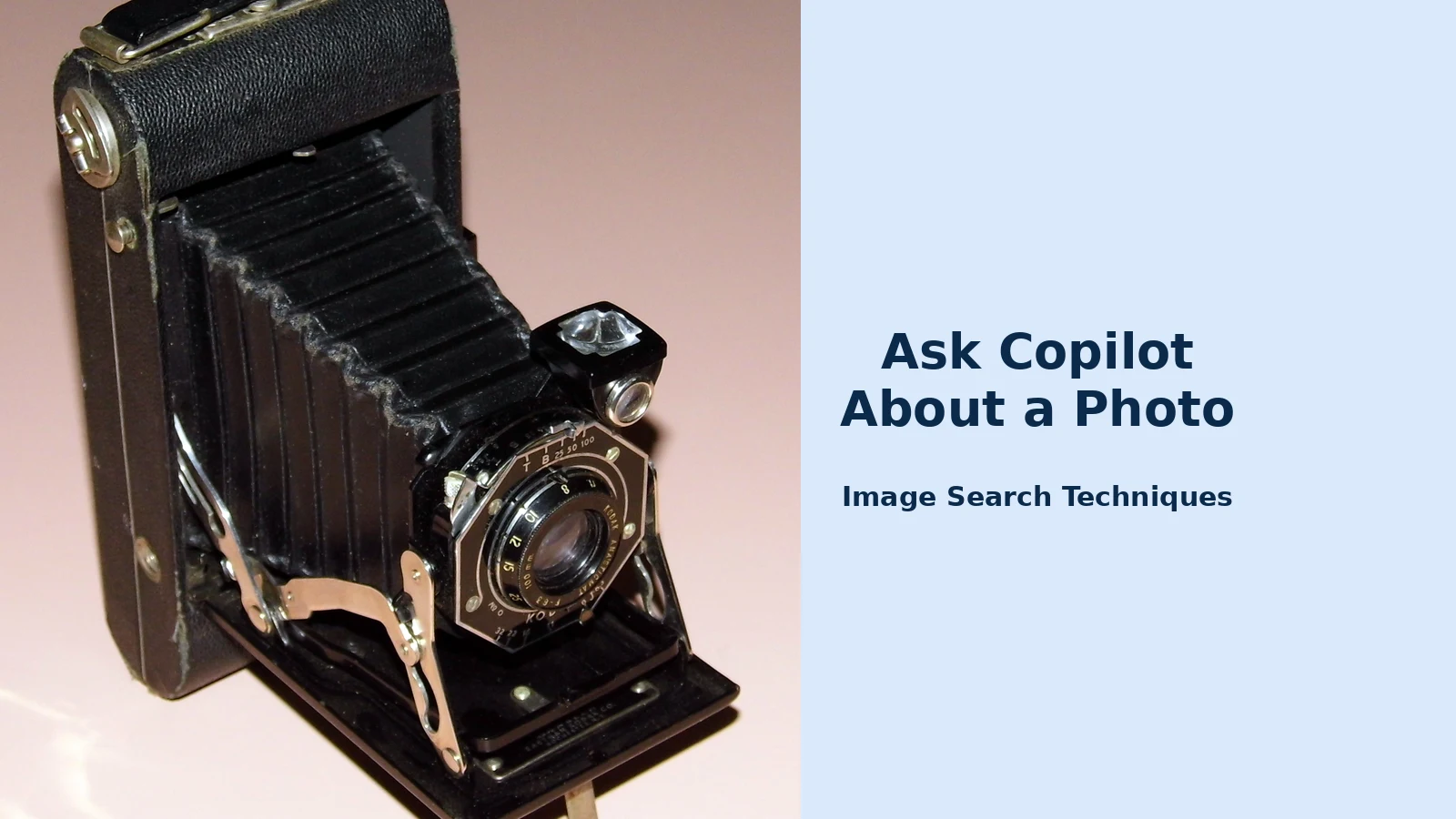
Every claim in this article about what the tools actually do was tested on 12 November 2026, signed out, on the same photograph: a Wikimedia Commons photo titled “Vintage Kodak Junior Six-20 Series II Folding Film Camera”, a 1930s folding camera with an exact make and model to check the answers against. The three tools behaved very differently, and the differences are the point.
The Copilot leg: stopped at the sign-in wall
Opening copilot.microsoft.com signed out redirected to copilot.com, a page titled “Microsoft Copilot | Sign in” with the heading “Sign into Copilot”. There was no chat composer, no text box and no attach or upload button, only “Sign in” buttons and “Go to Chat”, “Go to Search” and “Start creating” cards. Clicking “Go to Chat” led to Microsoft’s sign-in page asking for an email, phone or Skype address. The test stopped there: no account was signed in to, no account was created, and the photo was never uploaded, so there is no Copilot answer to report. The page itself states that Microsoft Copilot is free with a signed-in Microsoft account, free, but not anonymous. The honest conclusion is that the upload route’s first step is a Microsoft account, and any guide that shows a composer without mentioning sign-in is describing the signed-in experience only.
The Google Lens leg: CAPTCHA, then “No image at the URL”
Opening Google Lens by URL with the photo’s address first redirected to Google’s “unusual traffic” page, which demanded an “I’m not a robot” reCAPTCHA. After several image-grid rounds the challenge cleared and the Lens page loaded, but its “Visual matches” view said only “Something went wrong” and “No image at the URL. Try again with a different URL or image.” The same link was tried once more; it loaded without a CAPTCHA the second time and gave the identical error. The URL itself was valid, Yandex fetched it without difficulty in the next test, so the failure was on Lens’s side, not the photo’s. Lens never identified the camera. This is a known fragility of Lens by URL from a signed-out browser: it works often, but it can also refuse a perfectly good image, and a refusal tells you nothing about the photo.
The Yandex Images leg: worked, and named the exact model
Yandex Images by URL loaded immediately, with no block and no sign-in required. Its Smart Camera showed the photo itself, with the entity heading “Eastman Kodak” and Russian tags that were generic camera terms, “фотоаппарат кодак 1888”, “немецкий фотоаппарат”, “фотоаппарат старинный”. The exact make and model did not come from Yandex’s own description: it came from the matches. Under “Similar images”, the first two results were titled exactly “Vintage Kodak Junior Six-20 Series II Folding Film Camera”, and under “Sites with information about the image” the results named the same title on Pinterest and Flickr and the original file on Wikimedia Commons. Yandex also listed the photo in five sizes, from 2097×2734 down to 235×307.
What the comparison shows
Three tools, three outcomes, one photo. Copilot could not even start without a Microsoft account, which is why the upload steps above begin with signing in. Lens, the tool most people reach for first, was stopped by its own bot check and then refused the image outright, twice. Yandex was the only one that returned the exact make and model, and even it did so through the titles of matching pages rather than by identifying the camera itself. The lesson is not that one tool is “best”: it is that an assistant’s description and a search engine’s matches answer different questions, and when either one fails, the other may still work. Run both, compare, and trust the answer that can show its working.
Your privacy when Copilot looks at your photos
Microsoft’s consumer Vision page is unusually direct about this, and the wording is worth quoting: “Copilot Vision does not capture, store, or use any data to train our models. No images are retained, transcribed, or logged. Once the Copilot Vision session ends, all images, audio, and context are deleted.” A transcript of your conversation with Vision is stored in your conversation history, but Microsoft says it is not used for training or personalisation, and you can delete your chat history at any time. Model responses are stored to allow monitoring of unsafe interactions.
Two qualifications belong next to that. First, the first time you use Vision on Windows, macOS, Edge or mobile, Copilot asks you to acknowledge a privacy notice, read it rather than tapping past it, because it is the one place the current terms are put in front of you. Second, the work version of Vision is described differently: Microsoft’s Microsoft 365 pages say audio and video data are “temporarily stored for you to provide feedback to Microsoft and is deleted after 48 hours”, and text transcripts are stored like ordinary chat. If you use a work account, the work rules apply, not the consumer ones.
Practical privacy rules for Vision and for photo uploads alike: share one window, not your whole desktop, unless you mean to; never share a screen showing passwords, bank details, messages or someone else’s photos; and never upload or share a photo of a real ID document or another person’s private image to “test” the feature. Copilot only sees what you choose to share, so choose carefully.
Copilot Vision not available? Work through this checklist
If Vision is missing or will not start, work through this list in order, most failures are one of these six.
- Are you signed in with a personal Microsoft account? Vision needs a signed-in personal account. A work or school (Entra ID) account is not supported for the consumer feature.
- Is the Copilot app updated? Vision arrived through Copilot app updates, not Windows updates, on Windows the rollout reached the Copilot app from version 1.25061.104.0. Check the Microsoft Store for updates.
- Is Edge updated? In Edge, Vision needs a current Edge with Copilot enabled and the “Allow Copilot Vision to view your webpage” setting on.
- Has it rolled out to you yet? Microsoft says availability varies while features roll out, and mobile Vision is being enabled gradually. If the glasses icon is absent, it may simply not be your turn yet.
- Are you on a supported page? A greyed-out crossed glasses icon means the page itself is unsupported, harmful, adult or DRM-protected content. Change pages.
- Have you used up the day’s allowance? Vision counts toward daily voice usage and is capacity-based. Subscribers to Microsoft 365 Personal, Family or Premium get extended limits; everyone else may hit the cap sooner.
If none of those fixes it, the upload route is your fallback: attach the photo to a Copilot chat and ask in text. It answers the same “what is this photo” question without Vision at all.
When Copilot cannot help, use the tool built for the job. Vision is a describer, not a detective. When the question is really “where did this photo come from” or “is this photo real”, a reverse image search finds other copies of the same photo across the web, the test most fake listings, stolen profile photos and reused scam images fail. If you suspect the photo itself is AI-generated, check it against the signs of AI imagery first. The site’s guide to identifying a photo with ChatGPT and Gemini covers the other two assistants’ photo features, and the Grok guide covers asking Grok about a photo on X, so you can compare all three before deciding which assistant to trust with a photo that matters.
FAQs
Is Copilot Vision free?
Vision needs a signed-in Microsoft account, and Microsoft’s own pages say a Microsoft 365 Personal, Family or Premium subscription is needed on a personal account, or a Copilot licence on a work account. Subscribers get extended usage limits. Uploading a photo into an ordinary Copilot chat is free with a signed-in account, within Copilot’s limits.
How do I use Copilot Vision in Edge?
Sign in to Edge with your personal Microsoft account and open the page with the photo on it. Click the Copilot icon in the toolbar, then the Voice button, and look for the glasses icon in the side pane. Ask about the photo out loud, and end the session with the X in the toolbar when you are done.
Why is the Copilot Vision glasses icon greyed out?
A greyed-out icon with a cross means the page is one Vision will not discuss, usually harmful or adult content or DRM-protected material. It can also mean you are not signed in with a personal Microsoft account, or the feature has not rolled out to your account yet. Try a supported page first.
Can Copilot Vision find where a photo came from?
No. Copilot Vision describes what is in a photo and reasons about it, but it does not search the web for other copies of the image. To trace a photo to its original source or check whether it has been reused, use a reverse image search such as Google Lens or Yandex Images instead.