🔎 Reverse Image Search
Image search techniques made simple: upload a photo or paste a URL and search 6 engines at once. 100% free, nothing stored.
🔒 Your image is never stored on our servers longer than 24 hours and is never shared.
Stable Diffusion is the one big AI image generator that leaves its working notes inside the file. If you have the original PNG, you can often read the exact prompt, the model, the sampler, the step count and the seed that made it. No other mainstream generator is this open about its settings. This guide shows you how to tell if an image was made with Stable Diffusion by reading the PNG, using two real files I opened and checked on 14 November 2026.
Direct answer: Open the original PNG and read its text chunks. An AUTOMATIC1111 file carries one chunk called parameters, holding the prompt, sampler, steps, seed and model. A ComfyUI file carries two chunks, prompt and workflow, holding the whole graph as JSON. A JPG, screenshot or resized copy usually loses those chunks, and a blank result proves nothing.
What is a PNG text chunk? A PNG file is made of blocks called chunks. Most hold pixels. A few hold text, and anyone can read them without opening the image itself. Stable Diffusion tools use these text chunks to save the generation settings alongside the picture, so the settings travel with the file until something re-encodes it.
How to tell if an image was made with Stable Diffusion: read the PNG first
The check starts with one question: do you have the original file? Everything in this guide depends on that. A photo saved from a chat app, a screenshot, or a copy downloaded from a social feed has usually been re-encoded, and re-encoding strips the chunks. Ask for the original file where you can. If the person who sent it cannot provide one, that is already information, and it points you to the fallback checks at the end of this guide.
Once you have a PNG, you need a reader. Three routes work, and they all show the same thing. First, a free browser-based PNG info checker reads the chunks without installing anything. Second, if you run AUTOMATIC1111 yourself, its PNG Info tab does the same job and can send the settings straight back into the generator. Third, a one-line Python check with the Pillow library prints every text chunk in the file. I used Pillow for the worked examples below. A browser checker reads the same chunks without installing anything: the Made Good checker states in its own FAQ that it shows every text chunk exactly as stored, including A1111 parameters and ComfyUI prompt and workflow. Pick whichever route fits your setup. The reading is the same either way.
What you are looking for is one of two signatures. An AUTOMATIC1111 or Forge file has a single chunk named parameters. A ComfyUI file has two chunks named prompt and workflow. Other generators write their own chunks, so a file with neither of these is not necessarily a real photo. It may be from a different tool, or its chunks may have been stripped. The table below sets out the two formats side by side.
| What to look for | AUTOMATIC1111 / Forge | ComfyUI |
|---|---|---|
| Chunk name | parameters | prompt and workflow |
| Format | Plain text, one block | JSON, two blocks |
| Prompt | First line of the block | Inside the prompt JSON, in CLIPTextEncode nodes |
| Negative prompt | Line starting “Negative prompt:” | A second CLIPTextEncode node |
| Sampler and steps | “Sampler:” and “Steps:” fields | KSampler or KSamplerAdvanced node settings |
| Seed | “Seed:” field | “noise_seed” in the sampler node |
| Model | “Model:” field, plus a model hash | CheckpointLoaderSimple node, file name included |
| Extra detail | ControlNet settings if used | The full node graph, positions and all |
One line to remember before you start: the original PNG or nothing. That is the rule this whole check hangs on, and the evidence-death test later in this guide shows why.
What does the AUTOMATIC1111 parameters chunk actually say?
The parameters chunk is a plain-text receipt for the generation. It starts with the prompt, then lists the settings in a fixed order. Here is a real one, read from a real file on 14 November 2026. The file is a public-domain Wikimedia Commons image, “ControlNet Canny Control Weight 0.6.png”, uploaded by MrAlanKoh on 9 September 2023. It shows a rockstar kneeling on a stage with an electric guitar, made with Stable Diffusion XL and a ControlNet canny edge guide. Pillow read exactly one text chunk from it, 510 characters long. This is the whole block:
Photo of a rockstar playing heavy metal music with electric guitar, kneeling on the stage
Steps: 20, Sampler: DPM++ 2M Karras, CFG scale: 7, Seed: 1459289660, Size: 1024×688, Model hash: 31e35c80fc, Model: sd_xl_base_1.0, ControlNet 0: “Module: canny, Model: diffusers_xl_canny_full [2b69fca4], Weight: 0.6, Resize Mode: Crop and Resize, Low Vram: False, Processor Res: 512, Threshold A: 100, Threshold B: 200, Guidance Start: 0, Guidance End: 1, Pixel Perfect: False, Control Mode: Balanced”, Version: v1.6.0
Read it field by field. The first line is the prompt, the sentence the generator was given. There is no negative prompt line here, which means the maker left that box empty. Steps 20 is the number of denoising passes. The sampler is DPM++ 2M Karras, one of the common choices in AUTOMATIC1111. CFG scale 7 is how hard the generator follows the prompt, and 7 is the default most people never change. Seed 1459289660 is the random starting point, and it is the field that matters most if you ever want to reproduce the image. Size 1024×688 is the output size in pixels. Model sd_xl_base_1.0 names Stable Diffusion XL base, with a short hash beside it. ControlNet 0 records the edge guide used to pose the guitarist, with its weight at 0.6. Version v1.6.0 is the WebUI version that wrote the file.
Notice what the chunk does not say. It has no date, so it cannot tell you when the image was made. It has no author name. And it says nothing about whether the image was edited after generation. The chunk is a record of the generation settings, not a certificate of origin. That distinction matters, and it comes back in the forgery section below.
If you run AUTOMATIC1111 yourself, the PNG Info tab reads this block for you. Drop the PNG in, and it splits the prompt, negative prompt and settings into the boxes they came from, ready to send back to txt2img or img2img. You do not need to parse the text by hand. The Python route is just as short. With Pillow installed, two lines print every chunk in the file:
from PIL import Image
print(Image.open("file.png").info)
For the rockstar file, that prints a dictionary with one key, parameters, and the block above as its value. If the dictionary comes back empty, the file has no text chunks at all, and the next section explains what that means.
What does a ComfyUI file carry instead?
ComfyUI does not write a parameters block. It writes two JSON chunks, and between them they hold the entire generation workflow. The first, prompt, is the API prompt: the list of nodes that ran, with their settings. The second, workflow, is the visual graph itself: every node, its position on the canvas, its links, and its widget values. If you load the PNG back into ComfyUI, it rebuilds the workflow from these chunks.
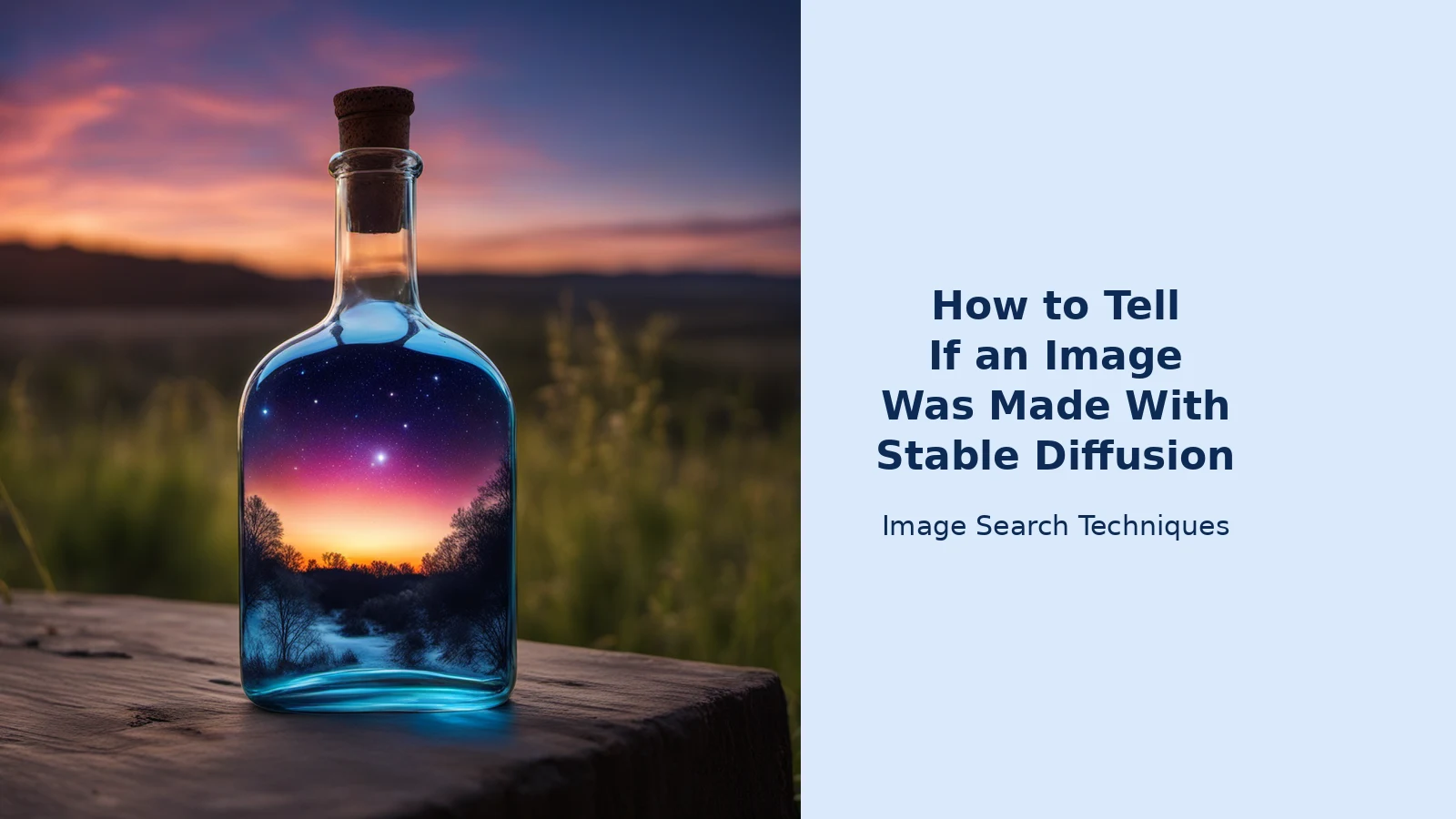
I read a real ComfyUI file to show this: the official SDXL simple example from the ComfyUI examples repository on GitHub, a 1024×1024 image of a glass bottle holding a galaxy, set against an evening sunset. Pillow found exactly two text chunks. The prompt chunk is 1,690 characters and the workflow chunk is 16,109 characters. Here is what the prompt chunk says, in plain terms.
The image was made in two passes, which is the standard SDXL pattern. The first pass used the base model, sd_xl_base_1.0.safetensors, with the prompt “evening sunset scenery blue sky nature, glass bottle with a galaxy in it” and the negative prompt “text, watermark”. The sampler was euler, 25 steps, CFG 8.0, seed 721897303308196, running steps 0 to 20. The second pass used the refiner model, sd_xl_refiner_1.0.safetensors, with the same prompt and negative prompt, the same sampler and CFG, continuing from step 20. The latent image was 1024 by 1024 pixels, decoded through the refiner’s VAE, and saved with the file prefix “ComfyUI”. The workflow chunk lists 24 nodes in total: two checkpoint loaders, four text encoders, two advanced samplers, one VAE decoder, one image saver, and nine note nodes carrying the maker’s own annotations.
That is a lot more detail than the AUTOMATIC1111 block, and it is also harder to read. The prompt chunk is JSON, not sentences, so a non-technical reader will find it dense. The practical way to read it is to search the JSON for the fields that matter: the text in the CLIPTextEncode nodes, the sampler name and step count in the KSampler nodes, the seed, and the checkpoint file names. A browser-based PNG info checker formats this for you, which is why it is the easiest route for a first look. ComfyUI’s own documentation, updated 11 November 2026, describes exactly these two fields and warns that the workflow does not include the model files, input assets or custom node packages the graph depends on, so a recovered workflow may not run as it stands.
One honest note on dates. The AUTOMATIC1111 rockstar file is from 2023, and its format has not changed since. The ComfyUI example is the current official example. Both files were read on 14 November 2026, and the chunk formats they show are the ones in use today.
When does the evidence die? I tested three conversions
A parameters chunk only helps if it is still there. So I tested what happens to the real AUTOMATIC1111 rockstar PNG when it goes through the three most common conversions: saving it as a JPG, re-saving it as a fresh PNG from the pixels alone, and resizing it. I read the chunks with Pillow before and after each conversion, on 14 November 2026. The result was the same every time.
| Conversion | What I did | Parameters chunk after |
|---|---|---|
| Save as JPG, quality 90 | Re-encoded the PNG as a JPEG | Gone. Only JFIF markers left |
| Pixel-only PNG re-save | Copied the pixels into a brand-new PNG, the way a screenshot does | Gone. Zero text chunks at all |
| Resize to 50% as PNG | Shrank it to 512 by 344 and saved as PNG | Gone. Zero text chunks at all |
None of the three conversions kept the chunk. That is the evidence-death test in one line: the original PNG or nothing. A screenshot is the worst case of all, because a screenshot only ever captures pixels. It cannot carry the text chunks, so a screenshot of a Stable Diffusion image tells you nothing about its origin from the file itself. The same goes for a resized copy and for a JPG made by any ordinary tool.
There is one exception worth knowing, because it trips people up. When AUTOMATIC1111 itself saves a JPG or WebP, it writes the same settings block into the EXIF UserComment field of that file. So a JPG that came straight out of AUTOMATIC1111 can still carry the evidence, in EXIF rather than in a PNG chunk. A JPG made by any other tool, by re-encoding the PNG, does not carry it over. If you are checking a JPG, look in the EXIF UserComment field first, and know that a blank result there means the same thing as a blank PNG: no evidence, not proof of a real photo.
I did not test uploads to any social platform, messenger or image host in this research, so I make no claim here about what any specific platform strips or keeps. ComfyUI’s own documentation says image and video editors may remove metadata when they re-encode a file, which is the general rule. If you are checking a file that has passed through a platform, assume the chunks are gone until you can show otherwise.
Can someone fake a parameters chunk?
Yes, and this is the part most guides skip. PNG text chunks are unsigned plain text. Anyone can write a parameters block into any PNG with a few lines of code, including a real photograph. A chunk that says “Model: sd_xl_base_1.0, Seed: 12345” proves only that someone wrote those words into the file. It does not prove the image was generated, and it does not prove who made it. ComfyUI’s documentation says this plainly: “Embedded metadata is not a digital signature. It does not prove who created or modified a file.” The same page tells readers to treat embedded metadata as optional and untrusted input.
So treat a parameters chunk as a lead, not a verdict. Cross-check it against the picture. Does the prompt describe what you can actually see? In the rockstar file, the prompt says “kneeling on the stage” and the image shows exactly that. A faked chunk often describes something the picture does not contain, because the faker copied a block from somewhere else. Check the size field against the real pixel dimensions. Check that the model named in the chunk could plausibly have made the image: an SDXL model name on a file that looks like a phone photo is a warning sign. And run a reverse image search on the file. If the same image appears online from before the model named in the chunk existed, the chunk is lying. Our guide to how to reverse image search walks through that check step by step.
There is also a legitimate reason a genuine Stable Diffusion file can be blank. Both tools let the maker switch the metadata off. AUTOMATIC1111 has a setting called “enable_pnginfo”, described as “Write infotext to metadata of the generated image”, and it is on by default but can be turned off. ComfyUI can be started with the –disable-metadata flag, or the same switch in its desktop settings, and files made that way carry no workflow metadata at all. A blank file may be a real photo, a file from a different tool, a re-encoded copy, or a genuine Stable Diffusion image made with metadata switched off. You cannot tell which from the blank alone.
What should I do when the file has no chunks?
Most files you are asked about will have no chunks, because most files you receive are JPGs, screenshots or re-uploads. That does not end the check. It just moves it to the fallback workflow, in this order.
- Ask for the original file. Say you need the PNG as it came out of the generator, not a screenshot of it. A genuine maker usually has it. A refusal is not proof of anything, but it closes the strongest check you have.
- Reverse search the image. A Stable Diffusion image made from a unique prompt usually has no exact matches, while a stolen real photo often does. A blank reverse search proves nothing on its own, but a match to an older real photo settles the question fast.
- Run a detector. Detectors are one signal among several, never a verdict. Our Pangram image detector guide and our Hive AI detector guide show how to read a score alongside reverse search and source checks.
- Check the file against the claim. If someone says a photo is a real event photo, the burden is on the claim, not on you. A file with no chunks, no source, and no corroboration is unverified, and it is fine to say so and stop there.
Stable Diffusion is only one generator. A file with no SD chunks may still be AI-made by a different tool, and each of those has its own tells. Our FLUX check guide covers a model with no public checker and no embedded watermark at all, and our main guide to telling if an image is AI generated puts the chunk check alongside reverse search, detectors and provenance in one workflow.
Common mistakes when reading a PNG
The first mistake is reading a screenshot and concluding the image is real. A screenshot has no chunks by design, so it can neither confirm nor clear anything. Always check the file itself, never a picture of the file.
The second mistake is treating the seed as a fingerprint. A seed only reproduces an image when the prompt, model, sampler, steps and CFG all match exactly. Change one setting and the same seed gives a different picture. A matching seed in the chunk is useful, a mismatched one is meaningless on its own.
The third mistake is trusting the chunk without looking at the picture. A parameters block is text, and text can be pasted into any file. If the prompt says “sunset beach” and the image shows a city street at noon, believe the image.
The fourth mistake is assuming every Stable Diffusion image carries a chunk. It does not. Metadata can be switched off, and files saved as JPG by other tools lose it. A blank result is the most common result, and it means “no evidence”, never “real photo”.
The fifth mistake is confusing the chunk with a watermark. Stable Diffusion does not add a visible watermark, and the parameters chunk is not a watermark either. It is a settings record that survives only while the file stays untouched. Our main guide to telling if an image is AI generated explains the difference between a settings record, a watermark and a Content Credential, and why only the last of the three is signed.
FAQs
Can you tell if an image was made with Stable Diffusion from a JPG?
Not from the PNG chunks, because a JPG has none. The one exception is a JPG saved by AUTOMATIC1111 itself, which writes the same settings into the EXIF UserComment field. Check that field first. A JPG re-encoded by any other tool loses the block, so a blank result means no evidence, never proof of a real photo.
What does the seed in the parameters chunk prove?
The seed is the random starting point for the generation, and it only reproduces the image when the prompt, model, sampler, steps and CFG scale all match exactly. Alone it proves little. Its real value is as part of the full block: if the seed, model and settings all line up with the picture, the chunk is more believable.
Does a missing parameters chunk mean the image is a real photo?
No. A missing chunk means there is no evidence either way. The file may be a real photo, or it may be a Stable Diffusion image that was re-saved as a JPG, screenshotted, resized, uploaded through a platform, or generated with metadata switched off. Fall back to reverse search, detectors and the source of the file instead.
Can someone fake a Stable Diffusion parameters chunk?
Yes. PNG text chunks are unsigned plain text, and anyone can paste a parameters block into any file, including a real photograph. ComfyUI’s own documentation warns that embedded metadata is not a digital signature and should be treated as untrusted input. Always cross-check the chunk against the picture, the pixel size and a reverse image search.
What is the difference between the AUTOMATIC1111 parameters chunk and ComfyUI workflow JSON?
AUTOMATIC1111 writes one plain-text block called parameters, with the prompt first and the settings listed after it. ComfyUI writes two JSON chunks, prompt and workflow, holding the whole node graph: the text encoders, the samplers, the checkpoints and their settings. Both name the model, sampler, steps and seed, but ComfyUI’s version is far more detailed and harder to read.
Does Stable Diffusion add a watermark I can check?
No. Stable Diffusion does not add a visible watermark, and the parameters chunk is not a watermark either. It is a settings record that survives only while the file stays untouched. Other tools add marks: Midjourney has a public Verify checker, Meta has the Content Seal, and Apple marks some edits with SynthID. Stable Diffusion relies on the file.