


🔎 Reverse Image Search
Image search techniques made simple: upload a photo or paste a URL and search 6 engines at once. 100% free, nothing stored.
🔒 Your image is never stored on our servers longer than 24 hours and is never shared.
A CitizenCard photo rejected message usually arrives after you upload a picture that looked perfectly fine on your phone. It happens a lot, and it is rarely about whether the photo is a good one. CitizenCard is the UK proof-of-age card that carries the PASS hologram, and its photo rules look like passport rules at first glance. They are not the same rules, and the difference that catches most people is not the smile or the background. It is the size of the file.
The short answer: A CitizenCard photo is usually refused for one of two reasons: the file is below the 1280 by 720 pixel minimum, or the picture breaks a passport-style rule, such as smiling, a busy background, glasses glare, or a filter. Take a fresh photo on the same phone you apply with, against a plain light wall, and upload the original file.
What this guide means by a CitizenCard photo. CitizenCard is a UK photo ID and proof-of-age card. It carries the PASS hologram, which stands for the Proof of Age Standards Scheme, a scheme that accredits card issuers to a standard endorsed by the Home Office, the police, the Security Industry Authority, trading standards and retailers. The photo on the card is checked against CitizenCard’s own photo guidance, not against passport rules, and the two sets of rules differ in one important place: the minimum size of a digital file.
One more thing before the detail. CitizenCard does not use the word rejected on its own pages. It says a photo that is unsuitable will delay your application. In practice that means the same thing: the application sits still until you supply a photo that passes. There is no published deadline for sending a new one and no published appeal route, so the fix is to send a photo that passes first time. This guide sticks to the photo rules. It does not cover who can apply or which documents prove your identity, except where the referee or the digital check touches the photo itself. If you want the wider picture on what happens to photos of you once they are online, our face search and photo privacy guide is the place to start.
Why was my CitizenCard photo rejected?
Because your photo has to pass two separate tests, and most people only think about one of them. The first test is the file: the format, the pixel size and the file size. The second test is the picture: everything you can see in it, from your expression to the wall behind you. A photo can pass the first test and fail the second, or the other way round, and either failure holds up the application.
CitizenCard’s own support page, Why was my photo not accepted?, lists the same faults again and again. The file is too small or in the wrong format. The person is smiling, the head is tilted, or the eyes are looking away. There is glare on the glasses, or the lenses are tinted. The background is busy or dark, or there are shadows behind the head. The photo has been filtered, beautified or altered with AI. Hair covers the eyes, or a cap or hood covers the head. Any one of those is enough.
What surprises people is how ordinary the failing photos are. A passport photo from a booth, a nice headshot from a professional photographer, a selfie taken in good light: all three can fail, for different reasons. The booth photo is often a paper print, and the digital file that came with it can be too small. The professional headshot is often retouched, which counts as editing. The selfie is often taken in Portrait mode, which counts as editing too, or sent to yourself by email first, which shrinks it. None of those photos is bad. They are just not the photo CitizenCard asks for.
What are the CitizenCard photo rules?
The rules come in two halves, and you need both. The first half is the file. The second half is the picture. CitizenCard publishes the full list on its photo guidance page, and the list below follows it exactly.
For a digital upload, the file must be a JPG, at least 1280 by 720 pixels in landscape or 720 by 1280 in portrait, and no more than 25 MB. It must have been taken within the last six months. For a paper application, the photo must be 45 mm high by 35 mm wide, printed to a high quality on white photographic paper, and not cut down from a larger picture. It must not be torn, creased or marked. On a first-time paper application, one of the two photos must be countersigned by your referee.
| Rule | Digital upload | Paper application |
|---|---|---|
| Format | JPG only | Print on white photographic paper |
| Size | At least 1280 by 720, or 720 by 1280 pixels | 45 mm high by 35 mm wide |
| File limit | No more than 25 MB | Not cut down from a larger photo |
| Age | Taken within the last six months | Taken within the last six months |
| Referee | Confirms the photo online | Countersigns one of the two photos |
The picture itself must be in colour, clear and in focus, and a full close-up of your head and upper shoulders. It must stand out clearly against the background, and the background must be plain and light-coloured across the whole frame, not just behind your head. You must face the camera and look straight at it, with a neutral expression and your mouth closed. Your eyes must be open and visible, with no reflection or glare. You must not wear sunglasses or tinted glasses, unless they are medically prescribed. Your hair must be pulled or tied back from your face, with nothing covering your face and no head covering except for religious or medical reasons. There must be no shadows on your face or behind you, and no other people or objects in the frame.
Two details in that list catch people out. The first is the background rule. CitizenCard’s support pages say the background must be plain across the entire backdrop, and they give the example of not standing directly in front of a door frame. A plain wall with a door frame running through it is not a plain background. The second is the space rule: leave enough room around your head and shoulders, so the photo is not cropped tight to your face.
What is the file-size trap?
The trap is that people hear “file size” and think in megabytes, while CitizenCard’s minimum is in pixels. The 25 MB figure is a maximum, not a target. What matters is the resolution: 1280 by 720 pixels at the least. A photo can be two megabytes and still fail, because megabytes measure how much data the file holds, not how many pixels wide it is. A photo can also be tiny in megabytes and pass, if it is sharp and big enough in pixels. The number to check is the pixel size, not the file size.
That is why the usual advice makes things worse. Told their file is too big, most people compress it, email it to themselves, or send it through a chat app, and every one of those steps shrinks the pixels. CitizenCard’s own support pages warn about exactly this: photos transferred or emailed between devices are usually compressed, and the fix is to take the photo on the same phone, tablet or computer you use to complete the application.
The comparison with a passport photo shows how easy the trap is to fall into. A digital photo for a UK passport needs to be at least 600 pixels wide and 750 pixels tall, according to GOV.UK, and no more than 10 MB. That is a smaller file than CitizenCard asks for. A passport photo file at 600 by 750 passes GOV.UK and fails CitizenCard on both sides: 600 is below 720, and 750 is below 1280. So a photo prepared for a passport, or a photo file sold by a passport photo service, can be perfectly good for a passport and still be refused by CitizenCard. The same goes for the age rule: a passport photo must have been taken in the last month, while a CitizenCard photo can be up to six months old, so the two rules are not interchangeable in either direction.
| CitizenCard digital photo | UK passport digital photo | |
|---|---|---|
| Minimum size | 1280 by 720, or 720 by 1280 pixels | 600 wide by 750 tall pixels |
| Maximum file size | 25 MB | 10 MB |
| How recent | Within the last six months | Within the last month |
| Background | Plain, light-coloured | Plain, light-coloured |
| Expression | Neutral, mouth closed | Plain expression, mouth closed |
| Paper size | 45 by 35 mm | 45 by 35 mm |
The background and expression rules match. The size rules do not. That is the whole trap: the photo that worked for your passport is the photo most likely to fail here. Our UK passport photo rejected guide works through the GOV.UK rules in full, and the same size trap turns up in other official photo checks too, as our US passport photo rejected fix guide shows. In every case the fix is the same: start from the original file on the camera, not from a copy that has already been shrunk.
How did one real photo pass the file test and fail the picture test?
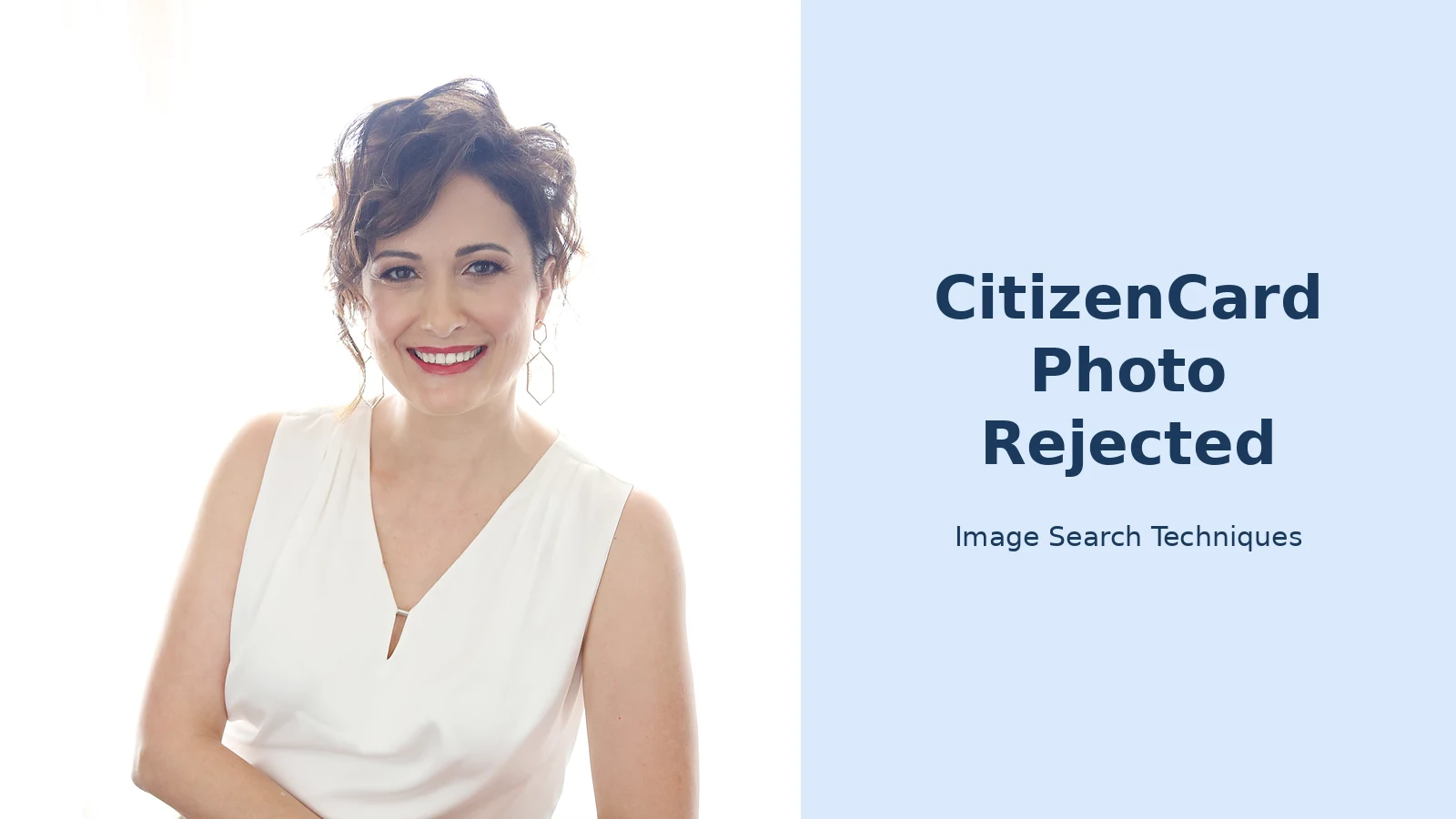
To show the two tests working separately, I checked a real published photo against CitizenCard’s rules on 15 November 2026. The photo is a 2021 headshot of speaker Dima Ghawi, published on Wikimedia Commons under a CC BY-SA 4.0 licence. I did not upload it to CitizenCard. I checked it against the published rules, which is the same check the uploader applies.
On the file test, it passes cleanly. The file is a JPEG, 1750 by 2625 pixels, and 1,956,886 bytes, which is about 1.87 MB. That is above the 720 by 1280 minimum in both directions and well below the 25 MB maximum. If the file were the only test, this photo would go straight through.
On the picture test, it fails four times. The subject is smiling broadly with teeth showing, and the rules ask for a neutral expression with the mouth closed. She is wearing a white top against a white background, so there is no clear contrast between the person and the backdrop. The framing runs from the head down to the waist, not the close-up of head and upper shoulders the rules ask for. And her hair falls across the side of her face, where the rules ask for hair pulled or tied back. Any one of those would be enough to hold the application. Together they make the point clearly: a good professional headshot and a compliant CitizenCard photo are two different things.
Then I ran the trap test on the same file. I shrank a copy the way an email or chat app would, down to 800 by 1200 pixels and 52,371 bytes, about 51 KB. On a phone screen the copy looks the same as the original. But its long side is 1200 pixels, below the 1280 minimum, so it now fails the file test before anyone looks at the picture. The photo did not change. The pixels did. That is the trap in numbers, and it is why the fix is always to use the original file, never a forwarded copy.
How do I take a photo CitizenCard will accept?
Take it fresh, on the device you will upload from, and check it before you send it. The steps below follow CitizenCard’s own guidance and its support pages on common upload problems.
- Use the same phone you apply with. Take the photo on the device you will upload from, so nothing gets compressed in between. Do not take it on one phone and send it to another.
- Find a plain light wall. Stand with space behind you, not pressed against a door frame or patterned wallpaper. The background has to be plain across the whole frame, so check the edges of the shot, not just the middle.
- Face a window in daylight. Light on your face, no shadows behind you, and no flash. If the sun is strong, step back from the window rather than standing in it.
- Hold the camera at eye height. At arm’s length, or ask someone to take it. Hold the camera still, clean the lens, and check the focus before you shoot. CitizenCard’s support pages list blurry photos as one of the most common upload problems, and the fix is usually a clean lens and a steady hand.
- Look straight at the camera. Mouth closed, neutral expression, eyes open, hair back from your face. Take several shots and pick the plainest one, not the most flattering one.
- Check the file before you upload it. Look at the photo details on your phone. It should be a JPG, and at least 720 by 1280 pixels in portrait. If the numbers are smaller, take the photo again. Do not try to enlarge a small file: that adds pixels that were never there, and the result is a blurry photo that fails anyway.
- Upload the original file. Do not send it to yourself by email or chat first, and do not run it through any app that crops, filters or beautifies it. The original is the file that passes.
- If your application needs a referee, ask them first. They have to confirm the photo is a true likeness of you, so show them the photo you plan to upload before you send it in.
Phone apps that check photos fail in the same way, with the same small-file and filter problems. Our guide to Australian ETA app photo problems works through a three-step capture that reads much like this one, and the lesson is the same: the capture has to be right at the time, because no amount of editing afterwards will fix a photo the rules reject.
Before you upload, run this sixty-second check. Is it a JPG? Is it at least 720 by 1280 pixels? Is it under 25 MB? Was it taken in the last six months? Is the background plain and light all the way across? Is your expression neutral with your mouth closed? Are your eyes open with no glare? Is your hair back from your face? Is anything covering your face? Has it had no filter, no Portrait mode and no AI touch? If every answer is yes, upload it. If any answer is no, take a fresh photo rather than trying to fix the one you have.
What counts as editing?
CitizenCard’s rule is short: the photo must be unaltered by software, and a genuine photograph, not one created or altered using AI. The support pages spell out what that covers, and the list is wider than most people expect.
It includes Instagram and Snapchat filters, Facetune and other beauty apps, and any filter that changes how your face looks. It includes smartphone Portrait mode, which blurs the background, because blurring the background is an edit to the photo, and the background has to be plain and real. It includes airbrushing and retouching by a professional photographer, and even small changes such as removing or blurring the background. Professional photographers often include those edits as standard without being asked, so tell the photographer before the shoot that the photo is for CitizenCard and that you need it unedited.
It also includes anything made or changed by AI: a fully generated image, an AI background, or AI changes to the face or appearance. A photo that has been through an AI enhancer is an altered photo, even if it looks more like you than the original did. If a photo has already been edited, do not try to undo the edit. Take a fresh one with no apps in between the camera and the upload.
What does the referee have to do with my photo?
The referee is the person who confirms that the photo is a true likeness of you. CitizenCard verifies your identity in one of two ways: through a referee, or through a digital check of your photo ID or eVisa. On the referee route, the referee completes a Digital Referee Declaration Form, an electronic Statement of Truth, after you upload, confirming the photo is a true likeness. On a paper application, the referee countersigns one of the two photos and a copy of the supporting document instead.
Not just anyone can be a referee. CitizenCard asks for someone who works in a recognised profession, whose business details can be checked in online professional directories, and who can be contacted at their registered business address by email and work phone, Monday to Friday from 9 in the morning to 5 in the afternoon. CitizenCard says it will definitely call them. The referee must not be related to you, must not be in a personal relationship with you, and must not live with you. They must also know about the application before you name them.
The other route is a digital identity check. That uses an original photo ID, such as a UK or international passport, a UK or European photo driving licence, or a European national ID card, assessed by Yoti, plus a liveness check. An eVisa can be checked the same way with a Home Office share code. Which route you use is a choice about identity, not about the photo: either way, the photo itself still has to meet the same rules.
What happens after my photo is refused?
Your application is delayed until you supply a photo that passes. You upload a new photo through the same online account and the application moves on. CitizenCard’s own pages say only that an unsuitable photo delays the application. They publish no deadline for sending a replacement and no appeal route, so the practical fix is to send a compliant photo straight away rather than waiting to be chased.
The cost and timing are worth knowing while you sort the photo out. A standard CitizenCard costs 18 pounds and takes up to 21 days, while an urgent card costs 35 pounds and takes 1 to 2 working days, according to CitizenCard’s support pages. Those times run from when everything required has been received, so a refused photo pushes the date back by however long the replacement takes.
One thing the photo rules do not cover is the card itself. The PASS hologram on the card is the mark retailers look for, and a card can be checked at verify.citizencard.com or through the free PASS Card Verify app. PASS itself publishes no photo rules of its own: the rules in this guide are CitizenCard’s. And there is no CitizenCard app for applying. The application runs on the website, so if an app offers to apply for a CitizenCard for you, it is not CitizenCard’s app. The same pattern shows up in other official photo checks: India’s e-Visa photo check also fails small files before anyone looks at the picture, as our India e-Visa photo rejected guide shows.
Common mistakes that get CitizenCard photos refused
Most refusals come from a short list of ordinary habits. Emailing the photo to yourself before you upload it. Using a passport photo file, at 600 by 750 pixels, for the online form. Taking the photo in Portrait mode. Smiling for the camera. Standing in front of a door frame, patterned wallpaper or a busy room. Glasses with glare on them. Hair falling over the eyes. A photo taken more than six months ago. A PNG or HEIC file instead of a JPG. Every one of those is avoidable, and every one of them is fixed the same way: a fresh photo, taken on the phone you apply with, against a plain light wall, with the original file uploaded untouched.
FAQs
What size photo does CitizenCard need?
Online, CitizenCard needs a JPG of at least 1280 by 720 pixels in landscape, or 720 by 1280 in portrait, and no more than 25 MB. On paper, it needs a 45 by 35 mm print on photographic paper. A digital passport photo at 600 by 750 pixels is too small, so use the original file from your camera.
Can I use my passport photo for a CitizenCard?
A printed passport photo works for a paper application if it was taken in the last six months, because both use a 45 by 35 mm print. A digital passport photo file is usually too small for the online form, so upload the original camera file instead of the passport file.
Why does CitizenCard reject photos sent by email or WhatsApp?
Email and chat apps shrink photos when they send them, and a shrunk photo can fall below CitizenCard’s 1280 pixel minimum even when it looks the same on screen. CitizenCard’s own support pages warn about this. Take the photo on the same phone you apply with and upload the original file.
Can I wear glasses in a CitizenCard photo?
Clear glasses are allowed if your eyes are visible with no reflection or glare, and the frames do not cover your eyes. Sunglasses and tinted glasses are not allowed, unless they are medically prescribed. If your glasses catch the light, try again with the light behind the camera.
Does my referee need to see my photo?
Yes. The referee confirms that the photo is a true likeness of you, through a Digital Referee Declaration Form, or by countersigning one photo on a paper application. Show them the photo before you upload it. If you use the digital identity check instead, no referee is needed.
How long does a CitizenCard take after my photo is accepted?
A standard CitizenCard takes up to 21 days and costs 18 pounds, while an urgent card takes 1 to 2 working days and costs 35 pounds, according to CitizenCard. The time runs from when everything required has been received, so a refused photo pushes the date back.






