


🔎 Reverse Image Search
Image search techniques made simple: upload a photo or paste a URL and search 6 engines at once. 100% free, nothing stored.
🔒 Your image is never stored on our servers longer than 24 hours and is never shared.
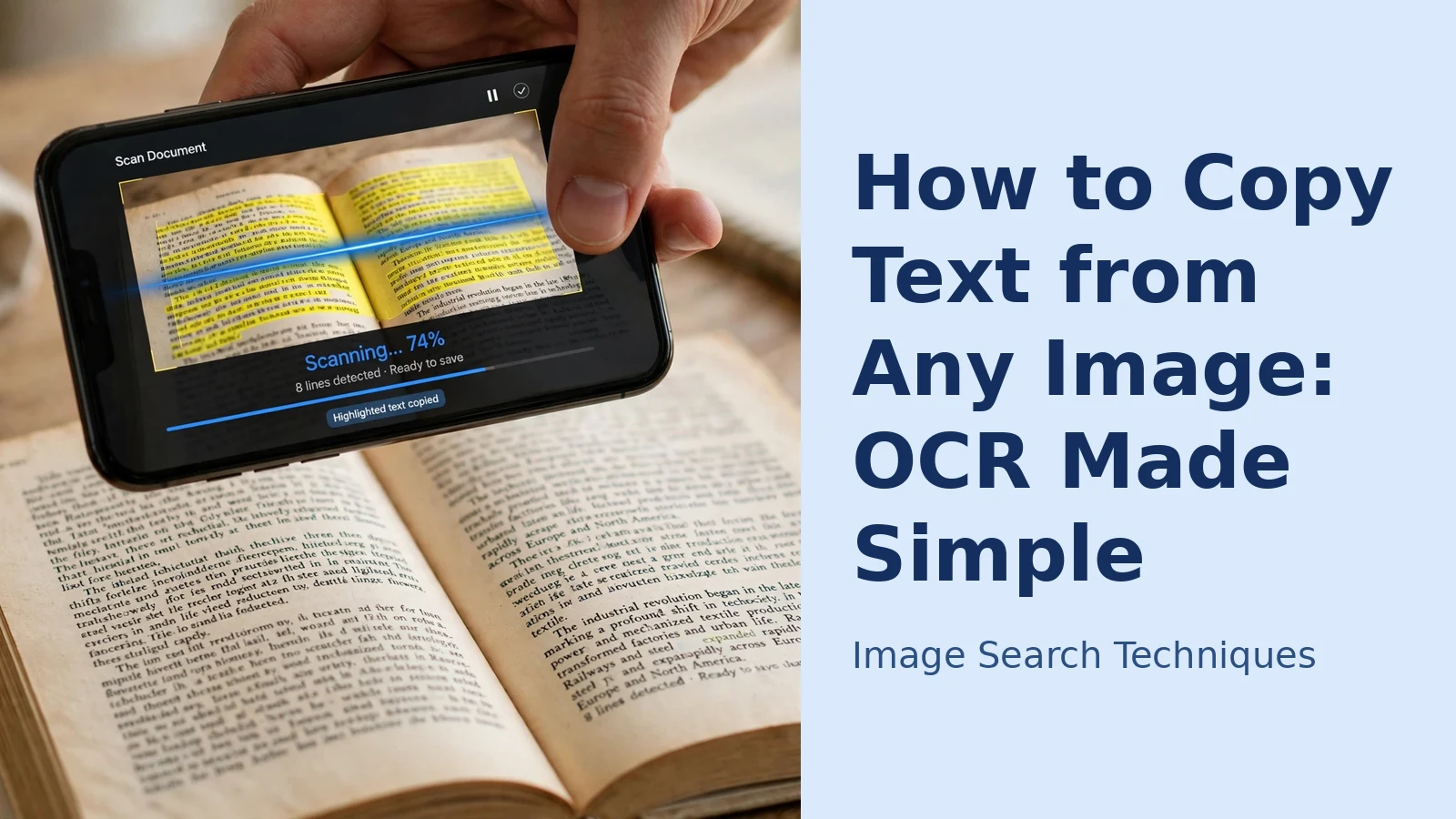
A photo of a whiteboard, a screenshot of an error message, a recipe card someone sent you as a picture — the words are right there, but you cannot select them, search them or paste them anywhere. The fast way is to copy text from an image using OCR (optical character recognition), a feature already built into most phones. This guide covers the three routes most people need: Google Lens on Android and desktop, Live Text on iPhone, and Bing’s visual tools, plus fixes for the mistakes OCR always makes.
One distinction before we start: this article is about extracting the text exactly as written, in its original language, so you can paste it into a document, message or search box. If you need the words converted into another language instead, that is a different job — see our guide to translating text in an image with Google Lens.
How OCR copying works (and why it sometimes fails)
OCR software scans the shapes in a picture, works out which letters they form, and rebuilds them as ordinary editable text. Modern phone OCR is very good on clean printed text photographed straight-on in decent light, but struggles with poor input: small print, low contrast, glare on glossy paper, steep camera angles, decorative fonts and handwriting all reduce accuracy. That matters because the errors are rarely obvious — OCR confidently swaps similar characters (0 for O, 1 for l, rn for m), so always check a copied phone number, password or reference code character by character before relying on it.
Copy text from an image with Google Lens
Google Lens is the most widely available option: it is built into the Google app on Android and iPhone, into many Android camera apps, and into Chrome on desktop. Its dedicated Text mode is designed for exactly this job.
- Open the Google app and tap the Lens icon in the search bar (on iPhone, allow camera access if asked).
- Choose Text from the modes along the bottom of the screen.
- Either point the camera at the text, or tap the gallery icon and choose an existing photo or screenshot.
- Lens highlights the words it can read. Drag over the passage you want, or tap Select all.
- Tap Copy text, then paste it wherever you need it. On desktop Chrome, right-click an image on a web page, choose “Search with Google Lens”, then use the Text mode in the side panel and copy from there.
Lens also offers “Copy to computer”, sending recognised text to a signed-in Chrome browser on your desktop — handy when the photo is on your phone but the document is on your laptop. Google’s own Lens help pages list the current options and requirements, which shift slightly between versions. Text mode is only one part of Lens; our Google reverse image search guide covers its visual search side.
Copy text on iPhone with Live Text
On iPhone, the equivalent feature is called Live Text, and it works on photos, screenshots, paused videos and the live camera view — no extra app needed. It requires an iPhone XS or later; if the feature seems missing, check it is switched on under Settings > General > Language & Region > Live Text.
- Open the photo or screenshot in the Photos app.
- If text is detected, a Live Text icon (lines inside a frame) appears in the corner — tap it to highlight everything, or simply touch and hold directly on the words.
- Drag the selection handles to cover the passage you want.
- Tap Copy (or Select All first for the whole page), then paste into any app.
In the Camera app, pointing at a sign or document shows the same icon, so you can copy text from the real world without taking a photo at all. Apple’s support page on interacting with text in photos covers the quick actions too: recognised phone numbers, email addresses and web links in an image become tappable, so sometimes you do not even need to copy them.
Copy text from screenshots and saved images
Screenshots are the easiest OCR input of all: the text is sharp, flat and perfectly lit, so accuracy is usually near-perfect. Both tools above handle them through the gallery route: open the screenshot, let the tool detect the text, select and copy. This is the quickest way to grab an error message you want to search for, or a tracking code from an order confirmation picture.
Two habits improve results on saved images. First, crop before you copy: trimming a busy photo down to the paragraph you need stops the tool wasting effort on captions and background text, and gives a cleaner paste. Second, if the image is small or compressed — a much-forwarded messaging-app photo — expect more mistakes in fine print, and proofread carefully. (Cropping helps here for the same reason it helps visual searches of screenshots, which our screenshot reverse image search walkthrough explains.) And if the text is in front of you rather than in a file — a noticeboard, a book page, a product label — the live camera route covered in our live camera image search guide gets it copied in seconds.
On a computer: Bing and online OCR tools
If you are at a desk, you still have options. In Microsoft Edge, right-clicking an image offers a visual search through Bing, which includes a text-extraction view for pictures containing words. Dedicated online OCR websites work too: upload an image and the site returns editable text to copy or download. They suit one-off jobs on machines where you cannot install anything — but treat them with caution. An uploaded image leaves your control, so never send documents containing personal, financial or confidential information to a free OCR site you have never heard of; for anything sensitive, stick to the tools above. Free online OCR also tends to flatten formatting entirely, which leads to the next point.
Fixing the mistakes: accuracy and formatting
Even a good OCR result usually needs a quick tidy-up. The recurring problems, and their fixes:
- Character swaps. 0/O, 1/l/I, 5/S and rn/m are the classic confusions. Proofread names, codes, numbers and email addresses character by character.
- Lost line breaks and columns. OCR reads across multi-column pages as if they were one wide paragraph. Copy one column at a time — select only that block in Lens or Live Text — and the reading order stays sane.
- Tables turn into jumbled lines. For anything tabular, copy row by row, or paste into a spreadsheet and tidy cell by cell. Expect manual work; no consumer OCR preserves complex tables well.
- Hyphenated line-endings. Words split across lines arrive with a hyphen and a break. A quick find-and-replace for “- ” followed by joining the lines fixes most of them.
- Stray characters from logos and watermarks. Decorative text in the image gets recognised too. Cropping tightly before copying prevents most of it.
To reduce errors at the source: photograph text straight-on, in even light, filling the frame with the page, and use the highest-resolution copy of the image you have. A thirty-second retake beats five minutes of corrections.
Once your text is copied, remember the picture itself can still tell you more — where it came from, or where else it appears. You can run that check in seconds with our free reverse image search tool, which tests a photo across six engines at once.
FAQs
Can I copy text from an image for free?
Yes. Google Lens and iPhone Live Text are both free and built in, and Bing’s tools in Edge cost nothing either. Dedicated online OCR sites usually have free tiers, but avoid them for private documents.
Why is the copied text full of mistakes?
Almost always the image: small or blurry text, glare, a steep angle, low contrast or a decorative font. Photograph the text straight-on in good light, crop to the passage, and try again — accuracy improves dramatically with a cleaner image.
Does copying text from an image work with handwriting?
Sometimes. Neat, print-style handwriting is often recognised well by Lens and Live Text; joined-up, faint or highly stylised writing usually is not. Treat handwritten results as a draft and check every word.
What is the difference between copying text and translating it?
Copying (OCR) reproduces the words exactly as written, in the original language, so you can paste and edit them. Translation converts the meaning into a different language. Some tools offer both — copy first when you need the original wording, translate when you need to understand it.
