


🔎 Reverse Image Search
Image search techniques made simple: upload a photo or paste a URL and search 6 engines at once. 100% free, nothing stored.
🔒 Your image is never stored on our servers longer than 24 hours and is never shared.
To check a LinkedIn profile photo, run a fake LinkedIn profile photo reverse image search, open the profile’s “About this profile” panel to check its creation date, and confirm the employer and work history outside LinkedIn. A stolen photo appears under other names, an AI-generated face returns no matches, and a genuine professional leaves a verifiable trail.
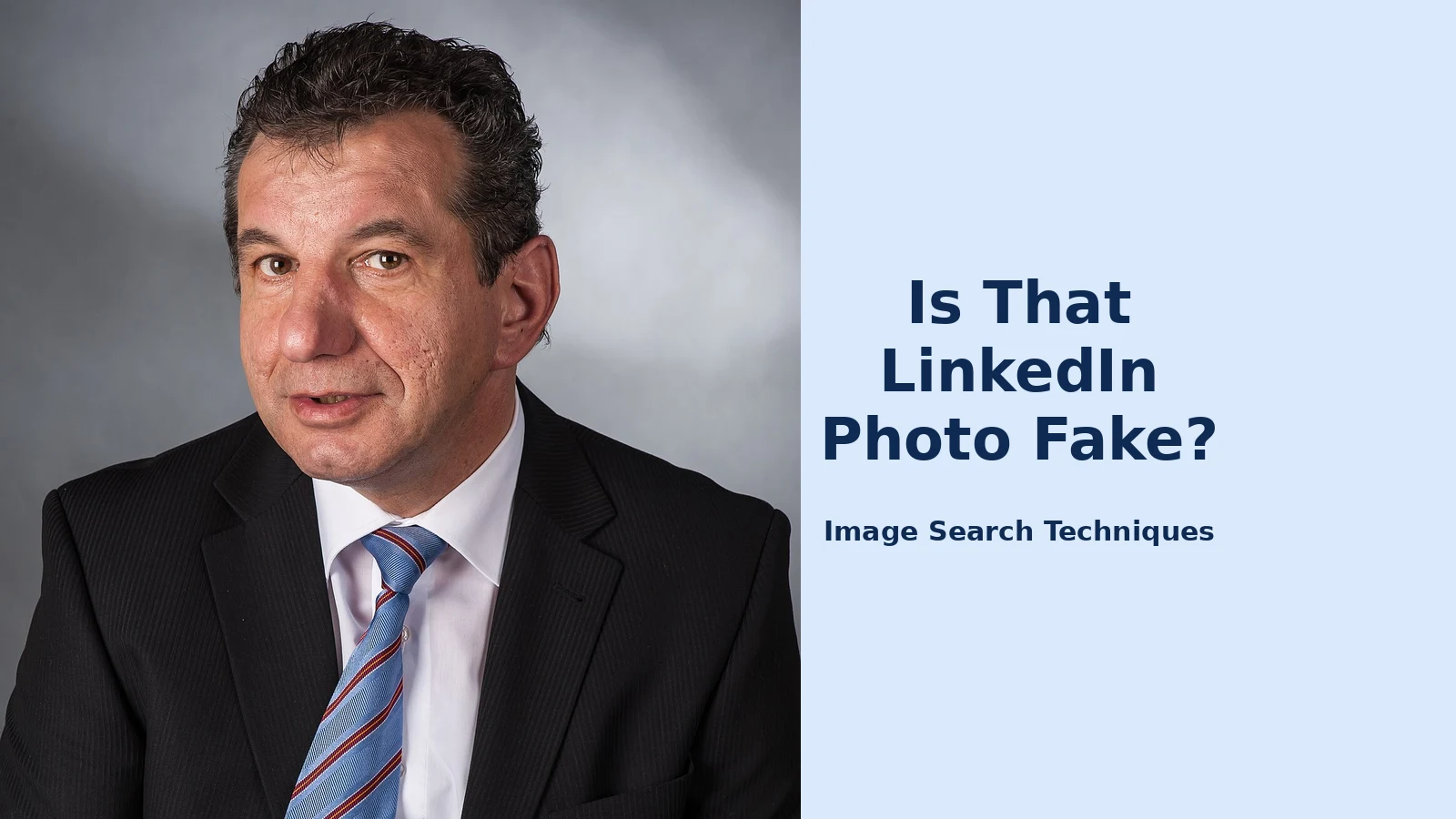
A fake LinkedIn profile photo is a picture on a LinkedIn account that does not show the real person behind that account. It is either a stolen photograph of a real person, or a face created by an AI image generator that belongs to nobody at all. This guide shows you how to tell the two apart and how to check the person behind the photo before you accept a connection, reply to a message, or act on anything the profile asks you to do. It is written for checking a professional contact — a would-be client, supplier, speaker, or colleague — and it treats the photo as one clue among several, never as proof on its own.
What Is a Fake LinkedIn Profile Photo?
A fake LinkedIn profile photo is a headshot that misrepresents who runs the account. There are only two ways it is made, and knowing which one you are dealing with changes what the checks can tell you. The first is a stolen photo: a real photograph taken from another person’s social media account, a company team page, a modelling portfolio, or a stock-photo library, and reused under a false name. The second is a generated face: a portrait produced by an AI image generator that has never been photographed, so no original exists anywhere on the web.
The distinction matters because the two kinds fail different checks. A stolen photo can be caught by a reverse image search, which finds the same picture used under other names. A generated face cannot be caught that way, because there is nothing to match — the search comes back empty, which is exactly the result a scammer wants you to read as “all clear”. That is why no single check is enough, and why this guide pairs the photo search with checks that do not depend on the image at all.
Fake profile photos are not a curiosity. In June 2019 the Associated Press reported on a LinkedIn persona called “Katie Jones” whose closely cropped portrait of a red-haired woman, according to experts consulted by the AP, appeared to have been created by a computer program using generative adversarial networks. The profile claimed a job at a Washington think tank and had collected 52 connections, including policy experts and government officials, before it was flagged and removed. The case is covered in full in the worked example below, because it shows exactly how a convincing photo, a plausible job title, and a handful of impressive connections can still add up to a person who does not exist.
One rule runs through the whole guide: a visual match is not proof of identity, and a clean search is not proof that a person is real. Use these checks to decide whether to trust, verify further, or walk away — not to accuse someone publicly. If you are checking a photo of a private individual, keep the check proportionate, do not share their photo around, and never use a face search to identify someone who has not chosen to be found.
How Do I Run a Fake LinkedIn Profile Photo Reverse Image Search?
Run the photo through more than one search engine, because each one indexes different parts of the web and each one reports matches differently. Start with the largest version of the photo you can get: click the profile picture to open it, then save it or take a screenshot and crop tightly around the face. A small, compressed thumbnail gives every engine less to work with, so do not search the tiny circle from a message thread if you can avoid it. Our step-by-step guide to reverse image search covers the same method in detail for any photo, not just LinkedIn headshots.
- Search with Google Lens. Go to lens.google.com, upload the saved photo, and look at the “exact matches” first. A Google reverse image search is the broadest starting point, and Lens also shows visually similar images that may be differently cropped versions of the same portrait.
- Search with TinEye. Upload the same photo at tineye.com. TinEye is narrower than Lens but better at showing the oldest appearance of an image, which tells you whether the photo existed online long before this LinkedIn account did.
- Search with Yandex Images. Yandex is unusually strong on faces and on photos taken from social media, so it often finds matches that Google and TinEye miss. Use the camera icon on the Yandex Images search page and upload the photo.
- Search with Bing Visual Search. Upload the photo to Bing’s visual search and check both the matching images and the pages that host them. Bing sometimes surfaces copies hosted on company or portfolio sites that the others skip.
- Try a face search as well. A face search compares the face itself rather than the exact file, so a different photograph of the same person can turn up as well as copies of the same picture. Our guide to face search tools lists the free options and explains their limits.
- Read the results as a set, not one by one. Note every name, employer, and website attached to each match before you decide what the photo is.
| Tool | Best for | What a match tells you | Cost |
|---|---|---|---|
| Google Lens | Broadest web coverage | Same photo under other names | Free |
| TinEye | Oldest appearance of a photo | Photo predates the profile | Free |
| Yandex Images | Faces and social photos | Matches Google often misses | Free |
| Bing Visual Search | Similar images and host pages | Copies on company sites | Free |
| Face search engines | Same face, different photo | Face used under other identities | Free options exist |
Here is how to read what comes back. If the same face turns up under two or three different names, or on a stock-photo site, the photo is stolen and the profile is not who it claims to be. If the face appears on a company team page or a university staff page that matches the employer and name on the profile, that is a genuine point in the profile’s favour — but only one point. If nothing turns up anywhere, the result is unresolved, not reassuring: an AI-generated face has no original to find, and a private person’s photo may simply never have been published. A blank result means you must rely on the profile checks in the next section, not that the person is real.
One practical warning: reverse image search cannot see inside LinkedIn itself very well, because most LinkedIn photos sit behind a login. That is a limit of the method, not a sign of anything about the profile. It is also why a search that finds nothing is never, on its own, a reason to accept a connection request.
How Do I Check the Profile on LinkedIn Itself?
Open the profile’s “About this profile” panel before you study anything else, because it shows facts a scammer cannot easily fake. On any profile, open the More (…) menu at the top and choose “About this profile”. LinkedIn introduced this panel in October 2022, and it shows when the account was created, when the profile photo and contact information were last changed, and whether the member has completed any verifications. A supposed fifteen-year industry veteran on an account created last month, or a profile whose photo and email address were both changed three days ago, is behaving exactly like a fresh fake or a hijacked real account.
Next, read the verification signals for what they are — and what they are not. LinkedIn’s verification confirms a government ID or a work email through partners such as CLEAR and Persona, and in September 2026 LinkedIn added peer vouching, letting verified members confirm a colleague’s experience, plus new controls letting companies remove profiles that falsely claim to work for them. According to TechCrunch’s report of that September 2026 announcement, LinkedIn’s verification tools had by then been used to verify 115 million members and more than 700,000 companies. A badge therefore shows the person passed an identity check; it does not prove their job title, employer, or dates are true, and most genuine profiles carry no badge at all, so its absence proves nothing either.
Then pressure-test the work history, because this is where fake profiles fall apart fastest. Does the employer actually exist, and does its own website or staff directory place this person there? Do the dates make sense, or does someone claim a director role three years out of university? Copy one distinctive sentence from the “About” section, paste it into a search engine inside quotation marks, and see whether the same biography appears word for word on other profiles — recycled text is one of the clearest signs of a mass-produced fake. AI can now write a fluent, typo-free summary, so polished prose no longer clears anyone; a career that nobody and nothing outside LinkedIn can confirm is the real red flag.
Finally, weigh the footprint, not the follower count. A genuine professional leaves a trail: posts and comments in their own words, endorsements from people you can identify, shared connections, a talk, a byline, or a conference listing somewhere. Fakes tend to be thin — a senior title paired with fewer than 100 connections, no activity, and no mutual contacts is a common shape. Inflated numbers cut the other way too, so do not be reassured by a large following alone; bought connections are cheap. What is hard to fake is a consistent presence across the wider web. If the person exists only on this single page, that absence is information.
What Are the Signs of an AI-Generated Profile Photo?
AI-generated headshots have a signature once you know where to look, and it is worth learning because these faces now pass the reverse image search completely. Zoom into the photo at full size and check the details the generator struggles with. Because the models are trained on aligned faces, the eyes tend to sit in almost exactly the same position on every generated portrait. Backgrounds melt into nonsense a short distance behind the head. Earrings do not match each other, glasses frames dissolve or fuse into the temple, teeth blur together, and hair strands trail off into smudges near the edges of the frame.
No single quirk is proof of anything, and a real photograph can contain one odd detail — a compression artefact, a bad crop, or an unusual shadow. What matters is the pattern: one clearly warped detail in an otherwise glossy corporate headshot, especially combined with a new account and an unverifiable employer, is usually the tell. Researchers who catalogue fake profiles with AI faces keep finding the same clusters of artefacts, and the “Katie Jones” case below shows the classic set — a slightly asymmetrical face, an earring that appeared to melt away, an indistinct background, and blurred boundaries between hair and ear.
LinkedIn itself checks uploaded profile photos for signs of AI generation. When the “About this profile” panel was announced in October 2022, LinkedIn said it uses a deep-learning model to check profile pictures for AI-generated images, and it can investigate or block an account whose photo is suspected to be fake. That check is a safety net, not a guarantee: well-made generated faces still slip through, and the models that generate them keep improving. AI-image detectors sold online have the same limit — every one of them returns a probability, not a ruling, and they flag real photos by mistake as well. Treat a detector score as a nudge to run the other checks, never as a verdict.
If you want a second opinion on a face, a face search can help, but keep it proportionate. Running a stranger’s photo through a face-recognition service is a privacy-sensitive act, so use it only when you have a genuine reason — a connection request, a business approach, or a payment decision — and do not publish the photo or the results. A match under a different name is a strong reason to stop; no match is, again, only an unresolved result.
Worked Example: The “Katie Jones” Profile — and the Same Check on Any Request
The best-documented case of a fake LinkedIn profile photo is the “Katie Jones” account the Associated Press investigated in June 2019. The profile presented a woman in her thirties with copper-coloured hair and blue-green eyes, claimed a job at the Center for Strategic and International Studies in Washington, and listed a degree in Russian studies from the University of Michigan. It had only 52 connections, but they included prominent pundits, government officials, and a potential Federal Reserve candidate — enough borrowed credibility that many of the roughly 40 people the AP spoke to said they routinely accept invitations from people they do not recognise. The profile was first flagged by Keir Giles, a Russia specialist at the Chatham House think tank, and a CSIS spokesman told the AP that no one named Katie Jones worked there. Several experts who examined the photo told the AP it appeared to have been created by a generative adversarial network, a type of AI that builds realistic faces of people who do not exist. The account vanished from LinkedIn shortly after the AP contacted the network for comment.
Walk the same checks over that profile and you can see exactly where it would have failed. A reverse image search of the photo would have returned nothing, because a generated face has no original — the blank result that fools so many people. A close look at the picture would have shown the tells the experts listed: a slightly asymmetrical face, an earring that seemed to melt away, an indistinct background, and blurred edges where hair met ear. The work-history check would have failed outright, because the claimed employer did not employ her. And the footprint check would have shown a thin account borrowing credibility from the people it had collected, rather than a professional with her own visible history. No one check caught it; the four together did.
Now run the same sequence on any suspicious connection request you receive today:
- Save the photo and search it. Open the profile picture at full size, save it, and run it through Google Lens, TinEye, and Yandex Images. Record every name and site attached to any match. A match under another name ends the check; no match means you keep going, not that the person is real.
- Zoom in on the face. Look at the eyes, ears, earrings, glasses, teeth, and hairline at full size. Note any single warped detail, then look for a second one. One artefact is a curiosity; two in a glossy headshot is a pattern.
- Open “About this profile”. Note the creation date and the last change to the photo and contact details. Compare the account’s age with the seniority it claims. A director-level profile created six weeks ago needs an explanation.
- Check the employer outside LinkedIn. Search the company’s own website and staff pages for the person’s name, and search one distinctive sentence from the “About” section in quotation marks. A real employer with no trace of the person is a serious gap.
- Confirm through a channel the profile did not give you. Before you reply, accept, pay, or share anything, verify the person through the company’s official phone number or website, a mutual connection you already trust, or the recruiter’s name on the employer’s own careers page. The verification has to come from outside the conversation, because everything inside it is supplied by the account itself.
Outcomes vary, and the guide is honest about that. A genuine new graduate may have a thin footprint and a recent account. A real executive may have no posts at all. A stolen photo may have been online for years under the victim’s real name, which is a clear result, while a generated face will always return nothing. Judge the whole picture: photo result, account age, employer, activity, and what the profile is asking you to do. Almost every fake profile has a purpose — a job offer, an investment tip, a file to open, or a conversation nudged off LinkedIn — and an urgent request riding on an unverifiable profile is the pattern to distrust, whoever’s face is on it.
What Should I Do If the Photo Turns Out to Be Fake?
Stop engaging first, and do not click any link, download any file, or move the conversation to WhatsApp, Telegram, or email at the profile’s suggestion. Scammers move targets off LinkedIn precisely because the platform’s warnings and reporting tools no longer apply there. Save screenshots of the profile, its photo, and its web address before you report it, because the account may disappear — as the “Katie Jones” account did — and your evidence goes with it.
Then report the account on LinkedIn. Open the profile, choose More (…), then Report / Block, then report the member or the entire account, and select “This account is not a real person” or “This person is impersonating someone”. Add a short note saying what you found: the photo appears under another name, the employer has no record of the person, or the account was created last month. If you are unsure of the current menu labels, the LinkedIn Help Centre carries the current reporting steps. LinkedIn does not tell the reported member who filed the report, and it may take action if the profile breaks its rules.
If the fake profile has already cost you money or sensitive information, act quickly and separately from the report. Contact your bank or payment provider at once, change any passwords you shared, and report the fraud to the US Federal Trade Commission at ReportFraud.ftc.gov, which shares reports with more than 2,000 law-enforcement partners. The FTC’s own guidance also recommends a reverse image search of a profile picture when you suspect a scam: if the picture is linked to another name or to details that do not match, you are probably dealing with someone who has stolen another person’s identity.
Finally, if the photo belongs to a real person whose picture was stolen, consider telling them privately — through a channel you can verify, not through the fake account — so they can report the impersonation themselves. And if your own photo is the one being used, report the account as impersonation and ask your employer or colleagues to do the same; several reports from different people carry more weight than one. Do not post a public accusation naming the account: a wrong public call-out can harm an innocent person, and a correct one still hands the scammer a warning to delete the evidence.
FAQs
Can a fake LinkedIn profile photo pass a reverse image search?
Yes, and this is the most important limit of the method. A stolen photo will usually be found under another name, but an AI-generated face has no original photograph anywhere, so the search returns nothing. Treat a blank result as unresolved rather than reassuring, and check the account’s age, employer, and activity before you trust the profile.
Does a verified badge mean a LinkedIn profile is real?
No. A LinkedIn verification badge confirms that the member passed an identity check, such as a government ID or work-email check through a partner like CLEAR or Persona. It does not prove that the job title, employer, or dates on the profile are true. Most genuine profiles have no badge at all, so its absence proves nothing either.
Can I check a LinkedIn profile photo without a LinkedIn account?
Partly. You can save a profile photo and run it through Google Lens, TinEye, or Yandex Images without signing in to anything, and you can search the person’s name and employer on the web. The “About this profile” panel sits behind LinkedIn’s login, so you need an account — or a trusted connection — to check the creation date.
What if the photo is real but the profile still seems fake?
Trust the profile checks, not the photo. Stolen photos are used on real people’s pictures, and genuine accounts are sometimes hijacked and repurposed by scammers. Look at the creation date, the last photo change, the employer’s own records, and the account’s activity. If several of those do not add up, report the profile and do not engage further.
