


🔎 Reverse Image Search
Image search techniques made simple: upload a photo or paste a URL and search 6 engines at once. 100% free, nothing stored.
🔒 Your image is never stored on our servers longer than 24 hours and is never shared.
Quick Answer
To check if a photo is stolen, reverse search your own photo with Google Lens, TinEye, Yandex Images and Bing Visual Search. Upload the original file — not a screenshot — and look for pages using your image without your permission. TinEye’s “Sort by oldest” view helps you prove you published it first. If you find your photo on a site that never asked you, save screenshots of the page as evidence, then ask the site to remove it or file a copyright takedown. Only ever search photos you own or have the right to check.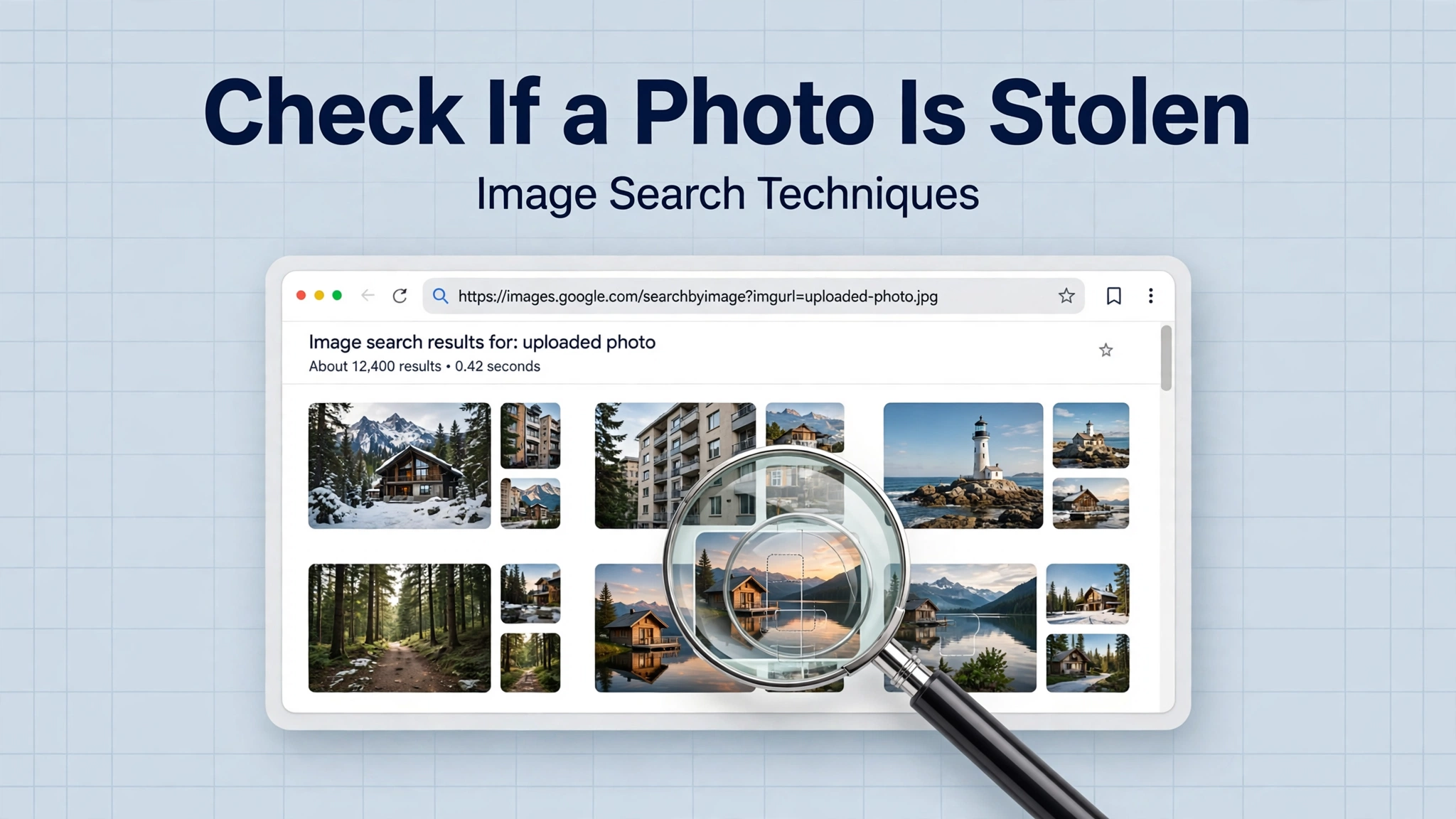
Why Check If Your Photo Is Stolen?
If you are a photographer, artist, designer or seller, your photos are your work — and they can be copied in seconds. A product photo, a portrait or a piece of artwork can be reposted on another shop, a social media account or a blog without your name, your link or your permission. You may never find out unless you go looking.
Reverse image search is the fastest way to find out where your photo appears online. It compares your image against billions of indexed pages and shows you every match it can find. A regular check — once a month, or after publishing new work — catches theft early, while the evidence is still fresh and the infringing page is still live.
Common situations where a check is worth doing:
- Your product photos appear on another shop or marketplace listing
- Your artwork or illustration is reposted without credit
- Your portrait or headshot is used on a fake profile
- Your photo appears on a blog or news site that never asked you
- A client or buyer claims your work is not original
This guide covers how to run the check, which engine finds what, and what to do when you find your photo being used without permission.
Before You Start: Use Your Original File
Search results are only as good as the image you upload. Always search with the original file from your camera, phone or design app — the full-resolution version, before any social media platform compressed it. Cropped, watermarked or re-saved copies match less reliably.
Keep these ready before you search:
- The original high-resolution file of the photo or artwork
- The date and place you first published it (your portfolio, shop, Instagram post or blog)
- A note of any watermark or signature on the image
- A screenshot of your own original post, with its date visible
If you only have the version from social media, use that — but try the original first. Our complete image search techniques guide explains how the main engines compare.
Method 1: Check with Google Lens
Google Lens has the largest index, so it is the best first check for most photos. It finds exact copies and visually similar images across the web, including on shopping sites and social media.
- Go to lens.google.com in your browser.
- Click the upload icon and choose your original photo file.
- Wait for Lens to show matching and visually similar images.
- Scroll through the results and open any page you do not recognise.
- Check whether the page credits you, links to you, or uses the photo without permission.
- Repeat with a cropped version of the photo if the first search finds nothing — a tight crop on the main subject often surfaces matches the full image misses.
On your phone, you can also open the photo in the Google app, tap the Lens icon, and get the same results. Google Lens is free and needs no account for a basic upload search.
Method 2: Check with TinEye
TinEye is built for exactly this job: finding every copy of an image on the web. It is often better than Lens at finding exact copies, including cropped, resized and slightly edited versions.
- Go to tineye.com.
- Click the upload button and choose your original photo.
- Review the list of pages where the image appears.
- Use “Sort by oldest” to see the earliest appearance — this is your strongest evidence that you published first.
- Use the “Compare” view to check whether the copy is identical or altered.
- Open any unfamiliar result and note the site name, page URL and date.
TinEye also offers a browser extension that lets you right-click any image online and search it instantly. If you want other options in the same category, read our guide to TinEye alternatives.
Method 3: Check with Yandex Images
Yandex Images often finds copies that Google and TinEye miss, especially on social media, forums and sites in Eastern Europe and Asia. It is worth running as a second check even when Lens finds nothing.
- Go to yandex.com/images.
- Click the camera icon in the search bar.
- Upload your original photo.
- Review the exact matches and the “similar images” results.
- Open any unfamiliar page and check how your photo is being used.
Yandex is particularly strong on images that have been reposted on social networks. See our full Yandex reverse image search guide for step-by-step instructions.
Method 4: Check with Bing Visual Search
Bing Visual Search is a useful extra check, especially for product photos and images used on shopping and e-commerce sites — exactly where stolen product photos most often turn up.
- Go to Bing Visual Search.
- Upload your original photo, or paste the image URL if it is hosted publicly.
- Review the visually similar images and the pages they appear on.
- Click through to any result you do not recognise and check the listing.
Bing also lets you search within a specific result, which helps when a thief has cropped your photo to remove a watermark.
Method 5: Check Pinterest and Social Media
Photos are often stolen through Pinterest and Instagram reposts. A general web search may not surface these, so check the visual platforms directly.
- Search your photo with Google Lens and Yandex first — both index many Pinterest pins.
- On Pinterest, use visual search on your own pin to see similar pins. Pinterest’s own help pages explain how visual search works: use visual search features.
- Search distinctive details of the photo — a product name, a watermark, or a unique background — as text on Instagram, Facebook and X.
- If your photo is artwork, also try a search on art sites and marketplaces where prints are sold.
For artwork specifically, our guide to reverse image search for artwork explains how to trace a painting or illustration to its source, and how to find the original artist of an image covers the same process from the other side.
Which Engine Finds Stolen Photos Best?
No single engine finds every copy. The table below compares the four main engines for checking your own photos.
| Engine | Best for | Exact copies | Free |
|---|---|---|---|
| Google Lens | Most photos | Good | Yes |
| TinEye | Exact copies | Best | Yes |
| Yandex | Social reposts | Good | Yes |
| Bing | Product photos | Good | Yes |
Run at least two engines — Lens and TinEye as a minimum, plus Yandex for social reposts. Comparing results across engines is the fastest way to be confident you have found every copy that is currently indexed.
How to Tell If a Use Is Actually Theft
Not every match is theft. Before you act, check what the page is actually doing with your photo:
- Your own reposts: your photo on your own shop, portfolio or social accounts is fine.
- Licensed use: a client or buyer with a licence may use the photo legally. Check your licence terms first.
- Credit and a link: some uses are allowed if they credit you — check what your licence or the platform rules say.
- No credit, no permission: your photo on a stranger’s shop, blog or profile with no credit is the classic sign of theft.
- Cropped watermark: if your watermark or signature has been cropped out, that is a strong sign the use was deliberate.
Do not assume theft from a thumbnail alone. Open the page, read the context, and check the date. A page that published your photo after you did, with no credit and no licence, is the case worth acting on.
What to Do If Your Photo Is Stolen
Finding your photo on another site is frustrating, but stay calm and work through these steps in order:
- Save evidence first. Screenshot the whole page showing your photo, the site name, the page URL and the date. Save the page as a PDF. Do this before you contact anyone, in case the page is taken down.
- Note your proof of ownership. Gather the original file with its creation date, the link to your first publication, and any watermark or metadata.
- Contact the site owner. Find the site’s contact page or email and send a polite, factual message: the photo is yours, here is your original, please remove it within a few days. Most small sites comply quickly.
- Report it to the platform. If the photo is on a marketplace, social network or hosting platform, use that platform’s copyright report form. These are usually faster than emailing the user directly.
- File a DMCA takedown. For sites hosted in the US, a DMCA takedown notice to the site’s host asks for removal. Google also has a copyright removal form that can remove the page from search results.
- Keep records. Save copies of every message, report and reply, with dates. If the same person steals your work again, this record matters.
- Consider legal advice for commercial theft. If a business is profiting from your work, a short consultation with an intellectual property lawyer is worth the cost.
Never threaten, harass or publicly shame the person using your photo before you have tried the steps above. A factual removal request works far more often than an angry message.
Troubleshooting: Your Photo Returns No Results
If no engine finds your photo anywhere, that is usually good news — but check these points before you relax:
- Use the original file, not a screenshot or a compressed social media copy.
- Crop to the main subject and search again. A distinctive detail, such as a face, a sign or a product, matches better than a busy full scene.
- Try Yandex if you only tried Lens. Different engines index different parts of the web.
- Search a distinctive detail by cropping to it — a logo, a tattoo, a landmark or a piece of furniture.
- Remember that very new photos may not be indexed yet. Repeat the check after a few weeks.
- A photo that only ever lived in a private chat or a private account cannot be found by any search engine — which is also why it is safer there.
No results does not prove your photo has never been copied. It only proves no indexed copy was found on that day. Repeat the check regularly, especially after publishing new work.
Privacy and Safety
This guide is about protecting your own work. Use reverse image search responsibly:
- Only search photos you own, or that you have a clear right to check — your own photos, your own artwork, your own product shots.
- Do not use reverse image search to identify a private person, stalk someone, or expose someone’s identity. That is not what this tool is for.
- Never upload private photos of other people to a public search engine.
- Be careful with photos of children. Do not upload or share them.
- Remember that uploading a photo to a search engine may store it temporarily. Avoid uploading sensitive or personal images you would not want processed by a third party.
- If you find your own photo being used without permission, save the evidence and follow the steps above — do not repost the infringing page or the other person’s details publicly.
Frequently Asked Questions
How do I check if my photo is stolen?
Upload your original photo to Google Lens, TinEye, Yandex Images and Bing Visual Search. Open any unfamiliar result and check whether the page credits you or has your permission. TinEye’s “Sort by oldest” view helps you prove you published the photo first.
Which reverse image search is best for finding stolen photos?
TinEye is best for finding exact copies, including cropped and resized versions. Google Lens has the largest index and is the best first check. Use both, plus Yandex for social media reposts, for the most complete picture.
Can I find out who stole my photo?
A reverse search shows you where the photo appears, not who uploaded it. The page URL, site name and any contact details on the page are your leads. The platform’s copyright report form is usually the fastest route to removal.
What should I do if my photo is used without permission?
Save screenshots of the page as evidence, gather your original file and first publication date, then contact the site owner and ask for removal. If that fails, use the platform’s copyright report form or file a DMCA takedown with the site’s host.
Is it free to check if a photo is stolen?
Yes. Google Lens, TinEye, Yandex Images and Bing Visual Search are all free for a basic upload search. You do not need to pay for a photo theft check.
Can someone steal my photo if it has a watermark?
Yes — watermarks can be cropped out or painted over, so they do not prevent theft. A watermark does help you prove the photo is yours, and a cropped watermark is strong evidence the use was deliberate. For stronger protection, keep the original high-resolution file and the date you first published it.
Related Guides
- Image Search Techniques: The Complete Guide
- Reverse Image Search for Artwork: Find the Artist and Original Source
- How to Find the Original Artist of an Image
- Who Took This Photo? How to Find a Photo’s Photographer
- TinEye Alternatives: Other Ways to Reverse Search an Image
- Yandex Reverse Image Search
Try the Free Reverse Image Search Tool
Want to check your own photo right now? Use our free reverse image search tool — upload your photo and search across Google Lens, TinEye, Bing, Yandex and more in one place.
