🔎 Reverse Image Search
Image search techniques made simple: upload a photo or paste a URL and search 6 engines at once. 100% free, nothing stored.
🔒 Your image is never stored on our servers longer than 24 hours and is never shared.
Someone sends you a photo and something about it looks off. A face sits slightly wrong, a background object has vanished, or the edges of the frame look too clean. If the photo came from a Samsung Galaxy phone, the galaxy ai watermark photo check can settle it in three steps: the visible mark, the Gallery credential view, and C2PA Verify. This guide shows you how to run all three, and what each result actually proves. The checks work on a photo someone sent to you. You do not need a Galaxy phone of your own for the last step.
Direct answer: Look at the bottom-left corner first. A Galaxy AI edit leaves a sparkle mark or the words “AI-generated content” there. On a Galaxy phone, swipe up in Gallery and tap the “cr” button to read its Content Credentials. Then upload the original file to C2PA Verify. A credential proves Samsung’s tools edited it. No mark and no credential prove nothing.
Galaxy AI is Samsung’s name for the AI features built into Galaxy phones, including the photo tools in the Gallery app. Content Credentials is the open C2PA standard for signed provenance metadata: a tamper-evident record inside the file that says which tool changed the image and when. The two marks answer different questions. The visible mark tells you at a glance that AI was involved. The credential tells you which tool did it, on which device, and when, and it can be checked by anyone with the original file.
What marks does Galaxy AI leave on a photo?
Samsung leaves two marks, and which ones you get depends on the phone and the software it runs. The visible mark has been there since the Galaxy S24. The signed credential arrived a year later with the Galaxy S25. Here is how they line up.
| Phone and software | Visible mark | Content Credentials |
|---|---|---|
| Galaxy S24, One UI 6.1 (January 2024) | Four small sparkle stars in the bottom-left corner | No. Metadata only, no signed C2PA record |
| Galaxy S25, S25+ and S25 Ultra, One UI 7 (January 2025) | The words “AI-generated content” in the bottom-left corner | Yes. Signed C2PA record added when a Galaxy AI tool edits the photo |
| Other Galaxy phones on One UI 7 (from August 2025) | Same as the phone’s own mark | Yes, once the Gallery app update (version 15.6.04.2) arrives. A “Contains AI-generated content” label appears with a logo button |
| Galaxy phones on One UI 8 (2026) | Samsung’s support page, updated 14 January 2026, says images generated by AI include an AI watermark in the bottom-left corner | Yes, where the Gallery credential view is available |
Only Samsung’s generative tools add these marks. The five tools Samsung named at the Galaxy S25 launch are Generative Edit, Sketch to Image, Portrait Studio, Drawing Assist and AI Sticker. Generative Edit is the one most people meet: it moves, removes or resizes objects, and it fills in the background when you expand a photo. Ordinary edits such as cropping, rotating or adjusting brightness do not add the mark. The edited photo is saved as a separate file, and the original stays in the Gallery unmarked, so the mark belongs to the edited copy, not to every version of the shot.
One more thing to know before you start: Samsung’s own support page says you need to be signed in to a Samsung account to use generative photo editing. That matters if you are testing a photo on your own phone. It does not matter if you are only checking a photo someone sent you, because the checks below need no account.
Where do you look for the galaxy ai watermark photo mark?
Start with your eyes. This is the fastest check, and it is the one most people skip because they look at the middle of the photo, where the subject is, instead of the corner.
- Open the photo full screen. Thumbnails hide the mark. Open the image at full size on your phone or computer, with the brightness up.
- Look at the bottom-left corner. On a Galaxy S24 the mark is four small sparkle stars. On a Galaxy S25 or a newer phone it is the text “AI-generated content”. Both sit in the same place: the bottom-left corner of the image.
- Zoom into the corner. The mark is small by design, and on a busy photo it can blend into a dark background. Pinch to zoom on that corner and look again.
- Check the whole frame, not just the subject. The mark tells you the photo was edited. It does not tell you which part changed, so a real-looking face can sit next to a mark that only proves the background was extended.
If you find the mark, you have your answer. The photo was edited with a generative AI tool on a Samsung phone, and the rest of this guide is confirmation, not discovery. Samsung’s own support page confirms the mark: images generated by AI include an AI watermark in the bottom-left corner. If you do not find the mark, do not stop here. The mark is the weakest of the three checks, because it sits in the corner of the picture, and a version of the photo cropped past that corner no longer carries it. Move on to the next step.
What does the Gallery credential view show?
If you have a Galaxy phone, the Gallery app can read the signed record inside the file. This is the second check, and it is stronger than the corner mark because it names the tool and the date.
- Open the photo in Samsung Gallery. This only works in Samsung’s own Gallery app, not in Google Photos or a messaging app. Google Photos has its own version of the same check for its editor: our guide to telling if a photo was edited with Google Magic Editor covers the label, the C2PA record and the reverse search.
- Swipe up on the photo. The details panel opens. On a photo with credentials, a small “cr” button appears in the image info dialog.
- Tap the “cr” button. The Content Credentials panel opens. It shows three things: whether the image contains AI-generated elements, the specific tool used for the edits, such as Photo Assist, and a history of the changes made to the photo.
- Read the history, not just the headline. The panel lists the device that edited the image and the exact date and time of the edits, so you can see whether the changes happened minutes before the photo was sent to you.
The credential view arrived with the Galaxy S25 in January 2025, and Samsung pushed it to more phones through a Gallery app update in August 2025. The update, Gallery version 15.6.04.2, brings it to phones and tablets running One UI 7. The rollout was server-side, so two phones on the same software can differ: one may show the button and the other may not, with no setting to force it. If your Gallery has no “cr” button on a photo, that tells you nothing about the photo. It may mean the phone has not received the update yet, or the photo was never edited with a Galaxy AI tool. Skip to the third check instead.
There is one honest limit to note here. When the Galaxy S25 launched, Samsung’s signing certificate had not yet been added to the C2PA trust list, the public list of issuers that verification tools recognise. Android Authority reported this at launch, and it meant verification tools could flag Samsung as an unrecognised issuer rather than a trusted one. A credential that names Samsung is still useful evidence, but an “unverified issuer” result on an older file is a quirk of the rollout, not proof the photo is fake.
What does C2PA Verify tell you that the other checks cannot?
The third check needs no Galaxy phone at all. C2PA Verify is the official verification site for Content Credentials, and anyone can use it with the original photo file. It reads the signed record inside the file and shows who issued it, which tool made the changes, and what those changes were. Our own guide to checking Content Credentials walks through the same site in detail, so this section covers only the Galaxy AI part.
- Get the original file. Ask the sender for the photo as a file, not a screenshot and not a copy saved out of a chat app. Messaging apps strip metadata, and a screenshot carries no credentials at all.
- Open C2PA Verify and upload the file. The site is at verify.contentauthenticity.org. It takes the file upload directly, with no account and no sign-in.
- Read the verdict. If the file carries a credential, the site says so and names the issuer, the tool and the edit history. If it carries none, the site says the file has no Content Credentials.
- Match the verdict to the photo. A credential naming Samsung and a Galaxy AI tool confirms the edit. A credential naming a different tool, such as Adobe Lightroom, tells you the photo was edited somewhere else entirely.
The credential is the strongest of the three checks because it is signed, which makes it much harder to fake than the ordinary EXIF data in a photo file. EXIF can be edited with any free tool. A C2PA credential is checked against a public trust list, so a forged issuer does not pass. But signed does not mean permanent. The credential lives in the file’s metadata, and metadata can be stripped. Android Authority noted at the S25 launch that removing it is trivial with a tool such as exiftool, and most apps still do not recognise credentials at all. So a credential is strong proof when it is present, and no proof at all when it is absent.
What does each result actually prove?
This is the table to keep. The three checks answer different questions, and the most common mistake is treating a clean result as proof the photo is real. It is not. A photo can pass all three checks and still be edited, because every mark Samsung adds can be lost after the photo leaves the phone.
| Check | What you look for | If you find it, it proves | If you do not find it, it proves |
|---|---|---|---|
| 1. Corner mark | Sparkle stars or “AI-generated content” in the bottom-left corner | A generative AI tool edited this photo on a Samsung phone | Nothing. The mark is in the corner, and a cropped or re-saved copy loses it |
| 2. Gallery credential view | The “cr” button in the photo details in Samsung Gallery | Which Galaxy AI tool edited it, on which device, and when | Nothing. The phone may not have the update, or the file may have been re-saved without its credentials |
| 3. C2PA Verify upload | A Content Credential naming Samsung on verify.contentauthenticity.org | The file was signed by Samsung after a Galaxy AI edit, with the edit history attached | Nothing. Credentials are metadata, and metadata is stripped by messaging apps, screenshots and many editors |
Read the table from right to left and the logic is simple: a positive result is decisive, a negative result is not. That is the honest failure mode of Samsung’s system, and it is why the three checks belong together. The corner mark catches the obvious cases in seconds. The credential view adds the tool and the date. C2PA Verify adds independent confirmation that works on any device. None of them can prove a photo is untouched, because an untouched-looking photo and a carefully re-saved edited photo look identical to all three checks.
There is one more distinction worth making. A Galaxy AI mark proves the photo was edited with Galaxy AI. It does not prove the photo is fake in the sense of being fully generated. Most Galaxy AI edits are small: a removed passer-by, a straightened frame, a filled-in edge. The mark appears whether the change was a tiny tidy-up or a whole new background. Judge the photo by what was changed, not by the mere presence of the mark, and ask the sender what they edited if the change matters to you.
How does this compare with other AI photo checks?
Samsung is not the only phone maker that marks AI edits, and the same three-step thinking applies to the others, with different marks. ChatGPT images carry both a C2PA credential and an invisible SynthID watermark, and our guide to telling whether an image was made with ChatGPT shows how to check those, including the case where OpenAI’s own Verify page fails. Grok images carry a visible corner mark of their own, and our guide to telling whether an image was made with Grok covers that mark. The pattern is the same each time: a visible mark first, a signed record second, and an honest statement about what a clean result does not prove. If you want the wider picture, our guide to telling whether an image is AI-generated puts all of these checks side by side.
Worked example: the same photo through every check
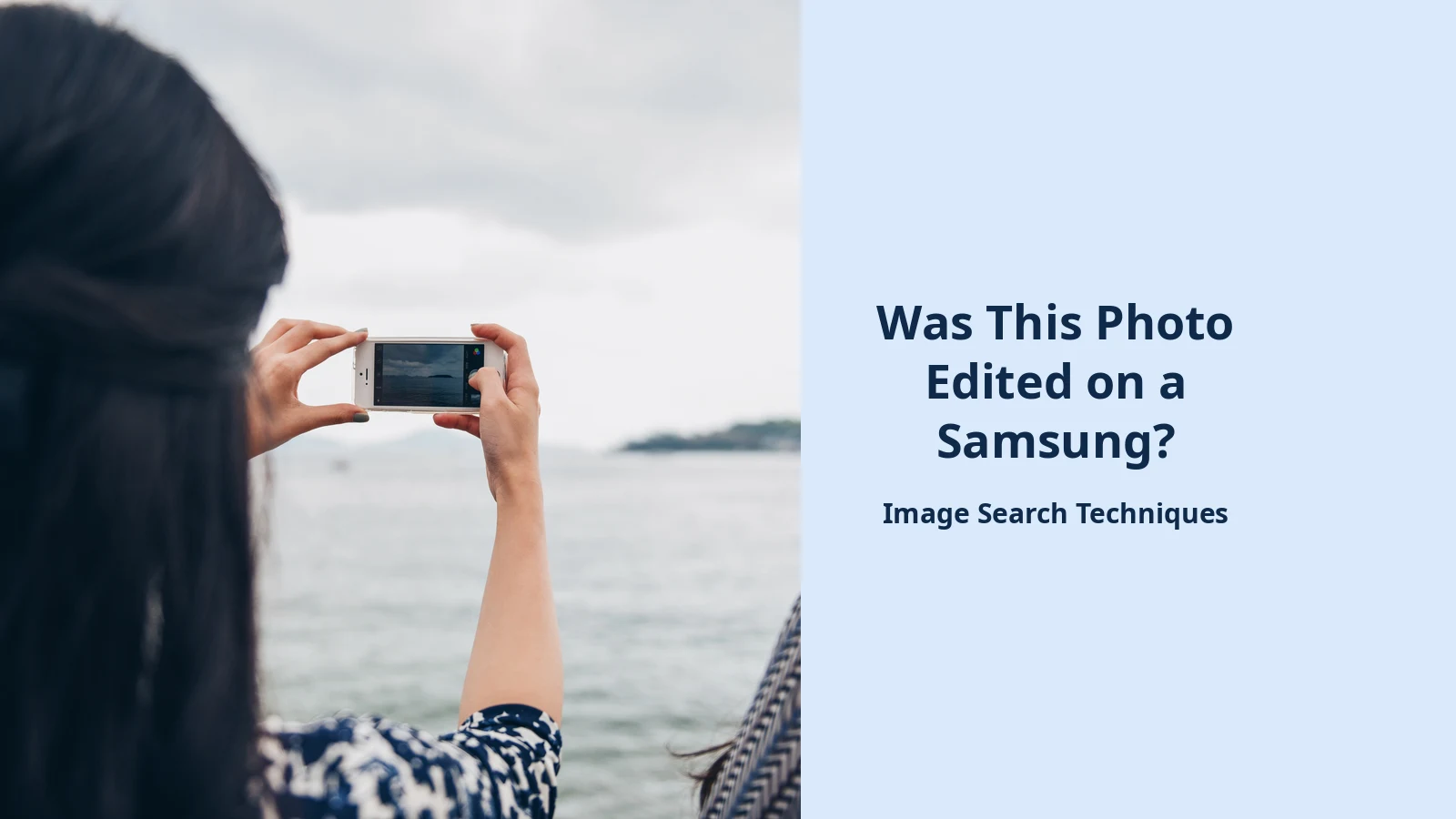
A check is only useful if it has been run on a real photo, so here is one, done on 13 November 2026. The photo is a real CC0 portrait from Wikimedia Commons: a woman seen from behind, taking a picture with her smartphone by the sea. It is 3,400 by 2,269 pixels, it was taken on 5 June 2016, and it has no Galaxy AI connection at all. That is the point. A good test photo is one with a known history, so a wrong result stands out.
First, the reverse image search. I ran the photo through the search tool on our homepage, pasting the direct Commons link. The tool’s “search all” button opened only the Google tab, so each engine was run on its own. Here is what each one did, in the order I ran them.
| Engine | Result | Found the Commons source? | Identified the person? |
|---|---|---|---|
| Google Lens | Worked. 0 exact matches, 60 visual matches | No | No |
| TinEye | Worked. 83 results of 86.7 billion images searched, first indexed 10 August 2016 | Yes | No |
| Bing | Worked. 10,500 results, 12 pages with this image | No | No |
| Yandex | Worked. 18 sizes of the image, 20 sites listed | Yes, second in the list | No |
| Failed as a visual search. Opened a keyword search for the image host domain instead | No | No |
The details matter more than the table. Lens found no exact match at all, because it auto-cropped the search area to the phone in the woman’s hands and spent its 60 visual matches on iPhone 5 reviews instead. Its AI overview identified the object as an iPhone 5, which is true of the phone but useless for the photo. Bing did worse in a different way: it described the photo as two women standing by the water, when the photo shows one woman, seen from behind. TinEye and Yandex both found the Commons source file page, with TinEye dating its first index to 10 August 2016. No engine identified the woman, which is the correct outcome for a stranger in a stock-style photo, and a useful reminder that a reverse search names objects and sources, not people, unless the person is already famous.
Then the C2PA Verify check. I uploaded the same original file to verify.contentauthenticity.org three times on 13 November 2026, twice on the first load and once after reloading the page. Each time the file attached, and each time the page showed only a red error banner reading “Something went wrong” and returned to the upload screen. No verdict was ever displayed. That is a failed check, not a clean result, and I am reporting it as one: I cannot honestly say this file has no Content Credentials, because the site never read it. If you hit the same error, reload the page and try again, and if it still fails, treat the check as not done rather than as a pass.
For contrast, here is what a successful check looks like. On the same day, our own guide to adding Content Credentials tested C2PA Verify on a real photo exported from Lightroom Classic 15.3, and the site returned a full verdict: “This asset has content credentials”, issued by Adobe Inc., with the edit history attached. That is the positive case for step three. A Galaxy AI credential would look the same, with Samsung named as the issuer and the Galaxy AI tool named in the history.
What if there is no mark and no credential?
This is the situation most readers land in, and it is the one that needs the most care. A photo arrives in a chat, it has no sparkle mark, and C2PA Verify finds nothing or will not load. Three things are true at once: the photo might be untouched, it might have been edited on a phone that does not add marks, or it might have been edited on a Samsung and then cropped, screenshotted or re-saved on the way to you. The checks cannot tell those three apart, so you need other evidence.
- Ask for the original file. The single most useful request. An original straight from the phone carries its credentials and its metadata. A screenshot or a chat-app copy carries neither.
- Run a reverse image search. If the photo turns up elsewhere, the earliest copy is usually the original, and the captions around it often say what it shows. TinEye and Yandex found the source in the worked example above where Lens and Bing did not, so run more than one engine.
- Look for the edit, not the mark. Zoom into hands, ears, text, reflections and repeating patterns. Generative edits leave small errors in exactly those places, and a careful look finds what the mark system misses.
- Ask the sender directly. A straight question, “Did you edit this with Galaxy AI?”, resolves more cases than any tool. Most people answer honestly, and a refusal to answer is information too.
Do not use the absence of a mark as an accusation or as a clearance. It is neither. It is simply the limit of the system: Samsung marks what its own tools do, on the file its own tools save, and everything after that point is outside its control.
FAQs
Does every Galaxy AI edit leave a watermark?
Only edits made with Samsung’s generative tools leave one, such as Generative Edit, Sketch to Image, Portrait Studio, Drawing Assist and AI Sticker. Ordinary edits like cropping, rotating or adjusting brightness do not add the mark. The mark appears on the edited copy that the phone saves, while the original photo in the Gallery stays unmarked.
Can a photo edited on a Samsung have no mark at all?
Yes. The visible mark sits in the bottom-left corner, so a version cropped past that corner loses it. The Content Credential lives in the file metadata, and messaging apps, screenshots and many editors strip metadata. A photo with no mark and no credential may be untouched, or it may simply have been re-saved.
What is the difference between the sparkle mark and Content Credentials?
The sparkle mark, or the words AI-generated content, is a label on the picture, added since the Galaxy S24. Content Credentials are a signed C2PA record inside the file, added from the Galaxy S25 onwards, naming the tool, the device and the date. The mark is quick to spot. The credential is harder to fake and anyone can check it.
Can I check a Samsung photo for AI edits without a Galaxy phone?
Yes, for two of the three checks. Anyone can look at the bottom-left corner for the sparkle mark or the AI-generated content text, and anyone can upload the original file to C2PA Verify with no account. Only the Gallery credential view needs a Galaxy phone. Ask the sender for the original file, not a screenshot, because screenshots carry no credentials.