🔎 Reverse Image Search
Image search techniques made simple: upload a photo or paste a URL and search 6 engines at once. 100% free, nothing stored.
🔒 Your image is never stored on our servers longer than 24 hours and is never shared.
You found a phone in a drawer, or you are looking at one in a second-hand listing, and you need its name. A photo is often all you have. The good news is that a photo is usually enough, as long as it shows the right details.
Yes. Upload a clear photo of the back of the phone to Google Lens or Yandex, then compare the camera layout, logo, buttons and ports against known models. That usually names the model family, such as iPhone 14 Pro. It will not prove the exact storage size or region variant, so check Settings if the phone is in your hand.
This guide shows you the method that works, the details that matter, and the limits you need to respect. It also walks through a real test on a photo of an iPhone 14 Pro, with honest results from each search engine, including one that never ran at all. Laptops work the same way: our identify a laptop model from a photo guide runs the same three-engine test on a real ThinkPad T480.
What can a photo actually tell you about a phone?
A photo can tell you the model family, and that is the answer most people need. The model family is the name everyone uses: iPhone 14 Pro, Galaxy S24, Pixel 8. It is the name a seller lists, the name a repair shop asks for, and the name a case is made to fit.
What a photo cannot tell you is the exact variant. Storage size, RAM, colour name on the box, and region are not visible in a photo of the back panel. Two phones can look identical from the outside and still differ inside. An iPhone 14 Pro with 128 GB looks exactly like one with 1 TB. A Galaxy S24 sold in the UK can look identical to one sold in the US. So treat a photo match as a strong suggestion of the family, never as proof of the exact variant.
Definition: model family vs exact variant. The model family is the public name, such as iPhone 14 Pro. The exact variant adds storage, memory and region, such as iPhone 14 Pro 256 GB, model number A2890. A photo can name the family. Only Settings, the box, or the receipt can confirm the variant.
That limit matters most when money is involved. If you are buying a second-hand phone, a photo match is a starting point, not a guarantee. Ask the seller for the model number from Settings and a photo of the About screen before you pay. If you are buying a case or a screen protector, the family name is normally enough, because accessories are made to fit the family.
Answer capsule: a photo names the model family, such as iPhone 14 Pro, but it cannot prove storage size or region, so confirm the variant in Settings when it matters.
What should you photograph first?
Four marks carry almost all the information. If your photo shows all four, the search engines have something solid to work with. If it shows only one, expect a vague answer.
First, the camera layout. This is the single most useful mark. Count the lenses, note their arrangement, and note the flash and sensor positions. Three large lenses in a triangle inside a square module points at a Pro iPhone. Three lenses in a vertical line points at a different family entirely. Budget phones often have two small lenses in a corner, or a single lens. The camera module is the fingerprint of the back panel, and it is the detail Google Lens and Yandex read best.
Second, the logo and any printed text. An Apple logo in the centre of the back panel narrows the field to iPhones at once. Samsung prints its name near the bottom of the back panel. Google prints a G on Pixels. Small printed text near the bottom edge sometimes gives the model name or a regulatory mark, so photograph it in sharp focus if it is there.
Third, the buttons and ports. Look at the side edges: the volume buttons, the power button, the mute switch on an iPhone, and the charging port at the bottom. A Lightning port points at an iPhone 14 or older. A USB-C port points at an iPhone 15 or newer, or at most modern Android phones. The shape and position of the port, and whether the phone has a SIM tray, all help separate lookalikes.
Fourth, the frame and the back material. A flat stainless steel edge with a frosted glass back reads differently from a curved plastic body. Colour helps too, but treat it with care: the Deep Purple of the iPhone 14 Pro is distinctive, yet a case or a poor photo can hide the true colour. Use colour as a supporting clue, never as the main one.
Take the photo in good light, fill the frame with the phone, and keep the camera module sharp. A blurry photo of a phone in a dark room gives the search engines nothing to match. If the phone is in a case, take the case off for the photo. Cases hide the logo, the camera layout and the frame, which are the very marks you need.
If the phone in the photo is a mystery object in a listing and you need a cable or a charger for it, the charging port in the photo is your first clue. Our guide to identifying a cable or connector from a photo shows how to read a port from a picture before you buy anything.
Answer capsule: photograph the camera layout, the logo, the buttons and ports, and the frame, in good light with the case off, and the search engines will have enough to work with.
How do you reverse image search a phone photo?
Reverse image search is the fastest route. You give the search engine your photo, and it finds the same or similar photos on the web, usually on pages that name the model. Two engines are worth your time here: Google Lens and Yandex Images. TinEye is a useful third check when it loads, but it often asks for a human verification step before it searches.
Before you upload, crop the photo to the phone itself. Cut out the table, the hands and the background. The search engines match best when the subject fills the frame. If the first search is vague, crop tighter still, to just the camera module, and search that crop on its own. A cropped view of the back camera bump, the frame edges or the charging port often matches better than the whole photo, because the engine stops being distracted by the background.
Follow these steps:
- Save the photo at full size. A small thumbnail or a screenshot of a photo loses the detail the engines need. If the photo is in a chat app or a listing, download the original file rather than screenshotting it.
- Open Google Lens and upload the photo, or paste its web address into the image link box. Read the visual matches first, then the exact matches. The exact matches are pages using the same photo, which often name the model in the title.
- Run the same photo through Yandex Images. Yandex is often stronger than Lens on product photos, and it shows a plain list of tags for what the image appears to contain. Compare its tags with the Lens results before you settle on a model.
- Try TinEye as a third check. It searches by the image itself rather than by words, so it can catch copies of the photo that the other two miss. If it asks you to prove you are human, complete the check and run the search again.
- Check the results against the marks in your photo. A result only counts if the camera layout, the logo and the buttons in the result match the phone in your photo. A similar-looking phone is not the same phone.
Read the results with care. Search engines guess, and their guesses include wrong answers. In the test below, Yandex named the right model and also offered a wrong one in the same breath. Treat the top result as a lead, then confirm it against the camera layout and the other marks yourself.
If you are new to the technique, our step-by-step guide to how to reverse image search covers the same method in more depth, and our Google reverse image search guide explains what Lens can and cannot do.
Answer capsule: crop to the phone, upload to Lens and Yandex, then confirm the top result against the camera layout and buttons in your own photo before you trust it.
What did a real test on an iPhone 14 Pro photo show?
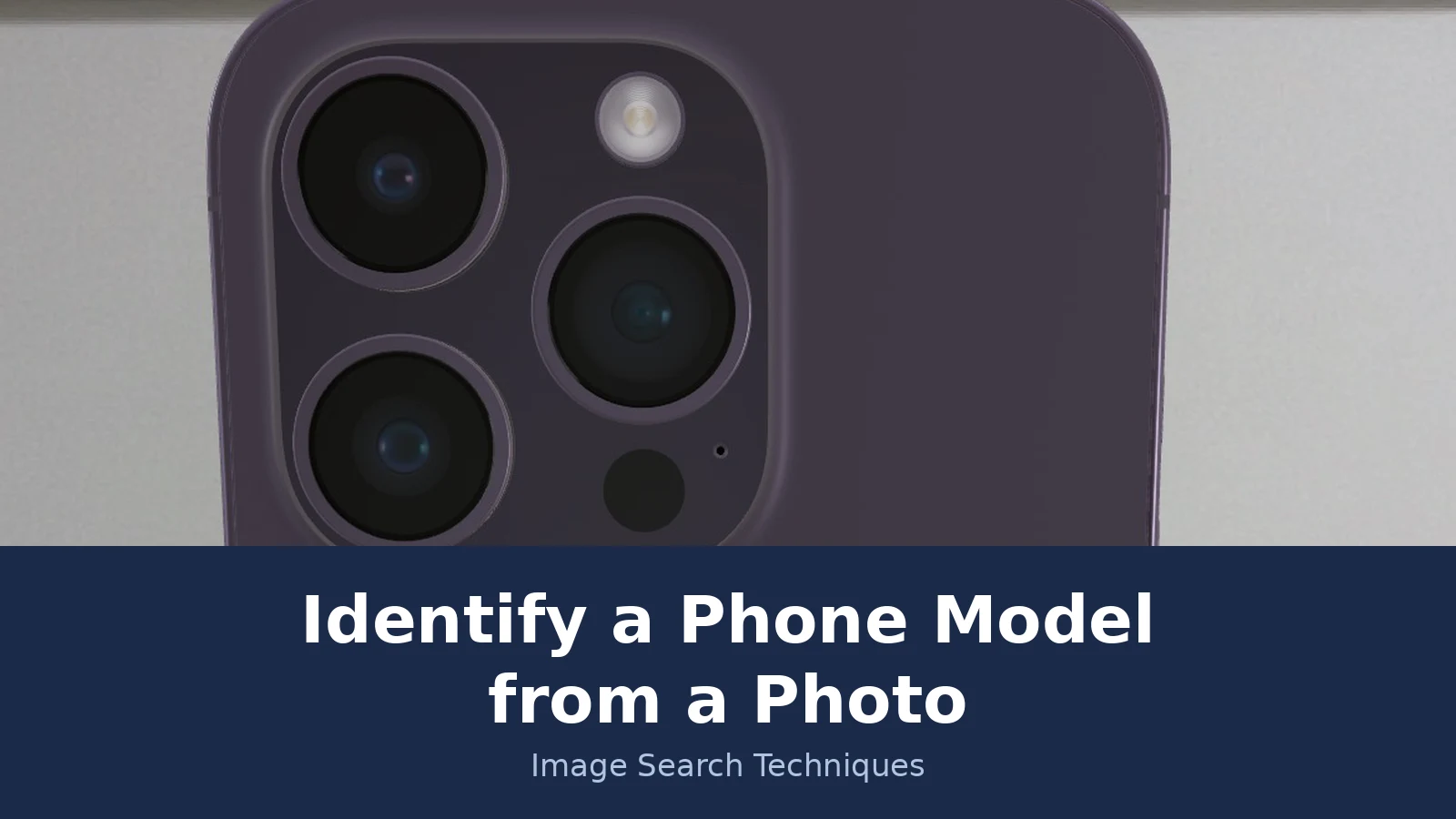
To test the method properly, I worked through a real photo rather than describing the theory. The photo is a Wikimedia Commons picture, “Back of the iPhone 14 Pro”, by Hajoon0102, published 18 September 2022 and shared under a CC BY-SA 4.0 licence. It shows the back panel of a Deep Purple iPhone 14 Pro on a light wood surface: three large camera lenses in a triangular arrangement inside a square module at the top left, a flash and a LiDAR sensor beside them, and the Apple logo in the centre of the back. It is the kind of clear, well-lit photo a seller might use, and it is a fair test of the method.
I ran the photo through three engines on 20 November 2026 and recorded exactly what each one returned.
Yandex Images did the best job. Under “Image appears to contain”, it listed “iphone 14 pro max deep purple”, “iphone 14 pro”, “back of the iphone 14 pro” and “back of iphone”. It named the right model, but its first tag was wrong: it said Pro Max, and the phone in the photo is a Pro, not a Pro Max. The two models share the same camera layout, so the mistake is easy to understand, but it shows why you must check the result yourself. The top result was an exact match, the Wikipedia page for the photo itself, and Yandex listed 8 sizes of the image, the largest 1170 by 1990 pixels, matching the source file. The first view of similar images listed 27 entries, mostly iPhone cases and parts for the 13, 14, 15 and 16 Pro and Pro Max models, plus one marketplace listing for an iPhone 14 Pro 128 GB in Deep Purple. Yandex gave no total count for similar images, so none is reported here.
Google Lens failed on this photo by link, and succeeded by file upload, and the difference matters. Lens could not fetch the photo from its Wikimedia address at all. It showed “Something went wrong, No image at the URL. Try again with a different URL or image” on both the Visual matches and Exact matches tabs, five times in a row: the original link, the same link run again, the link pasted into Lens’s own image-link box, a smaller thumbnail of the same file, and the Commons redirect address. Exact matches: 0. Visual matches: 0. That is a fetch failure, not a finding that the photo is unknown. Uploading the file itself worked at once. Lens named the phone as the back of an iPhone 14 Pro or iPhone 14 Pro Max in Deep Purple, and its About this image section named the exact source file and the colour. Lens shows no numeric totals, so the counts here are the entries loaded on screen: 400 exact matches and 60 visual matches. The exact list was dominated by cases for the 14 Pro and 14 Pro Max, and the Wikimedia source file itself stood second in it. Like Yandex, Lens could not separate the Pro from the Pro Max, because the two share the same camera layout.
TinEye did not run at all. Its search page showed a Cloudflare human-verification check, and the check failed repeatedly on two browsers, even after slow, human-like clicks and a reload. No result count, no first-indexed date and no top result can be reported for TinEye, because the search never started. That is a block, not a zero. TinEye is worth trying again another day, or from a different network, but it gave nothing on this test.
The lesson from the test is simple. No single engine is reliable on its own. Yandex named the model but added a wrong guess. Lens failed on the link and needed a file upload, and even then it could not separate the Pro from the Pro Max. TinEye never started. Run at least two engines, compare their answers, and confirm the result against the marks in the photo yourself. A photo match is a lead, not a verdict.
The table below is the check I applied to the test photo. Use it on any phone photo, mark by mark, and only accept a model name when the marks agree. The same mark-by-mark method works on other gadgets: our guide on how to identify a drone model from a photo applies it to a DJI Mavic Air 2, with a real Yandex test.
| Check | What to look for | The iPhone 14 Pro test photo |
|---|---|---|
| Camera layout | Number of lenses, their arrangement, flash and sensor positions | Three large lenses in a triangle inside a square module, flash top right, LiDAR sensor below it |
| Logo and printed text | Brand mark and its position on the back panel | Apple logo centred on the back panel, no printed model name |
| Button placement | Volume buttons, power button, mute switch, SIM tray | Not visible in this back-only photo, so this check could not be used |
| Notch or punch-hole | Front camera cutout shape, only if the front is shown | Not visible, the photo shows the back only |
| Frame and back material | Flat or curved edge, glass or plastic back, colour | Flat stainless steel edge, frosted glass back, Deep Purple |
| Model number in Settings | Settings, General, About, tap the part number to reveal the model number | Not available from a photo, this is the in-hand check below |
Four of the six checks could be read from the photo, and they all pointed the same way: a Pro iPhone from 2022, in Deep Purple. The two checks that could not be read, buttons and the front camera cutout, are the ones that would separate a Pro from a Pro Max, which is exactly where Yandex went wrong. That is the limit of a back-only photo, and it is worth knowing before you trust a result.
Answer capsule: Yandex named the iPhone 14 Pro but also guessed Pro Max, Lens needed a file upload and still could not separate Pro from Pro Max, and TinEye was blocked, so run two engines and confirm the marks yourself.
What if the phone is in your hand?
If you can hold the phone, stop guessing from photos and read the model number directly. It is the certain answer, and it takes less than a minute.
On an iPhone, open Settings, tap General, then tap About. The Model Name is shown on its own line. To the right of Model Number you will see the part number: tap it, and it changes to the model number, which starts with the letter A, such as A2890. That A-number is the exact variant, and it is the number a repair shop or a seller needs. Apple published these steps on its support site on 9 December 2025, and they are the current wording.
Do not look for the model number printed on the back of a modern iPhone, because it is not there. Apple prints the model number on the back only on an iPhone 7 or earlier, and on some iPads and iPod touch models. On an iPhone 8 or later that has a SIM tray, the model number is inside the SIM tray slot: take the tray out, work under a bright light, and read the number on the upper side of the tray. If the phone has no SIM tray, look inside the USB-C or Lightning connector, on the upper side, the side with the display. For the iPhone 14 Pro in our test photo, the model number is in Settings or on the SIM tray, not on the back.
On an Android phone, open Settings and tap About phone. The model name is listed there, usually with the model number beside it. The exact menu names vary a little between makers: Samsung calls it About phone, Google calls it About phone on Pixels, and some makers put it under About phone, then Model. If you cannot open the phone because it is locked, the model number is sometimes printed on the back near the bottom edge, or on the box and receipt if you still have them.
When you need a part for the phone, such as a battery or a screen, the model number is what matters, because parts are made for a specific model, not a family. Our guide to finding a spare part from a photo explains how to match a part once you know the model. Apple’s own support page, Find the model number of your iPhone, iPad, or iPod touch, gives the full route for every iPhone generation.
Answer capsule: if the phone is in your hand, read the model number in Settings, because that is the exact variant, and no photo can beat it.
Can EXIF data name the phone in the photo?
Partly, and the distinction matters. EXIF data is the information a camera writes into a photo file: the camera make and model, the date, and sometimes the location. It describes the camera that took the photo, not the phone shown in the photo.
That means EXIF helps in one case and not in the other. If you have a photo that the mystery phone itself took, for example a picture stored on the phone, its EXIF data names that phone as the camera. If you have a photo of the phone taken by someone else, the EXIF data names the other person’s camera, which tells you nothing about the phone in the picture. A photo of an iPhone taken on a Samsung phone has Samsung in its EXIF data, and that is correct, because the Samsung took the photo.
There is a second limit. EXIF data is often stripped. Chat apps, social media sites and email services routinely remove it when a photo is uploaded or sent. A photo saved from a listing or a chat usually arrives with no EXIF data at all. So check it when you have the original file, but do not rely on it. On a Windows computer, right-click the file, choose Properties, then Details. On a Mac, open the photo in Preview and choose Tools, then Show Inspector. Free metadata viewer sites can read it too, but only upload a photo you own.
Answer capsule: EXIF names the camera that took the photo, so it helps only when the photo came from the phone itself, and it is often stripped by chat apps and social media anyway.
What should you never do when identifying a phone?
Four lines you should not cross, even when you are trying to help.
First, never share an IMEI number in public, and never use one to identify a phone’s owner. The IMEI is the unique serial number of the handset, and it is printed on the box, on the SIM tray and in Settings. It can identify the exact handset, which is why it is sensitive. Do not post it on a forum, do not type it into a random lookup site, and do not use it to try to find who owns a phone. The owner of a lost phone is found through the police or the network, not through the IMEI.
Second, if you found a lost phone, hand it in. Take it to the police or to the lost property office where you found it, such as a shop, a station or a university reception. Do not try to unlock it, do not browse its photos or messages, and do not try to identify the owner from the photos on it. A photo of a person is not a route to their identity, and a visual match is never proof of who someone is. The right thing is simple, and it protects both you and the owner.
Third, do not confuse this with camera fingerprinting. There is a research technique called PRNU, which identifies the individual handset that took a photo from tiny sensor patterns in the image. That is a forensic method, it needs specialist software, and it answers a different question: which exact handset took this photo. It does not name the model of a phone shown in a photo, and this guide does not use it.
Fourth, do not pay for an answer you can get free. One identifier tool we checked offers a first identification free, then charges 6.99 US dollars a year for unlimited identifications, and claims support for more than 14,000 phones with over 95 percent accuracy. Those are its own claims, not verified results, and the tool gives no worked example of a phone it has identified. A free reverse search on Lens or Yandex, plus the marks in this guide, will usually give you the same answer without a subscription.
The same method in this guide works for more than phones. Consoles work the same way: our guide to identify a games console model from a photo shows how to read the shell, the ports and the label code on a Switch, a PlayStation or an Xbox. Headphones work the same way too: our guide to identify a headphone model from a photo shows how to read the cups, yoke and label code. If you want to put it to work on other objects, our guide to finding an item by image shows the same steps applied to anything you can photograph.
Answer capsule: never share an IMEI in public, never browse a found phone, hand it to the police, and do not pay for an answer a free reverse search gives you.
FAQs
Can Google Lens identify a phone model from a photo?
Yes, when it can fetch the photo. Upload a clear photo of the back of the phone, or crop to the camera module, and Lens returns visual and exact matches that often name the model. In our test, Lens could not fetch the photo from its Wikimedia address, so it returned nothing. Try a file upload when a link fails.
How do I identify a phone model from a photo of the front only?
Read the front camera cutout, the bezel width and the screen shape. A pill-shaped cutout points at a recent Pro iPhone, a single round hole points at many Android phones, and a notch points at an older iPhone. The front alone is weaker evidence than the back, so confirm it with the model number in Settings when you can.
Can I identify a phone model from its IMEI number?
An IMEI identifies the exact handset, and lookup sites can read the model from it, but you should not share an IMEI in public or type it into a random site. It is sensitive, like a serial number. Use the model number in Settings instead, and never use an IMEI to try to find a phone’s owner.
Where do I find the model number on an iPhone?
Open Settings, tap General, then tap About. The Model Name is shown on its own line. To the right of Model Number you will see the part number: tap it and it changes to the model number, which starts with the letter A. On an iPhone 8 or later, the number is also inside the SIM tray slot.
Why does reverse image search return no matches for my phone photo?
Usually because the photo is too new, too blurry, or the engine could not fetch it. Search engines can only match photos they have already indexed, so a photo taken minutes ago has no matches yet. Crop to the camera module, upload the file itself rather than a link, and try a second engine before you give up.
I found a lost phone. Can a photo identify its owner?
No, and you should not try. A photo of a person is not proof of identity, and browsing a found phone’s photos or messages is not your job. Hand the phone to the police or to the lost property office where you found it. If it rings, answer it: the owner may be calling their own phone.