🔎 Reverse Image Search
Image search techniques made simple: upload a photo or paste a URL and search 6 engines at once. 100% free, nothing stored.
🔒 Your image is never stored on our servers longer than 24 hours and is never shared.
Yes. Right-click any photo in Brave and choose Search Image with Google, and Brave opens Google’s results in a side panel. If that menu item is missing, open lens.google.com in Brave and upload the photo instead. Brave Search itself has no reverse image search.
Brave is a privacy-first browser, so it is natural to ask whether reverse image search on Brave browser is private too. The honest answer is mixed. Brave blocks trackers and ads on the pages you visit, but a reverse image search still sends your picture to whichever search engine runs it. Brave Lens sends it to Google. That trade-off is the whole story of this guide: how to use the built-in route, what to do when it is missing or broken, and which alternative keeps the most of your privacy.
This guide was written in November 2026 against the current Brave build. Menu wording in Brave changes between versions, so where a label has changed over time, this article says so instead of pretending there is only one version.
What is Brave Lens, and what does it search with?
Brave Lens is Brave’s name for the image search built into the browser. It is the same Lens technology that Chrome uses, reached from Brave’s own right-click menu. Brave’s own issue tracker confirms the link: issue 21512 is titled “Google Lens shows as Brave Lens”, filed as a branding issue. When you use it, Brave sends the picture to Google Lens and shows you Google’s results: visually similar images, pages that carry the same photo, and matches for objects, text or products inside it.
Brave Lens: the reverse image search feature built into the Brave browser. It appears in the right-click menu on desktop and in the long-press menu on mobile, and it runs the search through Google Lens.
That last point matters. Brave Lens is not a Brave search engine. Brave Search is a separate product with its own index, and it does not offer reverse image search at all. We cover that split in the section on Brave Search below, because it confuses a lot of Brave users. If you are new to the whole idea, our guide to how to reverse image search explains the basics first.
Answer capsule: Brave Lens is Brave’s built-in route to Google Lens, not a Brave-made search engine, so its results are Google’s results.
How do I reverse image search on Brave browser?
The built-in route takes about ten seconds once you know where to look.
- Open the web page with the photo in Brave on your computer.
- Right-click the photo. A menu appears.
- Choose Search Image with Google. That is the current wording on recent builds. The label has changed over the years: in 2022 it read “Search image with Brave Lens”, then “Search Google for image”, and by July 2026 it had become “Search Image with Google”. Older guides that call it Brave Lens are describing the same feature under its old name.
- Brave opens a Lens panel on the right side of the window. It shows visually similar images, pages that use the same photo, and any text or objects Lens recognised.
- Drag the corners of the crop box to search for one part of the photo only. This helps when the picture is a screenshot with several things in it, or when you want to check one face, logo or product.
- Click a result to open the page it came from, or click the exact matches tab to see only pages carrying the same image.
If you would rather search a photo saved on your computer, you do not need the right-click route at all. Open lens.google.com in Brave, click the upload icon, and choose the file. That is the same Google Lens service, reached directly instead of through Brave’s menu. We compare the two routes in the table near the end of this guide.
Answer capsule: right-click the photo, choose Search Image with Google, then crop the Lens panel to the part you care about.
What if Brave Lens is missing from the right-click menu?
This is the most common Brave problem, and it has more than one cause. Work through them in order.
Your default search engine is not Google. In Brave, the image search menu item has always been tied to Google. A 2020 ghacks guide put it plainly: the “Search Google for image” entry only appeared when Google was the default search engine, and switching to another search engine removed it. If you set Brave Search or DuckDuckGo as your default, the Lens entry can vanish from the menu. To bring it back, go to Settings, then Search engine, and set Google as the default. If DuckDuckGo is your daily search engine, note that DuckDuckGo has no reverse image search of its own, so the photo has to be saved and uploaded to Lens, TinEye or Yandex instead. You can switch back afterwards, though the menu item will go with it.
The menu item is broken on your build. Brave users have reported the right-click image search failing outright. One open Brave issue, number 45941, is titled “google reverse image search broken”, and a second, number 57455, reports that the “Search Image with Google” right-click option leads to a 404 page. In Brave 1.92.141 the option opened google.com/searchbyimage/upload, which returned a 404 because Google had retired that old Search by Image system. Brave fixed it in version 1.93, released in July 2026, by routing the menu item to lens.google.com/uploadbyurl instead, and the fix passed QA on Brave 1.93.129. If your menu item is there but clicking it lands on an error page, update Brave first. If the update does not fix it, use the Lens website route in the next section while you wait for a fix.
The site blocks right-click. Some sites replace the browser’s own right-click menu with their own, and that menu has no Lens option. Save the image first, then upload it at lens.google.com, or use TinEye. If the site also blocks saving, take a screenshot and upload that instead. A screenshot works fine for Lens, though a cropped screenshot of the photo alone gives cleaner results than a full-screen capture.
You tried to turn Brave Lens off. A whole family of “how to disable Brave Lens” articles walks people through switching it off in settings or flags. The honest position is that there is no clean built-in switch for it. When Brave users asked for a disable route in March 2022, in GitHub issue 21442, Brave staff found the flags did not disable it either, and the request ended with the menu being renamed instead of a switch being added. If you followed one of those guides, check brave://flags for a Lens entry, but do not be surprised if turning it off changes nothing. Brave’s own Help Center has no dedicated Brave Lens article at all, which is part of why the disable guides disagree with each other.
Answer capsule: a missing Lens entry usually means Google is not your default search engine, or the feature is broken on your build, and both have a workaround in the next section.
How do I reverse image search in Brave without Brave Lens?
Nothing here needs an extension, and nothing needs you to leave Brave. These are the four routes that work today, in order of usefulness.
1. Google Lens website
Open lens.google.com in Brave. Click the upload icon and choose a file from your computer, or paste an image address into the search box. Lens returns the same results Brave Lens would have shown, because it is the same service. This is the best fallback when the right-click menu is missing or broken.
2. TinEye
Open TinEye in Brave and upload the photo or paste its address. TinEye is a dedicated reverse image search engine, and it is the best of the four at one job: finding the oldest copy of a photo on the web. It tells you how many results it found and when it first saw the image, which Lens does not. Use TinEye when you want to know where a photo first appeared, or whether a photo is older than the story using it. Our guide to reverse image search without Google walks through TinEye in more detail.
3. Yandex Images
Yandex is strong on faces and on photos from outside the English-speaking web, and it often finds matches Lens misses. Upload the photo at yandex.com/images. Yandex shows similar images in a grid, with filters for size, orientation and colour. It asks for a bot check more often than the others, so expect an extra click.
4. Bing Visual Search
Open bing.com, click the image search icon, and upload the photo. Bing Visual Search is good for products and shopping matches, and it handles screenshots well. It is a weaker choice for finding the original source of a news photo.
5. A reverse image search extension
Brave is built on Chromium, so extensions from the Chrome Web Store install in it, and a reverse image search extension adds the right-click search back with your choice of engine. This is the route Google’s own AI Overview suggests for Brave users. Pick an extension with a large user base and recent reviews, and check which engines it sends your photos to before you install it. Stick to well-reviewed extensions: a May 2026 Brave Community thread reported that one suggested extension, QuickLens, had been removed from the store as malware.
Routes 1 to 4 need no extension and no change of default search engine. The Chrome guide covers the same Lens routes in Chrome, where the menu wording is “Search image with Google Lens” and the feature is on by default.
Answer capsule: lens.google.com gives you the same results as Brave Lens, TinEye finds the oldest copy, and Yandex catches matches the others miss.
How do I reverse image search on Brave for Android and iPhone?
On a phone there is no right mouse button, so the gesture changes but the idea does not. Long-press the photo until a menu appears, then choose the image search option from it. On Brave for Android the menu item reads “Search image with Google Lens”, as shown in a screenshot from a Brave user in July 2026. Note that it says Google Lens, not Brave Lens: on mobile Brave does not rebrand the entry the way it does on desktop. A Brave Community thread about the same menu calls the option “Search by image” in its title, so the label may vary by version. The search opens in a new tab, and you can crop the image the same way as on a computer.
On Brave for iPhone we could not verify the exact wording at write time, because no Brave iOS source for the long-press menu turned up in our checks. There is a separate iPhone problem worth knowing about: an open Brave issue from May 2025 reports that using Google Images’ Lens function in Brave on iOS triggers a prompt to install the Google app instead of showing a file-upload dialog, and the same happens in mobile Safari. Brave Support has said this is Google’s change on mobile, not something Brave controls. If you hit the app prompt on iPhone, upload the photo at lens.google.com in Brave instead, or use TinEye, which does not ask for the Google app.
One Android bug is worth knowing about. In July 2026 a Brave user on Android 16 with Brave 1.92.144 reported that tapping “Search image with Google Lens” in the long-press menu opened google.com/searchbyimage/upload, which returned a Google 404. Brave Support called it a known issue and linked it to the same desktop 404 bug, and the thread was closed in August 2026 once the fix had landed. If the menu item is there but lands on an error page, update Brave first. The upload route at lens.google.com is the workaround until the fix reaches your build.
For a photo already saved on your phone, open lens.google.com in Brave, tap the upload icon, and choose the photo from your gallery. TinEye works the same way from its mobile site. Both are usable on a small screen, though cropping a photo precisely is easier on a computer.
One limit is worth knowing. If you open a photo from your own gallery in Brave and long-press it, the image search option may not appear, because the browser treats a local file differently from a photo on a web page. Upload it through the Lens or TinEye site instead.
Answer capsule: long-press the photo and pick the image search option, or upload the saved photo at lens.google.com if the menu does not offer it.
Does Brave Search do reverse image search?
No. This is the point that trips up most Brave users, so it deserves a straight answer. Brave Search has its own image search, but it is a keyword search, not a reverse search. You type words and it shows pictures. You cannot upload a photo, or paste an image address, and ask it to find the same photo elsewhere.
Brave launched its own independent image and video search in August 2023, serving results from its own index instead of Google or Bing. That was a real step for privacy, and Brave wrote about it on its own blog. But an independent index of pictures is not the same as a reverse image search. The launch covered searching for images by words. It did not add a search-by-image button, and as of November 2026 there still is not one on Brave Search. Developers get a separate route: Brave also offers a Brave Search API with an image search endpoint, but it searches by keywords, not by uploading a photo, so it is not a reverse image search for readers. Brave users have asked for it: there is an open feature request on the Brave Community forum titled “Search by Image” asking for exactly this, and for a custom search engine option alongside it.
So if your default search engine in Brave is Brave Search, and you want to reverse search a photo, you have two honest options. Use Brave Lens, which sends the photo to Google, or use one of the other engines in the section above, which sends it to TinEye, Yandex or Bing. There is no route that keeps the photo inside Brave’s own index, because that route does not exist yet.
Answer capsule: Brave Search finds images by keywords from its own index, but it has no upload or search-by-image route, so every reverse search in Brave goes to another engine.
Brave Lens vs Google Lens vs TinEye: which result is best?
The short answer is that Brave Lens and Google Lens are the same search wearing two different menus, while TinEye is a different search with different strengths. The table below sets out the difference.
| Route | What runs it | Best for | Shows exact-match count | Needs Google as default |
|---|---|---|---|---|
| Brave Lens (right-click) | Google Lens | Fastest check on a photo already open in Brave | No | Yes, on some builds |
| lens.google.com | Google Lens | Saved photos, and when the right-click menu is broken | No | No |
| TinEye | TinEye | Oldest copy of a photo, and first-seen dates | Yes | No |
| Yandex Images | Yandex | Faces, and photos from outside the English-speaking web | No | No |
| Bing Visual Search | Bing | Products and shopping matches | No | No |
That table is theory. The worked example below is the real test: one photo, run through Brave Lens and TinEye on 19 November 2026, with the numbers as each site showed them.
The worked example: a BBC News photo of three leaders
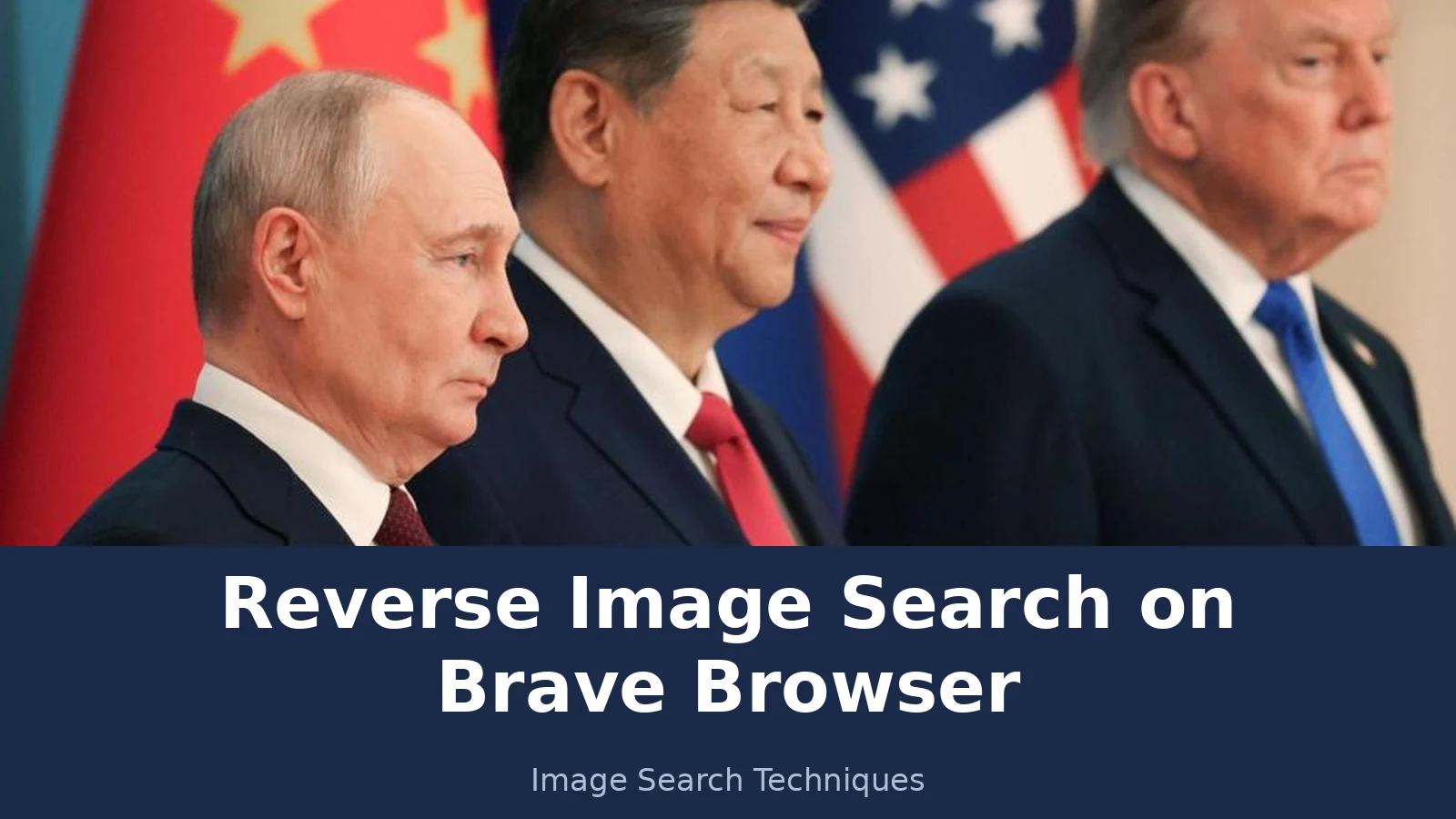
The photo is from the BBC News homepage on 19 November 2026, illustrating the story “Trump, Putin and Xi release ‘peace declaration’ after historic meeting”. It shows Vladimir Putin, Xi Jinping and Donald Trump standing side by side, with the Chinese and American flags behind them. It is exactly the kind of photo people reverse search: a dramatic news image that looks too neat to be real, and that you want to trace to its source before you share it.
Google Lens read the photo at once. Its AI Overview named all three men and described the scene as their first-ever trilateral meeting at Kylin Villa in Shenzhen, on 19 November 2026, on the sidelines of the APEC summit. That description is Lens’s own, and we did not independently verify the meeting details. Lens showed no numeric total for either list, so we counted the tiles that loaded: 400 exact matches and 60 visual matches. The exact matches were dominated by news outlets carrying the same photo around the world: TIME, the BBC, the South China Morning Post, GB News, CBC and India Today among them. The visual matches list included TIME, Yahoo Singapore, SowetanLIVE, The Spectator, The Mirror, Hindustan Times, Moneycontrol, The Week, Philenews, AOL, India Today and Firstpost.
TinEye found nothing at all. It reported 0 matches after searching over 86.8 billion images, with the note that it had probably not yet crawled any page carrying the image. We ran the search twice, once by the image address and once by uploading the file itself, and both gave the same zero. That is not a failure of the method. The photo was published the same day, and TinEye’s index had not caught up with it yet. A zero from TinEye on a same-day news photo means “not yet indexed”, not “this photo does not exist”. Run the same search a week later and the result will look very different.
The lesson is practical. Lens is the better tool for a photo published today, because Google indexes news photos within hours. TinEye is the better tool for an older photo, because it keeps first-seen dates and finds the earliest copy. Run Lens first for news, TinEye first for history, and both when the answer matters.
Answer capsule: Brave Lens and Google Lens give the same answers because they are the same service, so run TinEye second when you need the oldest copy or a first-seen date.
Is reverse image search on Brave private?
Partly, and the part that is not private is the part that matters. Brave blocks third-party trackers, fingerprinting and ads on the pages you visit, and that protection stays on while you browse. But a reverse image search is not browsing. It is you handing a photo to a search engine and asking what it knows about it.
When you use Brave Lens, the photo goes to Google, because Brave Lens is Google Lens. Google receives the image, and its privacy policy applies to that upload, not Brave’s. The same is true of every fallback in this guide: TinEye receives the photo when you use TinEye, Yandex receives it when you use Yandex, and Bing receives it when you use Bing Visual Search. There is no version of reverse image search that finds a photo’s history without showing the photo to somebody.
That does not make the feature useless for private people. It makes the choice a practical one. If the photo is a product shot, a meme or a news image, the privacy cost is small. If the photo is personal, a photo of your child, your home or your documents, do not upload it to any reverse search engine. Crop it first if only part of it matters, and use TinEye rather than Google if you want the engine with the smallest data footprint. Our guide to whether reverse image search is safe covers the risks in more detail, including what happens to photos after you upload them.
Answer capsule: Brave protects your browsing, but every reverse search sends the photo to the engine that runs it, so keep personal photos out of all of them.
How does Brave compare with other browsers for reverse image search?
Brave sits in the middle of the pack. Chrome has the smoothest Lens integration, because Lens is Google’s own feature and Chrome is Google’s own browser. Edge has its own built-in route, Visual Search powered by Bing, which appears in the right-click menu without any change of default search engine. Brave’s route works well when it works, but it depends on Google being the default search engine on some builds, and it has a record of breaking, as the two GitHub issues above show.
That said, Brave has one advantage the others do not. Because it is built on Chromium, every web-based route works in it: Lens, TinEye, Yandex and Bing all run fine in Brave, and the Edge guide shows the same pattern from the other side, with Bing doing the work instead of Google. If Brave Lens breaks for you, you lose one menu item, not the ability to reverse search. The fallback routes in this guide are the same ones you would use in any browser.
There is also very little to beat. No exact-match text guide to this keyword exists: the closest existing guide is an 88-second YouTube video from December 2025, and everything else on the first page is forum threads, feature requests and Brave’s own product pages. Brave’s own Help Center has no Brave Lens how-to at all. That gap is why this guide exists.
Answer capsule: Chrome’s Lens integration is smoother and Edge’s Visual Search is independent, but Brave loses nothing important when its menu item breaks because the web routes still work.
FAQs
Can you reverse image search on Brave browser?
Yes. Right-click any photo in Brave and choose Search Image with Google. Brave opens Google’s results in a side panel, where you can crop the photo to search one part of it. On a phone, long-press the photo and choose the image search option. If the menu item is missing, open lens.google.com in Brave and upload the photo instead.
What is Brave Lens?
Brave Lens is Brave’s name for the image search built into the browser. It is Google Lens under a Brave label: Brave’s own issue tracker lists it as a branding issue, “Google Lens shows as Brave Lens”. When you use it, Brave sends the photo to Google and shows Google’s results. It is not a separate Brave search engine.
Why is Brave Lens missing from my right-click menu?
The cause is your default search engine. Brave’s image search menu item only appears when Google is the default, so switching to Brave Search or DuckDuckGo can remove it. Check Settings, then Search engine, and set Google as the default. It can also be broken on your build, or hidden by a site that blocks right-click.
Does Brave Search do reverse image search?
No. Brave Search finds images by keywords from its own index, built to stop relying on Google or Bing. It has no upload button and no search-by-image route, and as of November 2026 there still is not one. Until it arrives, every reverse search in Brave goes to Google, TinEye, Yandex or Bing.
Is reverse image search on Brave private?
Not fully. Brave blocks trackers and ads while you browse, but a reverse search is different: you hand the photo to a search engine. Brave Lens sends it to Google, TinEye receives it when you use TinEye, and so on. Keep personal photos out of every reverse search engine. Crop the photo first if only part of it matters.
Why does Brave Lens open a 404 page?
This is a Brave bug, not something you did wrong. Brave issue 57455 reports the right-click “Search Image with Google” option leading to a 404, and on Android the long-press entry has opened a Google 404 too. Update Brave to the latest version first. If it still fails, use lens.google.com in Brave, which runs the same search without the menu.