🔎 Reverse Image Search
Image search techniques made simple: upload a photo or paste a URL and search 6 engines at once. 100% free, nothing stored.
🔒 Your image is never stored on our servers longer than 24 hours and is never shared.
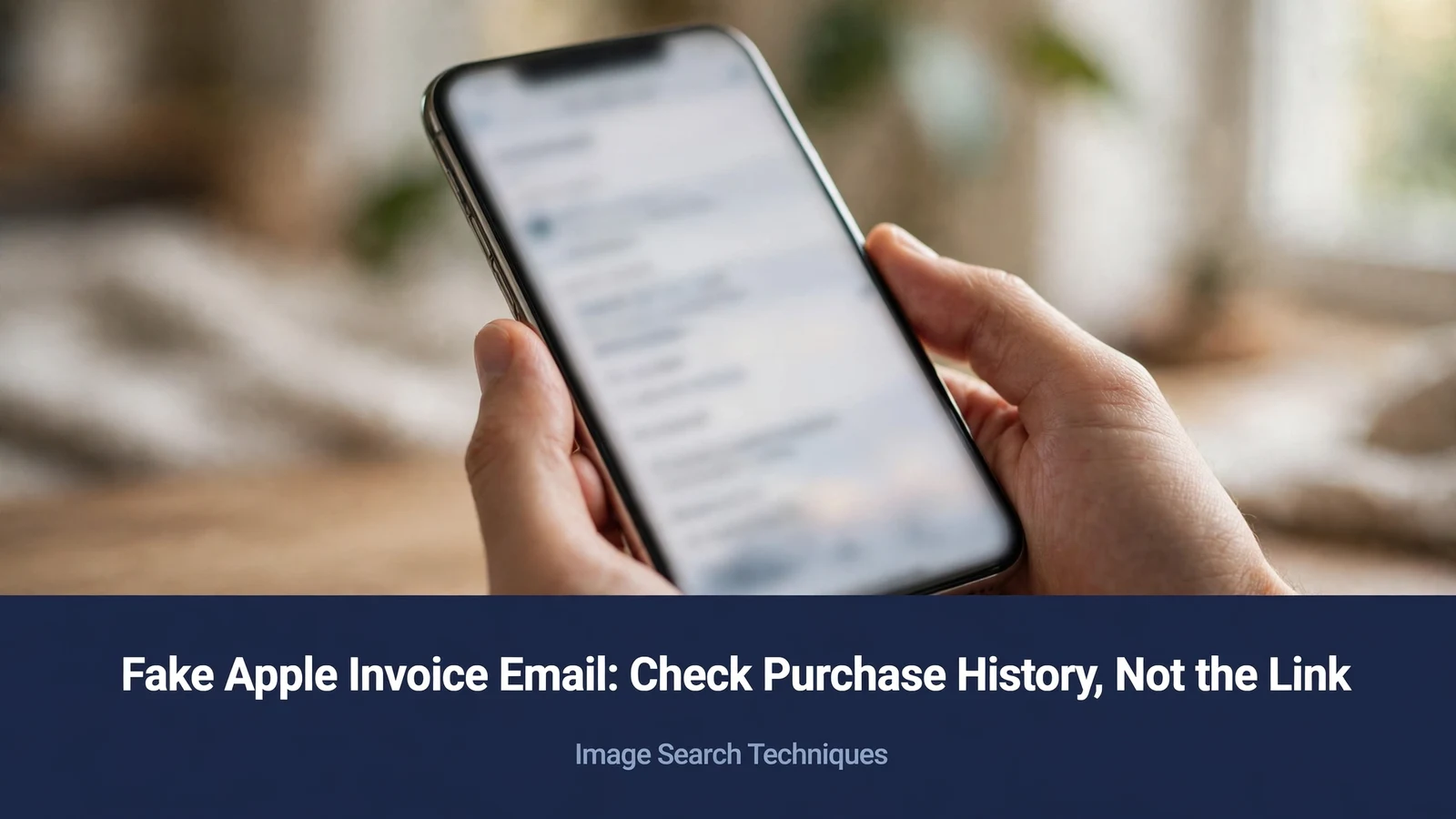
You did not buy anything, yet an email says Apple just charged you $129.99 for Premium Cloud Storage. Your first instinct is to click the button and sort it out before the money leaves your account. That click is exactly what the scammer wants. This guide shows you how to check the charge in your own purchase history and spot the fake in under a minute, using a real published example.
The short answer: A fake Apple invoice email is a phishing message dressed up as an App Store receipt. It claims you were charged for a purchase or subscription you never made, then pushes you to click a Cancel and Refund link or call a number. Do not click anything in it. Open your purchase history in Settings on your own device instead. If the charge is not listed there, the email is fake.
What a fake Apple invoice email looks like
A fake App Store receipt is built to look ordinary. It copies the layout of a real App Store receipt closely enough that a quick glance will not catch it: the Apple logo, a tidy table of items, a total, and a button at the bottom. The pressure is the giveaway, not the design. Apple receipt phishing works because the email arrives looking like routine admin, not like a threat. A real receipt tells you what you bought. A fake one tells you to act now, or the money is gone.
The pattern is almost always the same. The subject line names a receipt or an invoice, often with a price in it. The body shows one purchase you do not recognise, usually a yearly subscription. Then comes the hook: a Cancel and Refund button, or a phone number to call to stop the charge. Everything in the email exists to get you to that button or that number. That is where the theft happens. The link opens a cloned Apple sign-in page that records your login and card details, and the number connects you to someone pretending to be Apple Support. That is how the Apple invoice scam pays: not through the fake charge, but through the login and card details the link collects.
Read the email the way Apple itself suggests, field by field. The table below is the check to run on any receipt email before you touch a link in it.
| Field | What a real Apple receipt shows | What the fake usually shows |
|---|---|---|
| Sender | An address at apple.com | A look-alike domain, a random string of characters, or a free mailbox dressed up with Apple’s name |
| Greeting | Your name as it appears on your account | A generic greeting, or your email address where your name should be |
| Billing address | Your current billing address, printed on the receipt | No billing address at all, or an address that is not yours |
| Purchase | An item that also appears in your purchase history | A subscription or app you never bought, with no matching entry anywhere |
| Button or link | No urgent cancel button; receipts do not ask you to act | A Cancel and Refund button, or a link to dispute the charge, with a deadline attached |
| Ask | Nothing. A receipt is a record, not a request | Your password, a code sent to your phone, card details, or a call to a support number |
Two nearby scams are easy to confuse with this one, and they need different checks. A locked-account email claims your Apple Account has been closed and asks you to unlock it, which is a different artefact from a receipt, and our guide to the fake Apple ID locked screenshot covers that one. A renewal notice warns that a subscription is about to expire, which is again different from a receipt for a charge already made. The same confusion applies to a fake Apple subscription email, which warns about a renewal rather than a charge already made, and our fake Spotify renewal email check shows how that pattern works. A suspension warning sent by text is different again, and our fake Apple Pay suspended text check covers the text version. This article owns the receipt email only: a charge that supposedly already happened, and a button or number offered to undo it.
If you want the wider picture of how these messages work, start with our complete guide to photo and message scams, which puts the receipt email alongside the other common versions.
The 60-second check: your purchase history decides it
Every other check in this article is useful, but only one settles the question. A genuine Apple purchase always appears in your Apple purchase history. A fake one never does. The check takes under a minute, and you do it on your own device, never through anything in the email.
On an iPhone or iPad, open Settings, tap your name at the top, then tap Subscriptions to see every active subscription, or open the App Store, tap your profile picture, then tap Purchase History to see every charge. That is how you check Apple purchases without touching anything in the email. On a Mac, open the App Store, click your name, then open Account Settings and look for Purchase History. On any computer, type reportaproblem.apple.com into your browser yourself, sign in with your Apple Account, and open your purchase history there. That address is Apple’s own refund and purchase-history page, and typing it yourself is the whole point: no link in a suspicious email should ever be the way in.
Look for the exact item and the exact amount from the email. If it is not listed, the email is fake, and you can delete it. If it is listed and you still do not recognise it, check two things before you assume fraud. First, look at Family Sharing: a family member’s purchase appears under the family organiser’s payment method and can surprise you. Second, check for a forgotten subscription or a free trial that rolled into a paid plan. Real charges have a paper trail in your account. Fake ones have only the email.
Apple’s own guidance backs this up. Genuine purchase receipts from the App Store, iTunes Store, iBooks Store or Apple Music include your current billing address, which scammers are unlikely to have. Apple also says you can review your purchase history to confirm any receipt, and its support page on identifying legitimate App Store emails lists exactly what a real receipt contains and what it never asks for. If the email fails the purchase-history check, no other detail in it can save it.
Five tells that give the fake away
The purchase-history check is the settler, but the tells below are what should make you run it. A real receipt shows none of them.
1. No billing address. This is the simplest tell and the one Apple itself names first. A genuine Apple receipt prints your current billing address. Scammers do not have it, so their receipts leave it out or print an address that is not yours. Open any real receipt in your inbox and compare. The fake will look thinner in exactly that spot.
2. The sender is not Apple. The display name will say App Store or Apple, because display names are free to fake. Tap the sender name on your phone, or hover over it on a computer, to see the real address. Real Apple receipts come from addresses at apple.com. Fakes come from look-alike domains with extra words or swapped letters, or from random strings of characters. If the address is not Apple’s, the email is not Apple’s.
3. Urgency and a deadline. Cancel within 24 hours, or the charge goes through. Dispute this now, or your account will be locked. Apple does not write like this. A real receipt is a record of something that already happened, and it does not need you to do anything at all. Urgency is the scammer’s tool: it stops you thinking long enough to check. The moment an email tells you to hurry, slow down.
4. It asks for things Apple never asks for by email. Apple never asks you by email for your password, your device passcode, a two-factor authentication code, your Social Security number, your mother’s maiden name, your full card number or your card’s security code. It never asks you to pay with Apple Gift Cards. Microsoft runs the same trick with locked-account emails, as our fake Microsoft account locked screenshot check shows, and the rule is the same there: a company that already holds your payment details does not need you to send them again by email. Any receipt that asks for these is fake on that line alone.
5. A link that does not go to Apple, or an attachment you did not expect. On a computer, hover over the button without clicking it and read the address in the corner of the browser. On a phone, touch and hold the link to see where it leads. A button that says account.apple.com but points somewhere else is the classic move. Real Apple receipts also do not arrive with PDF attachments to open. Some fake receipts hide the phone number to call inside a PDF, because attachments slip past link filters. Treat any receipt with an unexpected attachment as fake, and never open it.
Worked example: the $129.99 Premium Cloud Storage receipt
To show the check working rather than just describe it, here is a real published fake Apple receipt email, read field by field against Apple’s own guidance. The example comes from batmail.ai’s guide “Apple Scam Email: Fake Receipt and Locked Account”, whose sources were read on 7 November 2026. One honest note first: an earlier version of that guide used a $89.99 YouTube Premium receipt. The live page no longer shows that figure, so this check uses the live example, a $129.99 “Premium Cloud Storage, 12 months” purchase.
The email is headed “Your Apple Account has been locked”. It comes from “Apple Support Team”, at an address that is not at apple.com. The body shows the $129.99 Premium Cloud Storage purchase, says the account is locked, and asks for the reader’s password, card number and the code sent to their phone. An “Unlock account” button claims to go to account.apple.com.
Read against Apple’s rules, it fails five times over. First, it mixes two artefacts: a receipt for a purchase and a locked-account warning in a single message. Apple does not lock your account inside a receipt email. Second, the receipt shows no billing address, which a genuine Apple receipt always carries. Third, it asks for a password, a card number and a phone code, three things Apple never asks for by email. Fourth, the button’s label lies about its destination: it says account.apple.com but leads elsewhere. Fifth, and decisively, a purchase like this would appear in Apple Account purchase history, and the whole point of the check is that it does not. Any one of these five is enough. Together they leave no doubt.
There is a second performed check behind this article. Western Australia’s consumer protection site, WA ScamNet, publishes a real screenshot of a fake iTunes receipt under its warning about this exact scam. I reverse-searched that published image to see where else it appears. On Google Lens it returned 0 exact matches, and on TinEye it returned 0. Neither engine had seen the image before: Lens reported no exact matches, and TinEye searched over 86.9 billion images without finding one. That is a zero, not a verdict on the scam itself. It means this particular image has not been copied around the web, which fits a government warning page that few sites republish. A zero here tells you the image is uncommon, nothing more.
The lesson from both checks is the same. The email is designed to be read in a panic, in about ten seconds, and acted on. Read it slowly instead, field by field, and it falls apart. The purchase-history check is what turns suspicion into certainty: it takes less than a minute, it uses only Apple’s own pages, and it works on every version of this Apple invoice scam, whatever price or product the email names.
What to do if you clicked the link or called the number
What you do next depends on how far it went. The Apple receipt scam only works if you act inside the panic it creates, so the first step is always to stop. If you only clicked the link and entered nothing, close the page and delete the email. Nothing was taken. If you downloaded anything from the page, run a malware scan before you do anything else.
If you entered your Apple Account password, or a code from your phone, change your password immediately. Do it in Settings on your own device, or at account.apple.com typed by you, never through a link. Then check which devices are signed in to your Apple Account and remove any you do not recognise. Make sure two-factor authentication is turned on. Check your purchase history and subscriptions for anything that changed while the scammer had access.
If you entered card details, call your bank on the number printed on the back of your card and tell them what happened. Ask them to watch the account or block and replace the card. Check your statements for charges you do not recognise, including small test charges.
If you called the number in the email, expect a script. The person on the phone may claim your account was hacked, ask you to install remote-access software so they can “fix” it, or say they refunded too much money and ask you to send the difference back. All three are part of the same scam. Hang up, do not install anything, and never send money to correct a refund. If you paid with Apple Gift Cards, tell Apple and your bank: Apple says gift cards are never a way to pay another person, and anyone demanding them is a scammer.
How to report it
Reporting takes a minute and it helps Apple shut the campaign down. The Apple receipt scam survives on silence, so every report counts. Forward the suspicious email to reportphishing@apple.com. On a Mac, select the email and choose Forward As Attachment from the Message menu, so Apple gets the full headers. Then delete the email from your inbox.
If you are in the UK, also report it to Report Fraud, the UK’s national fraud reporting service, on 0300 123 2040. If money was taken, tell your bank first, then report. Keep a copy of the email until the bank or the police have what they need, then delete it. A fake Apple receipt email is a crime, not a nuisance, and the report is what turns one person’s close call into a warning for the next inbox it lands in.
How do I know if an Apple invoice email is fake?
Check your Apple purchase history on your own device, in Settings or at reportaproblem.apple.com typed by you. If the charge is not listed in Apple Account purchase history, the email is fake. A genuine receipt also shows your current billing address, which fakes leave out. Never settle the question through a link in the email itself.
Does Apple send receipts by email?
Yes. Apple emails a receipt after an App Store, iTunes Store or Apple Music purchase, and it shows your current billing address. The receipt is a record only: it never asks you to click a link, call a number, or send personal details. If a receipt asks you to act, treat it as fake and check your purchase history instead.
What is the Apple invoice email real or fake check?
It is the 60-second check in this article: open your purchase history in Settings or on Apple’s own site, typed by you, and look for the exact item and amount. A matching entry means the charge is real. No matching entry means the email is fake, whatever it claims.
I clicked a link in a suspicious Apple receipt. What now?
If you entered nothing, close the page and delete the email. If you entered your password, change it at once in Settings on your device and check your purchase history for changes. If you entered card details, call your bank on the number on the back of your card. Then forward the email to reportphishing@apple.com.
Can a fake Apple receipt have my real name on it?
Yes. Names and email addresses leak in data breaches, and scammers use them to make fakes convincing. A real name proves nothing on its own. Judge the email by its sender address, its billing address, and whether the charge appears in your purchase history. All three have to check out.
Should I call the number in the email to cancel the charge?
No. A real Apple receipt never asks you to call a number to cancel a charge. The number in a fake receipt reaches a scammer, who may ask for remote access to your device or claim a refund went wrong and demand money back. Check the charge in your own purchase history and ignore the number.