🔎 Reverse Image Search
Image search techniques made simple: upload a photo or paste a URL and search 6 engines at once. 100% free, nothing stored.
🔒 Your image is never stored on our servers longer than 24 hours and is never shared.
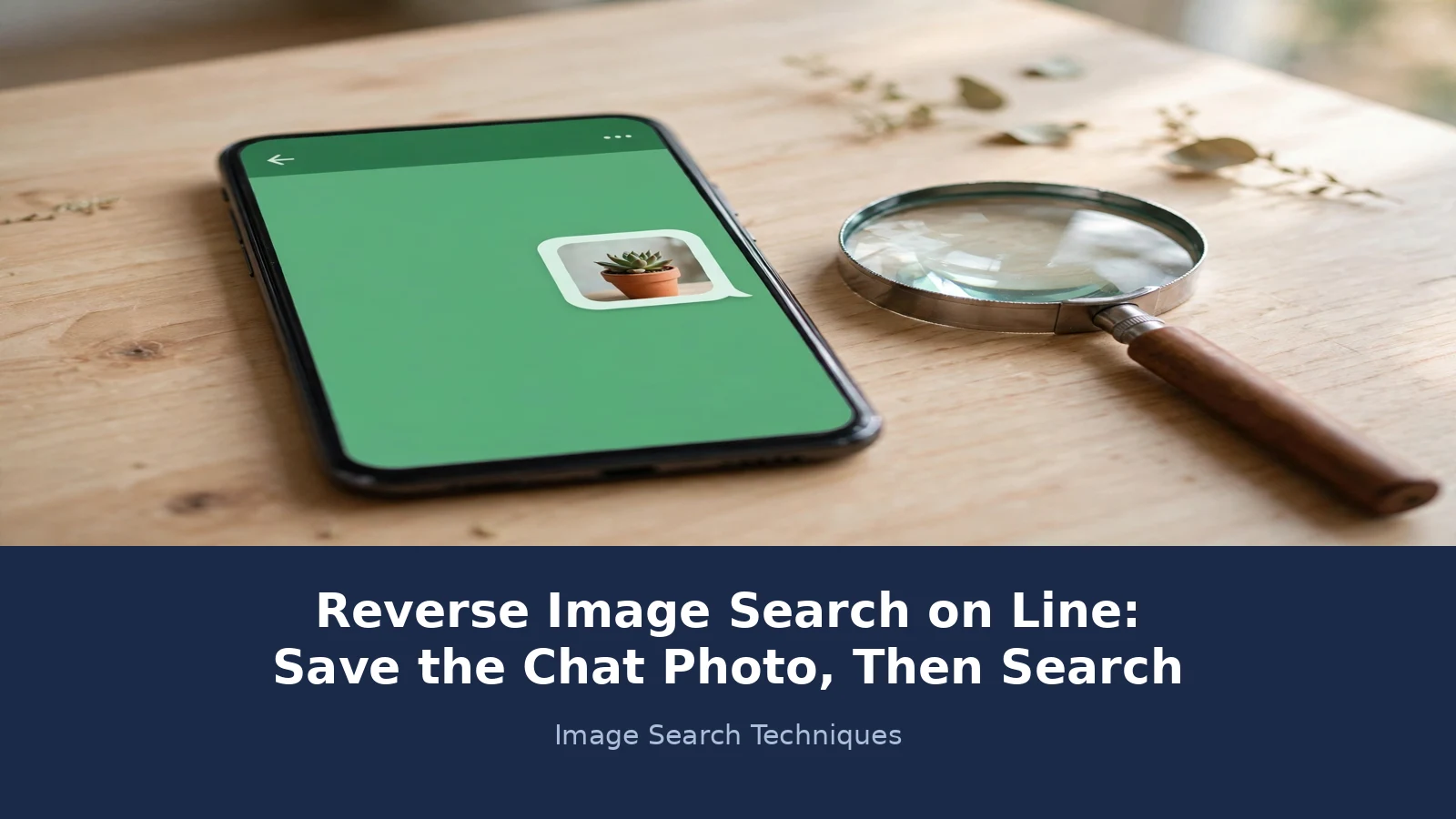
Line has no reverse image search button of its own. A photo that arrives in a Line chat stays inside Line until you save it, and the search happens outside the app, in Google Lens or TinEye. This guide shows the full route: save the chat photo the way Line documents it, then run it through two search engines and read what comes back.
Direct answer: To do a reverse image search on Line, save the photo from the chat first, then upload it to Google Lens or TinEye. In the chat, tap the chat name at the top, open Photos and videos, tick the photo and tap Save to device. Then open Lens, upload the saved file, and check the exact matches. Run the same photo through TinEye as a second opinion.
Can you reverse image search directly inside Line?
No. Line does not include a reverse image search feature. There is no long-press menu on a chat photo that sends it to Google Lens, and there is no search-by-image option in the chat screen. The app lets you view, save and share photos, but the searching part has to happen in a browser or in another app. Anyone who tells you Line can search a photo by itself is describing a different app, or a third-party tool that Line does not provide.
That matters because the first step of any reverse image search on Line is not the search. It is getting a clean copy of the photo out of Line. A screenshot of the chat works in a pinch, but it adds the chat background, the time stamp and the sender name to the image, and those extra pixels can confuse a search engine. A saved original is always the better starting point, so save first and search second.
How do you save a photo from a Line chat?
Line documents one save route, and it is the same on Android and iPhone. It does not use a long-press menu on the photo itself. Older guides describe a long-press and a Save option, but that step does not appear in the current Line Help pages, so this guide follows what Line itself documents today.
Save a photo on Android or iPhone
- Open the chat that contains the photo.
- Tap the chat name at the top of the chat room.
- Tap Photos and videos. You will see every photo and video shared in that chat, newest first.
- Tap the check mark at the top right of the photo you want. You can tick more than one photo, or tap Select all.
- Tap Save to device to save the photo to your phone, or Save to album to save it into a Line album.
On iPhone and iPad the saved photo lands in the Photos app. On Android it goes to internal storage, under Images and then LINE for photos, and Videos and then LINE for videos. If you cannot find it, check the Photos app first on iPhone, and the LINE folder in your gallery app on Android.
Save a photo on Line desktop
- Open the chat on Line for Windows or Mac.
- Click the chat name at the top of the chat window.
- Click Photos and videos.
- Click the check mark on the top right of the photo you want.
- Choose to share or download it to your computer. The file goes to the location you pick when you download it.
The desktop route is useful when the photo is large, because you get the file straight onto your computer and can upload it to Lens without moving it between devices first.
Turn on auto-download so future photos save themselves
If you receive photos on Line often, switch on auto-download and skip the manual save next time. Open the Home tab, tap the Settings gear icon, open Photos and videos, and turn on Auto-download for images. On iPhone and iPad there is also a Save when sent option. With auto-download on, every photo that arrives in a chat is saved to your device as it arrives, so you can go straight to the search step.
One warning before you save anything: only save and search photos you have a reason to check. A photo someone sent you in a private chat is their photo too. Searching it is fine when you are checking whether it is stolen, reused or part of a scam. It is not a way to find out who a stranger is, and this guide never uses face recognition, because a match on a face is not proof of identity.
How do you run the saved photo through Google Lens?
Google Lens is the first engine to try, because it has the largest index and it is good at naming what a photo shows and finding the pages that use it. If you have not used Lens before, the complete reverse image search guide walks through the same upload step in more detail. Open Google Lens in your browser and upload the file you saved from Line. Google’s own help page, Search with an image on Google, lists the same methods: upload an image, drag and drop, paste an image link, or right-click and choose Search with Google Lens. You can also paste the image link if the photo is already online, or drag the file into the Lens window. On a phone, open the Google app or Chrome, tap the Lens camera icon in the search bar, and pick the photo from your gallery.
Lens returns three views. Exact matches are pages that use the same photo. Visual matches are photos that look similar. The third view is an AI overview of what the photo shows, which can name an object, a place or a product in the picture. Read the exact matches first, because they answer the question that matters most: where has this photo appeared before?
Look for the oldest copy, not the most popular one. A photo that first appeared on a stock photo site in 2017 and now turns up in a Line chat in 2026 has a history, and that history is the story. If the oldest copy is a stock photo, the person who sent it to you did not take it. If the oldest copy is a news article from three years ago, the photo is not from the event the sender claims it shows.
How do you run the same photo through TinEye?
TinEye is the second engine, and it does a different job from Lens. Where Lens is good at naming things, TinEye is good at tracing copies. Open TinEye, upload the saved photo or paste its image address, and TinEye searches its index of more than 86 billion images for exact and edited copies, including copies that have been cropped, resized or recoloured. TinEye’s how it works page lists the four search methods and explains that your image is never saved or indexed.
Two TinEye features are worth using on every Line photo check. First, sort the results by oldest, so the first result is the earliest copy TinEye found. Second, use the website filter to narrow the results to one site, for example the stock photo site you suspect the image came from. TinEye also tells you the date it first indexed the image, which gives you a firm earliest date for the photo even when the sender gives you none.
If Lens and TinEye disagree, trust neither on its own. Run the photo through both, and if they still disagree, try Yandex or Bing Visual Search as a third opinion. Different engines index different parts of the web, and a photo that returns nothing in one engine can return plenty in another. That two-engine habit is the core of a reliable reverse image search on Line, or on any chat app.
Worked example: a portrait photo saved from Line, searched live
The test below was performed live on 23 November 2026, on a real photo treated exactly as a Line chat photo would be treated. The photo is a stock portrait by Michael Dam on Unsplash, titled “closeup photography of woman smiling”, photo ID mEZ3PoFGs_k, published 14 May 2017. It is the same portrait used as the test photo in the site’s Threads guide, which makes the two results easy to compare. The photo was saved as a Line user would save it, then run through Google Lens and TinEye. No face recognition tool was used, and the person in the photo was not identified. The check is whether the photo is reused, never who she is.
Google Lens result
Lens loaded the photo without a block and showed its three views. It gave an AI overview describing the photo as a long-sleeve, mock-neck red top, which is a description of the clothing, not an identification of the person. Lens does not show a total count, so the numbers below are counts of results loaded in the first view, not totals.
Exact matches loaded 334 result links in the first view, and the exact Unsplash page was among them, listed as “Closeup photography of woman smiling, Free Photo on Unsplash”, dated 14 May 2017, sized 3,000 by 4,500 pixels. The rest of the exact matches were reuses of the same portrait on other sites, including dental practice websites, a psychology site and a car rental site. One reuse file was even named after the original photographer and photo ID, which is a clear sign the file was downloaded from Unsplash and re-uploaded elsewhere.
Visual matches loaded about 60 entries in the first view. Most were the same portrait reused on dental sites, plus a smaller number of similar portraits of other women. The visual matches add little when the exact matches already show the reuse trail, but they are worth a glance when the exact matches come back empty.
TinEye result
TinEye returned 3,459 results and reported that it had searched 86.9 billion images. It first indexed this photo on 26 May 2017, twelve days after it was published on Unsplash. Sorted by oldest, the earliest results were on stock sites, including Shutterstock and Adobe Stock, dated 26 May 2017. Filtering the results to unsplash.com gave 31 results, including the exact photo page dated 17 April 2018, with later copies dated 8 October 2019 and 14 August 2020, plus an Unsplash search page for “happy” dated 19 December 2017. The filtered view showed a total of 3,460 results, one more than the first count, which is most likely a fresh crawl landing between the two checks.
TinEye briefly showed a human verification check when the website filter was first applied, and the results returned after the page was reloaded. That is a bot check, not a result, and it is reported here as a block that was cleared, not as a missing result.
What the worked example proves
The two engines agree on the important point. This portrait is a stock photo from 2017 that has been reused on hundreds of sites. If someone sent it to you on Line today and claimed it was a photo of themselves, or a photo they took yesterday, the search results say otherwise. The Unsplash page is the original, the dental sites and the car rental site are reuses, and the 2017 dates settle the question of when the photo was taken. A single search would have shown the same story, but the second engine confirmed it, and the TinEye first-indexed date gave a firm earliest date that Lens does not provide.
The Line save-then-search checklist
| Step | Android | iPhone | Desktop (Windows or Mac) |
|---|---|---|---|
| Open the photo list | Tap chat name, then Photos and videos | Tap chat name, then Photos and videos | Click chat name, then Photos and videos |
| Select the photo | Tap the check mark on the photo | Tap the check mark on the photo | Click the check mark on the photo |
| Save it | Save to device, or Save to album | Save to device, or Save to album | Download to your computer |
| Where it lands | Internal storage, Images, LINE | Photos app | The folder you pick when downloading |
| First search | Google Lens, upload the saved file | Google Lens, upload from Photos | Google Lens, upload or drag and drop |
| Second search | TinEye, upload or paste the image address | TinEye, upload or paste the image address | TinEye, upload or paste the image address |
| Read first | Exact matches, then sort TinEye by oldest | Exact matches, then sort TinEye by oldest | Exact matches, then sort TinEye by oldest |
Keep this checklist beside you the first few times you do a check. After that the route becomes habit: chat name, Photos and videos, tick, save, Lens, TinEye, oldest first.
What do the results mean when the photo is a scam?
Most Line photo checks have a scam angle. Someone sends a photo that is too good, too sad or too urgent, and the photo is doing the persuading. A reverse search answers three questions in order. First, is this photo reused? If the exact matches show the same photo on stock sites or on other people’s profiles, the sender did not take it. Second, when was it first published? If the first indexed date is years before the sender claims the photo was taken, the story attached to it is false. Third, does the photo match the claim? A photo of a smiling woman from 2017 is not proof of anything about the person messaging you today.
Do not confront the sender with the search results. Save the evidence, stop replying, and block and report the account inside Line. If the photo came with a too-good-to-be-true story, read the catfish spotting guide as well, because a stolen photo is the most common sign of a fake profile. If money is involved, report it to Report Fraud at reportfraud.police.uk in the UK. Never send money to someone whose photo fails a reverse search, and never send them more photos of yourself.
What if Lens and TinEye find nothing?
A zero is a result, not a failure. It usually means one of three things. The photo has never been published online, which is true of most photos people take themselves. The photo is very new, and the search engines have not indexed it yet. Or the photo has been edited so heavily that neither engine recognises it as a copy, in which case cropping to the main subject and searching again sometimes helps.
A zero does not prove the photo is genuine. A scammer can take a fresh photo, or use a photo from a closed account that no search engine has indexed. It only proves that this photo, as you searched it, does not appear in those indexes. Say that plainly in your own notes, and look for other signs: a profile with no history, a story that changes, pressure to move off Line quickly, or a request for money or gift cards.
Face search tools: what not to use on a Line photo
The AI Overview for this topic names face search tools such as PimEyes and CatfishLens, which claim to find where a face appears online. Do not use them on a Line chat photo. A visual match is not proof of identity, and a face search on a private person crosses the line this guide does not cross. The check here is whether the photo is reused, which Lens and TinEye answer without ever naming the person in it. If you want to know whether a photo is stolen, search the photo. If you want to know who someone is, ask them, and believe the search results over their answer when the two disagree.
Common mistakes when reverse searching a Line photo
The most common mistake is searching a screenshot of the chat instead of the saved photo. The chat frame, the sender name and the time stamp all become part of the image, and Lens may match the chat layout instead of the photo. Save the original first, as the checklist above shows, and only use a screenshot when the save route is not available.
The second mistake is stopping after one engine. Lens found 334 exact matches for the test portrait and TinEye found 3,459 results, and either one alone would have told the story, but on other photos one engine finds nothing while the other finds the original. Two engines take two minutes and remove that doubt.
The third mistake is reading only the first result. The first result is often the most popular copy, not the oldest. Sort TinEye by oldest and scroll the Lens exact matches until you find the earliest dated copy. That date is the fact that settles the question.
The fourth mistake is trusting a third-party Line downloader site. Some sites offer to download Line photos or videos if you paste a link, and some ask you to sign in with your Line account. Never enter your Line password on a third-party site. Line documents a save route on every platform, so there is no need for one, and a site that asks for your login is not helping you save a photo.
How is this different from reverse searching on WhatsApp or WeChat?
The search part is the same on every messaging app: save the photo, upload it to Lens, check TinEye. Only the save step changes. Reverse image search on WhatsApp lets you save a photo from the chat screen, reverse image search on WeChat has its own save route, and reverse image search on Viber works the same way, while Line uses the chat name and Photos and videos list described above. If you already know how to reverse search a WhatsApp photo, you already know most of this guide. Learn the Line save step once and the rest carries over. The same applies in reverse: once you can save and search a Line photo, you can do the same check on Viber, Signal or any other chat app by learning only its save step. KakaoTalk is one more example: our guide to reverse image search on KakaoTalk covers its three-dot-menu save route and the Original quality setting, then the same Lens and TinEye check.
Can you reverse image search a photo directly in Line?
No. Line has no built-in reverse image search. You must save the photo from the chat first, then upload it to Google Lens or TinEye in a browser. Line only handles viewing, saving and sharing the photo. The search itself always happens outside the app, which is why the save step comes first.
How do I save a photo from a Line chat on my phone?
Tap the chat name at the top of the chat room, tap Photos and videos, tap the check mark on the photo you want, then tap Save to device. On iPhone the photo goes to the Photos app. On Android it goes to internal storage under Images and then LINE. You can tick several photos at once.
Can I save a Line photo on my computer?
Yes. Open the chat in Line for Windows or Mac, click the chat name at the top, click Photos and videos, click the check mark on the photo, then download it to your computer. The file goes to the folder you pick when downloading. This is the easiest route for large photos.
Which search engine should I try first for a Line photo?
Try Google Lens first, because it has the largest index and finds the pages that use the photo. Then run the same photo through TinEye, which traces exact and edited copies and tells you the date it first indexed the image. If they disagree, try Yandex or Bing Visual Search as a third opinion.
What does it mean if a Line photo returns no search results?
A zero usually means the photo was never published online, it is very new, or it was edited so heavily that neither engine recognises it. A zero does not prove the photo is genuine. A scammer can use a fresh photo or one from a closed account, so check the profile and the story as well.
Is it safe to use a face search tool on a Line chat photo?
No, do not use face search tools such as PimEyes on a Line chat photo. A visual match is not proof of identity, and searching a private person’s face crosses a line this check does not cross. Search the photo with Lens and TinEye to see if it is reused, and never try to identify the person in it.