


🔎 Reverse Image Search
Image search techniques made simple: upload a photo or paste a URL and search 6 engines at once. 100% free, nothing stored.
🔒 Your image is never stored on our servers longer than 24 hours and is never shared.
A stranger moves the conversation to WeChat. The greeting is warm, the English is a little off, and the profile photo looks like a model shoot: perfect light, a relaxed smile, a soft background. It could be a real person. It could also be a photo taken from somewhere else and pasted onto a fake profile. The only way to tell is to check where that photo has appeared before, and WeChat will not do that check for you.
Reverse image search on WeChat has no built-in route, so save the photo first and search it with an outside tool. On Android and iPhone, press and hold the photo and tap Save to Album. On desktop, right-click the photo and choose Save As. Then upload the file to Google Lens and TinEye and compare the results.
This guide shows the full route, step by step, on Android, iPhone and desktop, including Moments photos and profile pictures, then tests it on a real portrait photo. The photo is searched live on Google Lens and TinEye, and the two engines disagree, which is exactly why you should never trust one result alone. If you want the general method first, our guide to reverse image search covers all the engines in one place. This article is the WeChat-only version: getting the photo out of WeChat, and what to do with it next.
What this check can and cannot do: reverse image search finds other copies of a photo on the web. It can show that a profile photo is stolen, reused, or a stock image. It cannot tell you who the person in the photo is, and it should never be used to try. That is the face lock for this article: the question is whether the photo is reused, never who the person is. Do not use a face-recognition service for this check, and do not upload someone else’s private photos to a public engine.
Can you reverse image search inside WeChat?
No. WeChat has no built-in reverse image search, so every check starts by getting the photo out of WeChat first.
WeChat can search inside your own chats. That is a different thing. Open a conversation, tap the menu icon in the top-right corner, choose Search Chat History, and filter by Media, and WeChat will show you the photos already shared in that chat. Across all chats, the search bar on the Chats screen looks up messages, contacts and media history. That search never looks at the open web, and it cannot tell you whether a photo appears on another website. The same confusion shows up on other apps: people expect the search box to check the photo, and it does not.
Google’s AI Overview for this exact question says the same thing in its first line: WeChat does not have a built-in reverse image search tool to find where a photo appears across the web, so save or screenshot the photo and upload it to an external reverse image search tool. The overview then gives two steps: save or screenshot the image, then choose a search engine. This article follows the same two steps, but with the save steps checked against WeChat’s own help pages and tested on a real photo, rather than copied from the overview.
The page that ranks for this question today stops at the idea. Social Catfish has a guide called “WeChat Search: How to Find Someone by ID, Phone Number, or Photo”, updated 29 August 2026. It says, correctly, that WeChat itself cannot reverse search a profile photo. But its only route is its own paid face-recognition search: run the photo through Social Catfish and see where that face appears online. It gives no free-engine method, no save steps for getting a photo out of WeChat, and it never mentions Moments. It also explains, usefully, that WeChat has no name-based search at all: Add Contacts accepts only a WeChat ID, which is case-sensitive and must match exactly, a phone number linked to the account, or a QR code scan. There is no public directory. That is the gap this guide fills: the free route, the save steps, and a performed test.
How do I save a photo from WeChat on Android?
On Android, press and hold the photo, then tap Save to Album.
The steps are:
- Open the chat and find the photo.
- Press and hold the photo until the menu appears.
- Tap Save to Album.
- Find the photo in your phone gallery. It is now a normal file you can upload anywhere.
Do not confuse Save to Album with Favorites. WeChat’s own help pages describe Favorites as a way to keep a picture, video, webpage or message inside WeChat: long-tap the item, select Favorites, and find it later under Me, then Favorites. That keeps the photo inside the app, where no search engine can reach it. Save to Album is the option that puts a copy in your phone gallery as a file. For a reverse image search you need the file, so use Save to Album, not Favorites.
The same long-press route works for a photo in a group chat and for a photo in a Moment. Open the Moment, tap the photo to view it full screen, press and hold, then tap Save to Album. If the photo is a file someone sent as a document rather than an image, open it and use the download option instead, then find it in your Downloads folder.
| Route | Steps | What you get |
|---|---|---|
| Android chat photo | Press and hold, Save to Album | File in your gallery |
| iPhone chat photo | Press and hold, Save to Photos | File in your Photos app |
| Moments photo | Open the Moment, press and hold, Save to Album | File in your gallery |
| Desktop right-click | Right-click photo, Save As | File on your computer |
| WeChat Web | Right-click photo, Save As | File on your computer |
| Profile picture | Screenshot, crop to the photo | Lower quality copy |
How do I save a photo from WeChat on iPhone?
On iPhone, press and hold the photo, then tap Save to Photos.
The steps are:
- Open the chat and find the photo.
- Press and hold the photo until the menu appears.
- Tap Save to Photos, which may appear as Save to Album on some versions.
- Find the photo in your Photos app. It is now a normal file you can upload anywhere.
The Moments route is the same as on Android: open the Moment, tap the photo to view it full screen, press and hold, then save it. One difference between the two phones is worth knowing. On Android the saved photo lands in the gallery under the WeChat folder or the camera roll, depending on the phone. On iPhone it lands in Recents in the Photos app. Either way, it is a normal image file, and you can upload it to any search engine from there. If you want the save steps for other apps too, the WhatsApp version of this check follows the same save-then-search pattern, and the Viber version shows how the same idea works on a different app.
How do I save a photo from WeChat on a computer?
On WeChat for Windows or Mac, right-click the photo and choose Save As.
The steps are:
- Open the chat in WeChat for Windows or Mac.
- Right-click the photo.
- Choose Save As and pick a folder.
- Use the saved file for the search.
WeChat Web works the same way: open web.wechat.com, log in by scanning the QR code with your phone, open the chat, right-click the photo and choose Save As. There is also a handy trick if the photo is on your phone and you want it on your computer without a cable. Forward the photo to File Transfer, the built-in chat with yourself, then open File Transfer on the desktop app and save it from there. The photo travels through your own account, and nobody else sees it.
One warning about quality: WeChat compresses photos sent in chats, so the saved file is rarely the original. A compressed copy still matches well on Lens and TinEye, because both engines match the picture, not the file. But if the photo is very small or heavily compressed, the match rate drops. Save the largest version you can. If someone sent the photo as a file, download the file instead of the chat image, because the file keeps its original quality.
What if the photo is a profile picture?
If the photo is a profile picture, screenshot it, because a profile photo cannot be pressed and saved like a chat photo.
Chat photos have a save option. Profile photos do not. The person chose that photo as their face to the world, and WeChat gives you no download route for it. So you take a screenshot instead: open the profile, show the photo full screen, and capture it. On Android, press the power and volume-down buttons together. On iPhone, press the side button and volume-up together, or the home and side buttons on older models. On a computer, use your usual screenshot keys and capture the photo area only.
Then crop the screenshot to the photo itself before you upload it. A screenshot carries the phone frame, the WeChat header, the battery icon and the chat background, and all of that is noise to a search engine. Crop tight to the photo, keep the face and shoulders in frame, and save the crop as a new file. Our guide to reverse image searching a screenshot covers the crop step in detail, and it applies here too.
One warning about quality: a screenshot is always worse than the original file. It is a photo of a screen, not the photo itself, and it loses detail at every step. Search engines can still match it, but cropped or edited copies match less reliably. So use the saved original file whenever you can, and treat the screenshot as the fallback for profile pictures, not the first choice.
How do I run a reverse image search on WeChat photos?
Upload the saved file to Google Lens first, then to TinEye, and compare what each engine finds.
Google Lens is the first stop because it searches the widest index and it reads the photo, not just its file name. Open lens.google.com in a browser, upload the saved file, and wait for the results. You can also do this from your phone: open the Google app, tap the camera icon, and pick the saved photo from your gallery. The results page has two tabs that matter: Exact matches, which lists pages showing the same photo, and Visual matches, which lists photos that only look similar. Read the Exact matches tab first. That is where a stolen photo shows up.
TinEye is the second stop because it searches differently. Open tineye.com, upload the same saved file, and wait. TinEye reports how many matches it found out of the billions of images it has crawled, and it lists the sites carrying the photo and the date each copy was first indexed. It is stricter than Lens, so it often finds fewer matches, and sometimes it finds none at all when Lens finds several. That disagreement is useful, not a failure. One engine saying nothing does not cancel out the other engine finding the photo on another site.
If the photo is linked to China, add a third stop. Google’s AI Overview names Baidu, So.com and Sogou as regional engines that can surface Chinese websites and results that Google and TinEye miss. Open Baidu Images, Sogou Pictures or 360 Image Search and upload the same saved file. A photo reused on a Chinese site may show up there and nowhere else. This matters on WeChat more than on most apps, because WeChat is dominant in China with over a billion users, and a photo that circulates in Chinese groups may never appear on a Western site.
The overview also names three people-search services, SocialFinder.ai, Social Catfish and PeopleFinder, which offer facial recognition or photo-based lookups across public profiles. This article does not recommend them. They are paid face-search services, and they try to answer a different question: who the person is. Our check asks only whether the photo is reused. A free exact-match search on Lens and TinEye answers that question without identifying a private person, and a face-recognition lookup on someone you have just met is not a check you should run. The Reddit thread the overview cites makes the same caution in its own way: opinions there are mixed on how effective reverse image searches are for tracking down suspected scammers, and no single search settles it.
Use the original saved file for every search, not the screenshot, wherever you can. A screenshot works, but it is a copy of a copy, and search engines match it less reliably. If you only have a screenshot, crop it tight to the photo first, as described above.
Worked example: one portrait photo, two engines, two answers
One real portrait, searched live on 21 November 2026, came back with 1 exact match on Google Lens and zero matches on TinEye.
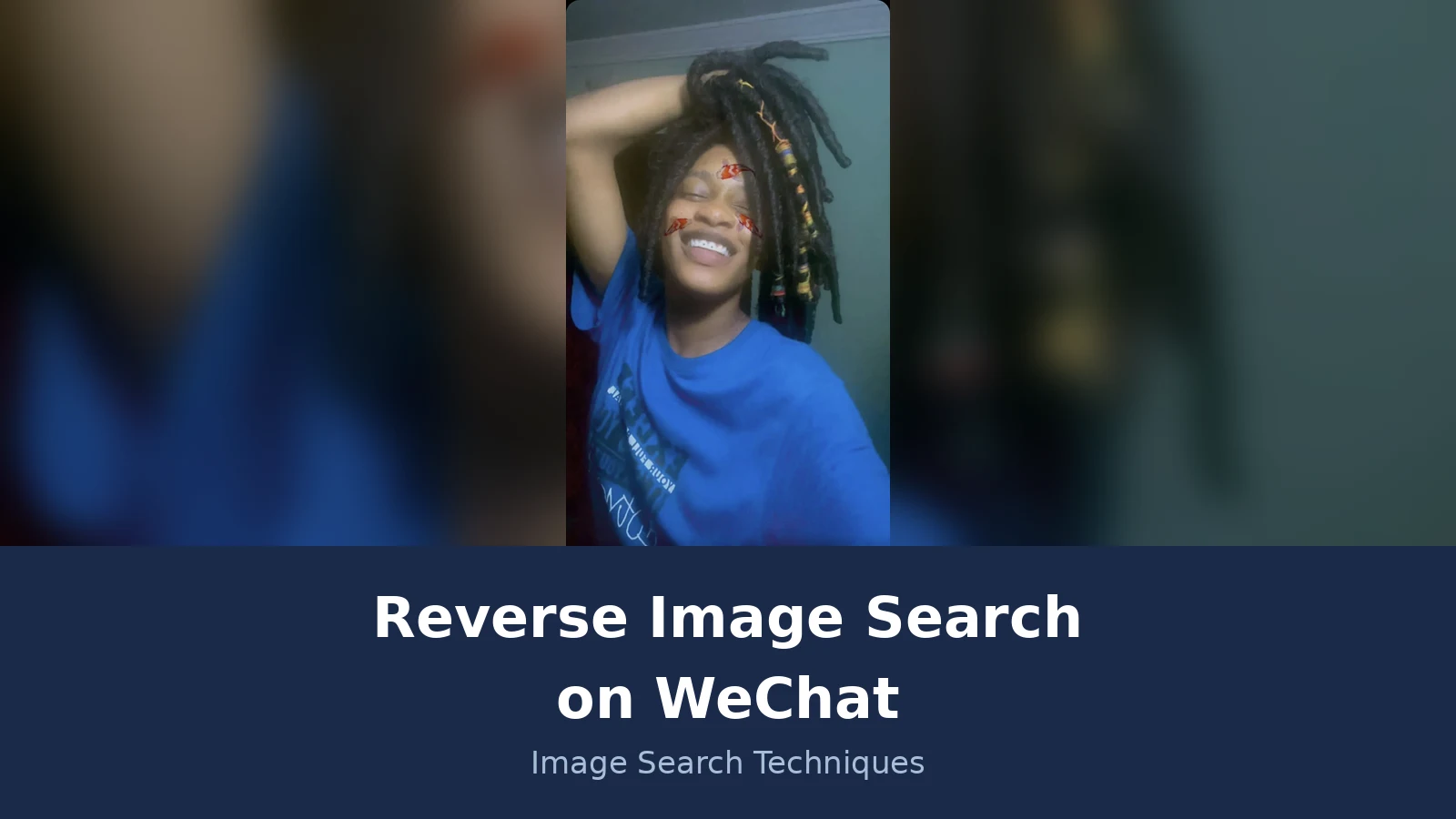
The test photo is a portrait from Wikimedia Commons, published under a CC BY-SA 4.0 licence as a self-portrait by the photographer Zilzy and taken on 6 February 2023. It shows a smiling woman with thick dark locs wrapped in colourful thread in shades of yellow, blue and red, wearing a bright blue t-shirt, with decorative koi fish graphics overlaid on the face. The full photo is a vertical portrait, 960 by 1615 pixels, and the whole frame went into the search. For this test it stands in for a WeChat profile photo sent by a stranger: the question is only whether the photo is reused anywhere, never who the person is.
Both searches were run on the identical 960 pixel version of the file, uploaded directly to each engine on 21 November 2026. Same image, same bytes, two engines, two different answers:
| Engine | Exact matches | What it found |
|---|---|---|
| Google Lens | 1 listed | Same photo on a hair-braiding salon site, same size |
| TinEye | 0 out of 86.8 billion | No matches at all |
Google Lens listed exactly one exact match: the same photo on the homepage of Fallou’s African Hair Braiding in Oak Park, Michigan, at the same 960 by 1615 size as the file we uploaded. Lens did not identify the person and did not name a source identity. Its AI description gave only a visual reading of the photo: thick dark locs with colourful thread wraps, a bright blue t-shirt, and decorative koi fish graphics overlaid on the face. The Visual matches tab then showed lookalikes, not the same photo: other locs and dreadlocks images from TikTok, Facebook, Pinterest, Reddit, Threads, Instagram and hair-braiding salon sites. Those are similar hairstyles, not the same photo, and they belong in a different column of your thinking.
TinEye found nothing: zero matches out of more than 86.8 billion images, with no sites listed and no first-indexed date to show, because there were no matches to date. Its own message explains why: it has yet to crawl any pages where this image appears. The only other content on its results page was a sponsored strip of unrelated stock portraits, which are advertisements, not matches.
So which engine is right? Both are, and that is the point. Lens had indexed a copy of this photo on one page. TinEye had indexed none of them. A photo can be reused on the web and still be invisible to one engine, because no engine has crawled the whole web. If you had run TinEye alone, you would have walked away thinking the photo was original. If you had run Lens alone, you would have been right about this photo, and wrong the next time the situation is reversed. Run both, every time. And note what the single Lens match means here: this photo is a freely licensed self-portrait that a salon has reused as a style example, which is a legitimate reuse of a free licence. One match does not mean a scam. It means the photo is not unique to the person who sent it, and that is the fact you needed.
How do I read the results?
A match on other sites means the photo is reused. No match means nothing on its own.
Read the results in this order. First, the Exact matches tab, or the TinEye match list. If the same photo appears on other websites, social media profiles or stock photo sites, treat it as reused. That is the core signal. Second, look at the names and places attached to those copies. If the same face appears under different names, in different cities, or attached to different life stories, that mismatch is a second signal. Third, check the dates. An old copy on a salon site or a stock library is usually the original source, and a new profile using the same photo is the copy.
| What you see | What it means | What to do |
|---|---|---|
| Same photo on stock sites | It is a stock image, not a personal photo | Treat the profile as fake |
| Same photo, different names | It is reused across profiles | Treat the profile as fake |
| Same photo on one old page only | It may be the original source | Check the date and the context |
| No matches anywhere | It is not indexed, nothing more | Check the other engine, then the wording |
| Only similar photos, no exact match | Lookalikes, not the same photo | Do not count them as a match |
Third, remember what a zero means. TinEye returned zero for our test photo even though Lens found it on a salon site. A zero means the engine has not indexed a copy, not that the photo is genuine. A photo can be brand new, cropped, flipped, filtered, or simply hosted somewhere the engine has never crawled. Combine the photo check with the other checks the AI Overview and the Reddit thread both mention: search the name and phone number online, look at whether the story the person tells you matches the story the photo tells, and watch for the moment a stranger asks for money, gift cards or crypto. No single check settles it, and the Reddit users are right to say so.
What should I do if the photo looks stolen?
Do not send money or codes. Block and report the account inside WeChat, and keep the evidence.
If the photo turns out to be reused, the profile is not who it claims to be. That is enough. Do not argue with the sender, do not ask them to explain, and do not send them anything to test whether they are real. Scammers treat any reply as a sign the number is live, and a confrontation gives them a chance to invent a better story. Just stop replying. Moving a conversation to WeChat is itself a known pattern: it takes the chat away from the dating app or social platform where it started, and with it goes the moderation, the reporting tools and the account-level accountability. Romance scams, pig-butchering cryptocurrency scams and business email compromise all use this move, so treat a stranger who insists on WeChat with extra care.
Then report and block the account inside WeChat. Open the profile, use the report option, then block the account. Keep a copy of the photo and a screenshot of the chat before you block, because blocking can hide the conversation and you may need the evidence if you report the scam elsewhere. In the UK, that means Report Fraud at reportfraud.police.uk. If you already sent money, tell your bank first, then report it the same way.
The wider pattern is worth learning, because the same stolen-photo trick runs on every chat app. Our guide to spotting a catfish covers the full routine: the photo check, the story check, and the moment a stranger asks for money, gift cards or crypto, which is the point to walk away. A real person you met on WeChat will not need you to pay for anything, and a real opportunity will still be there tomorrow after you have checked it properly.
WeChat is a messaging app, not a detective. It gives you no way to check a photo inside the app, and it will never tell you that a profile photo is stolen. But it does give you the photo itself, in one long-press or one right-click, and from there the check takes about a minute on Lens and TinEye. Save the photo, search it twice, and read the exact matches before you believe the face.
FAQs
Can WeChat tell me if a profile photo is fake?
No. WeChat has no reverse image search and no fake-photo warning, so the app will never flag a stolen profile photo. The check has to happen outside WeChat. Save the photo, upload it to Google Lens and TinEye, and read the exact matches. If the same photo appears on other sites or under other names, treat the profile as fake.
How do I save a photo from WeChat on Android?
Press and hold the photo in the chat, then tap Save to Album. The photo lands in your phone gallery as a normal file. Use Save to Album, not Favorites, because Favorites keeps the photo inside WeChat where no search engine can reach it. The same long-press route works for a photo in a Moment.
Why did TinEye find nothing when Lens found the photo?
The two engines have crawled different parts of the web. In our test, Lens found the portrait on one salon site while TinEye found zero matches out of 86.8 billion images. A zero from TinEye means it has not indexed a copy, not that the photo is genuine. Always run both engines, because one can miss copies the other found.
Does WeChat tell the other person if I save their photo?
No. Saving a photo happens on your own phone, and WeChat sends no notification to the other person when you save a photo or take a screenshot. The sender cannot see that you saved it. Only check photos sent to you, and only to verify whether they are reused. Never upload private photos of other people to a public engine.
Can I reverse search a WeChat photo without saving it first?
Not directly. WeChat has no built-in search, so the photo must leave the app before any engine can see it. If it is a chat photo, save it with the long-press and Save to Album route. If it is a profile photo, take a screenshot, crop it tight to the photo, and upload the crop to Lens and TinEye.
What should I do if a WeChat photo turns out to be stolen?
Stop replying, and do not send money, gift cards or codes. Report and block the account inside WeChat, and keep a copy of the photo and a screenshot of the chat, because blocking can hide the conversation. In the UK, report the scam to Report Fraud. If you already sent money, tell your bank first.






