


🔎 Reverse Image Search
Image search techniques made simple: upload a photo or paste a URL and search 6 engines at once. 100% free, nothing stored.
🔒 Your image is never stored on our servers longer than 24 hours and is never shared.
Short answer: Zalando image search, as a built-in camera button inside the Zalando app, cannot be confirmed in the app today, so this guide shows you the route that actually works in 2026: run your photo through Google Lens, turn what Lens finds into a short attribute list, and use that list with Zalando’s own search and filters to find the same item or the closest match. That routine takes about two minutes, needs no extra app, and works for any photo: a screenshot, a picture from Instagram, or a jacket you saw on the street.
Zalando is one of Europe’s biggest fashion retailers, with more than 6,000 brands in its app, according to the app’s Google Play listing. That size is exactly why a photo-first route matters: describing a jacket in words (“black leather jacket, cropped, silver zips”) can return thousands of results, while a photo narrows the field before you type anything. This guide explains what Zalando’s own visual search was, why you should not rely on it today, and the fallback workflow that finds clothes on Zalando from a photo right now. If you shop by photo on other stores too, our search by image for shopping hub collects the same workflow for every major retailer.
What is Zalando image search?
Zalando image search means finding a clothing item on Zalando by starting from a photo instead of a typed search. The idea is simple: you show the system a picture of a jacket, dress or pair of trainers, and it returns the same item or visually similar items from Zalando’s catalogue.
There are two different things people mean by that phrase, and keeping them apart matters. The first is Zalando’s own in-app visual search, a camera feature inside the Zalando app itself. The second is finding clothes on Zalando using a photo and outside tools, mainly Google Lens, and then searching Zalando with the details Lens gives you. The first route is the one this article checks first, because it is the one most older guides still describe as if it works.
Does the Zalando app have image search in 2026?
No, not as a feature we could confirm in the current app. Zalando did launch a photo search feature: in 2014 it rolled out image recognition in its UK app, built with the visual-search company Cortexica, letting shoppers photograph clothes and find similar products in its catalogue, as Retail Week reported at the time. Zalando’s own engineering blog also described “shop the look” deep-learning work in 2018. That is where the public evidence stops.
We checked the current app before writing this guide, as this article’s brief requires. The Zalando app’s Google Play listing, updated on 27 April 2026, describes creators, boards, Trend Spotter, live videos, stories, wishlists, a measurements tool, a virtual fitting room and an AI-powered Zalando Assistant, but it mentions no photo search, camera search or visual search anywhere in its feature list. Zalando’s help pages likewise publish no instructions for searching by photo. That does not prove the feature was formally removed, Zalando has never announced a removal we could find, but it does mean no current, public evidence shows the in-app camera search still exists, and this guide will not publish steps for a button you may not find.
One warning about older guides: several “best apps to find clothes by picture” listicles still describe Zalando as having visual search, without a date, a screenshot or any steps. That claim traces back to the 2014 launch. Treat any guide that tells you to tap a camera icon in the Zalando app as out of date until it shows the feature working in the current version.
How to find clothes on Zalando from a photo: the fallback workflow
This is the Ranking Asset for this guide, the numbered routine to use instead of the missing in-app button. It has four steps: search the photo with Lens, read the attributes, search Zalando with those attributes, and filter down to the match.
Step 1: Run the photo through Google Lens
Open Google Lens in your browser and upload the photo, a screenshot works as well as a camera shot. Lens compares the shapes, colours and patterns in your picture with images across the web and returns exact matches, visually similar items and, for products, shopping results. Crop tightly around the single garment before you upload: a full outfit photo makes Lens guess which item you mean, while a tight crop on the jacket alone gives it one clear target. Note that Lens does not always show a shopping tab: in our test on 9 November 2026 the tabs were “AI Mode”, “All”, “Exact matches” and “Visual matches”, with a “Shop similar products” heading that listed no products. Read the “Exact matches” tab first, that is where the photo’s source usually appears.
Step 2: Turn the Lens result into an attribute list
Write down what Lens actually told you, in five slots: garment type (biker jacket, trench coat, midi dress), colour (black, tan, navy), material or finish (leather, faux leather, denim, knit), defining details (asymmetric zip, collarless, belted waist, cropped length), and brand, if Lens names one. This list is the bridge between the photo and Zalando’s search box. Do not skip it: typing “black leather jacket” into Zalando returns hundreds of results, but “black leather biker jacket, asymmetric zip, cropped” plus the category and price filters cuts that to a shortlist you can actually scan. Put the colour in the search term itself, Zalando’s results page has no colour filter, as our worked example below found.
Step 3: Search Zalando with the attribute list
Go to zalando.co.uk and type the two or three strongest attributes into the search bar, garment type first, then colour, then the most distinctive detail. Start broad (“women’s leather jacket”) and add one attribute at a time, because Zalando’s search narrows with every word and an over-specific first search can return nothing even when the item is listed under a slightly different name. If Lens named a brand that Zalando stocks, add the brand as the second search term, not the first.
Step 4: Filter to the match
Use Zalando’s filters on the results page: category (Jackets, Coats, Dresses), brand, price range, size, material, fit and length. Apply the category filter first, then price, then brand. One thing to know before you start: there is no colour filter on Zalando’s search results page, we checked the full filter list on 9 November 2026 and “Colour” is not among the controls, so the colour has to live in your search term. Compare the remaining listings against your photo side by side, checking the defining details from Step 2: zip placement, collar shape, pocket style, length. A match on all four details is a strong candidate; a match on only colour and garment type is just a similar item. When two listings look identical, open both: one may be the current-season version and the other last season’s, at different prices.
Worked example: a black leather jacket, from photo to Zalando listing
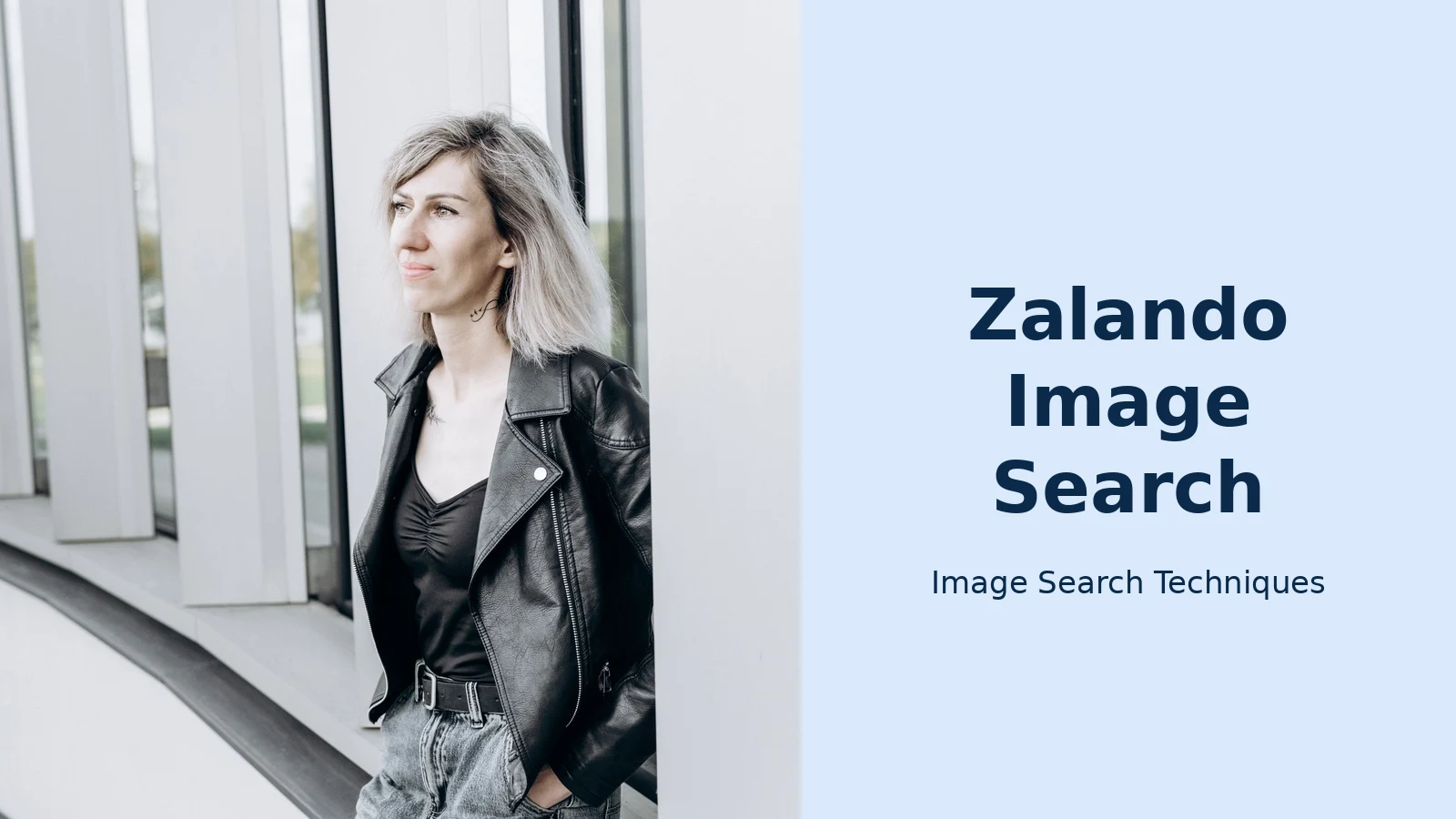
For the worked example in this guide we used a real photo: a Pexels photograph of a woman in a black leather jacket, taken by ольга мартинкевич on 30 September 2024. On 9 November 2026 we uploaded the full photo to Google Lens, with no sign-in and no CAPTCHA to clear. Lens returned four tabs, “AI Mode”, “All”, “Exact matches” and “Visual matches”, and no shopping tab. A “Shop similar products” heading appeared on the All view, but no products were listed under it. Lens printed no text label naming the item; the search crop sat over the jacket and the result titles identified it as a black leather jacket. The top exact matches were all copies of the same Pexels photo: the Pexels “Free Black Leather Jacket Photos” page, the photographer’s Pexels page, and a “Leather jacket worn by a woman…” result. The visual matches included Facebook and Instagram pages. No Zalando listing appeared anywhere in the results we loaded.
That outcome is normal, and it is the reason this guide exists. The test photo is a stock photograph of a person wearing a jacket, not a product shot, so Lens found the photo’s source rather than the jacket for sale. The photo still did its job: it gave us the attribute list, women’s black leather jacket, and Zalando’s own search and filters did the finding from there. Searching zalando.co.uk for “women’s black leather jacket” returned about 259 items across four pages. Applying the category filter (Women > Clothing > Jackets > Leather jackets) left about 229 items. Adding a maximum price of £100 left 55 items on a single page, all at or under £100, including a JDY high-neck jacket at £69.99, a Vero Moda coated jacket at £54.00 and a Topshop coated jacket at £72.00. The counts shifted slightly while the pages were loading, so treat them as approximate, but the routine itself worked end to end: photo to Lens to attribute list to a filtered Zalando shortlist in a few minutes. One correction from the test worth keeping: Zalando’s results page has no colour filter, the black in our search came from the search term itself, which is why Step 2 above tells you to put the colour in the words you type.
Zalando search by photo vs the alternatives: which route to use
There is no single “Zalando image search” button any more, so the honest comparison is between the routes that exist. Each one has a different strength, and the best choice depends on where your photo came from.
| Route | What you need | Best for | Main limit |
|---|---|---|---|
| Lens, then Zalando filters (this guide) | Any photo or screenshot; a browser | Any item, any source photo | Two steps instead of one; Lens may not name the brand |
| Zalando app search (text + filters) | The Zalando app | When you already know the brand or item name | No photo input; relies on your description |
| Screenshot → Lens → Zalando | A screenshot from Instagram or TikTok | Items spotted on social media | Screenshots are often cropped or low resolution |
| Pinterest Lens | The Pinterest app | Outfit inspiration and similar styles | Results point across many shops, not Zalando specifically |
| Retailer apps with camera search | That retailer’s app | Finding the item on that retailer | Only searches that one retailer’s catalogue |
For Zalando specifically, the Lens route wins because it is the only photo-first route that ends on Zalando’s own catalogue. Pinterest Lens is a good second choice when you want similar styles rather than the exact item, and it is worth knowing that other retailers do still offer in-app camera search, SHEIN’s app, for example, has a camera icon in its search bar that was current when we checked it in November 2026, as our SHEIN image search guide shows. That contrast is useful: a camera icon you can see and tap is a real feature; a camera feature described only in 2014 press coverage is not. The same check-first pattern applies beyond fashion: our IKEA search by photo guide also starts by verifying what the retailer’s own app can actually do today.
Can you search Zalando with a screenshot?
Yes. A screenshot is the most common starting photo for this workflow, because most items people want to find are first seen on Instagram, TikTok or Pinterest rather than in real life. The steps are the same as the main workflow, with three screenshot-specific tips.
First, crop the screenshot to the garment before uploading it to Lens, remove captions, usernames, like buttons and shop tags, which Lens can mistake for part of the image. Second, expect lower accuracy: screenshots compress the image, and a garment that fills only a third of the frame gives Lens less detail to match on. If Lens returns nothing useful from the screenshot, try a tighter crop on the single most distinctive detail, such as the collar or the zip, rather than the whole garment. The same photo-first approach works for any clothing search, not just Zalando, our reverse image search for clothes guide covers the general method. Third, remember that a screenshot of a Zalando product page itself is the easiest case of all: if the screenshot shows the product name or article number, search Zalando for that text directly instead of searching by image.
Tips that make the photo-to-Zalando search actually work
Most failed searches fail for the same few reasons, and all of them are fixable before you upload anything.
- Photograph one garment at a time. A photo of a full outfit forces Lens to choose, and it often chooses the wrong piece. Crop to the item you want.
- Use the clearest version of the photo you have. The original post beats a screenshot of a screenshot; each re-save loses detail Lens needs.
- Check the defining detail, not the colour. Two black leather jackets can look identical in a thumbnail. The zip, collar, seams and length are what separate the match from the lookalike.
- Try the brand name second, not first. If Lens names a brand, search garment + colour first and add the brand as a filter. Brand-first searches miss listings where the brand is spelled or listed differently.
- Check Zalando’s “preloved” section for older items. If the item is last season’s, the new-season catalogue may not carry it, but Zalando’s pre-owned selection sometimes does.
- Accept “similar” when “exact” is not there. Lens returns similar items, not a guarantee of an identical match, and Zalando may never have stocked the exact piece. A visually identical jacket from another brand at the same price is a genuine result, not a failure.
What Zalando image search cannot do
Three honest limits belong in any guide that promises to find clothes from a photo. First, no reverse image search can identify an item Zalando has never listed: if the jacket in your photo is from a brand Zalando does not stock, the Lens-then-Zalando route will only ever return similar items. Second, similar is not identical: Lens matches on shape, colour and pattern, so a convincing lookalike can outrank the real item, especially when the real item’s product photo is styled differently. Third, prices and availability change: a listing Lens found last week may be sold out or repriced by the time you open it, so treat any price Lens shows as a snapshot, not a quote, and confirm it on Zalando itself.
There is also a limit worth stating about the older in-app feature itself. Even when Zalando’s photo search did work, contemporary reports described it as returning similar items rather than exact matches, the 2014 coverage called the results “moderately well” matched. The fallback workflow in this guide is therefore not a poor substitute for a lost perfect tool; it is the same idea, done with a tool (Lens) that is maintained and current.
FAQs
Does Zalando have image search in its app?
Not as a feature we could confirm in 2026. Zalando launched photo search in its app in 2014, but the current app listing on Google Play, updated in April 2026, describes no photo or camera search, and no Zalando help page documents one. Use Google Lens plus Zalando’s search and filters instead.
How do I find clothes on Zalando from a photo?
Upload the photo to Google Lens, note the garment type, colour, material and defining details Lens identifies, then search Zalando with those attributes, colour included in the search term, and narrow the results with the category, price and brand filters. Crop tightly to one garment before uploading for the best Lens results.
Can I search Zalando with a screenshot?
Yes. Crop the screenshot to the single garment, removing captions and buttons, then upload it to Lens and carry the attributes into Zalando’s search. Screenshots are compressed, so a tight crop on the most distinctive detail works better than the full screenshot.
Why does Zalando image search return similar items instead of the exact one?
Visual search matches on shape, colour and pattern, not on a product code, so close lookalikes can outrank the exact item. Zalando may also never have stocked that exact piece. Check the defining details, such as zip placement and collar shape, to separate a real match from a similar item.






