🔎 Reverse Image Search
Image search techniques made simple: upload a photo or paste a URL and search 6 engines at once. 100% free, nothing stored.
🔒 Your image is never stored on our servers longer than 24 hours and is never shared.
A second-hand controller with no box, a photo in a sale listing, or a pad found in a drawer with no name on it. In each case the question is the same: which model is this, exactly? A photo can answer that question, but only if you read it the right way. The shape and the buttons point to a family of controllers. The small print on the back label pins down the model. This guide shows both steps, with a real search performed on a real photo.
Direct answer: To identify a game controller from a photo, reverse search the image on Google Lens, TinEye and Yandex, then read the marks in the photo: button layout, stick placement, logo and the model code on the back label. The photo suggests a model family, and the back-label code confirms the exact model on the maker’s support page.
What a photo can and cannot tell you
A photo of a controller can tell you a lot, and it can also mislead you. Start by knowing which side of that line you are on.
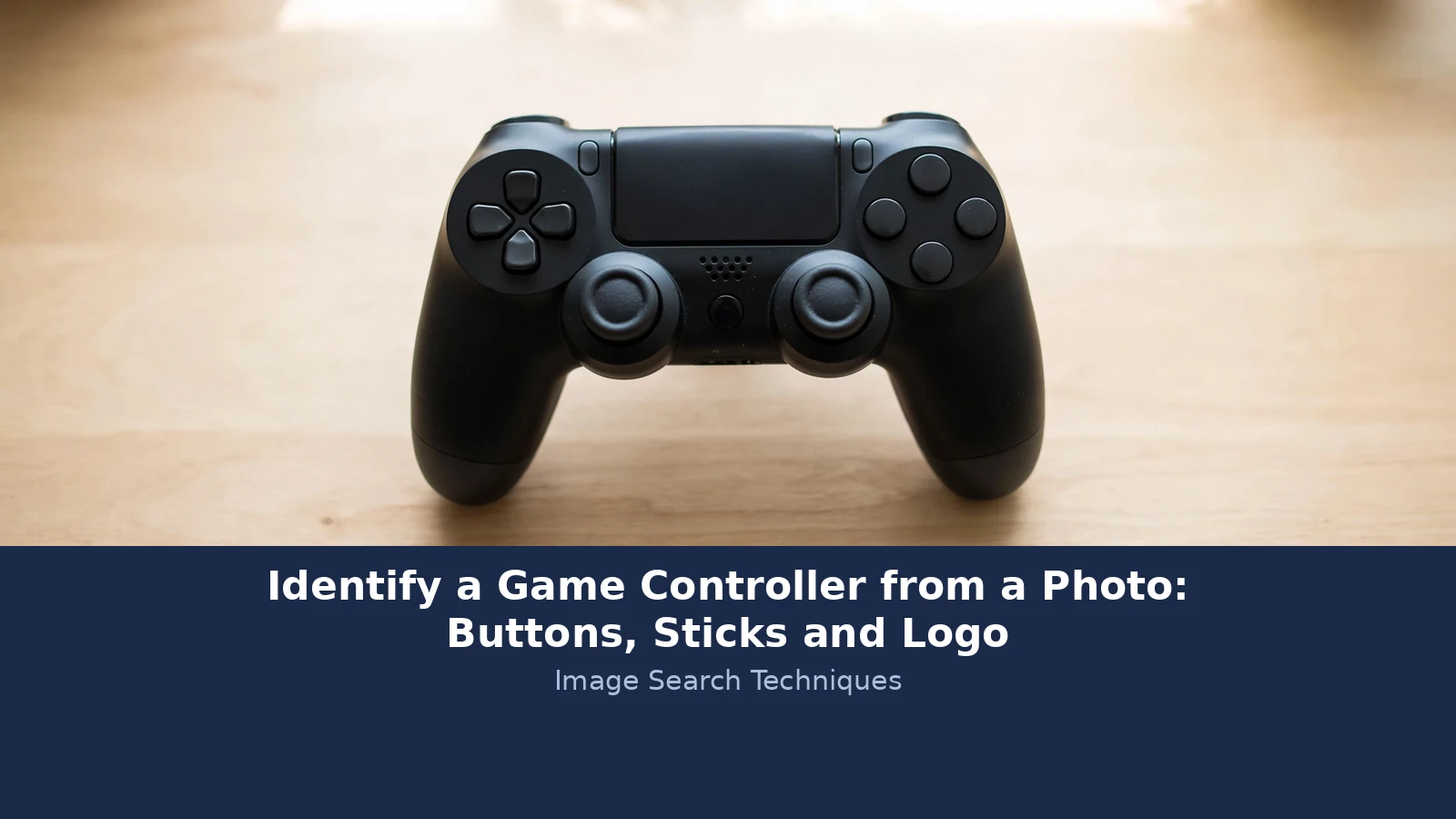
The front of a controller shows its layout. Button shapes, stick placement, the position of the logo and the shape of the grips are enough, in most cases, to name the brand and the generation. A PlayStation controller has triangle, circle, cross and square buttons with symmetrical sticks. An Xbox controller has A, B, X and Y letters with offset sticks. A Nintendo Switch Pro Controller has its own letter layout and a different stick arrangement. Those marks are visible in a single clear photo, and they are usually enough to narrow the answer to one family.
What a front photo cannot do is name the exact model. The regular PlayStation 5 DualSense and the DualSense Edge look alike at a glance. The Xbox One controller and the Xbox Series X controller share the same broad layout. The difference sits in small details: a Share button, a USB-C port instead of Micro-USB, a different D-pad, or a model code printed on the back. A photo can only suggest a model family. The code on the back label confirms it.
There is a second limit worth stating plainly. A matching photo is not proof that a controller is genuine. Third-party clones copy layouts, logos and packaging closely. Some even connect and vibrate. If the question is whether a controller is real or fake, a photo alone cannot settle it. The checks for that come later in this guide.
One more rule before you start. Never publish a serial number you find in a photo. Serial numbers identify one single controller, and they belong to its owner. The worked example below reads the model code from a back label and leaves the serial number out entirely.
How to identify a game controller from a photo in four steps
The method is short. Four steps, in order, and each one narrows the answer.
Step 1: Get the clearest photo you can. If the photo is yours, take it again. Photograph the front straight on, in daylight, with the whole controller in the frame. Then photograph the back, close enough that the small print is readable. If the photo came from a sale listing or a message, save the original file rather than a screenshot of it. A screenshot loses detail, and detail is what you are reading. If the listing only shows one angle, ask the seller for a photo of the back label. A seller who refuses is telling you something.
Step 2: Reverse search the front photo. Upload the photo to Google Lens, then to TinEye, then to Yandex Images. Use more than one engine because they index different parts of the web, and one engine’s blank result is not proof of anything. Record what each engine says: whether it names a model, how many matches it shows, and whether the exact page the photo came from appears. The worked example below shows all three outcomes in one test: a block, a zero and a correct identification.
Step 3: Read the marks in the photo. Work through the controller-marks table in the next section. Note the button layout, the stick placement, the logo position, the connector type and any text you can read. If the photo shows the back, read the model code first. That code is the single most useful mark on the whole controller.
Step 4: Confirm the code on the maker’s support page. Search the model code on the manufacturer’s own support site, not on a marketplace listing. PlayStation and Xbox both publish pages that say where the model number sits on their controllers and what the code looks like. If the code in the photo matches the maker’s page, you have your answer. If it does not match, or the code is missing, say so rather than guessing. A photo that suggests a model family is still a useful result.
For the general reverse search method, including how to upload a photo to each engine, see our guide to reverse image search. The rest of this article applies that method to controllers specifically.
Worked example: a black DualSense, searched three ways
Theory is easy. Here is the method run on a real photo, with honest results, including the failures.
The test photo is a Wikimedia Commons photograph of a Sony DualSense wireless controller in Midnight Black, taken from the front. The file is named “Playstation 5 DualSense controller in Midnight Black, 2026-02-07 (front).jpg”, photographed by Chris Woodrich on 7 February 2026 and shared under a CC BY-SA 4.0 licence. It is 4,700 by 3,400 pixels and shows the controller cleanly: D-pad on the left, triangle, circle, cross and square on the right, symmetrical sticks below, and the touchpad with its blue light-bar edges in the middle. No model code is visible on the front, which is normal. The front of a DualSense carries no model number.
Google Lens: blocked. Three attempts to search by the image URL all failed with the same error: “Something went wrong. No image at the URL.” The direct Wikimedia upload link failed, the same link pasted into Lens’s image-link dialog failed, and the Commons file-path version of the same file failed too. No results were shown at all, so Lens named nothing and produced no counts. A file upload was not possible in that session because the upload button produced no file picker. That is a block, not a zero. Lens did not search the photo, so it proved nothing either way.
TinEye: zero matches. TinEye ran the search and reported that it searched over 86.9 billion images but found no matches for the search image, and that it had yet to crawl any pages where this image appears. No first-indexed date was shown, because there were no results to date. The exact Commons file page did not appear. A zero from TinEye means the photo is not in TinEye’s index, which is expected for a photo published in February 2026. It does not mean the controller does not exist, and it does not mean the photo is fake. It means TinEye had nothing to match against.
Yandex Images: correct identification. Yandex named the controller. Its tags, in Russian, read as a wireless PlayStation DualSense gamepad, a Sony PlayStation 5 DualSense gamepad in black, and a Sony DualSense gamepad. It showed 21 similar images on the first screen and listed the photo in 7 sizes, from 1600 by 1158 down to 300 by 217. Its sites list named 6 sites carrying the image, including a German comparison article that credits the same photo to Chris Woodrich on Wikimedia Commons under CC BY-SA 4.0. The exact Commons file page did not appear in Yandex’s sites list, but the credit line confirms the same photo. One engine out of three gave the answer, and it gave it clearly.
The lesson from the three engines together is the point of the method. Lens blocked, TinEye found nothing, Yandex named the model. If the test had stopped after one engine, the result would have been either a block or a zero. Running all three turned a dead end into an identification.
Then came the confirmation step. A second photo from the same session shows the back of the same controller, and its label reads plainly: “WIRELESS CONTROLLER MODEL CFI-ZCT1W 5V 1500mA”, with Sony Interactive Entertainment Inc. and its Tokyo address, plus the radio approval codes and “MADE IN CHINA”. The serial number is also printed there in small type. It is not printed here, and it never should be. PlayStation’s own support page confirms the reading: the model number sits on the back of the controller, above the QR code, and it is 8 alphanumeric characters, for example CFI-ZCT1W. The label and the maker’s page agree, so the identification is confirmed. One caution: all regular DualSense controllers from the first five hardware revisions share the model number CFI-ZCT1W, and the sixth revision carries CFI-ZCT2W, so the code names the model, not the revision.
The controller-marks table
This table is the working tool for the whole article. Read a photo against it, row by row, and note what you can see. A mark you cannot see is not a mark against the controller. It only means that photo does not show it.
| Mark to read | What it tells you | Where to find it in the photo |
|---|---|---|
| Button labels | Brand and generation at a glance | Front face: shapes, letters or symbols |
| Stick placement | PlayStation, Xbox or Nintendo family | Front face: symmetrical or offset sticks |
| Logo position | Brand, and often the generation | Centre of the front, or on the home button |
| Touchpad or screen | DualSense, DualShock 4 or Steam Deck style | Centre of the front face |
| D-pad shape | Model revision, for example dished or cross | Left side of the front face |
| Connector type | Generation: USB-C, Micro-USB or none | Top edge of the controller |
| Share or Create button | Newer Xbox and PlayStation models | Centre of the front, below the screen |
| Model code | The exact model, confirmed on the maker’s page | Back label, or inside the battery compartment |
| Battery compartment | Xbox wireless models hide the code inside | Back of the controller, under the cover |
| Connection type | Wired, wireless or battery powered | Cable, dongle or battery cover in the photo |
Two rows in that table do the heavy lifting. Button labels and stick placement name the family. The model code names the model. Everything else is supporting evidence, useful when the label is hidden and decisive when it is not.
Button layouts that give the brand away
Most controllers can be sorted into a brand family from the buttons alone, before any search runs.
PlayStation controllers use shapes: triangle on top, circle on the right, cross at the bottom, square on the left. The sticks sit symmetrically, side by side, below the buttons. The DualShock 4 and the DualSense share that layout, so the layout names the family but not the model. The differences between those two sit elsewhere: the DualSense has a wider touchpad with light-bar edges, a built-in microphone hole below the PlayStation button, and a different grip shape. The DualShock 4 has a narrower touchpad with a light bar across its top edge.
Xbox controllers use letters: Y on top, B on the right, A at the bottom, X on the left. The sticks are offset, with the left stick high and the right stick low. The Xbox One controller and the Xbox Series X controller share that layout. The Series X model adds a Share button in the centre, below the View and Menu buttons, a hybrid dished D-pad, a USB-C port instead of Micro-USB, and textured grips on the triggers and bumpers. Those small changes are the marks that separate the two.
Nintendo controllers break the pattern in their own way. The Switch Pro Controller uses letters too, but its layout differs from Xbox: the sticks are placed differently, the home button sits in its own spot, and the controller carries a screenshot button on the left. Joy-Con controllers are the easiest to spot of all, because they split into two halves and slide onto the sides of the console. An arcade stick is also unmistakable: a large flat base, one joystick and a row of big buttons, with no grips at all.
That layout reading is exactly what the top results for this question already do in part. A Facebook group post from PlayStation Philippines asks “What are the controllers in the image?” and the answers come from reading the layout. A YouTube video compares the Xbox One, Xbox One S and Xbox Series X controllers side by side. An online gallery of game controllers shows twenty controllers with short captions, but it gives no method and no model numbers, so a reader with an unknown controller in hand is left to guess. The method in this article closes that gap: layout first, then a reverse search, then the label.
Where the model code hides on each brand
The model code is the one mark that settles the question. Here is where to look for it, brand by brand, on the maker’s own pages.
PlayStation DualSense. The model number is printed on the back of the controller, above the QR code. PlayStation’s support page says so directly, and gives CFI-ZCT1W as the example, an 8-character code. The serial number sits under the QR code and is 17 characters long. You need the model number, not the serial. Photograph the back label and read the line that starts with “MODEL”. The worked example above did exactly that, and the label matched the maker’s page.
PlayStation DualShock 4. The same approach applies. PlayStation’s support page for the DualShock 4 also puts the model and serial numbers on the back label, and the model code sits above the barcode. Older DualShock 4 revisions carry different model codes, so the code is worth reading rather than guessing from the shape.
Xbox Wireless Controller. The model number is printed on a sticker inside the battery compartment, on the standard controllers including model 1914, the Xbox Series X controller released in November 2020. Take the battery cover off and read the label. The serial number is also inside the compartment, below the barcode, and it is 14 characters long. Again, the model number is the one to record. Xbox’s support pages cover the controller’s connection and setup, and the battery-compartment location is consistent across the model’s documentation.
Xbox Elite Series 2. The exception proves the rule. The Elite Series 2 has an internal battery, so there is no battery compartment to open. Its model number is printed in black ink on the bottom of the controller instead. If a photo shows a controller with no battery cover and no visible label, check the underside.
Nintendo Switch Pro Controller and Joy-Con. The model number sits on the back label of the Pro Controller, near the regulatory text. On a Joy-Con, the model code is printed on the inner edge that slides against the console, so it only shows when the Joy-Con is detached. A photo of a Joy-Con still attached to the console will not show it.
If the photo shows no label at all, do not guess the code. Use the layout and the reverse search result to name the family, and say plainly that the exact model needs a photo of the back. That is an honest answer, and it is more useful than a confident guess.
Clones and fakes: a matching layout is not proof of brand
Third-party clones copy the layout of a popular controller closely, and some copy the logo and the packaging too. A reverse search that matches a DualSense photo does not prove the controller in the photo is a genuine Sony product. It only proves the shape matches. That distinction matters when money is involved, because a counterfeit DualSense is often sold as genuine at a price that looks like a bargain.
Counterfeit DualSense controllers are common and visually convincing. Some connect and vibrate, which makes a photo check even less reliable. The checks that separate a genuine controller from a copy are physical, and a buyer should run them before paying, not after.
Weight is the first check. Sony lists the DualSense at about 280 grams. Copies are often lighter, sometimes under 250 grams, because they use cheaper motors and thinner shells. A kitchen scale settles it in seconds.
The triggers are the second check. A genuine DualSense has adaptive L2 and R2 triggers with variable resistance, so the pull feels different depending on the game. Copies usually use a plain spring, and the trigger feels digital, either fully on or fully off, with no variation in the middle.
The touchpad is the third check. On a genuine DualSense the touchpad clicks when pressed. Many copies have a touchpad that is only a flat panel, or one that clicks unevenly.
The fourth check is the connection itself. A genuine DualSense pairs with a PlayStation 5 over a cable and accepts official firmware updates through the PlayStation Accessories app. A copy often fails to update, or the console does not recognise it at all.
There is also a check that needs no hardware at all. A new DualSense sold at half the retail price by a marketplace seller is a strong fake signal on its own. Genuine controllers do not sell for half price from unknown sellers.
One distinction matters here. Licensed third-party controllers from makers such as 8BitDo and PowerA are legitimate products, not fakes. They are sold under their own brand names and they do not pretend to be Sony or Microsoft products. “Fake” means a counterfeit sold as the real brand. A controller that is honestly sold as a third-party pad is a different purchase, and it may be a perfectly good one.
If you are buying second-hand, the same identification skills apply in reverse. Our guide to identifying a phone model from a photo uses the same label-first method, and the same warning about clones applies there too.
When the photo is dark, cropped or blurry
Not every photo cooperates. The most common problem is a photo taken in poor light. One user posted a controller photo on a forum with the note that Google could not figure it out because the image was too dark, and the replies asked for a better photo rather than guessing. That is the right response.
Before you search a bad photo, improve it. Brighten the image in any basic photo editor, crop it tightly to the controller, and straighten it so the buttons are level. Cropping helps because it removes background clutter that confuses the search engines. Do not upscale a tiny photo and expect a miracle. Upscaling invents detail that was never there, and the engines will match the invented detail.
If only part of the controller is visible, search the visible part. A clear shot of the button cluster alone is often enough for Yandex or Lens to name the family. A photo of only the grips, with no buttons at all, is usually not enough, and no engine will rescue it.
If the photo is a screenshot of a listing rather than the original file, try to get the original. Screenshots compress the image and add the listing page’s text and buttons around it, which the engines may try to match instead. On most marketplaces you can long-press or right-click the listing photo to save it directly.
When every engine returns nothing and the label is unreadable, the honest answer is that the photo cannot identify the controller. Say which parts you could read and which you could not, and ask for a front photo and a back-label photo. That answer is more useful than a guess, and it is the only one the evidence supports.
Once you know the model, what next
Identification is only useful if it leads somewhere. Here is what the model name unlocks.
Compatibility. A model number tells you which console the controller works with, and whether it needs a cable, a dongle or Bluetooth. A DualSense works with a PlayStation 5 and, over Bluetooth or USB, with a PC. An Xbox Wireless Controller model 1914 works with Xbox Series X and S, Xbox One, and Windows PCs. Check the maker’s page for your console before you buy.
Parts and repairs. Thumbstick caps, replacement batteries and charging docks are sold by model, not by brand. Search for parts using the model code, not the brand name, or you will order the wrong size. The same applies to cases and grips, which are moulded to one model’s shape.
Resale. A listing that names the exact model sells faster and attracts fewer questions than one that says “PlayStation controller”. Include the model code and a photo of the back label in the listing. Buyers who can verify the model themselves are more likely to trust the sale.
Value. Some models hold their value better than others. Limited editions, the DualSense Edge and the Xbox Elite Series 2 command higher prices than the standard models. Knowing which one you hold is the difference between pricing it as a standard pad and pricing it as the premium model it is.
The same label-first method works for other gadgets too. If the item in the photo is a game rather than a controller, our guide to identifying a video game from a screenshot follows the same steps, and our guide to identifying a board game from a photo covers the tabletop version of the same problem. For anything else you need to name from a picture, start at our find an item by image hub, which gathers the whole identification family in one place.
Can Google Lens identify a game controller from a photo?
Sometimes, but not always. In our test Lens could not load the photo and returned an error, while Yandex named the model correctly and TinEye found nothing. Run the same photo through all three engines, because one engine’s block or zero is not proof of anything. A clear front photo with the buttons visible gives Lens the best chance.
Where is the model number on a PS5 DualSense controller?
The model number is printed on the back of the controller, above the QR code. PlayStation’s own support page gives CFI-ZCT1W as the example, an 8-character code. The serial number sits under the QR code and is 17 characters long. You need the model number to identify the controller, and you should never share the serial number.
Where is the model number on an Xbox controller?
On the standard Xbox Wireless Controller, including model 1914, the model number is printed on a sticker inside the battery compartment. Take the battery cover off and read the label. The Elite Series 2 has an internal battery, so its model number is printed in black ink on the bottom of the controller instead.
Can a photo prove a controller is genuine?
No. A photo can show that the shape, buttons and logo match a genuine model, but third-party clones copy those marks closely and some even connect and vibrate. Check the weight, the adaptive triggers, the clickable touchpad and whether the controller accepts official firmware updates. A new controller at half the retail price is a strong fake signal.
What if the controller in the photo has no logo or label?
Read the layout instead. Button shapes or letters, stick placement and the touchpad will usually name the brand family, and a reverse search on Lens, TinEye and Yandex can confirm it. If the back label is hidden, the model may stay uncertain, so ask for a photo of the back. Guessing the model from the front alone is not reliable.
Can I identify a controller from a screenshot of a sale listing?
You can try, but a screenshot is a weaker starting point than the original photo. It compresses the image and adds the listing page around it, which can confuse the search engines. Save the original listing photo where possible, crop it to the controller, and brighten it before searching. Ask the seller for a clear photo of the back label.