


🔎 Reverse Image Search
Image search techniques made simple: upload a photo or paste a URL and search 6 engines at once. 100% free, nothing stored.
🔒 Your image is never stored on our servers longer than 24 hours and is never shared.
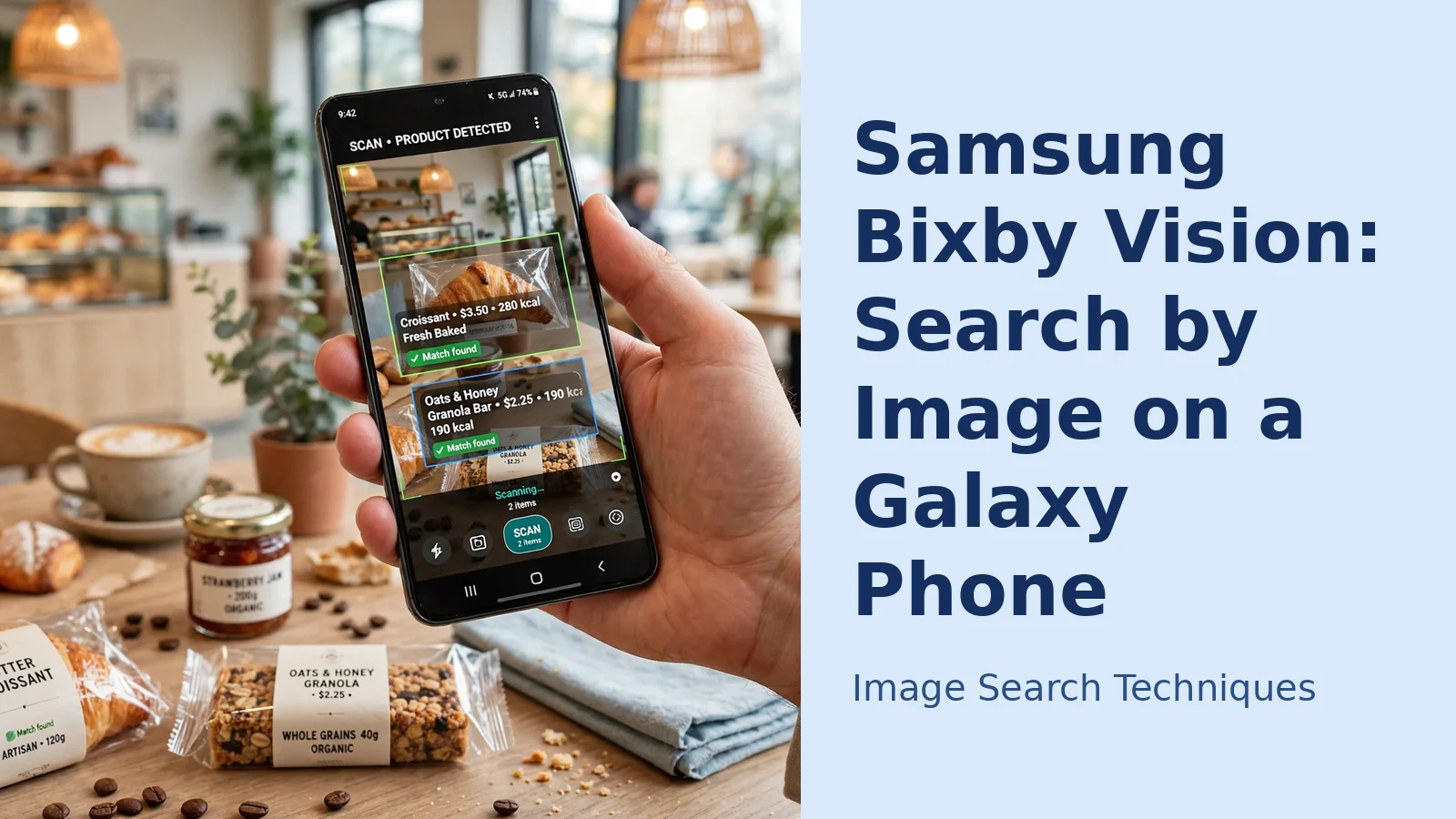
If you own a Samsung Galaxy phone, you already have a visual search tool installed, no app download required. Bixby Vision is Samsung’s built-in image recognition feature: point the camera at an object, a product, a landmark or a page of text, and it searches for similar images, shopping results, information or a translation. Many Galaxy owners never open it, either because they do not know it is there or because it sits quietly inside apps they use every day. This guide shows where Bixby Vision lives, how to search by image with it step by step, what its modes actually do, and what to try when the results disappoint.
One thing worth knowing first: Bixby Vision has no official website. It is built into Samsung Galaxy phones, inside the Camera app and the Gallery, so there is no page to open in a browser. The steps below show exactly where it sits on your phone and how to use it there.
Where to find Bixby Vision on a Galaxy phone
Bixby Vision is not a standalone app on your home screen; it is embedded in three places you already use:
- The Camera app. On most Galaxy models, open the camera and look for “Bixby Vision” at the top of the screen, or swipe to the More tab and find it among the camera modes. On some models it appears as an eye-shaped icon.
- The Gallery app. Open any photo and tap the eye icon, this runs Vision on the saved picture instead of the live view.
- Samsung Internet. Long-press an image on a web page and choose the Bixby Vision option to analyse that picture.
The first time you open it, expect a short setup: permissions for the camera and storage, and prompts to sign in to a Samsung account and accept terms. Samsung’s own support page on Bixby Vision walks through enabling it per app. One caution: Samsung has repositioned parts of Bixby over the years, and the exact placement and available modes differ between models, One UI versions and regions, if your screens differ slightly from the steps below, you are not doing anything wrong.
How to search by image with Bixby Vision, step by step
The live camera route is the one most people want, identifying something in front of you:
- Open the Camera app and switch to Bixby Vision (top of the screen or under More).
- Point the camera at the object, plant, product or scene and hold steady; fill the frame with the subject rather than standing far back.
- Vision analyses the view automatically. Tap the result pins or cards that appear over the image, or choose a mode at the bottom (Image, Shopping, Text, Place, covered next).
- For image search specifically, select the Image mode: you will get visually similar pictures and web results for what the phone thinks it is seeing.
- Tap a result to open its source page for details, prices or more context.
For a photo you have already taken, skip the camera entirely: open it in Gallery, tap the eye icon, and you get the same analysis on the still image. This is the better route for screenshots and downloaded pictures, because you can zoom in and frame exactly the part you want identified. If you are used to pointing the camera at the world and getting instant answers generally, our guide to live camera image search explains how the main tools compare.
The Bixby Vision modes, explained
Vision organises its abilities into modes along the bottom of the screen. Availability varies by model and region, but these are the ones you are most likely to see:
- Image. The general visual search: similar images and web matches for whatever is in frame. Best for identifying objects, animals, artwork and products you do not need to buy.
- Shopping. Focuses on products and returns buying options. Useful for a chair, lamp or pair of trainers you have seen in real life, though always open the listing to confirm it is genuinely the same item, not a lookalike.
- Text. Recognises words in view so you can copy them, and offers translation between supported languages. Handy for signs, menus and labels; printed text works far better than handwriting.
- Place. Uses the camera plus your location to identify landmarks and businesses around you and show information about them. Needs location permission, and coverage is strongest in well-mapped urban areas.
- Wine. On supported models, pointing at a wine label brings up details about the bottle, producer, vintage and ratings-style information. Niche, but genuinely useful in a shop.
Some models also surface extras such as QR code reading (now mostly handled by the camera itself) or partner “apps” for things like trying on make-up. Treat those as bonuses; the five modes above are the core of the feature.
Bixby Vision vs Google Lens: which should you use?
Honestly, they overlap a great deal, and on a Galaxy phone you have both. Bixby Vision’s advantage is integration: it is already inside your camera and gallery, works on Samsung Internet images, and needs no Google app open. Google Lens generally has the larger web index behind it, so for unusual objects, artwork or tracking down where a picture appears online, Lens, covered in our Google reverse image search guide, often returns the deeper results; Google’s Lens help pages detail its own modes. A practical approach: try Vision first because it is two taps away, and fall back to Lens when Vision’s answer is vague. Do not confuse either with Circle to Search, Samsung and Google’s newer feature: that works on whatever is already on your screen, summoned by a long-press and a drawn circle, whereas Bixby Vision works through the camera and gallery. Different door, similar destination, this article stays with Vision.
When Bixby Vision results are poor: troubleshooting
- Get closer and isolate the subject. Vision struggles with cluttered scenes. Fill the frame with the one object you want identified, against as plain a background as you can manage.
- Improve the light and hold still. Dim, blurry input produces vague matches. Move to better light, tap to focus on the subject, and keep the phone steady for a second.
- Check your connection and permissions. Vision’s searches run online; with no data connection, or with camera/location permissions denied, results will be empty or generic. Place mode in particular needs location switched on.
- Update and restart. Make sure the Galaxy Store / Play Store show no pending updates for Bixby Vision and the Camera app, then close and reopen the feature. Samsung occasionally moves or renames modes in One UI updates, so an unfamiliar layout after an update is normal.
- Search the still photo instead. If the live view keeps latching onto the wrong object, take the photo, crop it tightly in Gallery, and run Vision on the crop via the eye icon, a cleaner input often fixes the identification.
- Know when to switch tools. If Vision repeatedly fails on a specific picture, artwork and screenshots are common cases, run the same image through a dedicated search instead; our guide to how to reverse image search walks through the main engines step by step.
And for a photo whose origin you are trying to trace rather than an object you want named, you can test it against six engines at once with our free reverse image search tool, upload the picture and compare what each engine finds.
If Bixby Vision names the object but you still want to know more about it, our guide on identifying anything in a photo shows how to pin down places, products, plants and other subjects from a single picture.
Bixby Vision is one of several visual tools compared in our guide to image search techniques.
FAQs
Is Bixby Vision free to use?
Yes. It is built into supported Galaxy phones at no extra cost. It does use your internet connection to run searches, so standard data charges can apply if you are not on Wi-Fi.
Which Samsung phones have Bixby Vision?
Most Galaxy S, Note, Z and many A-series models from the Galaxy S8 era onward include it, but the exact modes vary by model, One UI version and region. If it is not in your Camera or Gallery, your model or region may not offer it, Google Lens is the closest alternative.
Can Bixby Vision search using a photo I already have?
Yes. Open the photo in the Gallery app and tap the eye icon to analyse it. This works for camera photos, screenshots and downloaded images, and cropping the picture to the subject first usually improves the result.
Does Bixby Vision work offline?
Largely, no. Recognising simple things like QR codes can happen on the device, but image search, shopping and place results are fetched online, so you need a mobile data or Wi-Fi connection for the main features.
Related: Google Lens vs Circle to Search vs Bixby Vision vs Appl






