


🔎 Reverse Image Search
Image search techniques made simple: upload a photo or paste a URL and search 6 engines at once. 100% free, nothing stored.
🔒 Your image is never stored on our servers longer than 24 hours and is never shared.
You have a photo and a question about it. Maybe it is a building you walked past on holiday, a chart in a report, or a label you cannot quite read. Perplexity is the one major AI assistant that answers with numbered sources next to every claim, so it sounds like the right tool for the job. It is, with two catches you should know before you start. You need a free account to upload anything, and Perplexity will not identify people in photos.
Yes, Perplexity image upload lets you ask about a photo. Upload the image, type your question, and Perplexity answers with numbered sources you can open and check. It reads objects, charts and text in pictures well, but it will not identify people in photos, and you need a free account before the upload button works at all.
Perplexity image upload is the feature that lets you attach a picture to a question on Perplexity, so the assistant can see the image and answer from it as well as from the web. It accepts JPEG, HEF, PNG and PDF files up to 40 MB, and every image you attach counts toward the same file upload allowance as any other attachment.
How do you upload a photo to Perplexity?
On a computer, open Perplexity and start a new session. Click the Attach button in the search bar, or drag the image file straight onto the search bar, then type your question in the same box and press Enter. On a phone, tap the plus icon below the search bar, pick the photo from your gallery or take a new one, then ask your question. Perplexity says it will reformat the image to meet its own standards, so you do not need to resize it first.
The question matters as much as the photo. A vague prompt such as “what is this?” gets you a vague answer. Ask for exactly what you want to know. The steps below are the routine that works best.
- Pick a clear photo. Use the original file, not a screenshot of a screenshot. Perplexity’s own help page warns against upside down or rotated images, panoramic shots, and pictures of precise locations.
- Attach it first, then write the question. Upload the image and wait for it to appear in the search bar before you type. If the upload fails, check the file type and size first. JPEG, HEF, PNG and PDF are accepted, and the limit is 40 MB.
- Ask one specific question. “What building is in this photo, and when was it completed?” beats “tell me about this image”. Name the facts you want, and ask for a source for each one.
- Turn on Pro Search if you want web sources. By default, Perplexity uses only the image as a source. Pro Search switches on web browsing, so the answer can cite pages found online as well as the picture itself.
- Open the citations. Every claim in the answer carries a number. Click through to the source page for anything that matters, and ask a follow up if the source does not actually support the claim.
Perplexity’s help centre page on uploading images is the official reference for the steps, formats and size limit, and it was last updated on 27 October 2026.
What can Perplexity do with a photo?
Perplexity’s help page lists three uses: identify objects, interpret charts or graphics, and write social media captions. In practice the range is a little wider than that. It can read text inside a photo, describe what a diagram shows, compare two items in one picture, and explain what a label or sign says. It is strongest on photos where the answer exists on the public web, because it can then cite a real page for what it says.
It is weakest where the photo is the only evidence. A blurry label, a cropped sign, or a photo taken at an odd angle will get you a hedged answer or a refusal. The same goes for anything the picture cannot prove on its own, such as whether a product is genuine or whether a photo has been edited. For that kind of check, a reverse image search is the better first step, as our guide to identifying a photo explains.
There is also a hard list of things Perplexity tells you not to upload. Medical images, explicit content, panoramic photos, upside down images, precise spatial locations, and pictures of individuals are all on it. The help page says that if Perplexity cannot read your image, you should check that it is in a supported format and does not contain explicit content or identifiable individuals. That last point is not a suggestion. It is the limit that shapes the whole feature, and it leads to the next section.
Do you need an account to upload a photo to Perplexity?
Yes. We tested this on 13 November 2026, signed out, on the free tier. Text search works without an account, but photo upload does not. Clicking Attach and then “Add images and files” opened a box headed “Sign in to upload files”, with the text “Log in or create an account to continue”, and buttons for Google, Apple, email and single sign on. There was no way past it without signing in.
A free account is enough. You do not need to pay to upload a photo. Signing in also saves your sessions to your History, while signed out sessions are anonymous and disappear after 14 days, according to Perplexity’s own guide pages. If you only want to ask a text question, you can stay signed out. The moment a photo is involved, an account is required.
That finding matters because most guides to Perplexity say you can use it without signing in, and that is true only for text. The upload button is where the free ride ends. Plan for it: create the free account before you need the answer, not in the middle of a task.
What does Perplexity image upload cost?
Uploading a photo costs nothing extra on the free plan, but the number of uploads is limited. Perplexity’s help centre says file uploads are not unlimited on Free, Pro or Max. Each plan includes an allowance that resets on a rolling weekly basis, and Max includes a higher allowance than Pro. Images you attach or paste into a search count toward the same allowance, and so do files pulled in from a connected app such as Google Drive.
Here is the part to note. Perplexity does not publish the number. Its help page says the remaining allowance is not currently displayed in your account settings, and there is no fixed weekly reset day. Each upload stops counting toward your allowance about a week after you attached it, so capacity frees up gradually. If you use up the allowance, Perplexity shows a pop up when you try to attach another file. On Pro, that pop up may suggest upgrading to Max, which the help page says does not mean uploads have been removed from your plan.
Older third party guides quote exact numbers, such as three uploads a day on the free plan, or a 25 MB size limit. Both are out of date. The current help centre pages, updated 27 October 2026, say 40 MB per file and a rolling weekly allowance with no published number. If a guide gives you a precise daily figure, it is quoting an old page. Perplexity’s file uploads help page is the only safe source for the current rule, and it deliberately gives no number.
Paying changes the picture, but not the upload rule. Pro costs $20 a month billed monthly, or $17 a month when billed annually, which works out at $200 a year. Max costs $200 a month. Pro adds a choice of AI models, more Pro Searches and Research, and image generation. It does not remove the weekly upload allowance. It raises it, by an amount Perplexity does not publish. For most photo questions, the free plan is enough, because one or two uploads a week covers the occasional question. If you upload photos every day, expect to hit the ceiling and wait for it to roll off.
Will Perplexity identify a person in a photo?
No, and you should not expect it to. Perplexity’s help page lists pictures of individuals among the image types to avoid uploading, and its troubleshooting note says an image may fail to read if it contains identifiable individuals. Put plainly, Perplexity will not tell you who a person in a photo is. That is a deliberate limit, not a bug, and it matches how the other major assistants behave. Google Lens does not do facial recognition in search either, for the same privacy reason.
If the photo shows a person you need to check, the right tool is a reverse image search, not a chatbot. Upload the photo to a reverse search and see whether the same face appears on public pages under a consistent name. Our parent guide to identifying a photo with ChatGPT and Gemini explains the same boundary for those assistants, and the face search and privacy hub on this site covers the wider question of what to do when your own photo appears somewhere it should not.
Do not try to work around the limit by cropping the face out and asking about the rest of the photo, or by asking Perplexity to describe the person in detail. A description is not an identification, and it will not tell you whether the profile using that photo is genuine. A reverse image search will, because it shows you where the photo has actually appeared before.
How do you check if Perplexity’s answer is right?
Perplexity’s selling point is that every claim carries a citation. That only helps if you open the citations. A numbered source next to a sentence proves the sentence has a source attached. It does not prove the source says what the sentence claims. The check takes about a minute, and it is worth doing every time the answer matters.
- Click the citation numbers. Read the source page, not just its headline. Check that the fact you care about is actually on that page.
- Ask for the source by name. If the answer gives no citation for a key fact, ask “which source says that?” in a follow up. A good answer will point to a page. A weak one will repeat the claim without one.
- Run the photo through a reverse image search. This is the independent check. If Perplexity names a building, an object or a place, a reverse search shows you the pages that host the same photo, and those pages usually name it too. We ran exactly this check on our test photo, and the results are in the next section.
- Watch for hedged words. “Appears to be”, “likely” and “may be” mean the assistant is guessing from the pixels. Treat those claims as unproven until a source confirms them.
- Compare the date. A source from 2019 can be right about a building completed in 2005 and wrong about what the building is used for now. Check the date on the page, not just the fact.
The reverse search step is the one most people skip, and it is the one that catches the most mistakes. It takes the same photo and asks four different engines what it is, instead of asking one assistant. You can run it free on our own reverse image search tool, which searches Google Lens, TinEye, Bing, Yandex and Pinterest from one upload. Our guide to how to reverse image search walks through the same routine step by step.
Our test: the same photo, three assistants, and a reverse image search
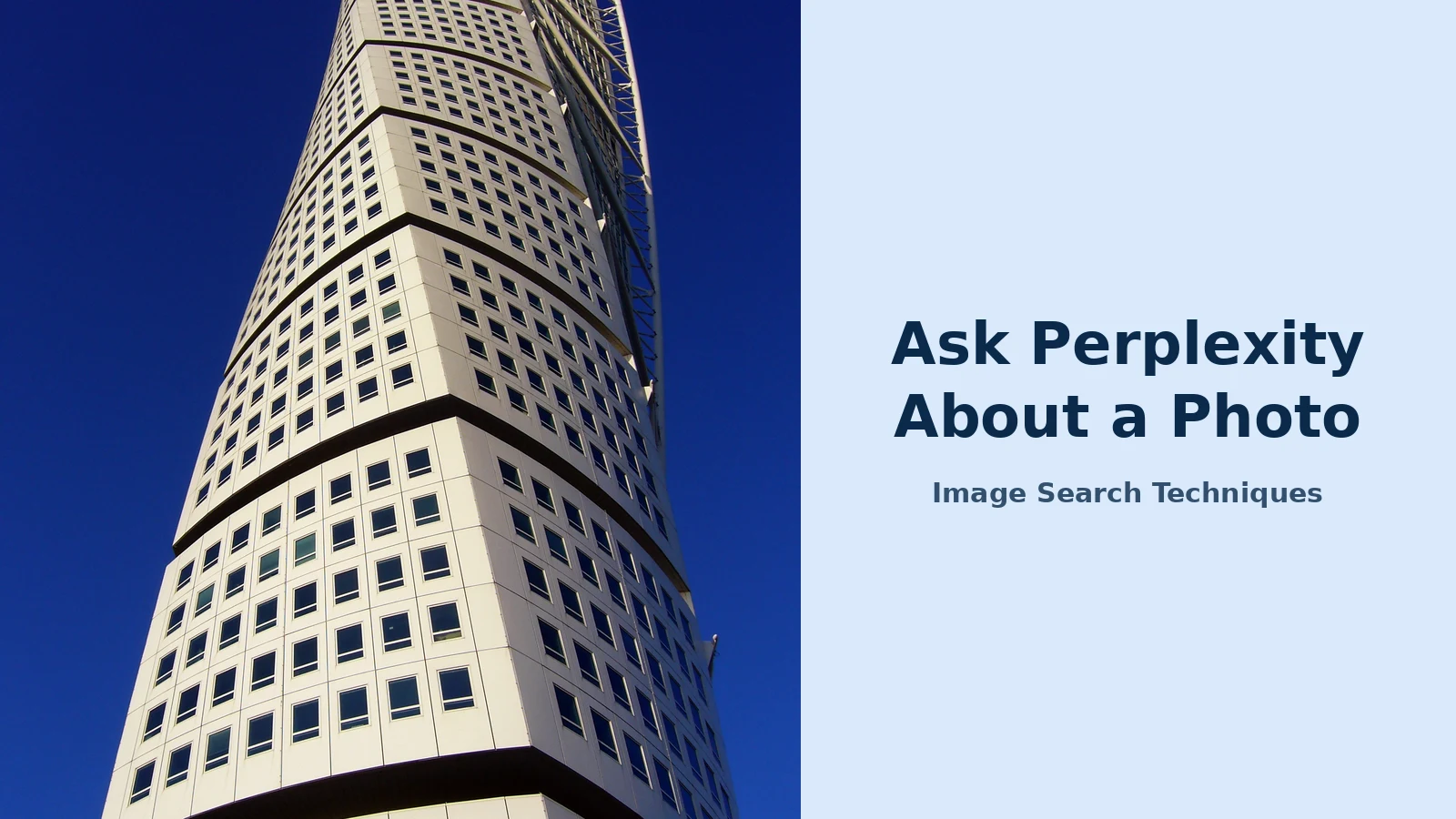
We set out to run a simple test on 13 November 2026. One photo, one question, three assistants: Perplexity, ChatGPT and Gemini. The photo was a real Wikimedia Commons picture of the Turning Torso, a twisting white residential tower in Malmo, Sweden, taken on 15 October 2006. The question was the same for all three: “What is the building in this photo? Give its name, the city and country it is in, the year it was completed, and the name of its architect. Give a source for each fact.”
The test did not go as planned, and the reason it failed is the most useful finding in this article. All three assistants required an account before they would accept a photo from a signed out visitor. No account was signed into for this test, so no assistant answer was produced. Here is exactly what each one did.
| Assistant | What happened when we tried to upload the photo, signed out | Result |
|---|---|---|
| Perplexity | Attach, then “Add images and files”, opened a box headed “Sign in to upload files” with the text “Log in or create an account to continue”, and buttons for Google, Apple, email and single sign on. | Blocked. No answer. |
| ChatGPT | The sidebar said “Log in to get answers based on saved chats, plus create images and upload files.” In the add files menu, “Add photos” was listed but clicking it twice did nothing at all: no file picker, no attachment, no login prompt, no error. | Blocked. No answer. |
| Gemini | The page showed a “Sign in” button. “Upload and tools” opened a menu stating “Sign in to try tools”, with Upload files, Add from Drive, Add from Google Photos, Deep Research and Canvas all greyed out. | Blocked. No answer. |
So the three way scored comparison we planned could not be run without signing in, and we did not sign in. That is itself the result. If you read a guide that shows all three assistants answering a photo question side by side, the author signed in to all three first. Any guide that implies you can do it signed out is out of date.
We then ran the second half of the test, which needs no account at all. We uploaded the same Turning Torso photo to a reverse image search and checked four facts about it: the building name, the city and country, the completion year, and the architect. The table below scores each engine on whether it named the building and whether it surfaced the original source file.
| Engine | Did it name the building? | Did it find the original source file? | What it reported |
|---|---|---|---|
| Google Lens | Yes | Yes | AI Overview: “The image shows the Turning Torso, a neo-futurist residential skyscraper located in Malmo, Sweden.” Key details: architect Santiago Calatrava, 190 metres, 54 stories, officially opened 27 August 2005. Exact matches listed the Wikimedia Commons file page, dated 15 October 2006. |
| TinEye | Yes | Yes | 203 results from 86.7 billion images, first indexed 1 May 2008. Top matches included the Wikipedia page for the file, “Filename: The_Turning_Torso,_Malmo.JPG”, 1920 by 2560 pixels. |
| Bing | Yes | Yes | Visual search returned the query “Turning Torso Malmo”, 3,070 results, location Malmo, Skane County, and a knowledge panel. “Pages with this image” listed 32 pages, including the Wikipedia file page. |
| Yandex | Partly | Yes | Its own tags were generic: building, high rise building, a tower. It did not name the building itself. But its top similar image and its first site result were both the Wikipedia file page, and it listed the exact size 1920 by 2560. |
| No label, pins only | No | The tool button opened a keyword search for the site domain, not an image search, and showed 7 unrelated pins. Pinterest Lens, used directly, worked without sign in and returned pins titled “Turning Torso – Malmo”, but no name label and no link to the source file. |
Four out of five engines identified the photo and found its original source. That is the check Perplexity’s citations are supposed to replace, and it is the check you should run when a chatbot’s answer has no source you can open. The facts themselves check out: the Turning Torso is a neo-futurist residential skyscraper in Malmo, Sweden, designed by Santiago Calatrava, 190 metres tall with 54 stories, officially opened on 27 August 2005, and described by Lens and Wikipedia as the tallest building in the Nordic countries. Every one of those facts came from a page the reverse search surfaced, not from a chatbot’s word alone.
Two practical notes from the run. Google Lens first hit an unusual traffic page and needed a CAPTCHA cleared before it showed results, which happens when too many searches come from one network. TinEye showed a Cloudflare check that cleared by itself after about twenty seconds. Neither stopped the search. Both are normal friction on free image search, not failures.
Perplexity vs ChatGPT vs Gemini for photo questions
All three assistants can look at a photo and answer questions about it, and all three now require an account before they will accept an upload. The differences are in what you get back, and what each one is built for.
| Perplexity | ChatGPT | Gemini | |
|---|---|---|---|
| Photo upload without an account | No. Sign in required. | No. Sign in required. | No. Sign in required. |
| Citations with sources | Yes, numbered sources on every answer, and the help centre tells you to check them. | Sources appear on web grounded answers, but not on every image answer. | Sources appear on some answers, and image answers often carry none. |
| Best for | Questions where the answer exists online and you want to see the source. | Open ended questions about a photo, and editing or generating images from it. | Questions inside Google apps, and photos already in Google Photos. |
| People in photos | Will not identify people. | Will not identify private individuals. | Will not identify private individuals. |
| Free tier | Free, with a rolling weekly upload allowance and no published number. | Free, with limits on image uploads and model use. | Free, with limits that vary by account and region. |
Perplexity’s edge is narrow but real. It is the only one of the three whose whole design is built around showing you where each claim came from. ChatGPT is the better choice if you want to discuss a photo at length or change it. Gemini is the better choice if your photos already live in Google Photos. For a single factual question about a photo, such as what a building is or what a label says, Perplexity’s citations make its answer the easiest to verify. That is the point of the tool, and it is also the test to apply to it: if the citations do not support the claims, the answer is not worth using, however confident it sounds.
If you want the same photo checked by a dedicated image tool rather than a chatbot, our guide to telling if an image is AI generated covers the other side of the question: whether the picture itself is real. The two checks belong together. One asks what the photo shows. The other asks whether the photo can be trusted.
When Perplexity is the wrong tool for a photo
Perplexity is a good tool for a narrow job: a factual question about a photo, where the answer exists on the public web and you want the source. Outside that job, pick something else.
- Identifying a person. Perplexity will not do it, and neither will ChatGPT or Gemini for private individuals. Use a reverse image search instead.
- Medical photos. Perplexity lists medical images among the types not to upload. A photo of a rash, a wound or a scan needs a clinician, not a chatbot.
- Checking if a photo is fake. Perplexity can describe a photo, but it cannot tell you whether it was edited or generated. That needs a provenance check or a detector.
- Photos with no public footprint. If the answer is not on the web, Perplexity has nothing to cite. A personal photo, a private document or a one off object will get you a guess dressed as an answer.
- Precise locations. Perplexity warns against uploading images of precise spatial locations. A photo of your house, your car plate or your street is not a good upload for any chatbot.
The rule is simple. If the question has a public answer and you want the source, use Perplexity. If the question is about who someone is, whether a photo is real, or what is in a private image, use a reverse image search or a specialist tool instead. The photo itself usually tells you which job you have, before you upload it anywhere.
Can you upload a photo to Perplexity for free?
Yes, but you need a free account first. Text search works without signing in, but photo upload does not: Perplexity asks you to sign in before the attach button works. Uploads on the free plan count toward a rolling weekly allowance that Perplexity does not publish as a number, and each file can be up to 40 MB.
What image formats does Perplexity accept?
Perplexity accepts JPEG, HEF, PNG and PDF files, up to 40 MB each, according to its help centre page on uploading images, last updated 27 October 2026. Upload on a computer with the Attach button or by dragging the file onto the search bar, or on a phone with the plus icon below the search bar.
Will Perplexity tell me who is in a photo?
No. Perplexity lists pictures of individuals among the image types to avoid uploading, and its help page says an image may fail to read if it contains identifiable individuals. If you need to check a person in a photo, run a reverse image search instead and look for the same photo on public pages under a consistent name.
How do I know if Perplexity’s answer about my photo is correct?
Open the numbered citations and read the source pages yourself, then run the same photo through a reverse image search as an independent check. In our test on 13 November 2026, Google Lens, TinEye, Bing and Yandex all identified our test photo and found its original source file, which confirmed the building name, city, completion year and architect.






