


🔎 Reverse Image Search
Image search techniques made simple: upload a photo or paste a URL and search 6 engines at once. 100% free, nothing stored.
🔒 Your image is never stored on our servers longer than 24 hours and is never shared.
You are standing at a market stall, or walking past a tree in a garden, and there is a fruit in front of you that you do not recognise. It could be a rambutan, a mangosteen, or something you have never seen before. Learning how to identify a fruit from a photo takes about a minute, and it starts with taking the right pictures, because a photo can answer that question, but only if it shows the right things, and only if you check it the right way.
Yes. Photograph the same fruit three ways: whole, cut open, and next to a coin for scale. Upload the best shot to Google Lens, then check the same photo on TinEye and Yandex. A photo can name the fruit, but it cannot prove the variety, and it never proves a wild fruit is safe to eat.
This guide walks through the whole method. It starts with what a fruit photo must show, then shows the three-photo routine, then tests it for real on a rambutan photo, with honest results from Google Lens, TinEye and Yandex. It ends with the safety rule that matters most, because a name on a screen is not a green light to eat something.
What does a photo need to show before a fruit can be named?
A fruit photo works when it gives the search engine something to match against. Skin colour, texture, shape and size are the four things that matter most. A single blurry shot from across a market stall rarely gives any of them, which is why so many fruit photos come back with wrong answers or no answers at all.
Think of it the way a person at a market would look at a fruit. They pick it up, turn it over, feel the skin, and look at what is inside. A photo has to do the same job with a flat image, so it needs more than one view. Google’s own AI Overview for this question makes the same point. It lists four things for the most accurate identification: show the whole fruit, include a cut view, show the plant it came from, and note where you found it. This article covers all four, and adds the scale shot that the overview leaves out.
Identification is not the same as variety. A photo can tell you that a fruit is a rambutan. It usually cannot tell you which named variety of rambutan it is, because varieties of the same fruit often look identical in a photo and differ in taste, flesh thickness or seed size. Treat a photo result as the fruit’s name, not its full identity.
That distinction shapes everything that follows. When an engine names a fruit, the honest reading is that the photo most resembles that fruit. When it names a variety, be careful. A variety claim from one photo is a guess dressed up as a fact, and this guide does not make that mistake.
Answer capsule: a fruit can be named from a photo when the photo shows skin, shape, size and the inside of the fruit, and the result is a likely name, not a proven variety.
How do you photograph a fruit so it can be identified?
Take three photos of the same fruit, not three photos of three different fruits. The routine takes about a minute, and it is the single biggest difference between a photo that gets named and one that does not. The table below is the routine. Keep it open on your phone the first time you try it.
| Shot | What to capture | Why it matters |
|---|---|---|
| Whole fruit | The full fruit, in focus, on a plain background, in daylight | Skin colour, texture, shape and size are the first things every engine reads |
| Cut fruit | The same fruit cut or peeled open, showing flesh, seeds, core or pit | Flesh colour and seed shape separate lookalikes that share a skin |
| Scale shot | The whole fruit next to a coin or your thumb | Size separates small fruits from large ones that look the same in a close-up |
The whole-fruit shot is the one you will upload first, so make it the best of the three. Hold the phone steady, get close enough that the fruit fills most of the frame, and use daylight rather than a yellow kitchen bulb, because artificial light shifts the skin colour and colour is one of the things the engines read. A plain background helps too. A busy market stall behind the fruit gives the engine extra shapes to chew on, and it can match the background instead of the fruit.
The cut shot is the one most people skip, and it is the one that settles arguments. Rambutan and lychee look alike from the outside at a glance, but their flesh and seeds are different, and a cut view shows that at once. Cut the fruit open on a plate, wipe the knife, and photograph the flesh in the same light as the whole shot. If the fruit has a stone or pit, show it. If it has seeds, show them. The inside of a fruit is often more distinctive than the outside.
The scale shot is the easiest to forget and the hardest to fix later. A close-up with no reference object can make a cherry-sized fruit look like an apple-sized one, and the engines will match it against fruits of the wrong size. A coin next to the fruit fixes that in one shot. Put the coin flat beside the fruit, not on top of it, and keep both in focus.
One more thing matters, and Google’s AI Overview names it directly: note where you found the fruit and the general region. A fruit bought at a UK supermarket, a fruit picked in a garden in Spain, and a fruit found wild on a walk are three different starting points. Region narrows the list of possible fruits before the search even starts, so write it down with the photos, or say it in the search box when the engine lets you add words to the image search.
Answer capsule: three photos of the same fruit, whole, cut open, and next to a coin, in daylight on a plain background, give the engines what they need to name it.
How do you identify a fruit from a photo with Google Lens?
Google Lens is the first engine to try, because it is free, it needs no account, and it is the one most likely to name the fruit outright rather than just showing similar pictures. Google’s own help page confirms the three ways to run a search: upload an image, drag and drop an image into the search box, or paste an image link. In Chrome on a computer you can also right-click any image on a web page and choose Search with Google Lens. That same help page says results can include AI overviews, search results for objects in the image, similar images, and websites that carry the image or a similar one.
Here are the steps, using the whole-fruit shot from the routine above:
- Open Google Lens on your phone or computer.
- Upload the whole-fruit photo, or paste the link to it if it is already online.
- Read the AI Overview at the top first, if one appears, then look at the Exact matches tab.
- Check the Visual matches tab for fruits that look the same, and read the captions, not just the pictures.
- Repeat the search with the cut-fruit photo, and compare the two sets of answers.
If you have never run a reverse search before, start with our step-by-step guide to reverse image search, then come back here for the fruit-specific routine.
That last step is the one that turns a guess into a result you can trust. If both photos point to the same fruit, the answer is strong. If the whole-fruit photo says one thing and the cut photo says another, the cut photo usually wins, because the flesh and seed are harder to fake than the skin.
There is one honest warning from the worked example below. The first two attempts to search the rambutan photo on Lens failed outright. The original file was 8.16 MB, and Lens sat on Thinking, then reported that there was no image at the URL. A 1024 pixel thumbnail link failed too, because that link itself returns an error from Wikimedia. The search only worked on the third try, using an 800 pixel version of the same photo. If Lens tells you there is no image at a URL, the problem is usually the file or the link, not the fruit. Shrink the photo, or upload the file directly instead of pasting a link, and try again.
Answer capsule: upload the whole-fruit photo to Google Lens, read the AI Overview and the exact matches, then repeat with the cut photo and trust the answer only if both agree.
What did the rambutan test actually show?
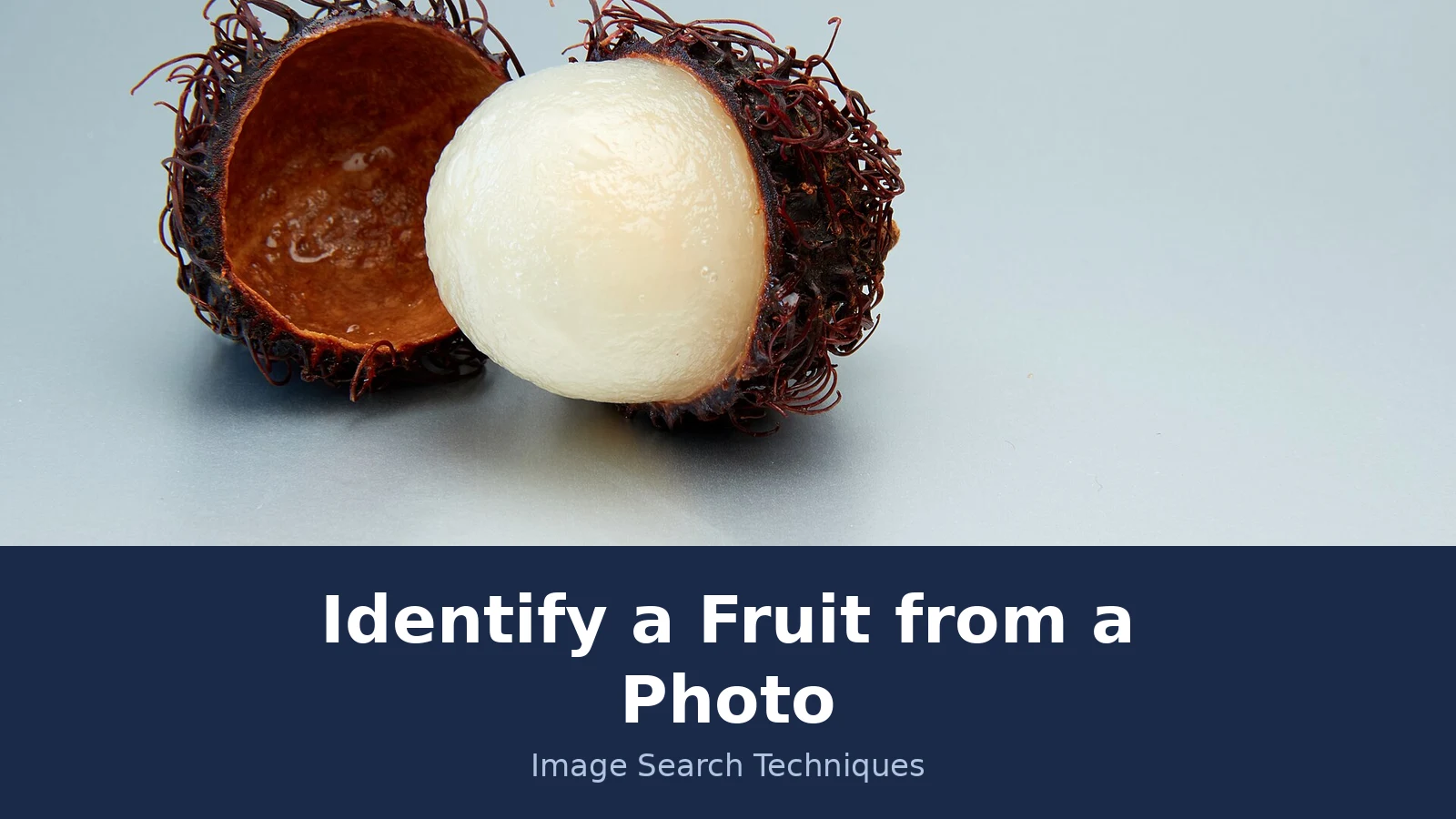
This section is the worked example, and every number in it comes from a real search run on 19 November 2026. The photo is a Wikimedia Commons file, Rambutan fruit, half peeled.jpg, by Frank Schulenburg, published 12 November 2017 under a Creative Commons Attribution-Share Alike 4.0 licence. It shows one rambutan, half peeled, with the white flesh sitting in front of the empty spiky husk on a pale background. One caveat before the results: the husk in this photo looks dark brown, not the bright red a reader may expect from a fresh rambutan, because the fruit in the photo is not freshly picked. That matters, because colour is one of the things the engines read, and a darker husk is one reason a photo like this can confuse them.
Google Lens named the fruit correctly. Its AI Overview called it a half-peeled rambutan, gave the scientific name Nephelium lappaceum, and described the dark reddish-brown rind covered in soft hair-like spines and the round white translucent flesh inside, with short sections on appearance, taste and texture, and edibility. Below that, Lens found 14 exact matches, all the same image, starting with the Wikimedia Commons file page and including the same photo reused on other sites. It also showed 60 visual-match cards before the See more link, nearly all rambutan, with a few lychee and stock-photo near misses mixed in. The fruit was named correctly, and the exact matches proved the photo itself is widely reused online.
Yandex Images named it correctly too, in Russian. Its image-appears-to-contain tags read rambutan fruit, exotic rambutan fruit, rambutan, and rambutan from Thailand. It showed 40 similar thumbnails on the first screen, all rambutan or lychee-like fruit photos, and 20 site results on the first screen of its Sites tab. Yandex gives no labelled exact-match count, so no exact number is claimed for it here. The interface was in Russian even on yandex.com, which is worth knowing before you use it, because the tags need translating before they are useful to an English reader.
TinEye gave the smallest result, and the most precise one. It found 3 results, all the exact same image, not just similar fruit. TinEye reported that it searched 86.8 billion images and that the photo was first indexed on 4 January 2018. The three results were the same photo on flickrhivemind.net, on flickr.com, and on Wikimedia Commons. TinEye itself does not name the fruit, so the name in that result came only from the rambutan tag on the flickrhivemind copy. That is the difference between the engines in one line. Lens names the fruit, Yandex describes it, and TinEye tells you where that exact photo has appeared before. All three are useful, and none of them alone is the whole answer.
None of the three engines returned zero on this photo, which is the result you would expect for a well-known fruit with a widely reused photo. A zero is more likely with a rare fruit, a fruit photographed in an unusual way, or a photo that has never been published online. A zero means the engine has no match in its index, not that the fruit does not exist, and the next section covers what to do when that happens.
Answer capsule: on a real half-peeled rambutan photo, Lens named the fruit and found 14 exact matches, Yandex named it in Russian with 40 similar images, and TinEye found the same photo on 3 sites, so the three engines agreed.
What should you do when the engines disagree or find nothing?
Disagreement is normal, and it is useful information rather than a failure. When Lens says rambutan and Yandex shows lychee pictures, the engines are telling you that the two fruits look alike from the outside, and that your photo has not separated them yet. That is the moment to use the cut photo. Rambutan flesh sits around a seed that is usually not eaten, lychee flesh is similar but the shell is rough and pebbled rather than hairy, and pulasan, the third fruit in this family, has shorter, thicker spines than rambutan. A cut view plus the spine length usually settles which of the three you have, and if it does not, the honest answer is that the photo shows one of that family and the exact fruit needs the seller or a regional guide to confirm.
A zero result needs the same calm reading. TinEye returns zero when a photo has never been indexed, which is common for a photo you took yourself five minutes ago. Lens can return zero exact matches while still showing visual matches, which means it recognises the fruit type but has never seen your exact photo. Neither result means the fruit is unknown. It means the photo is new, or the fruit is uncommon, or the photo is weak. Try the cut photo, try a different crop that fills the frame with the fruit, and try the photo on a second engine before you conclude anything.
There is also a limit that no engine can fix. A photo of a fruit at a market stall can name the fruit, but it often cannot name the variety. Many fruits have dozens of named varieties that look the same in a photo and differ only in taste, flesh thickness, or how long they keep. A seller who grows the fruit can tell you the variety. A photo cannot, and any tool that claims otherwise from one image is guessing. The same caution applies to the tree the fruit came from. This article is about the harvested fruit, whole and cut. Identifying the tree it grew on is a different job, and our reverse image search for plants guide covers that side of it.
Answer capsule: when engines disagree, use the cut photo to separate lookalikes, and when they find nothing, remember a zero means no match in the index, not that the fruit does not exist.
Are fruit identifier apps better than reverse image search?
Dedicated fruit identifier apps and reverse image search solve the same problem in different ways, and each one is better at a different part of it. An app such as Botan, Plant Identifier Online, CanopyTwin, FastShot AI or Frutolo is built for one job, which is to look at a photo and return a name, often with a confidence percentage. Reverse image search is built for a wider job, which is to find where a photo or a similar photo appears online, and the name comes from the pages it finds. The table below compares them on the points that matter to a reader with a fruit in their hand.
| Question | Reverse image search (Lens, TinEye, Yandex) | Fruit identifier apps |
|---|---|---|
| Names the fruit | Yes, usually, from the AI Overview and matching pages | Yes, usually, with a confidence score |
| Shows where the photo appears | Yes, exact matches and source pages | No, the photo stays inside the app |
| Works on a cut fruit | Yes, search the cut photo separately | Yes, if the app accepts a cut view |
| Costs money | Free for the three engines used here | Often a subscription after a trial |
| Proves the name is right | No, a match is a suggestion, not proof | No, a confidence score is a suggestion, not proof |
The apps have one real weakness that matters here. Most of them are general plant identification apps with fruit added as one feature, not fruit specialists. Freeappsforme reviewed eight fruit identification apps in July 2026 and found that only Frutolo is fully dedicated to fruit. The rest, including PlantID, PlantSnap, PlantNet and NatureID, are plant apps first. Its review also notes that iNaturalist will not work with a fruit by itself, because it identifies the tree, not the harvested fruit. Prices in that review include PlantID at 11.99 dollars a year, Frutolo at 4.99 dollars a month or 19.99 dollars a year, and NatureID on a 14-day trial before 19.99 dollars a year. Those prices were not checked against the app stores for this article, so treat them as the review’s figures, not as current prices.
Botan’s own page makes the strongest claims of any of the tools. It shows an illustrative result, a Royal Gala apple at 99 percent, and it publishes an accuracy comparison table with its own figures: Botan at 90 to 95 percent for common fruits and 70 to 80 percent for rare ones, PlantNet at 95 and 80, Google Lens at 85 and 60, and PictureThis at 88 and 70. Those are Botan’s own claimed figures, not independently verified results, and this article repeats them only as Botan’s claims. A vendor’s accuracy table is a sales claim, not a test. The rambutan test in this article is a test, and it is the only accuracy evidence this article stands behind: three engines, one photo, all three naming the same fruit.
The practical answer is to use both, in order. Run the photo through Lens first, because it is free and it shows its working, then try a dedicated app if Lens is unsure. If the app and Lens agree, the answer is strong. If they disagree, the cut photo and the seller are the tiebreakers, not the higher confidence score.
For a wider view of how the same method works on other subjects, our flower identification guide and our find an item by image guide use the same routine, and the food identification guide covers dishes and packaged food, which is the closest cousin to this one.
Answer capsule: apps give a name and a confidence score, reverse search shows its working and its sources, so use Lens first and an app second, and trust agreement between them, not a single score.
Can you eat a fruit once a photo has identified it?
No, not on the strength of a photo alone, and this is the one rule in this article that has no exceptions. Google’s AI Overview says it plainly, Botan’s guide says it too, and this article says it again: never eat an unidentified wild fruit based solely on a photo or app match, because many wild fruits and berries are toxic. A photo can suggest a name. It cannot prove a fruit is safe, because the things that make a fruit dangerous, such as a toxic lookalike, a sprayed orchard, or a variety that must be cooked before eating, do not show up in a photo.
The rule changes with where the fruit came from. A fruit bought at a supermarket or a market stall has already passed through a seller who knows what it is, and the risk there is mislabelling, not poisoning. Ask the seller the name, and check that the name matches what the photo search said. A fruit picked in a garden is different. Ask the person who planted it, or check a regional guide for your area before you eat it. A fruit found wild is the one to be most careful with. Photograph it, identify it, enjoy the identification, and leave the eating to a confirmed identification from a person who knows the local plants, not to a screen.
There is a second safety point that is easy to miss. A photo identification can be right about the fruit and wrong about the variety, and some varieties of the same fruit are eaten while others are not. That is another reason the honest answer from a photo is the fruit’s name, not a verdict that it is safe. Confirm with the seller or a regional guide before eating, every time, and never let a confidence score or a matching photo talk you out of that check.
Answer capsule: a photo can name a fruit, but it never proves a wild fruit is safe to eat, so confirm with the seller or a regional guide first. Vegetables work the same way, with a different traits table: see our identify a vegetable from a photo guide, which tests the method on a real purple kohlrabi across Lens, TinEye and Yandex and warns where seedlings cannot be trusted yet.
FAQs
Can I identify a fruit using a picture?
Yes. Photograph the fruit whole, cut open, and next to a coin for scale, then upload the best shot to Google Lens. Check the same photo on TinEye and Yandex as well. A photo can name the fruit, but it cannot prove the variety, and it never proves a wild fruit is safe to eat.
Is there an app that identifies fruit?
Yes. Botan, Plant Identifier Online, CanopyTwin, FastShot AI and Frutolo all identify fruit from a photo. Most plant apps also try, but only Frutolo is fully dedicated to fruit. Many charge a subscription after a trial, so try free reverse image search first.
Can you tell me what kind of fruit this is?
A photo can usually name the fruit when it shows the whole fruit, the cut flesh and seeds, and something for scale. Upload it to Google Lens and compare the answer with TinEye and Yandex. If the engines disagree, the cut photo and the seller are the tiebreakers.
Can Google identify a plant from a picture for free?
Yes. Google Lens is free and needs no account. Upload a photo at lens.google.com or right-click an image in Chrome and choose Search with Google Lens. It can name plants and fruit, show similar images, and find pages that carry the same photo.
What is the best photo to take of an unknown fruit?
Take three photos of the same fruit. One whole fruit in daylight on a plain background, one cut or peeled open to show flesh and seeds, and one with a coin beside it for scale. The whole shot goes to the search engine first, and the cut shot settles lookalikes.
Why did Google Lens find no matches for my fruit photo?
A zero usually means the photo is new, the fruit is uncommon, or the photo is weak, not that the fruit does not exist. Try the cut photo, crop tighter so the fruit fills the frame, shrink a very large file, and try TinEye or Yandex before you conclude anything.






