🔎 Reverse Image Search
Image search techniques made simple: upload a photo or paste a URL and search 6 engines at once. 100% free, nothing stored.
🔒 Your image is never stored on our servers longer than 24 hours and is never shared.
Your remote has died, the print on the back has worn smooth, and the only thing you have left is a photo of it. Or the remote in the photo is the one that came with a second-hand TV, and you need a spare before it gives up. Either way, you can identify a remote control from a photo, and you can do it without guessing. Follow the steps below and you can identify remote control from photo alone, with no model number visible at all.
To identify a remote control from a photo, photograph the front, the back and the inside of the battery door, then read the button layout like a fingerprint. Streaming buttons, a microphone button and TV controls date and brand the remote. The model code on the back label or the FCC ID then names the exact model you can order.
That is the whole method in one paragraph. The rest of this guide walks through it in order: how to take photos that actually work, how to read the button layout, where the model number hides, how the FCC ID settles the question for good, and what to do when the exact model is no longer sold. The worked example at the end takes a real photo of a remote with no visible model print and lands on an orderable model number.
What can a photo of a remote actually tell you?
A remote control is a small object with a lot of information packed into it. A good photo can tell you three things, and you need all three before you spend money.
First, the brand and the generation. The shape of the remote, the logo and the app buttons narrow it down fast. A remote with Netflix, Prime Video, Disney+ and a microphone button is a voice remote from the last few years. A remote with only navigation and playback buttons is older, and that matters because older and newer remotes for the same brand often look alike but pair differently.
Second, the exact model. The model code is printed on the back label or inside the battery compartment on most remotes. If the print has worn off, the FCC ID on the same label does the same job. The FCC ID is a code the US Federal Communications Commission gives to every wireless device, and it points to one specific model.
Third, what it works with. The buttons tell you which device the remote was made for. A remote with TV power and volume buttons controls a TV as well as a streaming stick. A remote with a number pad is for a TV or a set-top box, not a streaming stick. That distinction stops you ordering a remote that cannot control the device you actually own.
The method has a name in this guide: the button-layout fingerprint. It is the pattern of buttons on the front of the remote, read as a whole, the way you would read a face. Two remotes can share a brand and a colour, but their button layouts are rarely identical. This guide belongs to our identify-what-this-is hub, and the same photo-first thinking works for other small objects too. Our key identification guide uses the same idea: shape and markings first, guessing never.
How do I photograph a remote so it can be identified?
A blurry photo taken in a dark room will not identify anything. Take five photos, and take them in this order.
- The front, straight on. Lay the remote on a plain surface in daylight or under a bright lamp. Photograph it from directly above, with the whole remote in frame and every button readable. Shadows across the buttons are the most common reason a photo fails.
- The back, straight on. Flip the remote over and photograph the full back. The model code, the FCC ID and the battery type are usually printed here. Wipe the back first. Dust and grease blur the small print.
- The battery door, open. Slide the battery door off and photograph the inside of the compartment. On many remotes the model code is printed here, under the batteries or on the inside of the door itself.
- A close-up of any label. If the back carries a small white label, photograph it close enough to read every line. Hold the phone steady and tap the label on screen to focus on it.
- A close-up of the button area. Photograph the top third of the remote, where the power, voice and app buttons sit. This is the part that dates the remote, so it needs to be sharp.
Two tips make the difference. First, turn the flash off and use daylight if you can. Flash washes out the print on a glossy back and hides the button icons. Second, put a coin or a ruler next to the remote in the front photo. Remotes that look identical in a photo can be different sizes, and size is a real clue when two generations share a layout.
What does the button layout tell you?
Read the front of the remote from the top down. Each row of buttons answers a question.
| What you see | What it tells you |
|---|---|
| App buttons for Netflix, Prime Video, Disney+ or YouTube | A streaming remote. The exact apps and their order vary by brand and year, so they narrow the model down. |
| A microphone button | A voice remote. It pairs by Bluetooth or Wi-Fi, not by infrared, so a cheap infrared copy will not work. |
| TV power and volume buttons | A later-generation remote that also controls the TV. Earlier remotes for the same stick often lack these. |
| A number pad (0 to 9) | A TV, set-top box or satellite remote. Streaming stick remotes almost never have one. |
| Only navigation, home, back, menu and playback | An early streaming remote, or a basic TV remote. Check the back label next, because several models share this layout. |
| Coloured buttons (red, green, yellow, blue) | Usually a TV or set-top box remote, common on Sky, Virgin Media and older Samsung and LG remotes. |
| A circular navigation pad with a select button in the middle | Very common, so it identifies little on its own. Read it with the app buttons below it. |
Work through the table top to bottom and write down what you find. The combination is the fingerprint. A remote with a microphone button, TV power and volume, and four app buttons is a different model from a remote with a microphone button and no TV controls, even though they look the same at a glance. That is exactly how the worked example later in this guide pins down a remote with no model print at all.
One warning: do not trust the brand logo alone. Third-party replacement remotes copy the shape and the logo area of the original, and some carry no brand at all. The layout plus the model code is the identification. The logo on its own is not.
Where is the model number hiding?
Before you search the internet, look in the four places where manufacturers actually print the model number. Most people check only the back and give up. The number is often in the third or fourth place.
On the back label. The white or silver sticker on the back of the remote carries the model number, the FCC ID and the battery type. On Samsung remotes it looks like BN59-01357A. On Roku remotes it looks like RC-EL1. On LG remotes it looks like MKJ40653801. Read the whole label, because the serial number sits next to the model number and the two are easy to mix up. The model number is the shorter code, and it is the one a shop will ask for.
Inside the battery compartment. Take the batteries out and look at the floor of the compartment and the inside of the battery door. On many remotes the model code is moulded into the plastic here, where fingers never rub it away. This is also where universal remote makers hide the code-list version. GE universal remotes, for example, print CL3, CL4, CL5 or CL6 on a sticker inside the battery compartment, and the code you need depends on which version you have.
On the edge or the side. A few remotes print the model on the bottom edge, in tiny grey letters on black plastic. Tilt the remote under a bright light and look along the edge. A phone torch held at a low angle makes moulded text readable when a straight-on photo does not.
On the device it controls. If the remote itself gives you nothing, the device it controls can. On a TV, open Settings, then About or Support, and look for the model number. On a Fire TV Stick, go to Settings, then My Fire TV, then About. Search the web for that device model plus the words “remote control” and you will usually find the remote model listed in the manual or on the maker’s accessories page. This is the fallback when the remote is lost entirely and you have only a photo of it, or no remote at all.
The same habit applies to other small objects. Our screw and bolt guide and our light bulb guide both start in the same place: read the markings on the thing itself before you search for it. The markings are the fastest route to an exact match, and they cost nothing.
How does the FCC ID name the exact model?
An FCC ID is the strongest single clue on a remote. It is a code the US Federal Communications Commission assigns to a wireless device when it certifies it, and it names one specific piece of hardware.
What an FCC ID is. Every remote that uses Bluetooth or Wi-Fi carries an FCC ID, printed on the back label or inside the battery compartment. The code splits into two parts: a grantee code, which names the manufacturer, and a product code, which the manufacturer chooses for that model. Older grants use a three-character grantee code. Grants since 2012 use a five-character code. So the first three or five characters tell you who made the remote, and the rest tells you which model it is.
How to look one up. Type the full FCC ID into fccid.io, a free lookup that mirrors the FCC’s own records and is easier to search than the FCC site. The result page names the grantee and the type of device, and it links to the grant documents. The test report attached to the grant usually names the test model, which is the model number you need. That last step matters, because the grant page itself often shows only a generic description like “WiFi remote control”.
Here is a real example, checked on 13 November 2026. The FCC ID TC2-R1028 returns Roku, Inc. as the grantee and “Wifi remote control” as the device, with grants dated 19 March 2020 and 23 March 2023. The Bureau Veritas radio test report attached to that grant names the test model as RC-EL1, a Wi-Fi remote control from Roku. So a remote carrying TC2-R1028 is a Roku RC-EL1, and that is the model to order. The fccid.io page shows the grantee and the device type; the RC-EL1 model number comes from the test report, not from the summary text, so open the report before you buy.
Two limits to keep in mind. First, an FCC ID proves the radio inside the remote, not the plastic around it. A third-party copy can carry a different FCC ID or none at all, so a missing FCC ID does not prove a remote is fake, only that this route is closed. Second, some remotes use infrared only and carry no FCC ID. For those, the model code on the back label is the route, and the button layout is the backup.
| Clue | What it settles | Where to find it |
|---|---|---|
| Model code (for example BN59-01357A) | The exact model to order | Back label or battery compartment |
| FCC ID (for example TC2-R1028) | The exact model, via the grant test report | Back label or battery compartment |
| Button layout | Brand, generation and device type | Front photo |
| Device model number | Which remote the device shipped with | TV or stick Settings menu |
Worked example: a remote with no model print at all
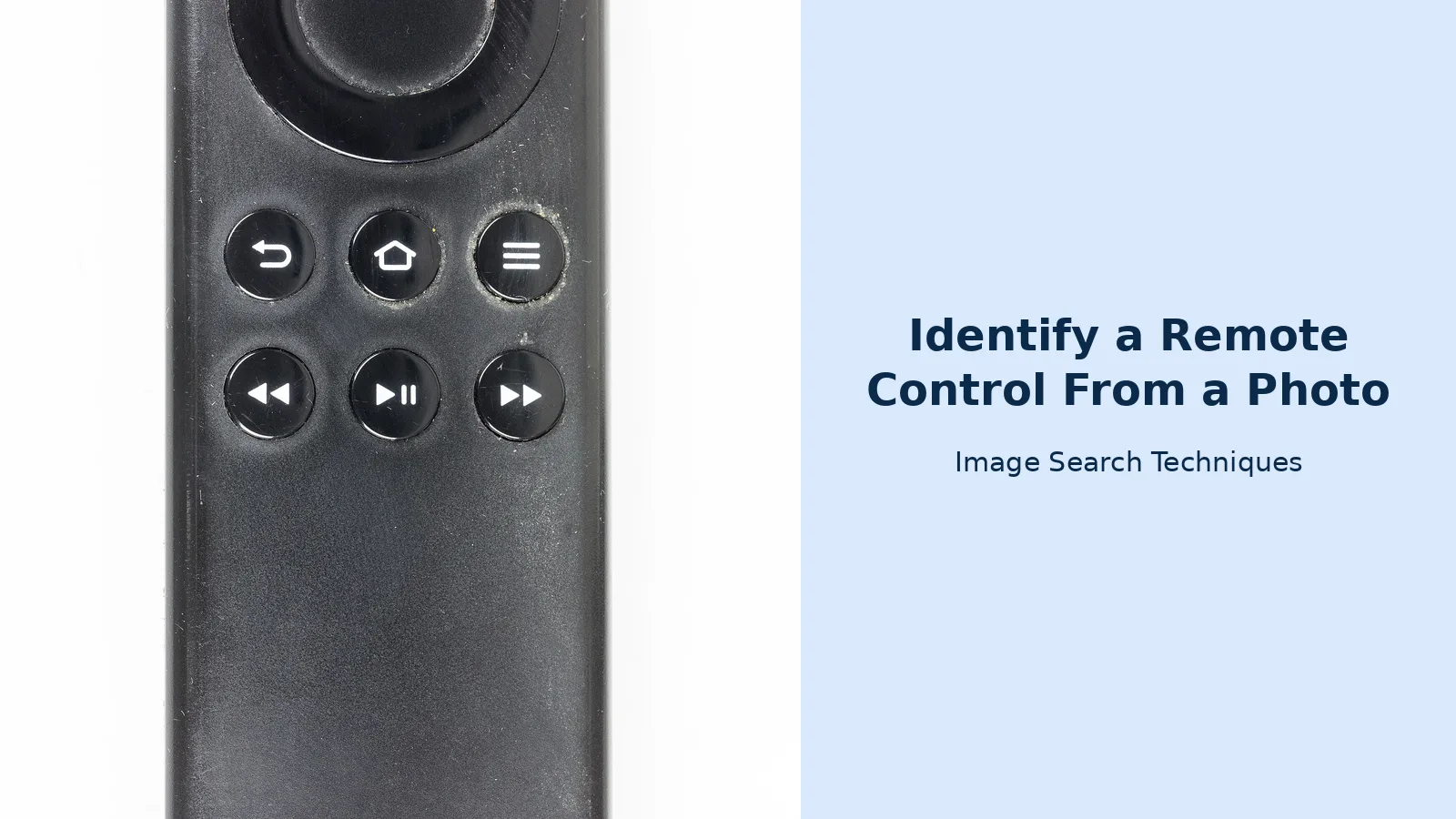
This is the case the rest of the guide is built for. The photo below is a real one: a black Amazon Fire TV Stick remote, photographed on 4 December 2025 by Raimond Spekking and published on Wikimedia Commons under a CC BY-SA 4.0 licence. The front of the remote carries no model marking at all. The only text on it is the small “amazon” wordmark near the bottom. There is no microphone button, no TV power button and no volume button. What it does have is a large circular navigation pad at the top, and six round buttons below it: back, home and menu on the top row, rewind, play/pause and fast-forward on the bottom row.
Step one is the button layout. That combination, a navigation ring plus those six buttons and nothing else, is the fingerprint of the first-generation Fire TV Stick remote. Every later Alexa Voice Remote adds a microphone button, and the later ones add TV power and volume as well. The absences are the identification here. A remote with a microphone button cannot be this model, and a remote without one cannot be a later model.
Step two is the manual. The replacement manual for the Amazon Fire TV Stick remote, model CV98LM, lists exactly this button set: navigation ring, Select, Home, Back, Menu, Play/Pause, Fast Forward and Rewind only, with no voice operation. It describes the CV98LM as a direct replacement for Amazon Fire TV Stick remotes without voice, first available on 27 October 2014, measuring 4.68 by 1.59 by 0.55 inches. The photo and the manual agree on every button, so the remote in the photo is a CV98LM.
Step three is the ordering endpoint. CV98LM is an orderable model number, sold as a replacement remote for the first-generation Fire TV Stick and Fire TV Box. When you search for it, check the listing against the button list in the manual. If the listing shows a microphone button, it is not a CV98LM, whatever the title says. “Looks similar” is not an identification, and the button list is the check that catches the wrong listing.
Step four is the reverse image search, run on 13 November 2026 through the reverse image search tool on this site, using the same photo. The table below is what each engine actually returned.
| Engine | What it found (13 Nov 2026, 19:39 to 19:48 UTC) |
|---|---|
| Google Lens | Named it outright. Its AI Overview read the photo as an Amazon Fire TV remote control, model CV98LM, with a circular navigation pad and media playback buttons and no voice control. The exact matches list ran to hundreds of entries, mostly eBay CV98LM listings. The Commons source page was not in the results. A reCAPTCHA appeared first and was cleared with the audio challenge. |
| Bing Visual Search | Described it as an Amazon Fire TV Stick Remote Control CV98LM, and reported 191 results. But its “Pages with this image” check returned nothing at all: “Unable to find pages with this image”. The Commons source page was not found. |
| Yandex Images | Tagged the photo “amazon fire stick remote” and showed 24 similar images and 20 sites, mostly shops and listings for CV98LM remotes. The Commons source page was not among them. |
| TinEye | Found 3 matches in 86.7 billion images, the oldest first indexed on 31 August 2017: two replacement remote sellers and one Airbnb listing photo. None was the Commons source page. A Cloudflare check appeared first and cleared after a short wait. |
| The site tool’s Pinterest button is not a visual search at all: it opens a keyword search for the site’s domain. A genuine Pinterest Lens upload of the same photo returned 16 similar remote pins and no exact match. The Commons source page was not found. |
No engine found the Wikimedia Commons page where this photo actually lives. The photo was published on 25 December 2025, so it is less than a year old, and the engines had not indexed that page by the time of the test. That is the honest limit of reverse search on a fresh photo, and it is why the layout and the manual did the identifying here, not the search.
The lesson from the table is the same one that runs through every worked example on this site. A match tells you the photo is known and where it lives. A blank result tells you nothing at all about the remote. The identification in this example came from the button layout and the manual, not from the search engines. Reverse search is a supporting check, not the verdict.
What if reverse image search finds nothing?
A blank reverse search is the most common outcome with remotes, and it does not mean the remote cannot be identified. Search engines index product photos from shops and manuals, not the worn remote in your drawer. A remote that has been in a living room for five years will often return nothing, even though the model is easy to name from the buttons.
When the search comes back empty, work the photo instead. First, check the photo itself. Crop it tight to the remote and run the search again on the cropped version. Search engines sometimes lock onto the background, a table or a hand, instead of the remote. A tight crop forces the engine to look at the buttons.
Second, search by words, not by image. Type the brand, the device it controls and the buttons you can see into a search engine, for example “Samsung remote Netflix button no voice” or “Fire TV remote no microphone button”. Add the words “replacement remote” and the model will usually appear in the first few results, because replacement sellers list remotes by their button layout.
Third, use the device. If you know the TV or stick model, the maker’s accessories page lists the remote that shipped with it. Samsung, for example, sells the BN59-01357A remote on its own site with a full list of the TV models it fits, so a TV model number can settle the question when the remote itself gives you nothing. Our reverse image search guide covers the engine-by-engine method in full, including what to do when a search returns lookalikes instead of the real thing.
How do I order the right replacement once I know the model?
Knowing the model is half the job. Ordering the right one means checking the listing against the model, not against the photo in the listing.
| Ordering route | When to use it | What to check before you pay |
|---|---|---|
| Maker’s own accessories page | Best first stop. Samsung, LG, Roku and Amazon all sell remotes for current models. | The compatible device list. If your TV or stick model is not listed, do not buy it. |
| Replacement remote sellers | When the maker no longer sells it, or the price is far lower elsewhere. | The model number in the listing title and the button layout in the listing photo. Both must match yours. |
| General marketplaces | For old or discontinued models that only third parties still stock. | Seller ratings, returns policy, and whether the listing names a model number at all. No model number means no sale. |
| Universal remote | When the exact model is gone for good. See the next section. | That your device brand and model are in the remote’s code list, and that the remote can learn commands if they are not. |
Before you pay, run three checks. First, match the button layout in the listing photo against your remote, button by button. A listing that shows a microphone button when yours has none is the wrong remote, even if the title names your model. Second, read the compatible device list, not the headline. A remote that fits “most Samsung TVs” fits nothing in particular. Third, check the returns policy. A replacement remote that does not pair is a common outcome, and a seller with no returns is a seller to avoid.
On pairing, follow the instructions that came with the remote or on the maker’s support page, not the generic advice on the listing. Voice remotes usually pair by holding the Home button for ten seconds near the device. Infrared remotes need a clear line of sight and the right code. If a new remote does not pair at all, try fresh batteries first. It sounds obvious, and it is the fix in more cases than anyone admits.
What if the exact model no longer exists?
Some remotes are gone. The maker has stopped selling them, and the replacement sellers have run out. That is when a universal remote earns its place, but it needs care, because not all universal remotes are equal.
Start with a code-list remote. GE universal remotes, made by Jasco, are the common budget option. They use code-list versions called CL3, CL4, CL5 and CL6, printed on a sticker inside the battery compartment. You must use the codes from the column that matches your remote’s version, because using the wrong column is the most common reason codes fail. Jasco’s own code lookup is on its site, and the remote has two programming methods: direct code entry, where you hold SETUP until the red light stays on, press the device key and enter the four-digit code, and auto code search, where the remote scans its whole library. Example codes from third-party tables include 5791 and 5801 for Samsung and 6021 and 0001 for LG, but treat those as starting points, not guarantees, and always check them against the version printed in your battery compartment.
Consider a learning remote with a hub. The SofaBaton X1S carries a cloud code library of more than 500,000 devices from over 6,000 brands, and you set it up in the app by choosing the device brand and model. If your model is not listed, it can learn commands from your original remote, or you can ask support to add the codes. One limit to know before you buy: the X1S remote itself has no infrared emitter, so all signals are sent by the included hub, and its Wi-Fi control covers Roku, Sonos and Philips Hue only.
Do not buy a Logitech Harmony as a new fallback in 2026. Logitech stopped making Harmony remotes in April 2021. Support ended on 28 May 2025 for the first-generation models, and those remotes can no longer be reprogrammed, have devices added or have buttons changed. They keep working with their existing settings, but the code database has stopped being updated, so a used Harmony cannot gain codes for new devices. A used Elite or Companion may still work, but its database is frozen, so check that your exact device is already in it before you pay.
The rule for the fallback is the same as for the original: the endpoint must be a model you can actually order and program for your device. A universal remote that cannot learn your device’s codes is not a replacement, it is a paperweight.
What mistakes waste money when buying a replacement?
Most wrong orders come from the same few mistakes, and all of them are avoidable.
Buying on looks alone. Two remotes can share a shape and a colour and control different devices. The button layout and the model number are the identification. A photo match without a model match is a guess.
Mixing up generations. Samsung, Roku and Amazon all reuse remote designs across generations, changing only the app buttons or adding TV controls. A remote for a 2021 TV will often not pair with a 2018 TV, even though it looks identical. Check the generation, not just the brand.
Buying infrared when you need Bluetooth. Voice remotes pair by Bluetooth or Wi-Fi. A cheap infrared copy of a voice remote will never pair, however good it looks. If your remote has a microphone button, the replacement must be a Bluetooth or Wi-Fi remote for the same model.
Trusting a listing with no model number. Listings titled “replacement remote for Samsung TV” with no model number are selling a guess. If the seller cannot name the model, you cannot know what you are buying. Move on.
Skipping the battery check. Some remotes take AAA batteries, some take AA, and a few take a coin cell. Check the battery type on the back label before you order, so the new remote works on the day it arrives instead of waiting for a battery run.
Work the method in order, and the photo you started with is enough. Photograph the front, the back and the battery door. Read the button layout. Find the model code or the FCC ID. Check the manual or the grant report. Then order the model number, not the lookalike.
Can I identify a remote control from a photo with no model number on it?
Yes. Photograph the front, back and battery door, then read the button layout as a fingerprint. The app buttons, microphone button and TV controls date and brand the remote. Match that layout against the maker’s manual or a replacement listing. A Fire TV remote with no visible model print was identified as a CV98LM from its buttons alone.
Where is the model number on a remote control?
Check four places: the label on the back, the inside of the battery compartment, the inside of the battery door, and the bottom edge. The model code is the shorter code on the label, next to the serial number. If the print has worn off, the FCC ID on the same label can name the model with a lookup instead.
What is an FCC ID, and how does it identify a remote?
An FCC ID is a code the FCC gives to a wireless device. It splits into a grantee code naming the maker and a product code for the model. Type the full ID into fccid.io to find the grantee and device type, then open the grant test report, which names the test model. TC2-R1028, for example, is a Roku RC-EL1.
Why does reverse image search find nothing for my remote?
Search engines index product photos, not the worn remote in your drawer, so a blank result proves nothing. Crop the photo to the remote and try again, search by words: the brand, the device it controls and the buttons you can see. If you know the TV or stick model, the maker’s accessories page lists the remote it shipped with.
Can I use a universal remote if my exact model is discontinued?
Yes, if it can control your device. GE universal remotes use code lists marked CL3 to CL6, and you must use the codes for the version printed inside your battery compartment. The SofaBaton X1S can learn commands from your original remote. Do not buy a Logitech Harmony: first-generation support ended in May 2025 and its code database is frozen.
How do I know a replacement remote listing is the right one?
Match the button layout in the listing photo against your remote, and check the model number in the listing title. Read the compatible device list to confirm your TV or stick model is named. If the listing shows a microphone button your remote lacks, or names no model at all, do not buy it. Check the returns policy first.