


🔎 Reverse Image Search
Image search techniques made simple: upload a photo or paste a URL and search 6 engines at once. 100% free, nothing stored.
🔒 Your image is never stored on our servers longer than 24 hours and is never shared.
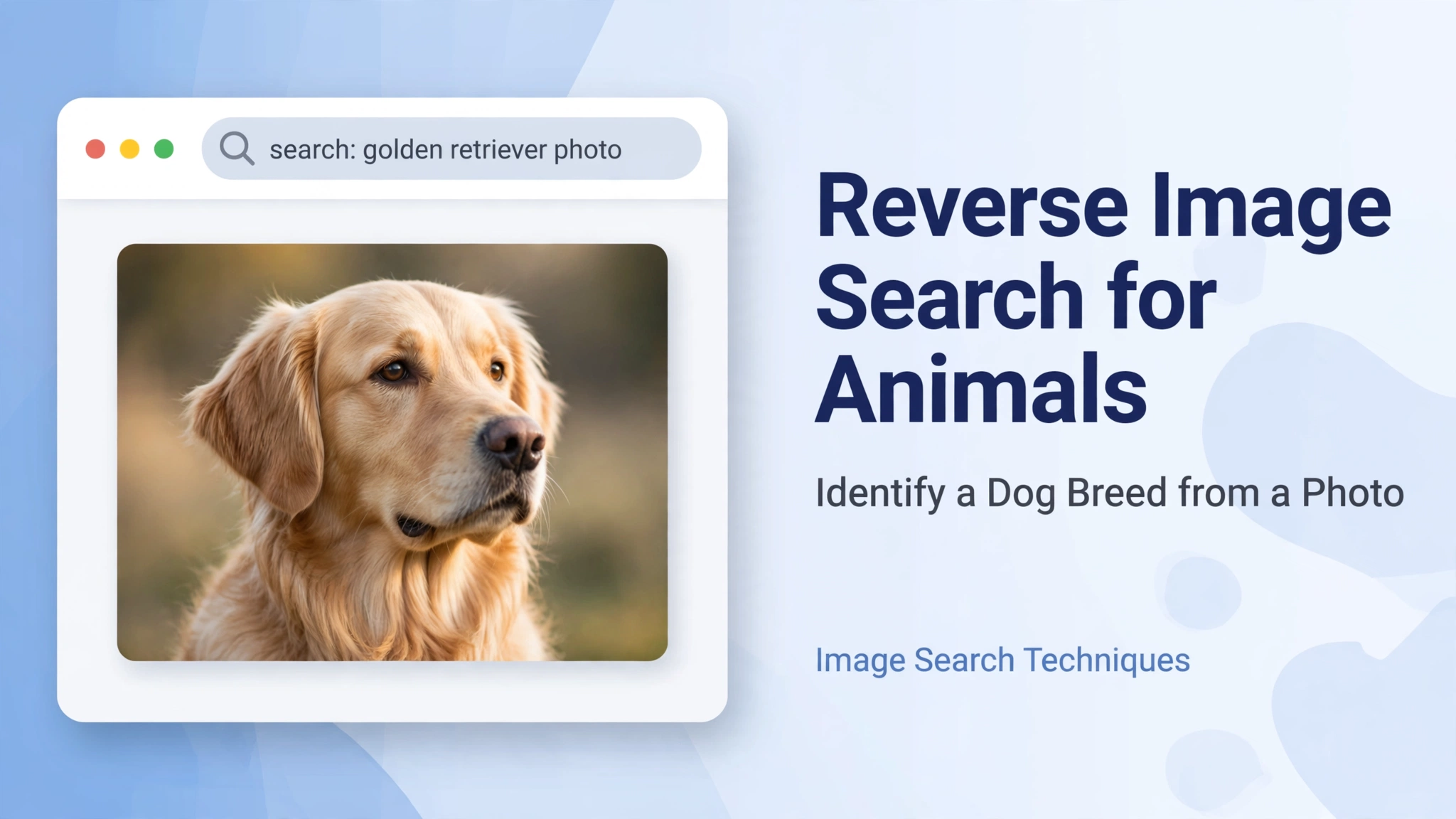 Quick Answer: Save the animal photo, then search it with Google Lens. Compare the top matches, then confirm the breed or species with a second engine such as Bing Visual Search or Yandex Images before you trust the result. A clear, close-up photo of the animal’s face and body gives the most reliable match.
Have you ever seen a dog in the park, a bird in your garden, or a wild animal on a walk and wondered what it was? A reverse image search for animals can give you a fast, useful answer. Instead of typing a description and hoping for the right words, you search with the photo itself. The search engine looks for visually similar images and pages, and those results often name the breed or species directly.
This guide explains how to use reverse image search for animals step by step. You will learn how to use Google Lens, TinEye, Yandex Images, and Bing Visual Search, how to identify dog breeds, cats, birds, and wild animals, and how to check a result before you trust it. It also covers common problems, privacy, and safety, so you can search with confidence.
If you are new to this kind of search, start with our main guide to image search techniques. It explains the ideas behind reverse image search in plain language. You can also try the free reverse image search tool on the homepage when you want a quick first check.
What Is Reverse Image Search for Animals?
Reverse image search is a search that starts with a picture instead of words. You upload a photo, paste an image link, or take a photo with your phone. The search engine then finds images that look the same or very similar, and shows the pages where those images appear. For animals, that process is especially helpful. A dog breed, a cat breed, a bird, or a wild animal can be hard to describe in words. Colour, coat pattern, ear shape, beak shape, size, and markings all matter, and a photo captures them at once. When the engine finds the same or a similar animal on a breed guide, a wildlife site, or an encyclopedia page, the page title and text often give you the name you need. Reverse image search does not prove an identification by itself. It gives you a strong lead. The best approach is to treat the first result as a suggestion, then confirm it with a second source. That habit protects you from similar-looking breeds, mixed-breed dogs, young animals, and photos taken at a difficult angle.Before You Search: Get a Good Animal Photo
A good photo makes a big difference. Before you upload anything, check the photo you plan to use. Use the clearest photo you have. The animal should be in focus, well lit, and large enough in the frame to see its face, ears, coat, and body shape. A side view or a three-quarter view often works better than a photo taken from directly above, because it shows the body shape and proportions. Crop the photo so the animal fills most of the frame. Remove distracting background objects, other animals, and people where you can. If the animal is small in the original photo, crop tightly around it before you search. Do not add filters, heavy sharpening, or text over the animal, because those changes can confuse the matching. Use the original photo when you can. A screenshot of a photo, a photo of a screen, or a heavily compressed image can still work, but the original file usually gives better matches. If you only have a screenshot, try it first, then try a cleaner version if the results are weak. Save the photo on your phone or computer so you can upload it to more than one search engine. Searching the same photo in two or three engines takes only a few minutes, and it is the simplest way to check whether different engines agree.How to Use Google Lens to Identify an Animal
Google Lens is a good first choice for most animal photos. It is free, it works on mobile and desktop, and it often returns breed and species names, similar images, and helpful pages in one set of results.Google Lens on Mobile
- Open the Google app or the Google Lens app on your phone.
- Tap the camera or Lens icon in the search bar.
- Take a new photo of the animal, or tap the gallery icon to choose a saved photo.
- Wait for Lens to scan the image and show its results.
- Look at the top matches first, then scroll down for similar images and related pages.
- Tap a result to open the page and read the breed or species description.
- Adjust the crop box if Lens has picked the wrong part of the photo, then search again.
Google Lens on Desktop
- Go to lens.google.com in your browser.
- Click the upload area and choose the animal photo from your computer.
- Or drag the image file into the Lens window.
- Wait for the results to load on the right side of the page.
- Drag the crop box to focus on the animal if the first results are too broad.
- Click a match to see the source page, the breed name, or the species name.
- Try the search again with a different crop if the animal is beside other objects.
How to Use TinEye to Identify an Animal
TinEye is a reverse image search engine that focuses on finding where an image appears online. It is useful when you want to trace a photo to its original source, or when you want to see whether the same animal photo has been used with a breed or species name attached.- Go to the TinEye website and open the search box.
- Upload your animal photo, or paste the image URL if the photo is already online.
- Wait for TinEye to search its index for matching and similar images.
- Review the list of pages that use the same image.
- Click a result to open the page and check how the animal is described there.
- Use the sorting and filtering options to see the oldest or most relevant matches first.
- Try a second engine if TinEye returns few results, because its index is smaller than Google’s.
How to Use Yandex Images to Identify an Animal
Yandex Images is often strong for animal identification, including dogs, cats, and wild animals. It can return similar images and text results that name a breed or species, even when other engines give broad or mixed results.- Go to Yandex Images.
- Click the camera icon in the search box.
- Upload your animal photo, or paste the image URL.
- Wait for Yandex to show similar images and matching pages.
- Look for repeated breed or species names across the top results.
- Click a result to open the page and read the full description.
- Try a tighter crop if the results include other animals or objects.
How to Use Bing Visual Search to Identify an Animal
Bing Visual Search is Microsoft’s visual search tool. It works in a similar way to Google Lens, and it is a good second check because it uses a different index and different ranking.- Go to Bing Visual Search.
- Click the upload or camera option and choose your animal photo.
- Or paste an image URL into the search box.
- Wait for Bing to show visually similar images.
- Review the tags and related searches that Bing suggests for the image.
- Click a similar image to open the page that uses it.
- Compare the breed or species name on that page with the results from your first search.
Comparison Table: Which Engine Should You Use?
Each engine has a different strength. The table below gives a short summary. Use Google Lens first, then confirm with one other engine.| Engine | Best for | Free | Needs account |
|---|---|---|---|
| Google Lens | Dog breeds, pets | Yes | No |
| TinEye | Finding image source | Yes | No |
| Yandex Images | Wild animals, breeds | Yes | No |
| Bing Visual Search | Second check, similar images | Yes | No |
Identifying Dog Breeds from a Photo
Dog breed identification is the most common use of reverse image search for animals. It works best when the photo shows the dog’s face, ears, coat, and body shape clearly. Start with Google Lens, then confirm with Yandex Images or Bing Visual Search. Look for the same breed name appearing in more than one engine. Then open a breed guide and compare the details. Check the ear shape, whether the ears stand up or fold down, the muzzle length, the coat length and texture, the tail shape, the size, and the colour pattern. Some breeds look very similar. A Labrador Retriever and a Golden Retriever can look alike in a photo, especially as puppies. A Husky and a Malamute, or a Border Collie and an Australian Shepherd, can also be confused. If two breeds keep appearing in your results, read the breed guides for both and look for the feature that separates them, such as eye colour, coat length, or body size. Mixed-breed dogs are harder to identify, because they may show features from more than one breed. A reverse image search may return several different breeds, and none of them may be a perfect match. That is a useful signal in itself. If the results are mixed, the dog may be a crossbreed, and a DNA test or a vet’s opinion will give a more certain answer than a photo search alone. Age matters too. Puppies change a great deal as they grow. A puppy’s ears, coat, and proportions may not match the adult breed photos that search engines return. If you are searching a puppy photo, try to find photos of puppies of the suggested breed at a similar age, and compare those, not only adult photos.Identifying Cats, Birds, and Wild Animals
Cats
Cat breed identification works in a similar way to dog breed identification, but many pet cats are not a named breed at all. Most pet cats are domestic shorthairs or domestic longhairs, even if they look like a pedigree breed. A reverse image search may suggest a breed such as a British Shorthair, a Maine Coon, or a Bengal, but you should check the coat pattern, ear shape, body size, and eye colour against a breed guide before you accept it. If the results are mixed and the cat has no papers, it is often safest to describe it as a domestic shorthair or longhair with a similar look.Birds
Birds are often easier to identify from a photo than dogs, because plumage, beak shape, and markings are distinctive. Search with a clear photo that shows the bird’s head, beak, wings, and tail. Google Lens and Yandex Images often return the species name, and the matching pages may be bird guides or wildlife sites. Pay attention to the location where the photo was taken, because the same-looking bird may be a different species in another region. A local bird guide is a good final check.Wild Animals
For wild animals, use the same method, but be careful about safety and accuracy. Search the photo, note the species names that appear in more than one engine, and then check those names against a wildlife guide or an encyclopedia entry. Look at the animal’s size, markings, habitat, and the region where it was seen. A fox, a jackal, and a coyote can look similar in a poor photo, and the region helps to narrow the choice. Do not approach a wild animal to get a better photo. Use the photo you already have, and keep a safe distance.Checking Results Before You Trust Them
A reverse image search gives you a suggestion, not a fact. Before you trust a breed or species name, run through these checks. First, check for agreement. Do at least two engines suggest the same breed or species? Do several top results use the same name? Agreement across engines and pages is a good sign. A single result with a different name is a warning sign. Second, compare the photos. Open the matching pages and look at the photos there. Do they show the same ear shape, coat, markings, and body shape as your animal? If the suggested breed looks different in several photos, the match may be wrong. Third, read the source. Is the page a breed guide, a wildlife organisation, a vet site, or an encyclopedia? Those sources are more reliable than a random social media post or a sales listing. Check the date and the context of the page, and be wary of pages that use the same photo for a different animal. Fourth, think about similar-looking breeds. Many breeds were developed from the same ancestors and share features. If your results keep switching between two breeds, study the differences between them. A small detail, such as a white chest patch, a curled tail, or a longer muzzle, can point to the right one. Fifth, allow for mixed breeds and age. A mixed-breed dog may match two or three breeds in different engines. A puppy may match adult dogs of a different breed. A young bird may have different plumage from an adult. If the animal is young or mixed, say so, and do not present the search result as certain. Finally, use a human check when it matters. If you need the breed for a vet visit, insurance, a rescue, or a legal reason, ask a vet or a breed expert. A photo search is a helpful starting point, but it is not a substitute for expert advice when the answer has real consequences.Troubleshooting: When Reverse Image Search for Animals Does Not Work
No Results
If you get no results, try a different engine. Google Lens may find matches where TinEye finds none, and Yandex Images may find matches where Google Lens does not. Try a tighter crop around the animal, and try the original photo instead of a screenshot. A very dark, blurry, or distant photo may simply not have enough detail for a match, so try a clearer photo of the same animal if you have one.Wrong Breed
If the search keeps returning the wrong breed, adjust the crop so only the animal is in the frame. Remove other animals, people, and objects from the photo. Try a different photo of the same animal, taken from another angle. Then check the breed guides for the suggested breed and for the breed you expected, and compare the features side by side. The difference is often in the ears, the muzzle, or the coat.Blurry Photo
A blurry photo gives weak results because the engine cannot see the details that separate breeds. Do not add heavy sharpening or filters, because they can create false details. Instead, use a sharper photo if you have one. If you only have the blurry photo, crop tightly around the animal, try two engines, and treat the result as a rough guess. Ask the owner or a local expert if you need a firmer answer.Screenshot Instead of Original
A screenshot can work, but it is often lower quality than the original photo, and it may include screen borders, text, or compression marks. If you can, go back to the original photo file and search with that instead. If you only have a screenshot, crop out the phone or browser borders, keep only the animal, and try more than one engine. If the results are poor, the screenshot itself may be the problem, not the animal.Privacy and Safety: Search Animal Photos Safely
Before you upload a pet photo, check what else is in it. Photos can reveal more than the animal. A photo taken at home may show your address on a letter, a house number, a car number plate, a school name, or a recognisable view from your window. A photo taken outside may show a street sign or a landmark near your home. Do not upload photos that include people, especially children, unless you need to and you have permission. Crop people out of the photo before you search, or choose a different photo that shows only the animal. Do not upload photos that show your home, your garden, or your daily routine in the background if you can avoid it. Check the photo for location data. Many phone photos store location information in the file, known as EXIF data. Some search engines strip that data, but others may keep it. To be safe, remove location data before you upload, or take a screenshot of the cropped animal and search with that, after removing any personal details from the frame. Turn off location tagging for pet photos you plan to share or search online. Think about the animal’s safety too. Do not share a photo that shows where a rare or valuable animal lives, and do not post a location with a wild animal photo. If you found a lost pet, share the photo through a local rescue or vet, rather than posting the exact location publicly. Finally, remember that uploading a photo to a search engine sends a copy of that photo to the search provider. Use a trusted engine, read its privacy notes if you are unsure, and do not upload photos you would not want to share.Frequently Asked Questions
Can Google Lens identify a dog breed from a photo?
Yes, Google Lens can often identify a dog breed from a clear photo. It returns similar images and pages that name the breed. The result is a strong suggestion, not a certainty, so confirm it with a second engine and a breed guide, especially for similar-looking breeds, mixed breeds, and puppies.Is reverse image search for animals free?
Yes. Google Lens, TinEye, Yandex Images, and Bing Visual Search all offer a free basic reverse image search, and none of them needs an account for a simple upload. You can search the same photo in more than one engine without paying.Can I identify a cat breed from a photo?
You can get a useful suggestion, but cat breeds are harder to pin down from a photo alone. Many pet cats are domestic shorthairs or longhairs, not a pedigree breed. Use a reverse image search for a first idea, then compare the coat, ears, and body shape with a breed guide, and accept that the answer may be a look-alike rather than a pedigree breed.Why does reverse image search give the wrong breed?
The most common reasons are a blurry or distant photo, a crop that includes other animals or objects, a puppy or young animal, a mixed breed, or two breeds that look very similar. Try a clearer photo, a tighter crop, and a second engine. Then compare the suggested breed with a breed guide before you trust the result.Can I identify a wild animal or bird from a photo?
Yes, in many cases. Birds and wild animals often have distinctive markings, beaks, and plumage that search engines can match. Use a clear photo, check the species name in two engines, and confirm it with a local wildlife guide, because the region where the photo was taken helps to narrow the choice.Is it safe to upload a pet photo to a reverse image search?
It is usually safe if you check the photo first. Crop out people, addresses, number plates, and recognisable views of your home. Remove location data from the file where you can, and use a trusted search engine. Do not upload photos that reveal where you live or where a rare animal lives.Related Guides
Keep learning with these guides on this site:- Image search techniques: the complete guide to reverse image search
- What is this picture? How to identify any image
- How to find similar images online
- Free reverse image search tool on the homepage
Related guides
- Reverse Image Search For Plants
- Reverse Image Search For Artwork
- Find The Original Artist Of An Image
- Reverse Image Search For Anime
The same approach works beyond animals: you can identify a mushroom from a photo too, as long as you photograph the cap, gills and stem and check the result against a second source.
