


🔎 Reverse Image Search
Image search techniques made simple: upload a photo or paste a URL and search 6 engines at once. 100% free, nothing stored.
🔒 Your image is never stored on our servers longer than 24 hours and is never shared.
Your UKVI account photo is the picture on your eVisa, and the UKVI account photo rules are not the same as the passport photo rules. The visa application upload is a separate step with its own file rules, covered in our guide to fixing a failed UK visa photo upload. Three differences catch people out: the file size ceiling is lower, only JPEG files are accepted, and you cannot reuse your passport photo. This guide explains each rule, shows you how to fix the common file problems, and tells you how to change the photo if yours no longer looks like you.
The short answer: a UKVI account photo must be a JPEG file, at least 600 by 750 pixels, between 50KB and 6MB, in portrait, and it must not be the same photo that is in your passport. It must show your head, shoulders and upper body against a plain light background, with a plain expression and your eyes open.
What is a UKVI account photo? It is the facial image stored in your UKVI account and shown on your eVisa, which is the online record of your immigration status. You do not upload a new photo when you create the account. The photo comes from your original application, and you only change it if your appearance has changed so much that the photo no longer looks like you.
Where does the photo on your eVisa come from?
Most people assume they choose a photo when they set up their UKVI account. That is not how it works. Your eVisa carries the facial image you provided when you applied, which for most applicants means the photo taken through the UK Immigration: ID Check app, or the photo captured at a UKVCAS service point if you enrolled in person in the UK. The Home Office biometric reuse guidance says people who make a successful application receive an eVisa containing the facial image they provided when using the ID Check app.
That matters for two reasons. First, a photo that was fine for your application is the photo you now live with, so any problem with it follows you into the account. Second, you cannot simply swap in a better picture at sign-in. Changing the photo is a separate step, done through the update service, and the new photo still has to pass the same rules. The section on face search and photo privacy explains why a photo that identifies you is worth handling with care, and this article keeps to the photo rules themselves.
There is one more thing worth knowing before you touch the photo. Your eVisa is your proof of status, and the photo on it is what a checker compares with your face. A photo that is too old, too dark or heavily edited can slow that check down. That is why the Home Office now asks people to keep the image reasonably current, which is covered in the section on changing your photo below.
What are the UKVI account photo rules?
The rules live on one GOV.UK page, “Take a photo of your face for a visa application or permission”. The page was first published on 12 February 2026 and last updated on 4 August 2026, so the version described here is the current one. The rules split into two groups: the file itself, and the picture in it. Both have to pass.
The file rules
Your photo must be a JPG or JPEG file. It must be at least 600 pixels wide and 750 pixels tall, and it must be in portrait orientation, taller than it is wide. The file must be at least 50KB and no more than 6MB. It must not be mirrored or flipped. It must not be a scan of a printed photo, and it must not be a photo of your identity document. It must not be altered by software, and GOV.UK names filters as the example of alteration.
| File rule | What GOV.UK requires |
|---|---|
| Format | JPG or JPEG only |
| Minimum size | 600 pixels wide by 750 pixels tall |
| Orientation | Portrait, taller than wide |
| File size | At least 50KB and no more than 6MB |
| Mirroring | Not mirrored or flipped |
| Source | Not a scan, and not a photo of your identity document |
| Editing | Not altered by software, including filters |
The picture rules
The picture itself must be in colour, clear and in focus, taken in a well-lit room against a plain light-coloured background, with clear contrast between you and the background. It must show your head, shoulders and upper body. You must face the camera and look straight at it, with a plain expression and your mouth closed. Your eyes must be open and visible, with no hair in front of them, and there must be no shadows on your face or behind you. Your shoulders and torso must be clothed.
Glasses are allowed only if you have to wear them, and never sunglasses or tinted glasses. Your eyes must still be visible through the lenses, with no glare, reflection or shadow. A head covering is allowed only for religious or medical reasons. GOV.UK suggests asking another person to take the photo for you, which is good advice: a photo taken by someone else is far easier to frame straight, at the right distance, without the tilt and stretch that front-camera selfies often have.
Children follow the same rules as passport photos, with a few waivers. Babies must be on their own, with no toys or dummies in the picture. Children under six do not need to look at the camera or hold a plain expression. Children under one do not need to have their eyes open, and they may lie on a plain sheet with their head supported by a hand that cannot be seen. If you are sorting a child’s photo, our passport photo rejection guide explains the checker messages adults meet, and the age-band rules for children are the subject of a separate guide in this series.
How do UKVI photo rules differ from passport photo rules?
This is where people get caught. The two sets of rules look almost identical at a glance, and they share most of their wording. The passport rules and the UKVI rules both ask for at least 600 by 750 pixels, both set a 50KB floor, both want head, shoulders and upper body, and both ban glasses unless necessary, head coverings except for religious or medical reasons, shadows and red eye. The differences are small, specific, and easy to miss. There are three of them.
Difference 1: the maximum file size is lower
A passport photo can be up to 10MB. A UKVI photo can be no more than 6MB. That 4MB gap is the trap that bites most often. A modern phone photo, saved at full quality, can pass the passport limit easily and still fail the UKVI one. If your photo was accepted for a passport and then rejected for your UKVI account, the file size is the first thing to check. The fix is simple: export or save a smaller copy, or compress the file, and check the size before you upload. The file-fix checklist later in this article walks through it step by step.
Difference 2: only JPEG files are accepted
The passport photo page states no file format at all. The UKVI page is explicit: the file must be a JPG or JPEG. That single word has a real consequence for iPhone users, because iPhones save photos as HEIC files by default. GOV.UK never names HEIC, so this is an inference from the rule rather than a quoted line, but the logic is plain: if only JPG or JPEG is accepted, a HEIC file is not accepted, and it must be converted to JPEG before you upload it. The same applies to PNG files. The conversion step is covered in the file-fix checklist below.
Difference 3: you cannot reuse your passport photo
The UKVI guidance says your photo must not be the same photo of you that is in your passport or identity card. There is no equivalent rule on the passport side. The passport rule runs the other way: you must get a new photo when you get a new passport. So the two systems both want a fresh photo, but only the UKVI rules say so in the form of a ban on reuse. If you cropped the picture out of your passport and uploaded it, that alone is enough for a rejection, even if the file is the right size and format.
| Rule | Passport photo | UKVI account photo |
|---|---|---|
| Maximum file size | 10MB | 6MB |
| File format | No format stated | JPG or JPEG only |
| Reusing your passport photo | Not addressed as a ban | Explicitly banned |
| Photo age | Taken in the last month | No recency rule stated |
| Framing | Head, shoulders and upper body | Head, shoulders and upper body |
| Minimum size | 600 by 750 pixels, 50KB floor | 600 by 750 pixels, 50KB floor |
Two corrections are worth making, because the top-ranking guide on this topic gets them wrong. First, the framing does not differ. One popular photo-tool blog claims passport photos show head and shoulders while UKVI photos show head, shoulders and upper body. That is false: GOV.UK’s passport page also requires head, shoulders and upper body. Second, that same guide’s comparison table actually lists four differing rows while calling them three differences. The three real differences are the ones above, and the table shows them cleanly.
There is also a fourth difference that is easy to overstate, so it is worth stating carefully. A passport photo must have been taken in the last month. The UKVI guidance states no recency rule at all. Some photo-tool sites claim a UKVI photo must be within six months, but that figure appears nowhere in the GOV.UK text, so this article does not repeat it. What the UKVI side does have, instead of a recency rule, is an update cadence, which is covered in the section on changing your photo.
Why does your UKVI photo upload fail?
Most failed uploads fail on the file, not on the face. The checker reads the file first, and a file that breaks a technical rule is rejected before anyone looks at the picture. Work through this checklist in order, and check each item on the saved file itself, not on the phone screen preview, because the preview can hide exactly the problems that cause a rejection. Glare and framing fail other government photo checks the same way: if your GOV.UK One Login identity check failed, the fix is the same kind of capture work, on the photo ID scan and the face scan.
| Check | What to do |
|---|---|
| File size over 6MB | Check the file size on the saved file. If it is over 6MB, export a smaller copy or compress it, then check the size again before uploading. |
| File size under 50KB | A file under 50KB is usually a thumbnail or a heavily compressed copy. Use the original photo, not a preview or a copy sent through a messaging app, which shrinks files. |
| Wrong format | The file must end in .jpg or .jpeg. If your phone saved it as HEIC or PNG, convert it to JPEG first, then check the converted file opens correctly. |
| Photo is mirrored | Front cameras often save a mirrored copy. Open the saved file and compare it with a mirror image of yourself: text on clothing, a parting, or a mole will show the flip. If it is mirrored, flip it back before uploading. |
| Photo of a photo, or a scan | Do not photograph a printed passport photo and upload that. Take a fresh digital photo, or use the original digital file. |
| Filters or edits | Remove any filter, beauty mode or automatic enhancement, and upload the unedited file. GOV.UK names filters as an example of alteration. |
| Wrong orientation | The photo must be portrait, taller than wide. Rotate a landscape shot to portrait, and check the saved file, not just the preview. |
| Too small | The photo must be at least 600 by 750 pixels. A cropped detail from a larger picture often falls below this. Use the full photo, or take a closer one. |
The 50KB floor deserves a word of its own, because it is the opposite of the problem most people expect. A file can be too small as well as too big. The usual cause is a messaging app: sending a photo to yourself through WhatsApp or a similar app compresses it, and the copy that arrives can be far smaller than the original. Always use the original file from the phone’s gallery or camera roll, and transfer it by cable, email at full quality, or a cloud drive set to original quality. If you are not sure which copy you have, check the file size on the saved file before you upload it.
The mirroring trap is the other quiet one. A front-camera selfie looks correct on the phone screen, because the preview shows you a mirror image, which is what you expect to see. The saved file is often flipped the other way, so the photo that is uploaded is a mirror image of you. GOV.UK says the photo must not be mirrored or flipped. Open the saved file on a computer, look for text on a shirt or a parting in your hair, and flip the image back if it is reversed.
One more honest limit: there is no official checker you can run before you upload. GOV.UK does not publish a test page for UKVI photos, and no GOV.UK page states a retry limit, a waiting period, or an appeal route for a rejected photo update, so this article does not invent one. If your photo is rejected, the fix is to correct the file against the rules above and upload again. The worked example below shows how to check a real photo file against the rules before you rely on it.
How do you change the photo on your UKVI account?
You can change the photo on your UKVI account, and the route is short. GOV.UK’s update page says you can change your photo, for example if your appearance has changed and you cannot be recognised from your current photo. The change is made through the “Update your UKVI account details” service. GOV.UK’s wording on rejection is blunt: “If you change your photo, you must make sure it meets the rules for digital photos. Your photo will be rejected if it does not meet the rules.” That is the whole of the official guidance on rejection, so there is no published retry count or waiting period to quote.
Two things trigger a change. The first is recognisability: your appearance has changed and the current photo no longer looks like you. The second is time. The Home Office Code of Practice on eVisas, version 2.0, published for Home Office staff on 17 September 2026, says facial images need to be updated regularly, and that people under 70 should update their facial image at least once before 10 years, or 5 years if aged under 16, starting from April 2025. That is a policy document, so this article cites only the update cadence from it, not the sanctions detail around it. If you are changing a photo, the GOV.UK page for updating your UKVI account details is the official route, and it is also where the rejection wording above comes from.
A practical note: take the new photo to the same standard as the original, and run it through the file-fix checklist first. A change that is rejected costs you the same time as a first upload, and the checker applies the same rules. If someone offers to fix your photo or sort your account for a fee, check them first with our visa agent photo check, because a genuine adviser will never need your photo to prove who they are. GOV.UK also publishes a support video titled “how to update your digital photo on your UKVI account”, added on 17 September 2025, which is worth watching if you prefer a walkthrough to text. This article does not repeat the account sign-in steps, because the photo rules are the subject here, not the account itself. For the sibling problem of a photo that was rejected by a different Home Office checker, our UK ETA app photo guide covers the ETA side, where the failure messages are different.
What if your BRP has expired?
All biometric residence permits have now expired and have been replaced by eVisas. That does not mean an expired BRP is useless. GOV.UK says an expired BRP can still be used for 24 months after the expiry date printed on the card, or until 31 December 2026, whichever comes first, for exactly three things: signing in to view your eVisa, creating a UKVI account, and applying to extend your stay. For nothing else. After that window, the card does nothing at all.
That window matters for this article because the photo on your eVisa is the photo you will be checking when you sign in with the expired card. If the photo is old or unclear, the account still opens, but the image you see is the one from your original application, and it is the one you should update if it no longer looks like you. A lost or stolen expired BRP must still be reported, and GOV.UK notes a fine of up to £1,000 for failing to report it, so do not throw the card away without checking the reporting step. When the card is finally dead, destroy it by cutting through the personal details, the coat of arms and the chip.
The 31 December 2026 date is the hard edge of the window, so if you have not created your UKVI account yet, do not leave it to the last week. The account itself is where the photo lives, and the photo rules in this article are the ones the update service will hold you to.
Worked example: checking a real photo against the UKVI rules
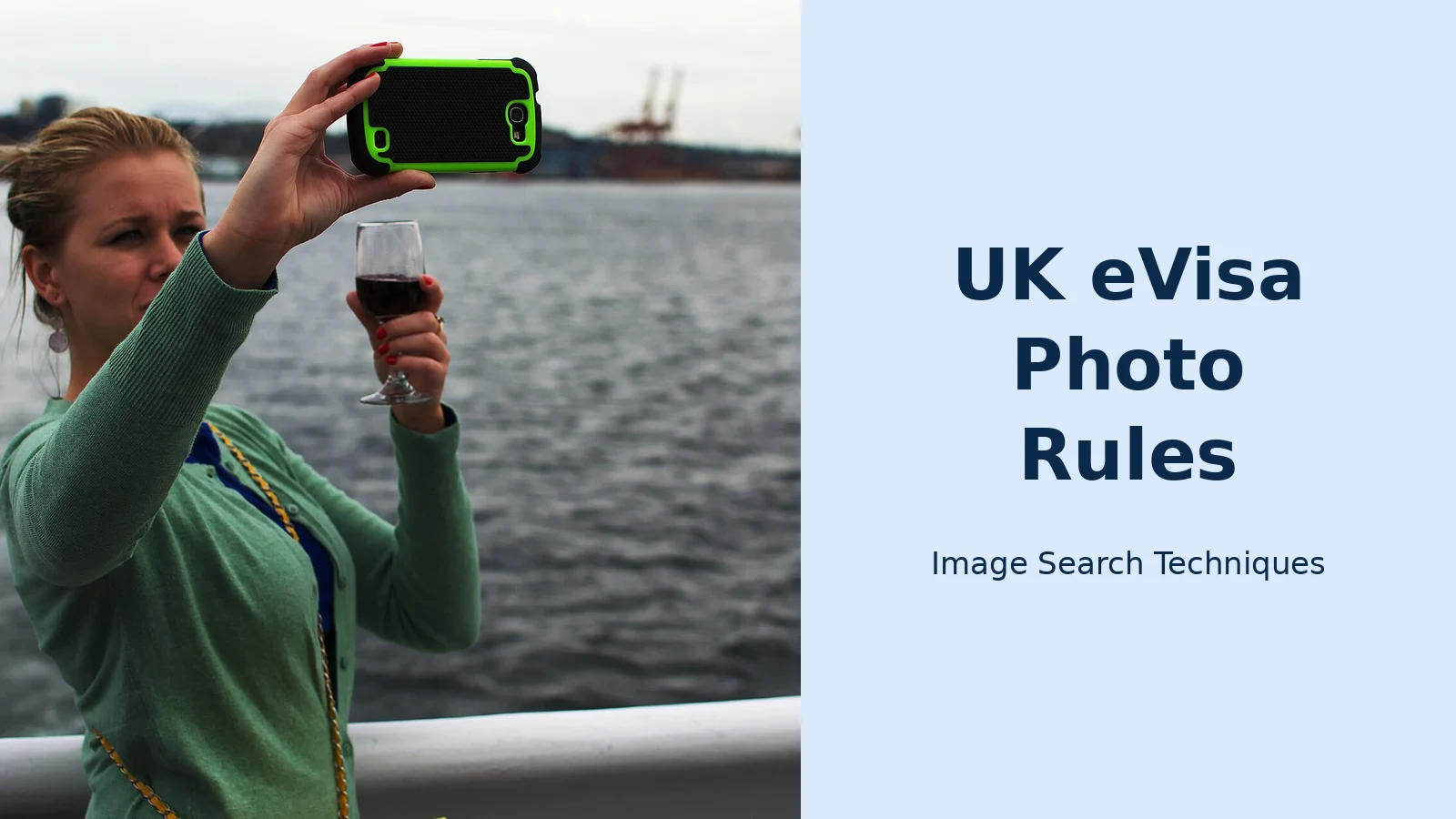
Rules are easier to trust when you can see them applied to a real file, so this section checks a real photograph against the UKVI rules, step by step, and then runs the same photo through the reverse image search tool on this site. The photo is a real Wikimedia Commons picture, “Woman taking Selfie at Elliott Bay, Seattle, 2014”, by Maëlick, licensed CC BY-SA 2.0. It is the same photo used in this article’s banner, and it is a good test case because it passes the file rules and fails the picture rules, which is exactly the split most people miss.
Step 1: check the file
The full-size original measures 6,028 by 4,012 pixels and is 2.3MB as a JPEG, according to TinEye’s record of the file. The copy used here, resized to 1,920 by 1,278 pixels, is 289KB. Both copies pass the file rules: JPEG format, well above the 600 by 750 pixel floor, and between the 50KB floor and the 6MB ceiling. Neither copy is a scan, neither is a photo of an identity document, and neither has been filtered. On the file alone, this photo would pass.
Step 2: check the picture
The picture fails, and it fails on nearly every content rule. It was taken outdoors, by the water, not in a well-lit room against a plain light background. The woman is holding a phone up to take a selfie and a glass of red wine in her other hand, so she is not facing the camera with a plain expression and her mouth closed. The background is a busy waterfront, not a plain light colour. As a UKVI account photo, it would be rejected. The lesson is the point of this article: a file that passes every technical check can still fail, because the picture rules are a separate test.
Step 3: run it through the reverse image search tool
The same photo URL was run through the site’s reverse image search tool on 12 and 13 November 2026, using the paste-URL field. The tool loaded the URL without an error and showed a preview at 6,028 by 4,012 pixels. The results were mixed, and they are reported here exactly as they came back.
| Search engine | Result | What it found |
|---|---|---|
| Google Lens | Failed | 0 results on three attempts. The error message read “Something went wrong. No image at the URL. Try again with a different URL or image.” Two CAPTCHA checks were cleared first, so the failure is Lens not fetching the link, not a bot block. |
| Bing | Worked | 16 pages with this image and 14,500 results for “Woman Taking Selfie By Water”. Bing recognised the photo, but no Wikimedia Commons page appeared in its results. |
| Yandex | Worked | 14 sizes, 40 similar images and 18 sites. Yandex recognised the photo and its caption described it exactly, including the wine glass. Exact-size copies appeared at Skift Research and 15 Minute News. No Commons page appeared. |
| TinEye | Worked | 160 results from 86.7 billion images searched, first indexed on 2 June 2015. Filtering by wikimedia.org gave 7 results, all Commons, but under a different filename: File:Selfie (15812177332).jpg, with the full-size copy at 6,028 by 4,012 pixels and 2.3MB. |
| Failed as a reverse search | The Pinterest button does not reverse-search the image. It opens a keyword search for the upload domain, which returned unrelated Wikimedia-hosted pins. The target photo was not among them. |
Three of the six engines worked, and the most useful result came from TinEye, which was the only engine to trace the photo back to its Commons source, even though it found it under a different filename than the one searched. Two quirks are worth knowing if you run the same test yourself. First, the tool’s “Search All” button opened only one tab, Google Lens, so the other engines have to be run one at a time. Second, the tool double-encodes the commas in this filename when it builds the engine links, which is the likely reason Lens could not fetch the URL. A photo with a simpler filename would probably have fared better with Lens, and that is a fair caveat to record.
The worked example also shows why the file rules matter in practice. The full-size original is 2.3MB, comfortably inside the 6MB UKVI ceiling, while a phone photo taken at full quality today can easily be larger. If you are preparing a real UKVI photo, measure the saved file before you upload it, and run the picture through the content rules in this article at the same time. A photo that passes both tests is the one that gets accepted.
The same one-standard-many-variations pattern appears with other official photos. Our guide to Blue Badge photo rules shows how councils disagree on how recent the photo must be while the national 45 by 35 millimetre standard stays fixed. A CSCS card photo is the same idea in a different scheme, with no size cap and a JPG-only rule, and our CSCS card photo requirements guide works through its full checklist. The NHS Login photo ID check is another official capture check with the same shape: our guide to fixing a failed NHS Login photo ID check covers the ID photo rules, the face record step and what to do with no photo ID. India’s e-Visa is a different system again, with its own square JPEG rule and 10 KB to 1 MB limit: our India e-Visa photo rejected guide works through the file check and the re-upload route.
FAQs
Can I use my passport photo for my UKVI account?
No. The UKVI rules say your photo must not be the same photo that is in your passport or identity card, so a cropped passport photo will be rejected even if the file is the right size. Take a fresh photo that meets the UKVI rules, and check it against the file-fix checklist in this article first.
What size does a UKVI account photo have to be?
Your photo must be a JPEG file, at least 600 by 750 pixels, in portrait, and between 50KB and 6MB. It must not be mirrored, must not be a scan or a photo of your identity document, and must not be altered by filters. The picture must show your head, shoulders and upper body against a plain light background.
How do I change the photo on my UKVI account?
Use the Update your UKVI account details service on GOV.UK, and upload a photo that meets the rules in this article. You can change your photo if your appearance has changed and you cannot be recognised from your current one. People under 70 should also update their facial image at least once before 10 years.
Can I still use my expired BRP to sign in?
Yes, for a limited time. An expired BRP can still be used for 24 months after the expiry date printed on the card, or until 31 December 2026, whichever comes first, but only to sign in to view your eVisa, create a UKVI account, or apply to extend your stay. After that window the card does nothing at all.






