


🔎 Reverse Image Search
Image search techniques made simple: upload a photo or paste a URL and search 6 engines at once. 100% free, nothing stored.
🔒 Your image is never stored on our servers longer than 24 hours and is never shared.
Quick Answer
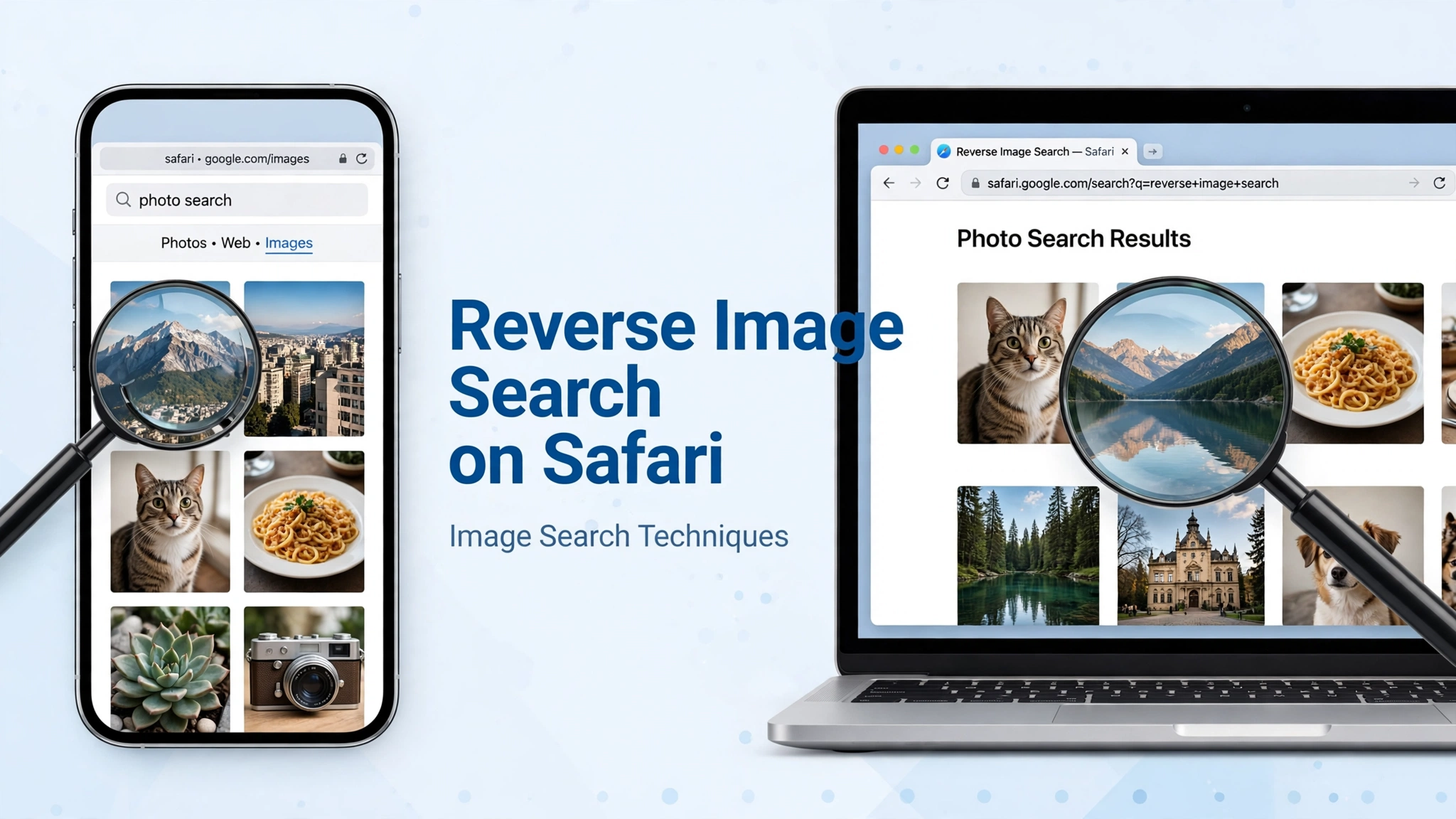
You can do a reverse image search on Safari even though Safari has no built-in reverse image search button. On iPhone, long-press an image and use "Search Image with Google" or request the desktop site and upload the photo to Google Lens. On Mac, right-click an image and choose "Search Image with Google," or upload it at lens.google.com. In both cases, save the image first if the page blocks long-press or right-click, then upload the saved file.
Why Safari Makes Reverse Image Search Tricky
Safari is a fast, private browser, but it does not include its own reverse image search engine. Unlike Chrome, which has Google Lens built into the right-click menu, Safari relies on web services. That means the method changes depending on your device and iOS or macOS version. The good news is that every Safari method below uses the same trusted engines: Google Lens, TinEye, Yandex Images, and Bing Visual Search. You do not need to install a shady app or pay for a tool.
If you are new to the idea, start with our complete image search techniques guide. It explains how reverse image search works and when to use each engine. You can also try the free tool on our homepage first, then use the Safari methods below for images you find while browsing.
Method 1: Reverse Image Search on Safari for iPhone (Long-Press)
This is the fastest method on iPhone and iPad.
- Open Safari and go to the page with the image.
- Long-press the image until a menu appears.
- Tap "Search Image with Google" if it appears. Safari opens Google Lens results for that image.
- If that option is missing, tap "Save to Photos" or "Download Linked File" instead, then open lens.google.com in a new tab and upload the saved photo.
- Review the results: look for visually identical matches first, then similar images, then pages that contain the image.
Tip: if the image is inside an Instagram or Facebook in-app browser rather than Safari itself, open the page in Safari first. In-app browsers often hide the long-press menu. Our guides to reverse image search on Facebook and reverse image search on TikTok cover those apps separately.
Method 2: Reverse Image Search on Safari for iPhone (Desktop Site + Upload)
Use this method when the long-press option does not appear, which happens on many sites.
- In Safari on your iPhone, tap the "aA" button in the address bar.
- Tap "Request Desktop Website."
- Go to lens.google.com or images.google.com.
- Tap the camera icon, then "Upload a file," and choose the photo from your library.
- Wait for Lens to show exact matches, similar images, and pages using the image.
This method works because the desktop version of Google Images still offers the upload option that the mobile version sometimes hides. It takes a few extra taps, but it is the most reliable iPhone method.
Method 3: Reverse Image Search on Safari for Mac (Right-Click)
On a Mac, Safari’s right-click menu is your best friend.
- Open the page in Safari on your Mac.
- Right-click (or Control-click) the image.
- Choose "Search Image with Google" if it is listed. Safari opens Lens results in a new tab.
- If that option is missing, right-click and choose "Save Image to Downloads," then go to lens.google.com and drag the downloaded file into the upload area.
- Compare the top results with the original image: check size, crop, and background details, not just the subject.
Mac users who also use Chrome can compare methods in our guide to reverse image search on Chrome, and Mac-specific shortcuts are covered in reverse image search on Mac.
Method 4: Upload to TinEye, Yandex, or Bing from Safari
Google Lens is not always the best engine. TinEye is strongest for exact matches, Yandex is strong for faces and similar photos, and Bing Visual Search is good for products and shopping. All three work in Safari without any extension.
- Save the image to your device (long-press on iPhone, right-click and save on Mac).
- Open tineye.com, yandex.com/images, or bing.com/visualsearch in Safari.
- Upload the saved image and wait for results.
- Try a second engine if the first gives no exact match. Different engines index different parts of the web, so a photo that fails on one often succeeds on another.
For a deeper comparison, see our guide to Google Lens alternatives.
Which Safari Method Should You Use?
| Situation | Best method | Why it works |
|---|---|---|
| iPhone, quick check | Long-press | Fastest, no upload |
| iPhone, menu missing | Desktop site + upload | Most reliable |
| Mac, any image | Right-click search | One click to Lens |
| No exact match | Try TinEye or Yandex | Different index |
| Product photo | Bing Visual Search | Shopping results |
Troubleshooting: When Safari Reverse Image Search Fails
- No "Search Image with Google" option: your iOS or Safari version may not offer it, or the site may block the menu. Save the image and upload it to lens.google.com instead.
- Upload button missing on iPhone: request the desktop website, or try TinEye, which has a simple mobile upload page.
- "No results found": the image may be cropped, filtered, or very new. Try a less cropped version, remove filters if you can, and search a second engine.
- Wrong results only: Lens may be matching the background, not the subject. Crop tightly around the subject and search again. Cropping, enlarging, and trying a second engine usually fixes this.
- Image will not save: some sites block downloads. Take a screenshot, crop it to the image, and upload the screenshot.
- Safari crashes on upload: try a smaller file, close extra tabs, or switch to the desktop site in a private window.
Privacy and Safety on Safari
Only search images you have the right to check: your own photos, public product images, or images you are verifying before sharing. Do not use reverse image search to identify private individuals, stalk someone, or harass them. A match is not proof of identity, and a photo can be reused, edited, or mislabelled. Safari’s Private Browsing mode does not hide uploads from Google, TinEye, or Yandex, so assume anything you upload may be processed by that service. If the image is sensitive, crop out personal details before uploading, and delete the saved copy from Downloads or Photos when you are done.
Frequently Asked Questions
Does Safari have a built-in reverse image search?
No. Safari has no built-in reverse image search engine. It can send an image to Google Lens through the long-press or right-click menu on some versions, but the actual searching is done by Google, TinEye, Yandex, or Bing.
How do I reverse image search on Safari on iPhone?
Long-press the image and tap "Search Image with Google" if it appears. If it does not, save the image, open lens.google.com, request the desktop site, and upload the photo.
How do I reverse image search on Safari on Mac?
Right-click the image and choose "Search Image with Google." If that option is missing, save the image and upload it at lens.google.com, tineye.com, or yandex.com/images.
Why is there no "Search Image with Google" option in my Safari?
The option depends on your iOS or macOS version, your default search engine, and whether the website blocks the menu. Saving the image and uploading it manually always works as a fallback.
Can I reverse image search on Safari without Google?
Yes. TinEye, Yandex Images, and Bing Visual Search all work in Safari. Save the image first, then upload it on the engine’s website. No extension or app install is needed.
Is reverse image search on Safari free?
Yes. Google Lens, TinEye’s basic search, Yandex Images, and Bing Visual Search are all free in Safari. Avoid paid apps that promise the same results.
Related guides
- Image search techniques: the complete guide
- Reverse image search on Mac: Safari and Chrome methods
- Reverse image search on Chrome: right-click, Lens and upload methods
- Google Lens alternatives: 7 other ways to search by image
- Reverse video search: how to find the source of any video
Try It Now
Open Safari, pick any photo you are curious about, and try the long-press or right-click method above. If you want the fastest start, use the free reverse image search tool on our homepage — then come back here whenever Safari hides the option you need.
