


🔎 Reverse Image Search
Image search techniques made simple: upload a photo or paste a URL and search 6 engines at once. 100% free, nothing stored.
🔒 Your image is never stored on our servers longer than 24 hours and is never shared.
Finding a photo online takes seconds. Knowing whether you are allowed to use it takes a little longer, and that second part is the one that matters. This guide shows you how to check a photo’s licence before you use it, step by step, with a real photo traced from a search result back to its licence page.
Short answer: To check a photo’s licence, trace the photo back to its source, read the licence on that source page, and match it against how you plan to use the photo. If the licence does not clearly allow your use, do not use the photo. A credit line is not a licence, and a search filter is not proof. A licence is only one layer of permission: our guide to whether you need a property release for your photos explains when the building or landmark in the photo needs a release of its own. Government photos are a good test of that rule: our guide to whether you can use government photos for free shows how a credit line naming a contractor changes the whole answer. The same applies to Maps: our guide to can I use Google Maps photos on my website works through the embed, screenshot and print rules for Google Maps photos. The same trap catches bloggers on Instagram, and our guide to using Instagram photos on a blog shows how the platform’s own rules work.
This is general information, not legal advice. Copyright rules differ between countries, and a licence that covers a blog post may not cover a book cover or a product page. If a use carries real money or real risk, ask a qualified professional. What follows is the checking method, so you can make that call with the facts in front of you.
Why does a photo need a licence check at all?
Copyright starts the moment a photo is created. The photographer does not need to register the photo, print a copyright symbol on it, or write “all rights reserved” underneath it. In the UK and the US, and in most other countries, the photo is protected from the day it is taken.
That is the first point the AI Overview on this question makes, and it is the point everything else follows from. Assume a photo is protected unless you find clear evidence that it is in the public domain or under a permissive licence. “I found it on Google” is not that evidence. Neither is “nobody has complained yet”.
A licence is the permission that turns a protected photo into a usable one. It says who may use the photo, for what, and on what terms. Some licences are wide. Some are narrow. Some allow commercial use and some do not. Some allow changes and some forbid them. Reading the licence is the whole job, and the rest of this article is how to find the licence worth reading.
The stakes are practical, not theoretical. In the US, the Copyright Office sets out statutory damages of 750 to 30,000 dollars per work for infringement, rising to 150,000 dollars per work for wilful infringement, with 200 dollars per work as the low end for innocent infringement. Those figures come from 17 U.S.C. section 504(c), and they are the reason a quick check before publishing is cheaper than a demand letter after it. In the UK there is no fixed statutory damages scale like that, but a photographer can still claim damages and an injunction through the courts, and the Intellectual Property Enterprise Court small claims track handles lower value claims up to 10,000 pounds. Either way, “I did not know” is not a defence.
For a major campaign or a high value commercial project, there is one more check worth doing. Search the public records of the U.S. Copyright Office for the registration and the named owner of the work. A registration confirms who claims the work, and it matters because the damages figures above only apply to registered works in the US. A registry search is not a substitute for professional legal advice, and a work missing from the registry is not free to use. Copyright is automatic, and an unregistered photo is still protected.
What is the difference between copyright, a licence and a credit?
Three words get mixed up here, and mixing them up is how people get into trouble. Keep them separate.
Copyright is the ownership. It belongs to the photographer, or to whoever the photographer assigned it to, from the moment the photo is taken. It lasts for a long time. In the UK it normally lasts for the life of the photographer plus 70 years. In the US the term depends on when and how the work was published, but for most modern photos it is also life plus 70 years for an individual author.
A licence is permission to use the photo on stated terms. The photographer keeps the copyright and lets you use the photo within the licence. A licence can be free, like a Creative Commons licence, or paid, like a stock photo licence. It can cover one use or many. It can end. Read it as a contract, because that is what it is.
A credit is a name next to the photo. It says who made it. It is not permission. Giving a photographer a credit does not replace a licence, and a photo with a credit line can still be unusable. Our guide to using images from Google on a blog makes the same point from the Google side, and our guide to using Pinterest images on a blog makes it from the Pinterest side. Both end in the same place: trace the photo to its source first, then check the licence.
There is one more distinction worth making now. The source of a photo and the licence on a photo are two different facts. The source is where the photo came from. The licence is what you may do with it. Finding the photographer does not grant permission, and finding a page that says “free” does not tell you free for what. Check both, every time.
How do I check a photo’s licence in four steps?
Here is the whole method in one table. It is the Ranking Asset for this article, and every section after it works through one row in detail.
| Step | What to do | What you are looking for | What a pass looks like |
|---|---|---|---|
| 1. Trace it | Reverse search the photo to find its earliest or most authoritative source | The photographer’s page, a stock listing, a museum record, or the original publication | You land on a page that names the creator and the licence |
| 2. Read it | Read the licence on that source page, in full | The exact licence name and version, and any conditions | You can state the licence, for example CC BY-SA 3.0, and what it allows |
| 3. Match it | Match the licence terms against your planned use | Commercial use, changes, sharing, print runs, and time limits | Every part of your planned use is allowed by the licence |
| 4. Keep it | Save a record of the photo, the licence, and the date | The source URL, a screenshot, the licence text, and the download date | You could prove, a year later, what the licence said when you used the photo |
If any step fails, stop. A photo you cannot trace, a licence you cannot read, or a use the licence does not cover all mean the same thing: do not use that photo until you have written permission or a different photo. The checklist is short on purpose. A check you will actually do beats a long one you skip.
How do I trace a photo to its real source?
Start with a reverse image search. Upload the photo, or paste its image address, into a reverse search engine and look at where the photo appears. You are not looking for the most results. You are looking for the earliest and the most authoritative ones: the photographer’s own page, the stock agency listing, or the museum or publication that first ran it.
Sort by oldest where the engine allows it. TinEye has an oldest-first sort, and a stock filter that often reveals a paid stock listing behind a photo that looks free. Google Lens shows exact matches and visual matches, and the matching pages often include the original portfolio or publication. Openverse is worth a check too if you suspect the photo is freely licensed, since it searches openly licensed images and shows the licence with each result.
Read the results with care. A photo that appears on fifty blogs may have one real source and forty-nine copies. The copies tell you nothing about the licence. The source page does. If the same photo appears on a stock site, that is a strong hint that it is a paid photo, whatever the blog that copied it says.
Our guide to how to reverse image search walks through the engines in detail. The point here is narrower: use the search to find the source, then leave the search behind and read the source page itself.
Worked example: a Tower Bridge photo traced to its licence
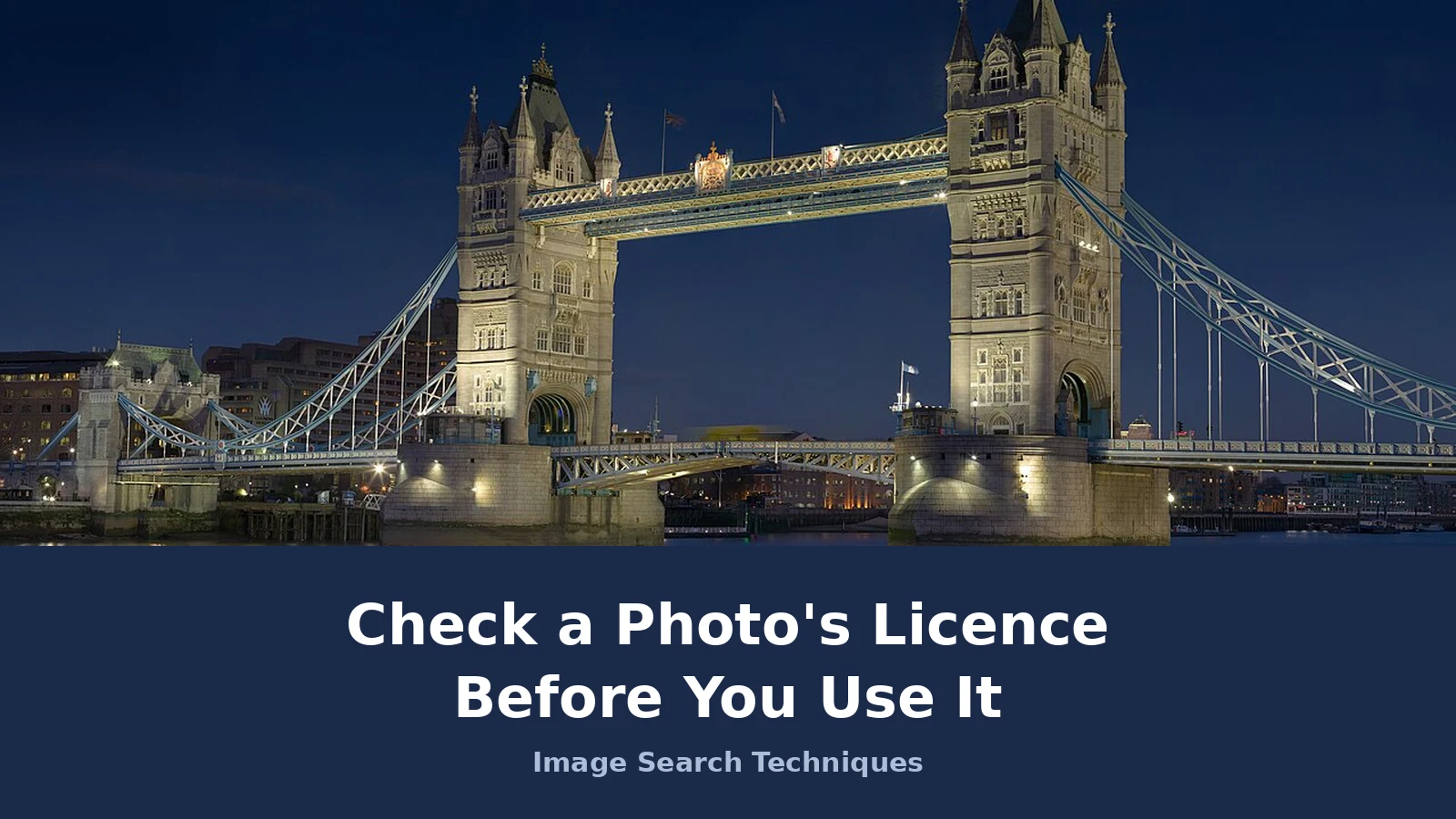
This is a real test, carried out on 17 November 2026, on a real photo. The photo is a night view of Tower Bridge in London, a mosaic of 53 segments taken on 10 February 2006. It is a well known image, and it appears all over the web, which is exactly why it makes a good test. A photo that looks free because it is everywhere is the photo most worth checking.
I started from the Wikimedia Commons file page for the photo. The page names the author as Diliff, the real name of David Iliff, and gives the licence as CC BY-SA 3.0 Unported, with a GFDL licence also listed. The suggested attribution reads “Photo by DAVID ILIFF. License: https://creativecommons.org/licenses/by-sa/3.0/”. The file is 9,462 by 4,734 pixels and 6.85 MB. It was a featured picture and a Picture of the Year 2006 candidate. That is the source page, and it answers the licence question in full: this photo may be used, including commercially, provided you credit David Iliff and share any adapted version under the same licence.
Then I reverse searched the same photo to see what the engines find when you start from the image alone, without the file page in hand. TinEye returned 1,542 results after searching 86.8 billion images, first indexed the photo on 5 February 2008, and listed 141 results found in stock and 155 pages. Its top results were stock listings: Shutterstock on 17 April 2019, Alamy on 13 August 2021, and Adobe Stock on 1 September 2021, followed by the English Wikipedia file page. TinEye did not name the location, the author, or the licence. It lists domains, file names, sizes, and dates, and that is all. A reader who stopped at the TinEye results would see stock listings first and might reasonably conclude the photo is a paid stock photo. The file page says otherwise, and the file page is right.
Google Lens failed outright on this photo, five times. Each attempt used the valid direct file address, and each time Lens showed a blank result, then an “Expired visual search” message, with both the exact matches and visual matches tabs reporting that something went wrong and no image was found at the address. The address itself loads the photo fine in a browser. Lens never named the photo, Tower Bridge, or the licence, and no Lens count is reported here because none was ever shown. That failure is worth recording honestly. A blank from one engine proves nothing about the photo. It proves that engine did not return a result on that attempt. The TinEye results and the Commons file page together settled the question, and that is the point of using more than one engine.
The verdict on this photo: usable, with conditions. CC BY-SA 3.0 allows commercial use and changes, with credit to David Iliff, and any adapted version must be shared under the same or a compatible licence. The banner at the top of this article uses this very photo under that licence, with credit to David Iliff in this article. The asset artefact for this article is the Commons file page itself, plus the TinEye results page worked through live.
Two lessons from the test are worth keeping. First, the stock listings at the top of the TinEye results are copies and resales, not the source. The source is the page that names the creator and the licence, and it sat below them in the results. Second, an engine that returns nothing has told you nothing. Check another engine, then check the source page directly.
What do the Creative Commons licences actually allow?
Most freely licensed photos you will meet carry a Creative Commons licence. There are six, built from four conditions, and the name of the licence tells you the conditions. Read the name, not the badge. The Creative Commons licence list is the authoritative source for what each one allows, checked at write time in November 2026.
| Licence | Commercial use | Changes allowed | What it requires |
|---|---|---|---|
| CC BY | Yes | Yes | Credit the creator |
| CC BY-SA | Yes | Yes, shared under the same licence | Credit the creator, share alike |
| CC BY-ND | Yes | No | Credit the creator, share the original only |
| CC BY-NC | No | Yes, non commercial only | Credit the creator, no commercial use |
| CC BY-NC-SA | No | Yes, non commercial, shared under the same licence | Credit the creator, no commercial use, share alike |
| CC BY-NC-ND | No | No | Credit the creator, non commercial, share the original only |
Three traps sit inside that table. First, “non commercial” is narrower than it sounds. A blog that earns money from adverts, or a business site of any kind, is usually a commercial use, even if the single page carries no advert. If your use is commercial and the licence says NC, the licence does not cover you.
Second, “no derivatives”, the ND condition, forbids changes. Cropping, recolouring, adding text, or using the photo inside a larger design can count as a change. If you need to edit the photo, an ND licence is the wrong licence.
Third, “share alike”, the SA condition, means any adapted version must carry the same licence. That matters if you plan to sell or restrict the adapted work. Check the version number too. A CC BY 3.0 licence and a CC BY 4.0 licence are close but not identical, and the version on the source page is the one that applies.
There is also CC0, which is not a licence but a public domain dedication. A creator who applies CC0 gives up their copyright as far as the law allows, and the work can be used for any purpose without credit. Do not assume a photo is CC0 because it sits on a free photo site. Unsplash, Pixabay, and Pexels each have their own licences, and they are not CC0. Unsplash, for example, allows broad use including commercial use without credit, but it forbids selling unaltered copies, using photos to build a competing service, and using them to train AI models, and it does not cover trademarks, people, or artwork shown in a photo. Read the site licence, not the word “free” on its home page.
What does the photo’s metadata tell me, and what does it not tell me?
A photo file can carry embedded metadata, often called EXIF or IPTC data, that names the creator, the date, and sometimes the copyright or licence terms. It is worth checking, and it is worth knowing its limits.
On Windows, right click the file, choose Properties, open the Details tab, and look for the Copyright and Author fields. On a Mac, open the photo in Preview, press Command and I, and check the IPTC and EXIF tabs. Online viewers such as the Pics.io EXIF viewer can read the same data without installing anything. If the metadata names a photographer and a licence, that is useful evidence, and it often points you to the source page.
But metadata is evidence, not proof, and its absence proves nothing. Social media platforms routinely strip metadata when a photo is uploaded, so a photo downloaded from a social post may carry none at all. Metadata can also be wrong, copied from another file, or deliberately changed. A missing copyright field does not mean the photo is free to use. A present one does not settle the licence on its own. Always confirm what the metadata suggests against the source page.
Watermarks deserve a short note. A visible watermark or copyright notice tells you the photo is claimed, and it often names the owner. Removing a watermark, or removing copyright management information from a file, can add a separate claim on top of the infringement itself. In the US, removing copyright management information can add damages of 2,500 to 25,000 dollars per violation. Do not crop a watermark out and hope nobody notices.
What if there is no licence anywhere?
Sometimes the check ends with nothing. The photo appears on a blog with no licence note, no credit, and no link to a source. The metadata is empty. The reverse search finds copies but no original. This is the most common outcome on the web, and the answer is the least popular one: do not use the photo.
“No licence stated” means “no permission found”, not “permission granted”. The photo is still protected, and the owner is simply unknown to you. Using it anyway is a gamble on two things: that the owner never finds out, and that they would not mind if they did. Neither is a licence.
You have three honest options. First, ask the creator for written permission, if you can find them. A short message asking for a specific use, in writing, with the reply kept, is enough. Second, use a different photo whose licence you can verify, from a stock library, a free photo site whose licence you have read, or your own camera. Third, check whether the photo is in the public domain, which is a different question from “no licence stated”. Our guide to telling whether a photo is in the public domain covers that check, including the US rule that works published in 1930 or earlier entered the public domain on 1 January 2026, and the UK rule that copyright normally lasts for the life of the creator plus 70 years.
Google Images has a usage rights filter under its Tools menu, and Bing has a similar licence filter. Both are useful as a starting point, and neither is proof. The filters read licence metadata that may be wrong or out of date, and Google itself says to verify the licence on the source page. Use the filter to narrow a search, then run the four step check on the photo you pick. A filtered result that fails the check is still unusable.
How is UK fair dealing different from US fair use?
Fair use and fair dealing sound like the same thing. They are not, and the difference matters if your readers or your site sit in different countries.
In the US, fair use is a defence in court, judged on four factors: the purpose and character of the use, the nature of the copyrighted work, the amount used, and the effect on the market for the original. The US Copyright Office fair use page sets out those four factors. Fair use is not a licence and not a permission slip. It is an argument you make after the fact, in front of a judge, and the outcome is never certain in advance. A blog post that criticises a photo, or reports news about it, may have a fair use argument. A blog post that uses the same photo as decoration usually does not.
In the UK, fair dealing is narrower. It covers specific purposes set out in the Copyright, Designs and Patents Act 1988, such as research, private study, criticism, review, and reporting current events, and each purpose has its own limits. Notably, the reporting current events exception does not cover photographs. There is no general US style fair use defence in UK law, and a use that would be fair use in the US can still be infringement in the UK.
Two practical rules follow. First, never rely on fair use or fair dealing as your plan. They are defences for edge cases, not licences for everyday use. Second, check the law where you publish and where your readers are, and say which one you are relying on. A US reader and a UK reader are not in the same legal position, and an article that treats them as one is misleading both.
Screenshots are where that rule bites most often. Our guide to can I use screenshots in a blog post runs the test on a real homepage screenshot and shows how cropping it down to just the photo inside turns a defensible use into a plain reproduction.
What mistakes catch people out?
Most licence trouble comes from a small set of repeated mistakes. Here they are, so you can spot them before they cost you.
Treating a credit as permission. A credit line names the creator. It does not grant a licence. “Photo: Google” or “Source: Pinterest” is not even a credit, since it names a platform, not a person. A proper credit names the creator, the title if there is one, the source, and the licence. That is the TASL pattern: title, author, source, licence.
Treating a search result as a licence. “Found on Google” is not a licence, and “found on Pinterest” is not a licence either. Google does not own the photos it indexes, and Pinterest does not own the photos pinned on it. Both platforms point at other people’s work. The licence lives on the source page, not on the search page.
Trusting the usage rights filter. The filter is a sorting tool, not a legal check. It reads metadata that can be wrong, and it cannot tell you whether the licence covers your specific use. Verify on the source page, every time.
Reading “royalty free” as “free”. Royalty free means you pay once, or pay nothing, and do not pay per use. It does not mean the photo is free of conditions. A royalty free stock licence can still limit print runs, forbid use on merchandise, or end when a subscription ends. Read the stock licence and keep the invoice, the asset ID, and the download date.
Missing the people and the trademarks in the photo. Copyright is only one right in a photo. A photo of a person can also raise privacy and publicity rights, and a photo showing a logo or a trademark can raise trademark issues. A licence from the photographer does not automatically cover those. Editorial use, such as news reporting, is treated differently from commercial use, such as advertising. If a photo shows a recognisable person or a brand, and your use is commercial, check those rights too.
The person’s rights are a separate check from the licence, and our guide to do I need a model release for my photos explains when a signed release is required and when it is not.
Assuming AI generated images are free. The US Copyright Office position, confirmed in January 2025, is that purely AI generated material, with no meaningful human authorship, is not eligible for copyright protection. That does not make every AI image free to use. The training data behind it, the terms of the tool that made it, and the rights of any person or brand shown in it are separate questions, and the tool terms may restrict commercial use. Treat an AI image like any other photo: find its terms, read them, and keep a record.
Using a photo and fixing the licence later. If you have already used a photo without checking, the fix is to take it down or replace it now, and then check the licence before any future use. Leaving it up while you look for a licence does not help, and neither does adding a credit after the fact. Our hub guide to protecting your photos online covers what to do if someone uses your photos without permission, which is the same problem from the other side.
Keep the record, and the check becomes quick
The first time you run this check it feels slow. The tenth time it takes minutes, because you know where the licence lives on each site you use, and you keep a simple record as you go. Save the source URL, a screenshot of the licence text, the licence name and version, and the date you checked. Put the credit line in the caption at the time you publish, not later. That record is what turns a good faith check into something you can prove.
Check a photo’s licence before you use it, every time, even when the photo looks free, even when everyone else is using it, and even when the search filter says it is fine. The same habit applies at school: our guide explains whether you can use photos in a school presentation in class, on a course site and on the open web. The check is four steps: trace it, read it, match it, and keep it. The Tower Bridge photo in this article passed all four. The same four steps work on a meme: see whether memes are copyrighted, which traces the Distracted Boyfriend photo back to its stock listing. The next photo you check may not, and finding that out before you publish is the whole point. For Canva specifically, see can I use Canva images commercially, which works through the Free and Pro rules with a real photo.
FAQs
If the photo you are checking came from Unsplash, read our guide on whether you can use Unsplash photos commercially before you decide, because the licence covers the photographer’s copyright only. Flickr works the same way: see can I use Flickr photos commercially, which works through the six Creative Commons licences with a real CC BY street photo. Album covers are a good test of the licence check: see can I use album cover art on my blog, which runs a real Pink Floyd cover through the review, decoration and commercial use table. Pexels is a good test case for the whole method: see can I use Pexels photos commercially, which traces one real photo back to its original page and checks it against the licence line by line. If the photo is a Shutterstock image, the licence check has its own rules: see can you use Shutterstock images on your blog, which works through the Standard, Enhanced and Editorial licences, the 500,000 print limit and the watermarked preview trap, with a real image page checked live. Getty Images is the library most bloggers trip over: see our guide to using Getty Images on a blog, which works through the embed tool, the royalty-free and rights-managed licences, and what a demand letter means.
How do I check a photo’s licence quickly?
Reverse search the photo to find its source page, then read the licence on that page and match it to your planned use. Check commercial use, changes, and sharing. Save the source link and the licence text with the date. If you cannot find a source or a licence, do not use the photo until you have written permission.
Is a photo free to use if it has no copyright notice?
No. Copyright is automatic when a photo is taken, in the UK and the US, with no notice or registration needed. A photo without a copyright symbol is still protected. The absence of a notice tells you nothing about the licence. You still need to find the source, read the licence, or get written permission before you use it.
Does giving credit mean I can use a photo?
No. A credit names the creator, but it is not permission. A photo can carry a full credit line and still be unusable without a licence. The credit is part of using a licensed photo properly, not a substitute for the licence. Always check the licence first, then add the credit in the form the licence asks for.
Can I use a photo I found on Google Images?
Not just because you found it there. Google indexes other people’s photos and does not own them, so a search result is not a licence. Use the usage rights filter only to narrow your search, then trace the photo to its source page and read the licence there. If the source page gives no permission, the photo stays unusable.
What does a Creative Commons licence allow?
It depends on the licence. CC BY allows commercial use and changes with credit. CC BY-SA adds a share alike condition. CC BY-ND forbids changes, and CC BY-NC forbids commercial use. CC BY-NC-ND is the most restrictive. Read the exact licence name and version on the source page, and match each condition to your planned use.
What should I do if I cannot find a photo’s licence?
Do not use the photo. Try a reverse search for the earliest source, check the file metadata, and ask the creator for written permission if you can find them. If none of that works, choose a different photo whose licence you can verify, or take your own. A photo with no licence found is not a photo with no owner.






