🔎 Reverse Image Search
Image search techniques made simple: upload a photo or paste a URL and search 6 engines at once. 100% free, nothing stored.
🔒 Your image is never stored on our servers longer than 24 hours and is never shared.
Was this photo edited with Nano Banana? Your cousin just “restored” your grandmother’s old photo with AI, and it looks amazing. Too amazing. The face is smoother than you remember, the dress looks different, and nobody remembers her wearing that necklace. Before you print it, frame it, or share it as the real thing, run the six checks below.
Nano Banana is Google’s Gemini image editor, built into the Gemini app. It does not just generate new pictures. It edits real photographs: it restores old ones, swaps backgrounds, and removes people. That is what makes it hard to spot. The photo you are checking probably started as a real photo, so this guide shows how to tell if an image was edited with Nano Banana by looking for the signs of an edit, not the signs of a generated image.
The Short Answer
There is no single check that proves a photo was edited with Nano Banana. Start with the visible Gemini sparkle in a corner. Then read any text in the photo, look closely at the skin, zoom in to 200 or 300 percent, and compare it with the original. If you are asking “is this image Nano Banana”, the check that can settle it is the watermark: upload the file to the SynthID Detector. Every Nano Banana image carries Google’s invisible SynthID watermark, and only Google can read it. If none of the checks turn up anything, the honest answer is “no information”, not “real”.
What Is Nano Banana, in One Line
Nano Banana is Google’s nickname for the image models inside Gemini that generate and edit pictures. You describe the change in plain words, and the model edits the photo: it can restore a damaged print, change a background, swap an outfit, or put a person into a different scene.
The name covers five models. The current default is Nano Banana 2.1, released on 6 October 2026 as an update to Nano Banana 2. Nano Banana 2 Lite is the cheapest and fastest, and Nano Banana Pro is the premium model for brand work and long text. The original Nano Banana, released in August 2025, is now legacy and retires on 15 March 2027. Nano Banana 2 is free inside the Gemini app, while the newer 2.1 model needs a paid Google AI plan.
Every output from every model in the family carries a SynthID watermark, and Google says it cannot be switched off. The watermark is invisible and lives in the pixels, so you cannot see it. But it is there, and it is the one check that can settle the question. We have written detection guides for the other generators too, including ChatGPT and Midjourney.
Why the Usual AI-Photo Advice Fails Here
Most guides to spotting AI images tell you to look for bad hands, warped faces, and impossible backgrounds. That advice was written for images generated from scratch. Nano Banana usually starts with a real photo and changes part of it, so the hands, the lighting, and the background can all be perfect. The photo is real in every part the model did not touch.
So look for the signs of an edit instead: a face that drifted from the original, skin smoother than the camera could capture, text the model rewrote badly, or detail that falls apart when you zoom in. None of these signs proves anything on its own, but two or three together make a strong case, and the watermark check can close it. Our general guide to telling if an image is AI-generated covers nine checks that work across all generators. This article covers only the signs that point to Nano Banana.
The 6 Checks That Tell You
Think of the six checks below as one Nano Banana AI image check. Work through them in order: the first three take less than a minute.
1. Look for the Gemini sparkle in a corner
Google puts a small visible Gemini sparkle watermark, a four-pointed star in a bottom corner, on images made on the free plan and on the Google AI Pro plan. The watermark people call the Nano Banana sparkle is really Google’s Gemini sparkle. Finding it is a strong signal: the photo was made or edited with Google AI. But it is not on every Nano Banana image: Google removes it for Google AI Ultra subscribers, images made in Google AI Studio do not carry it, and it can be cropped out. Finding it settles the question; not finding it tells you nothing.
2. Read the text in the image
Nano Banana is unusually good at short text: a headline, a label, or a street sign usually comes out right. The weakness is long text. Paragraphs and body copy still warp, wander off the baseline, or dissolve into shapes that look like letters but spell nothing. Read every word, not just the big ones. A correct headline above a malformed paragraph in the same image is a characteristic Nano Banana combination. If the small print is gibberish while the headline is perfect, Nano Banana is the most likely tool behind the edit.
3. Look at the skin and the faces
Portraits are where Nano Banana edits show most clearly. The skin tends toward a smooth, even finish with few visible pores, uniform lighting, and near-symmetrical features: the plastic skin look. Faces edited in the Gemini app often read as older than the person asked for, users reported during 2026. Compare the face with other photos of the same person. Does the skin look like a photograph or a painting of one? Are both sides of the face almost identical? One yes is a hint; two or three together is a strong sign.
4. Zoom in to 200 or 300 percent
Open the image at full size, zoom in to 200 or 300 percent, and look at the out-of-focus areas. Nano Banana output at 2K and 4K often comes from upscaling rather than native detail, and the upscale leaves marks: stair-step and zipper patterns along edges in blurred highlights, and fine texture, like hair, fabric, or leaves, that reads as invented detail. Do not judge it at the size it was sent to you. A photo shared on WhatsApp or Facebook has been compressed, which hides these marks, so ask for the original file. A screenshot is worse than useless: it adds its own compression.
5. Compare it with the original photo
This is the most reliable visual check, but it only works if you can get the source photo. Google’s own support forum carries user reports that the subject does not stay fully consistent with the original. Put the two images side by side and compare face geometry, hairline, teeth, and jewellery. A normal edit, like a crop or a brightness change, moves nothing. A Nano Banana edit rebuilds the face, and the rebuild is never pixel-perfect: earrings and necklaces often change shape or lose one side. If the person looks like themselves but not quite, and the jewellery does not match, you are probably looking at a Nano Banana edit.
6. Check the file size and dimensions
Google publishes the output sizes for this family: 512 pixels, 1K, 2K, and 4K, in aspect ratios including 1:1, 3:2, 2:3, 3:4, 4:3, 4:5, 5:4, 9:16, 16:9, and 21:9. Exact squares such as 1024 by 1024, 2048 by 2048, and 4096 by 4096 are consistent with Nano Banana output. Check the size in your phone’s photo details or by right-clicking the file. Treat this as the weakest check: many other tools use the same round numbers, so matching dimensions only narrows the field. But a photo exactly 1024 by 1024, with smooth skin and broken paragraph text, is a much stronger case than any one sign alone.
The Watermark Check That Settles It
If the visual checks leave you unsure, there is one check that can settle it. Every Nano Banana image carries Google’s invisible SynthID watermark in its pixels. Upload the file to the SynthID Detector and it will tell you whether the watermark is there. Our SynthID guide explains the full check, including what to do when the file has been screenshotted or re-saved.
Two things to know before you run it. First, only Google can read SynthID: no independent detector can check the Nano Banana SynthID watermark. Second, a “not found” result does not mean the photo is real. It means the image was not created or edited by Google AI, but it could have been made by another AI system, or the watermark may not have survived many rounds of editing and re-saving. Read a clean result as “no information”, never as “not AI”.
What to Do If You Are Still Unsure
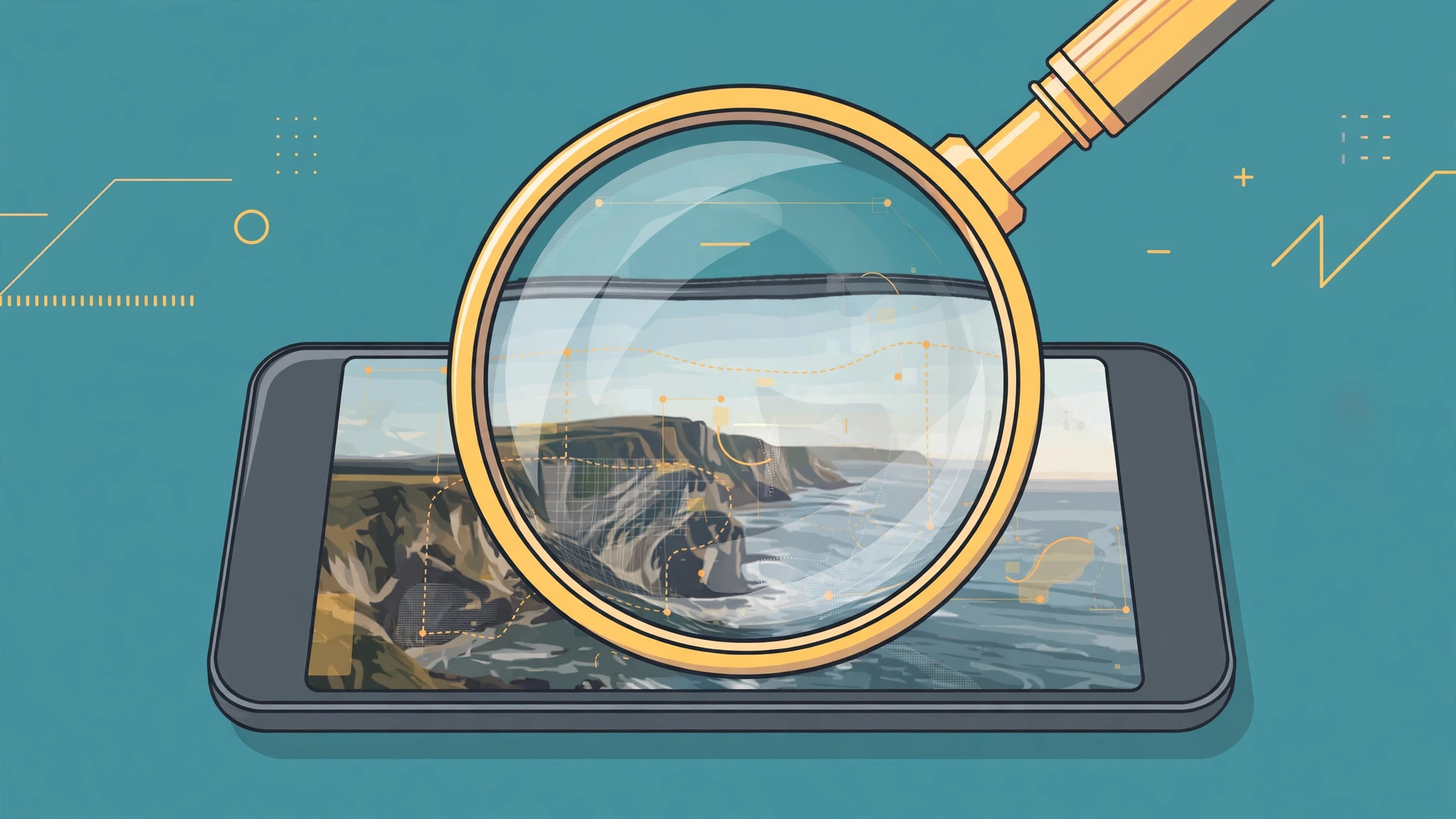
Run a reverse image search on the photo. If the same image appears online with an earlier date or in a different context, that tells you more than any single check. Search the original file, not a screenshot. Our reverse image search guide walks through the steps.
Ask the person who sent the photo for the original file, and ask directly whether it was edited with AI. A straight answer ends the question faster than any tool. If they will not share the original, weigh that with everything else you found.
You can also run the photo through an AI image detector for a quick AI generated image check, but treat the result as a probability, not a verdict. No published accuracy figure exists for Nano Banana specifically, and overall detector accuracy sits near 89 percent across modern generators. Our detector round-up compares the tools worth trying. If a detector has already flagged one of your real photos, our guide to a flagged real photo explains why detectors get it wrong.
Finally, remember what the checks cannot do: no check in this guide can prove a photo is real. They can only prove it was edited, or leave you with no information. If the photo matters, use two or three checks. If the question is what the photo shows in the first place, our Identify hub covers how to work out what is in any picture.
When a Nano Banana Edit Matters
Not every Nano Banana edit is a problem. Restoring a torn family print, colourising a black-and-white photo, or removing a stranger from a holiday snap are ordinary, honest uses. The edit becomes a problem when a Nano Banana edited photo is presented as unedited and someone acts on it.
That happens most often in four places. In a sale, a product photo edited to hide damage: our guide to AI-generated product photos shows what to check before you pay. In a dating profile, a photo edited to look younger or slimmer: our check for AI-generated dating profile photos covers the signs. In the news, a photo edited to change what happened: our news-photo verification guide covers the checks journalists use. In scams, where an edited photo is the hook: our photo scams guide covers the pattern.
How can I tell if an image was edited with Nano Banana?
There is no single check that settles it. Look for the Gemini sparkle, read the long text for warping, check the skin for a smooth plastic look, zoom in to 200 or 300 percent, and compare the photo with the original. For a yes-or-no answer, upload the file to the SynthID Detector: every Nano Banana image carries Google’s invisible SynthID watermark. A clean result means no information, not that the photo is real.
Does Nano Banana add a watermark to images?
Yes, in three senses. Every image carries SynthID, an invisible watermark in the pixels. Images also carry C2PA Content Credentials signed by Google. And Google adds a visible Gemini sparkle on the free plan and the Google AI Pro plan, removes it for Ultra subscribers, and does not apply it to AI Studio output. So an image with no visible sparkle can still be a Nano Banana image.
Can the Nano Banana watermark be removed?
The visible sparkle and the C2PA metadata can both be removed, and tools that do it are freely available. SynthID is harder to remove because it lives in the pixels rather than the metadata, but Google itself says that after many alterations the watermark will not be detected. A file with no detectable provenance is not evidence that an image is real.
Is Nano Banana free?
Nano Banana 2 is free inside the Gemini app, which includes image generation and editing on the free plan. The newer 2.1 model needs a paid Google AI plan. The Gemini API is a separate route and has no free tier for image output, so developers pay per image.
What is the difference between Nano Banana, Nano Banana 2, 2.1 and Pro?
They are five models in one family. Nano Banana is the original model, now legacy, and it retires on 15 March 2027. Nano Banana 2 is the previous workhorse. Nano Banana 2.1, released on 6 October 2026, is the current default, with better text rendering. Nano Banana 2 Lite is the cheapest and fastest, and Pro is the premium model for brand work and long text.