


🔎 Reverse Image Search
Image search techniques made simple: upload a photo or paste a URL and search 6 engines at once. 100% free, nothing stored.
🔒 Your image is never stored on our servers longer than 24 hours and is never shared.
Getting a railcard photo rejected is rarely about your face. It is almost always about the file. The railcard sites each publish their own photo rules, and the rules genuinely differ from one card to the next. Bus passes work the same way: our guide to bus pass photo rules compares eight English councils side by side. A JPG that sails through the 16-25 Railcard checkout can be turned away by the 26-30 site, and a photo that is fine for a plastic card can fail when you choose digital. This guide works through every railcard, one by one, using the FAQs as they stand today, 13 November 2026.
Your railcard photo was rejected because the file or the picture broke one of your card’s rules. Each site wants a passport-style photo: head and shoulders, face filling about 70% of the frame, sharp. The file must be under 5MB at 300dpi, and accepted formats differ by card, so a file that passes on one site can fail on another.
If that sounds fussy for a discount card, it is worth remembering what the photo is for. A railcard saves up to a third on train fares across Great Britain, and the photo is the only thing tying the card to you when an inspector asks to see it. There are nine railcards, from the 16-17 Saver to the Veterans Railcard, and the average one-year card costs £35, or £80 for three years, according to the Railcard help centre. The Disabled Persons Railcard is £20 for one year or £54 for three. The photo has to look like you, and it has to arrive in a format the site accepts. Most rejections fail on the second half.
What counts as a railcard photo?
A railcard photo is a passport-style portrait of the cardholder. That is the whole definition. It is not a passport photo, and the rules are looser than a passport’s, but the shape is the same: your head and shoulders in close-up, facing the camera, against a plain background, with nothing covering your face. The railcard FAQs put it the same way on every card: “a good recognisable likeness of you”, head and shoulders in close-up, face clearly visible and filling approximately 70% of the frame, in sharp focus. Colour is preferred, black and white is accepted. Hats and hair must not hide your face.
Two things catch people out. First, the photo is checked twice: once by the upload form, which cares about file type and size, and once by a person, who cares about whether the picture looks like you. Second, the file rules are not one rule. They are nine small variations on one rule, published on separate websites that do not always agree with each other.
Why was my railcard photo rejected?
A railcard photo gets rejected for one of two reasons, and the fix depends on which one you hit. A file rejection means the upload itself failed or the form refused the file: wrong format, file too large, or a browser problem. A picture rejection means the file uploaded fine but a reviewer decided the photo was not suitable: face too small, blurred, too dark, someone else in the frame, or something covering your face. The sites do not always tell you which one it was. If the upload would not go through at all, it was the file. If you got an email days later asking for a better photo, it was the picture.
File rejections are the commoner of the two, and the easier to fix, because the rules are written down. Picture rejections need a retake. The table below is the part of this guide to keep. Every row was read from the official FAQ for that card on 13 November 2026, not copied from another blog.
What are the photo rules for each railcard?
The table lists what each card’s own FAQ actually says. Where a card’s FAQ lists no file formats of its own, the central Railcard help centre rule applies, and the table says so. That rule is JPG, PNG, BMP or GIF, 5MB or less, at least 300dpi. Every card wants a passport-style photo with the face filling about 70% of the frame, so that column is not repeated row by row.
| Railcard | File types the FAQ lists | Max size | Resolution | Who needs a photo |
|---|---|---|---|---|
| 16-25 Railcard | .jpg, .jpeg, .png | 5MB | At least 300dpi | Everyone, digital and plastic |
| 26-30 Railcard | .jpg, .bmp, .gif | 5MB | At least 300dpi | Everyone, online only |
| Two Together Railcard | .jpg, .bmp, .gif | 5MB | At least 300dpi | Two photos, one per named person |
| Family & Friends Railcard | Central help centre rule | 5MB | At least 300dpi | Digital only, the named cardholder |
| Senior Railcard | Central help centre rule | 5MB | At least 300dpi | Digital yes, plastic by post needs a printed photo |
| Disabled Persons Railcard | .jpg or .png | 5MB | At least 300dpi | Everyone, digital and plastic |
| Veterans Railcard | Central help centre rule | 5MB | At least 300dpi | Holder and named companion |
| Network Railcard | Central help centre rule | 5MB | At least 300dpi | Digital only, plastic needs none |
| 16-17 Saver | Central help centre rule | 5MB | At least 300dpi | Everyone, it is a photocard |
Three rows deserve a closer look. The 16-25 Railcard is the only one that accepts PNG but not BMP or GIF, as its own FAQ on acceptable Railcard photographs states. The 26-30 and Two Together sites accept BMP and GIF but not PNG, so a PNG that worked for a 16-25 card will be refused on those two. The Disabled Persons Railcard is the strictest of the lot in print, JPEG or PNG only, and its application includes a crop tool so you can frame the photo before you submit it. Which? reported the JPEG-or-PNG rule on 29 October 2026 after walking through the official application.
One discrepancy is worth flagging, because a reader could easily trip over it. The central Railcard help centre page currently prints “at least 3000dpi” in its file specifications. Every individual railcard FAQ says 300dpi, and 3000dpi makes no sense for a photo printed 35mm wide, so treat 300dpi as the rule and the extra zero as a typo. The same help centre page is also the only place that lists all four formats together, JPG, PNG, BMP and GIF, which is why the table above leans on it for the cards without their own format list.
The Senior Railcard shows how quickly these pages move. A Senior Railcard FAQ about showing your face in the photograph, still cited by other guides, now returns a 404 page. The rules have moved to the central help centre, which is where the Senior row above comes from. If a guide you are reading links to a railcard FAQ that no longer loads, check the central help centre before you trust the rest of that guide.
Do you even need a photo for your railcard?
Not always. It depends on the card and on whether you choose digital or plastic, and this is the part most guides skip. The Network Railcard is the clearest case: a plastic Network Railcard needs no photo at all, while a digital one asks for a passport-style photo saved on your device. The Family & Friends Railcard works the same way, with a photo only if you select digital at checkout. A Senior Railcard bought by post needs a printed passport-style photo sent with the form, and a digital one needs a file upload.
Two Together is the one people get wrong most often, because it needs two photos, one of each named cardholder, and the renewal rules change if the second person changes. If you renew online and change the name of the second cardholder, the site asks for a new photo. If you renew at a station with a new second cardholder, you need a form and new photos for both people, because a new photocard has to be issued.
The Veterans Railcard needs a photo of the holder and of the named companion, if there is one, and the application can take up to five working days to approve, which is longer than most cards. The Disabled Persons Railcard is similar, with up to five working days for a digital card. The 26-30 Railcard is online only, so there is no station counter to fall back on if the upload will not work.
We tested a real photo against the rules: does it pass?
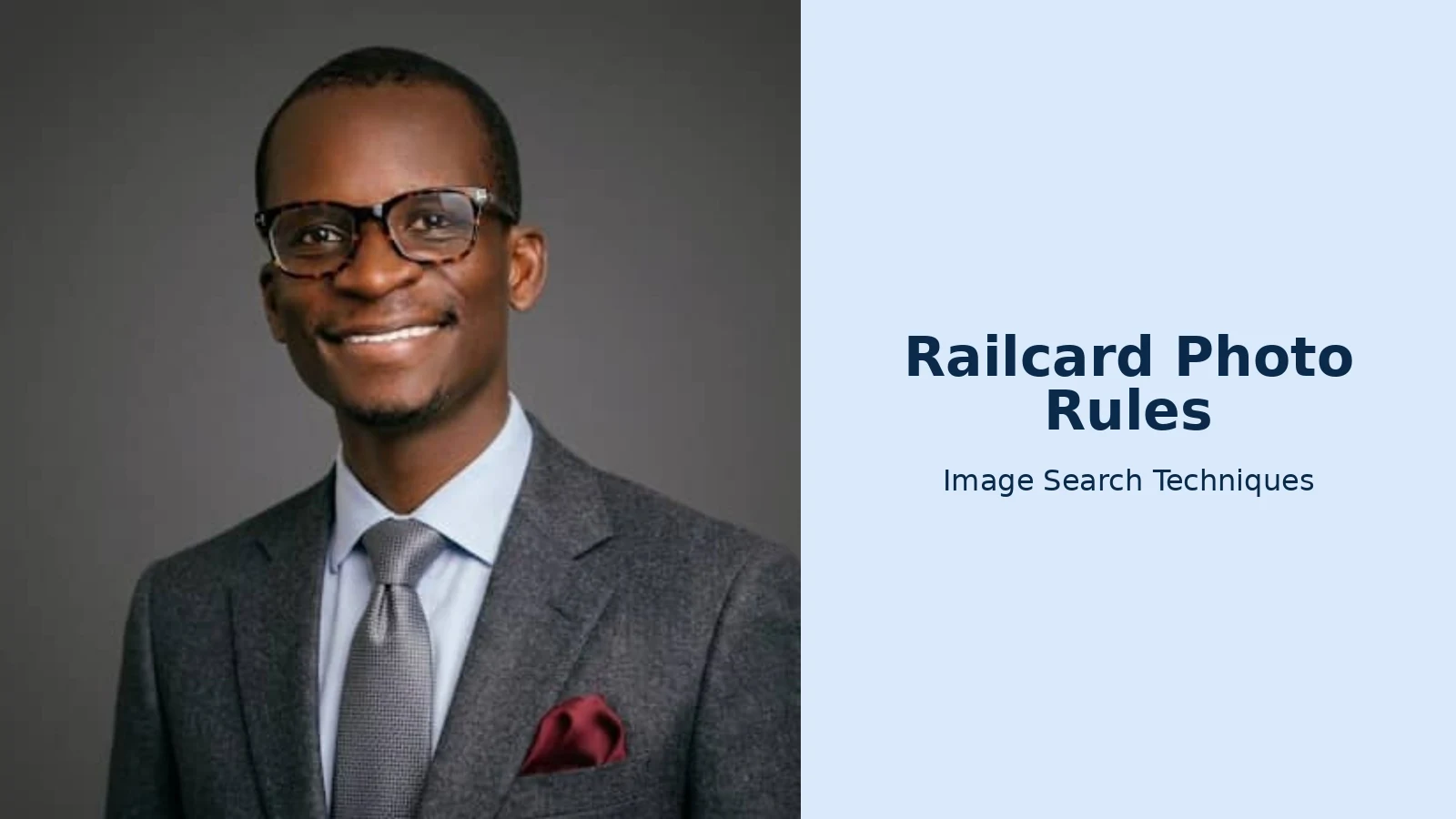
Instead of describing a perfect photo, I took a real one and measured it against the rules. The photo is a professional head-and-shoulders portrait from Wikimedia Commons, published under a CC BY-SA 3.0 licence, showing a smiling man in a suit against a plain grey background. It is the kind of photo people actually have on their phones: a LinkedIn-style portrait, not a booth shot. Here is what its file actually contains.
The file is a JPEG, 1,536 by 1,513 pixels, 159KB. That passes every card’s format and size rules at once: JPEG is accepted everywhere, and 159KB is well under the 5MB ceiling. The file carries no dpi value in its metadata, which is normal for a photo saved from a phone or a website, and it does not matter. Printed at the 35mm width of a railcard photo, 1,536 pixels works out at roughly 1,100 dots per inch, far above the 300dpi the FAQs ask for. The lesson is that pixel count matters more than the dpi tag. Any photo wider than about 1,000 pixels will clear the resolution rule when printed this small.
The picture itself is a mixed result. The background is plain, the face is lit evenly with no harsh shadow, the glasses are clear with no glare, and nothing covers the face. The weak point is the framing. Measuring the image, the head runs from roughly the top of the hair to the chin across about 35% of the frame height, with shoulders and background taking the rest. The railcard guidance wants the face filling about 70% of the frame, so this photo would be safer cropped tighter, cutting out the shoulders and the grey space at the sides, before upload. It would probably be accepted as it is, because it is a clear likeness, but a tighter crop removes the argument entirely.
Before uploading a photo of your face to any site, it is worth checking whether that photo is already floating around online. I ran this same portrait through the reverse image search tool on Image Search Techniques to see what the search engines already know about it.
Here is what happened, engine by engine, when I ran that portrait through the tool on 13 November 2026. Google Lens failed outright, twice. The page showed “Thinking”, then “Expired visual search”, and both the exact matches and visual matches panels said “No image at the URL”. No CAPTCHA appeared. The Lens button and the Google button open the same Lens search, so they failed identically. TinEye worked and found nothing: 0 matches out of the 86.7 billion images it says it has searched, with a note that it has probably not yet crawled any page where this image appears. Bing loaded, but it did not run a true reverse search. The tool sent it a keyword search for “Professional Men’s Suit Portrait”, which returned a grid of generic men-in-suits stock photos and about 30 web results from stock sites. The exact portrait was not in the grid, and no Wikimedia Commons link appeared. Pinterest was the same story in a different shape: the tool linked to a keyword search for the upload.wikimedia.org domain, which returned 37 pins of unrelated Wikimedia images, from the Taj Mahal to Audrey Hepburn. Yandex was the only engine that handled the photo properly. It loaded the exact portrait, returned 24 similar-image thumbnails and more than 40 sites containing the image, but no Wikimedia Commons page among them. It did attach a name-like tag, “dr charles”, next to a Yale Medicine page, and the same portrait turned up as a thumbnail on many unrelated pages, from Fiverr gigs to WebMD and Healthgrades. That is not an identification, and I am not reporting it as one. It is a reminder that a professional portrait can travel a long way from its source, and that a search engine associating a face with a name is not proof of who someone is. One tool note: the “Search All” button opened only the Google tab, so each engine had to be run on its own.
The point of the check is not to catch the engines out. It is to see your photo the way a stranger would. If your portrait already appears on a company page, a social profile or a stock site, that is useful to know before it also appears on a railcard that you will show to a stranger on a train. A photo that has never been published anywhere returns nothing, which is the result you want for a private document photo.
Why do railcard photo uploads fail?
Most upload failures are technical, not photographic. The picture can be perfect and still bounce off the form. This table covers the failures people actually hit, with the fix for each one, in the order to try them.
| What happens | Why it happens | Fix it like this |
|---|---|---|
| Upload stalls, or a “file too large” message | The file is over 5MB, which a modern phone photo often is | Crop the photo first, then save a smaller copy as a JPG at slightly lower quality |
| “Unsupported format” or a silent failure | An iPhone saved the photo as HEIC, which no railcard site lists | Convert it to JPG before you upload, steps below |
| PNG refused on 26-30 or Two Together | Those two sites list .jpg, .bmp and .gif only | Convert the PNG to JPG, do not just rename the file |
| “Photo not suitable” days later | The face is too small in the frame, or the photo is blurred or dark | Crop tighter so the face fills most of the frame, or retake it facing a window |
| Nothing happens when you click upload | JavaScript off, an old browser, or a stuck session | Enable JavaScript, update the browser, restart it, clear the cache, sign out and back in |
| A 4MB file fails on a train company site | Some retailers set their own limit, GWR lists 2MB, not 5MB | Shrink the file under 2MB, or buy on railcard.co.uk instead |
The HEIC problem deserves its own paragraph, because it is the single commonest technical failure and the error message rarely names it. iPhones save photos as HEIC by default. No railcard FAQ lists HEIC as an accepted format, so the upload fails and the site does not always say why. To stop it happening again, open Settings, then Camera, then Formats, and choose Most Compatible, which makes the phone save new photos as JPEG. For a photo you already have, open it in the Photos app and export or share it as a JPEG, or open it on a computer and save a copy as a JPG. Renaming the file from .heic to .jpg does nothing. The file has to be converted, not relabelled.
The same warning applies to PNG files on the 26-30 and Two Together sites. Changing the extension to .jpg leaves a PNG file with a JPG name, and the upload form reads the file, not the name. Open the image and export it as a JPEG, or use any free converter, and check the new file ends in .jpg and opens as one.
The retailer trap is the quietest of the lot. The official railcard sites allow 5MB, but the Great Western Railway railcard pages list a 2MB limit for the same cards, with the same 300dpi rule and the same .jpg, .bmp or .gif formats. If you buy through a train company’s site, use its limit, not the official one. A photo between 2MB and 5MB will upload fine on railcard.co.uk and fail on the retailer’s page, with no explanation beyond a generic error.
How do I take a railcard photo at home?
You do not need a photo booth. A phone photo taken with a little care passes the railcard rules, which are looser than a passport’s. Black and white is accepted, glasses are fine if they do not glare, and there is no rule about when the photo was taken, only that it looks like you now.
- Stand against a plain, light-coloured wall, facing a window in daylight. Do not stand with the window behind you.
- Ask someone to take the photo at eye height, about an arm’s length away, or prop the phone up and use the timer.
- Frame head and shoulders only, with your face taking up most of the picture. Leave a little space above your head, not half the wall.
- Look straight at the camera with a neutral expression. Take off sunglasses and push hair away from your face.
- Check the photo at full size before you upload it. If it looks soft or dark, retake it rather than trying to fix it with a filter. The central help centre lists no digital edits or filters in its photo guidelines.
- Save it as a JPG under 5MB. On an iPhone, check it is not a HEIC file first.
One thing the railcard rules share with passport rules is the face-covering line. The photo must be taken with nothing covering the outline of your eyes, nose or mouth, and the rail industry applies the same rules as the DVLA and the Passport Office. A headscarf that leaves the face fully visible is fine. A veil covering the face is not, and the application may be declined if the photograph is not of reasonable quality to identify the person. The Senior Railcard FAQ states this directly, and the central help centre repeats it.
Can I use my passport photo for a railcard?
Yes. A passport photo meets every railcard rule, because the railcard rules are a looser version of the passport ones. The only checks left are the file ones: the format must be one your card accepts, and the file must be under 5MB. A digital passport photo is usually a JPG already, so it normally uploads without any work. If your passport photo is a scan of a printed photo, check it is sharp and not a photo of a photo, which the railcard sites reject as not a clear likeness.
If you buy at a station instead of online, you need a printed passport-style photo with you. Most railcards can be bought at a staffed station, except the 16-17 Saver, the Veterans Railcard and the Disabled Persons Railcard, which cannot be bought at a ticket office. The 26-30 Railcard is online only as well. For the cards you can buy at a station, the photo rules are the same, only the format changes from a file to a print.
Changing the photo later is possible but not free. If your appearance changes significantly after you buy a 16-25 Railcard, the card’s own FAQ says you can update the photograph for a £10 administration fee by calling the Railcard helpline on 0345 030 4100. The helpline takes payment and tells you how to supply the new photo. The same £10 fee applies to a replacement card in most cases, and a replacement is free if you report a card that never arrived within 30 days of purchase. Unless the change in appearance makes you very hard to identify, the official advice is to wait until the card expires and update the photo at renewal.
Our own passport guide covers the stricter end of the same problem. If your passport photo itself was rejected, read Passport Photo Rejected? Decode the HMPO Checker’s Message and Fix It First Time, which decodes the checker’s messages one by one. For children’s photos, the rules change with age, and Baby and Child Passport Photos: The Rules Change at Age 1 and Age 6 covers ages 0 to 15. The same UK official-photo-rules pattern shows up in travel documents too: UK eVisa Photo Rules: The Three Ways They Differ From a Passport Photo explains the UKVI traps, including the 50KB floor that catches people who shrink their files too far. All of these sit under our Face Search and Photo Privacy Guide, which covers what happens to a photo of your face once it is online.
What if my photo keeps failing?
Work through the fixes in order. First, check the file: JPG, under 5MB, and the right format for your card. Second, check the picture: face large in the frame, plain background, sharp, nothing covering your face. Third, check the browser: JavaScript on, latest version, cache cleared, signed out and back in. The 16-25 Railcard FAQ lists exactly those steps, in that spirit, for a photo that will not upload.
If it still fails, do not keep uploading the same file. Each attempt costs nothing, but it also teaches you nothing. Change one thing at a time: convert the format, then shrink the file, then crop the face larger, then retake the photo. If the site accepts the file but a reviewer rejects the picture, the email will usually say why, and the fix is a new photo, not a new file. If you bought through a train company site, try the official railcard.co.uk checkout instead, where the limit is 5MB rather than 2MB.
And if the deadline is pressing, remember the station option. A printed passport-style photo and a staffed ticket office will get most railcards issued without any upload at all. It is the oldest workaround in this guide, and it still works.
The same pattern shows up beyond railcards. Our guide to Blue Badge photo rules shows how councils disagree on photo recency while the national standard stays fixed.
What photo do I need for a Railcard?
You need a passport-style photo: head and shoulders in close-up, face clearly visible and filling about 70% of the frame, against a plain background. The file must be under 5MB at 300dpi, in a format your card accepts: JPG, JPEG or PNG for a 16-25 Railcard, JPG, BMP or GIF for a 26-30 Railcard.
Why was my railcard photo rejected?
Either the file broke the rules or the picture did. A file rejection means the wrong format, usually a HEIC photo or a file over 5MB. A picture rejection means the face was too small, the photo was blurred, or something covered your face. Convert to JPG under 5MB, then crop the face larger and retake it if it fails.
Can I use a selfie for my Railcard photo?
Yes, if it meets the rules. The Railcard help centre says you can take a selfie or have someone take a photo for you. Use a timer or prop the phone up, face a window, and frame head and shoulders with your face filling most of the picture. A selfie passes; a photo taken from across the room does not.
Do I need a photo for a Network Railcard?
Only if you choose digital. A plastic Network Railcard needs no photo at all, while a digital one asks for a passport-style photo saved on your device. The Family & Friends Railcard works the same way, with a photo only for the digital version. A Senior Railcard bought by post needs a printed passport-style photo sent with the form.






